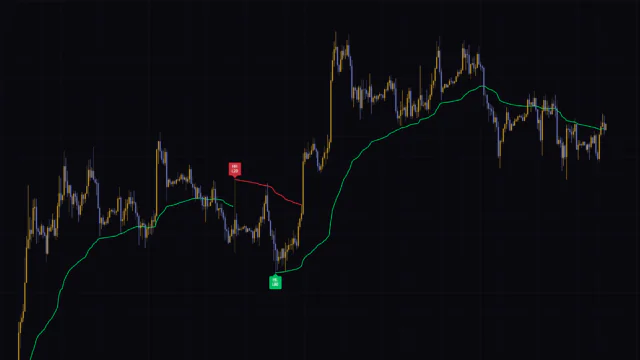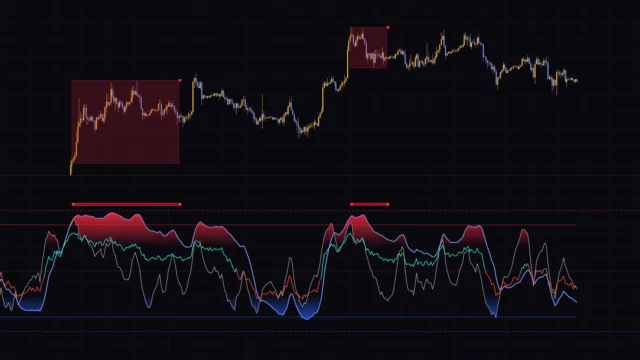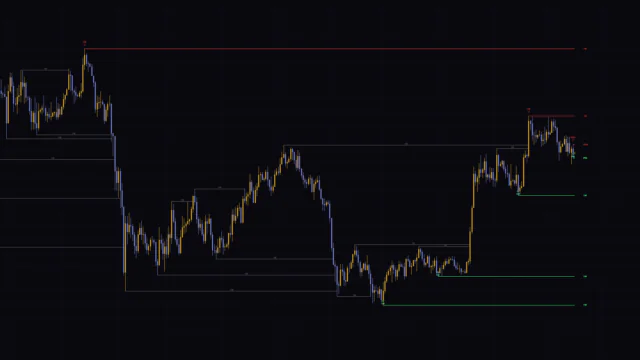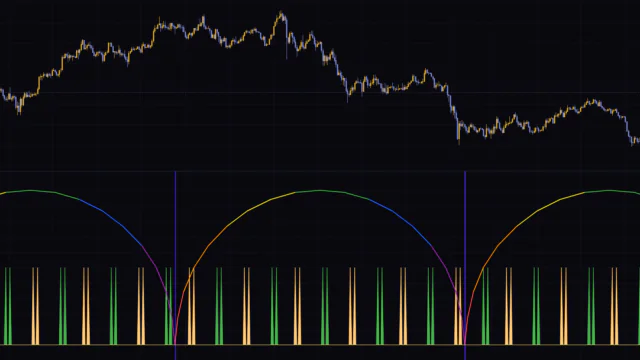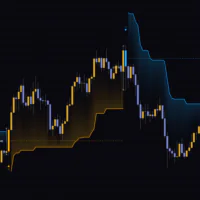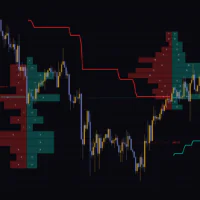


“Trend Deviation Channel” Measures Distance From Trend in Units of “D”
How far has price actually stretched away from the trend? Eyeball it, and you keep running into the same problem: you think “this is getting overextended,” and then it runs even further. Back when I judged the gap to a moving average by eye, my definition of “overextended” changed from one day to the next.
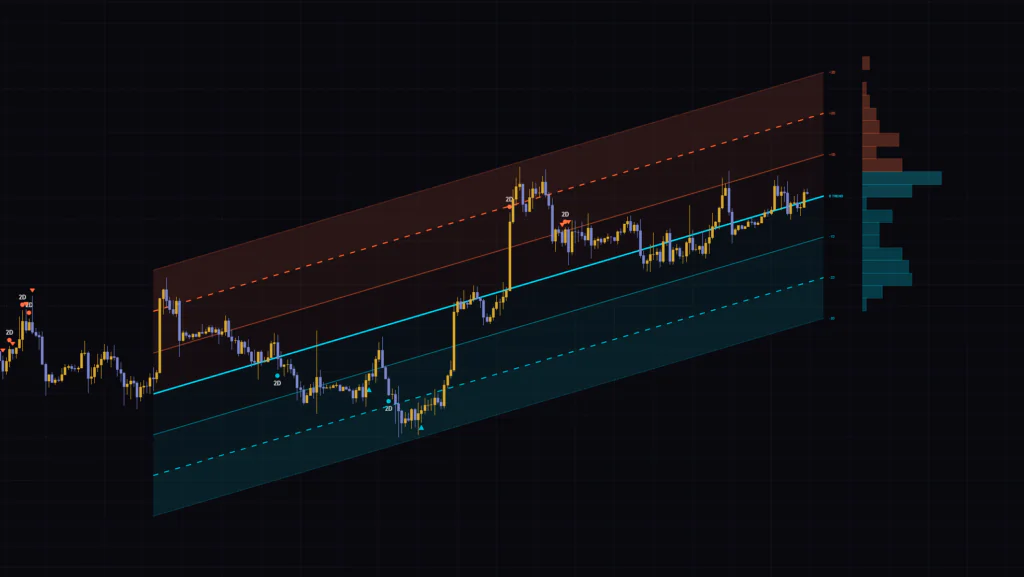
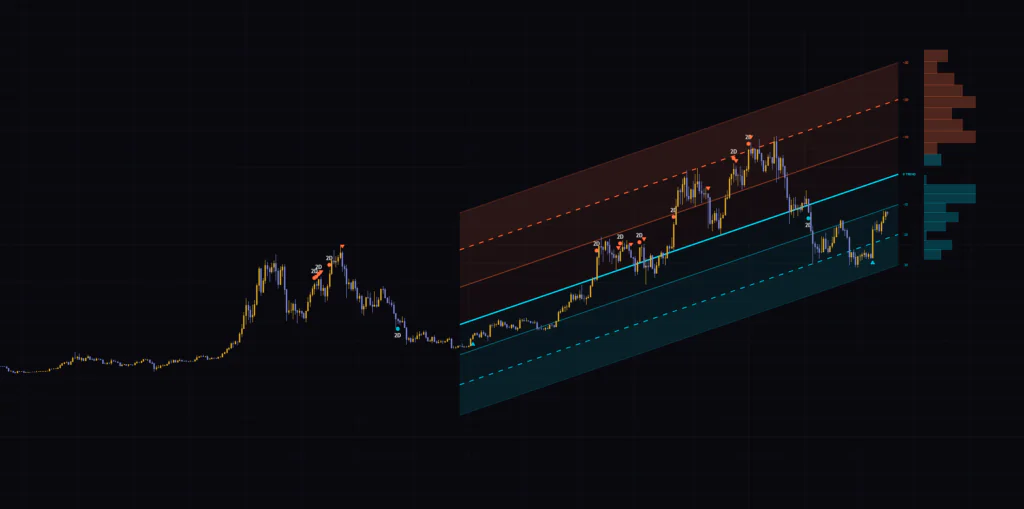
The “Trend Deviation Channel” indicator turns that distance into one consistent unit called “D”. It puts a linear regression line at the center, draws three rails above and three below, and lets you read whether price is sitting at +1.2D or -2.3D right now.
It looks like a regression channel at first glance, but there are two additions. Horizontal bars to the right of the channel show how long price has spent at each distance, and markers print on the bars that close outside a rail and on the bars that close back inside. Once the pieces click, a few seconds on the chart is enough to check both trend direction and how stretched price is.
Let’s start by mapping out what you see on screen.
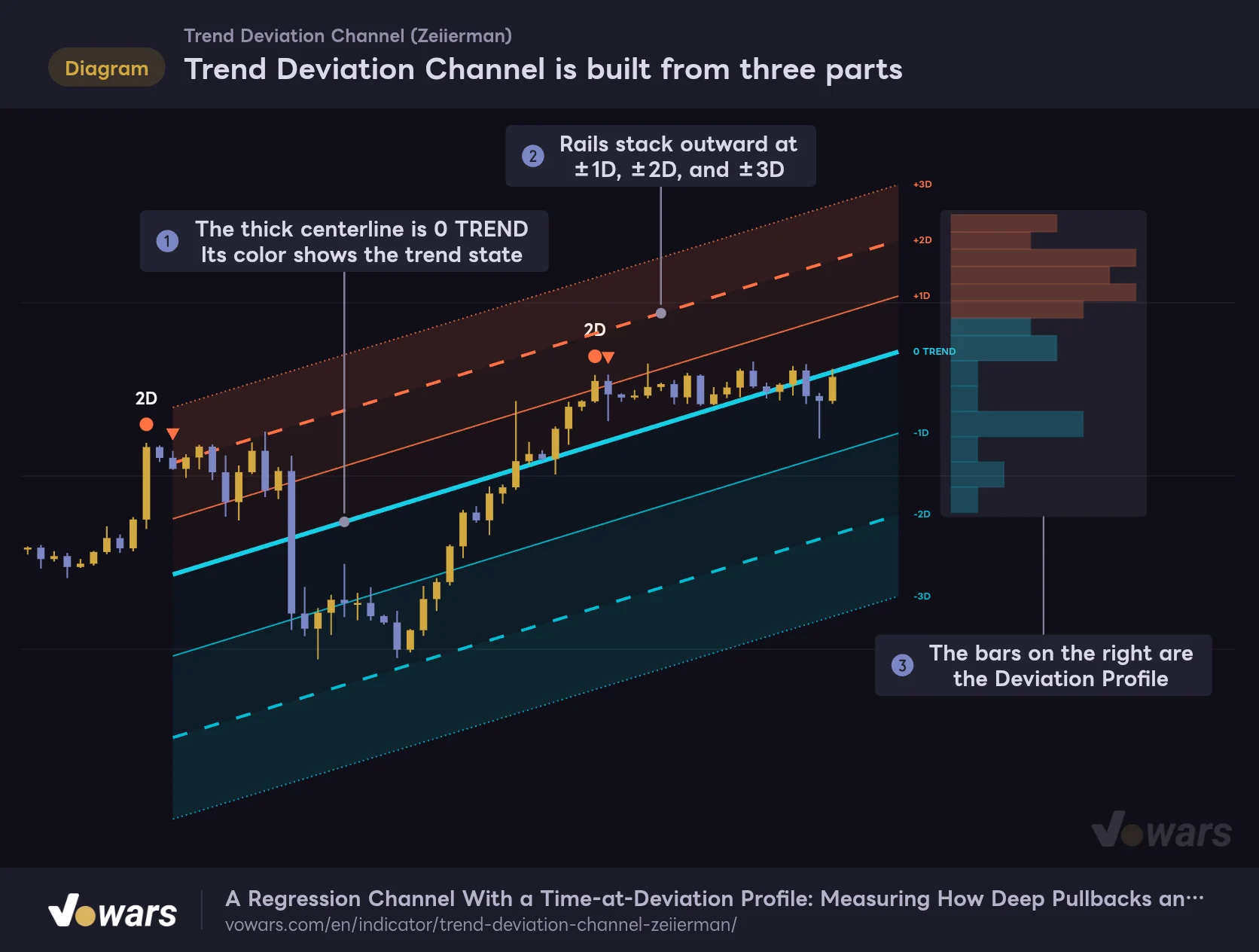
Trend Deviation Channel is built from three parts
A centerline, six rails, and the horizontal bars on the right. Tell these three apart and you can start reading it.
Vowars DE ver.3.12.30
The thick line at Figure ① is the centerline, the lines stacked above and below it at Figure ② are the rails, and Figure ③ on the right edge is the Deviation Profile. Everything above the centerline is orange and everything below is cyan, so the color alone tells you which side you are looking at.
What the Centerline, Rails, and Profile Bars Each Tell You
The Thick “0 TREND” Centerline Shows the Trend State by Color
The centerline is a linear regression line fitted to the most recent closed bars. Trend Length sets how many bars go into it, and the default is 200. The line is then projected five bars forward and drawn on the chart.
Only bars up to the previous close are used. The bar that is still forming is left out, which means neither the centerline nor the rails move until that bar closes. Price is the only thing moving, so you can calmly watch how far the current bar has stretched. I found that reassuring in live use.
The centerline comes in three colors.
| State | Centerline color | Meaning |
|---|---|---|
| Up | Cyan | The upward slope of the regression line is stronger than the threshold |
| Down | Red | The downward slope of the regression line is stronger than the threshold |
| Neutral | Gray | The slope is weak, so it is classified as neither up nor down |
The state is based on how far the regression line travels from one end of the window to the other, divided by ATR (length 100). When that value goes above the Trend Enter Strength of 1.0, the state switches to Up or Down, and it stays there until the value drops below the Trend Exit Strength of 0.25. Because the entry and exit thresholds are different, the color rarely flickers back and forth near the boundary.
One more detail: the choppier the price action, the higher the bar for entering Up or Down, and it is raised automatically by up to 1.5x. With the same slope, a market that moved in a straight line is recognized as a trend more easily. The state only updates on bar close.
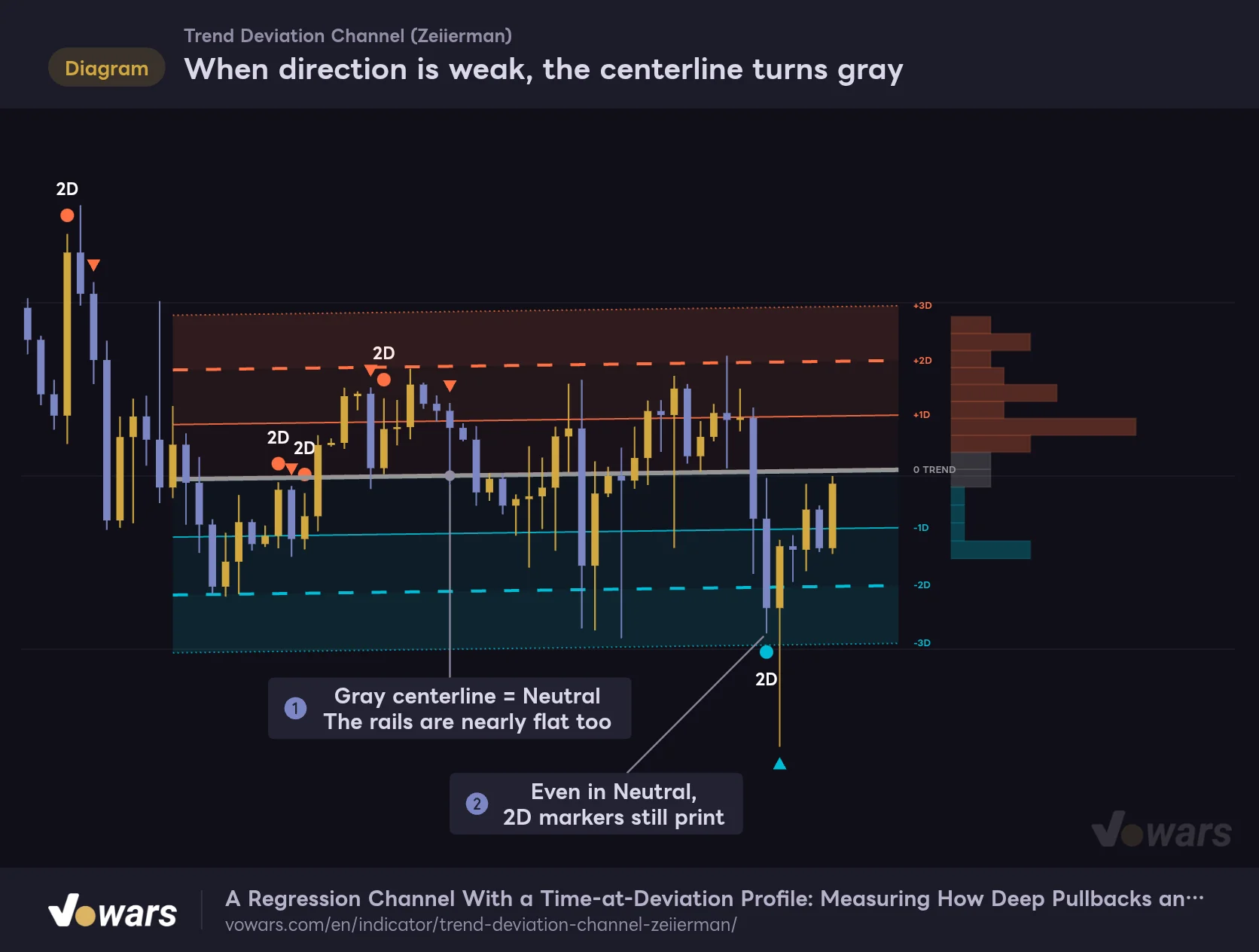
When direction is weak, the centerline turns gray
While the slope stays below the threshold, 0 TREND is drawn in the gray Neutral color.
Vowars DE ver.3.12.30
In a directionless market the centerline goes gray, as in Figure ①, and the rails flatten out. But as Figure ② shows, markers keep printing normally during Neutral. Keep in mind that the trend state and the markers are evaluated separately and you won’t get confused.
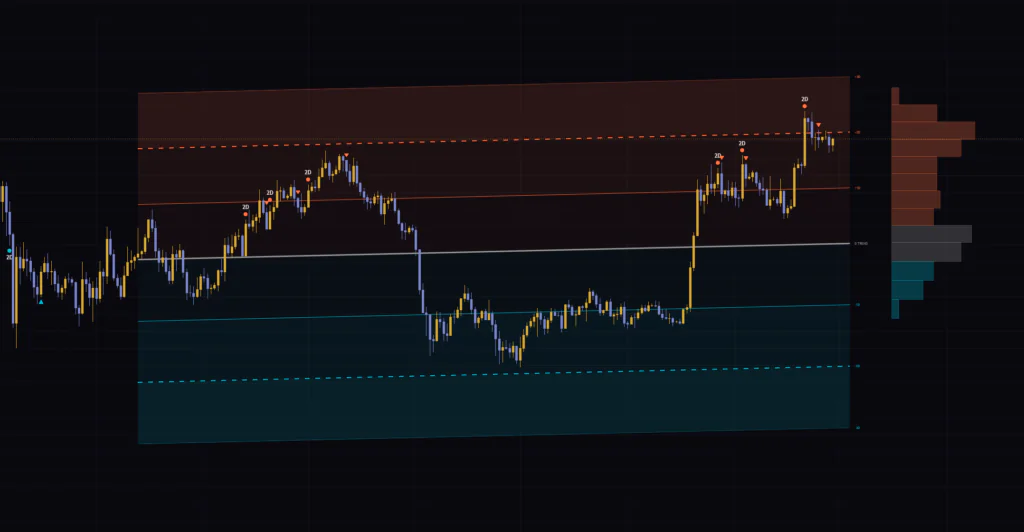
With the default colors, the centerline in the Up state (cyan) and the lower rails (cyan) look very similar. If the centerline gets hard to pick out in an uptrend, the easy fix is to change the Up Trend color to green or something else. Every display color can be changed in the settings.
The ±1D, ±2D, and ±3D Rails, and What the “D” Unit Really Is
There are three rails above the centerline and three below. The thin solid lines are ±1D, the thicker dashed lines are ±2D, and the dotted lines are ±3D. The background fill gets darker toward the outside.
So what is 1D? “Trend Deviation Channel” looks at how far the closes of the last Trend Length bars sat from the regression line, and treats that “typical deviation” as 1D. The idea is close to the standard deviation behind Bollinger Bands, except the baseline is a sloped trend line instead of a flat average.
Each area has a zone name.
| Where price is | Zone name | How to read it |
|---|---|---|
| Less than 1D | CORE | Close to trend, within the normal range |
| 1D to 2D | STRETCH | Stretched away from trend |
| 2D to 3D | EXTREME | A long way from trend |
| 3D or more | DISLOCATED | Close to breaking out of the trend structure |
By default Deviation Shape is set to Asymmetric, which measures 1D separately for the upside and the downside. In a market where sell-offs are sharp and rallies grind higher, the lower rails end up wide and the upper rails narrow. If you are used to symmetric bands it feels odd at first. But once I started seeing it as “this market tends to swing harder to the downside” written directly into the rail spacing, it actually became easier to read.
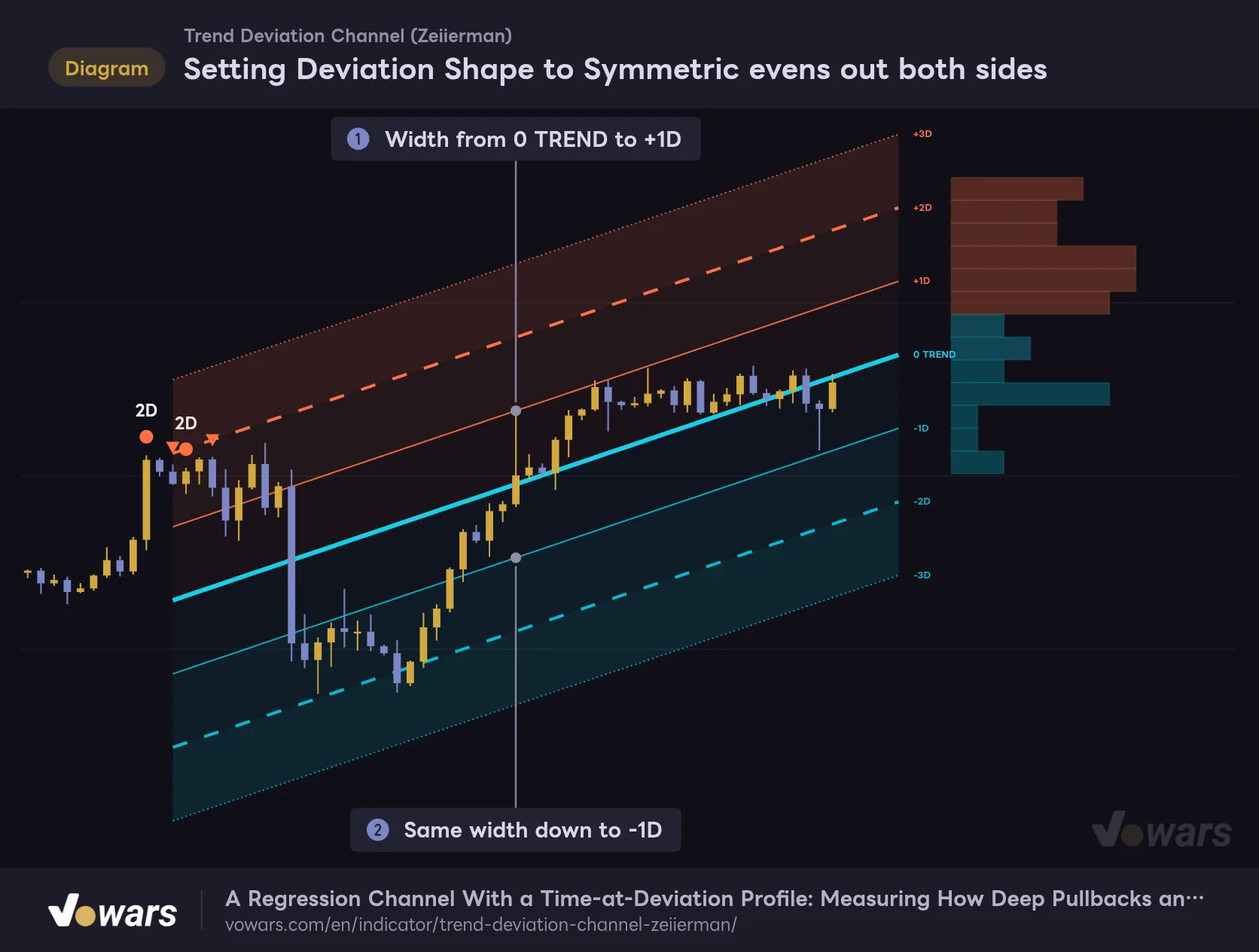
Switch to Symmetric and the same width is used on both sides.
Setting Deviation Shape to Symmetric evens out both sides
Same price action as the first figure, with only Deviation Shape changed.
Vowars DE ver.3.12.30
This is the same price action as the first figure with only Deviation Shape changed. The widths at Figure ① and Figure ② match, giving you the familiar regression channel shape. If you want to compare it against other band-style indicators, this mode makes that easier.
A single abnormally large bar would otherwise drag the width calculation with it. Residual Shock Cap (ATR) limits that: any bar that deviates by more than 4x ATR is treated as 4x. On the other side, Minimum Deviation Width (ATR) is the floor that stops the rails from collapsing onto the centerline when price barely moves.
The “Deviation Profile” on the Right Shows Where Price Spent Its Time
The horizontal bars to the right of the channel tally where each of the last Trend Length closed bars sat, measured in D. It looks like a volume profile, but it counts bars, not volume. The longer a bar at a given height, the more candles spent time at that distance.
If the upper (orange) bars are long, price spent more time above trend. If the lower (cyan) bars are long, it is the opposite. Only the bars around 0D take the centerline color, so you never lose track of where the middle is.
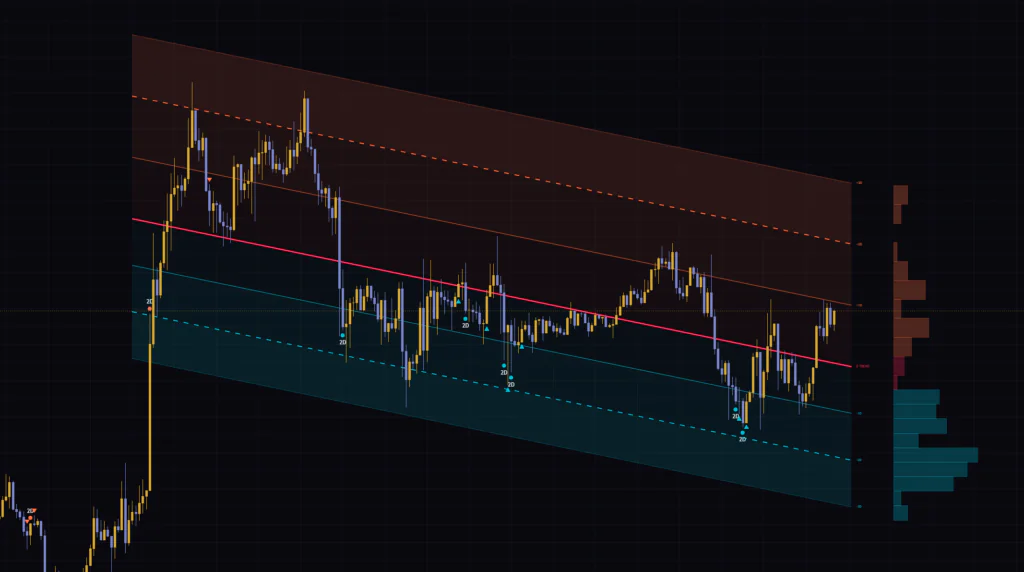
On the 1-hour chart I had open, the centerline was red (Down) and the bulk of the profile sat around -1D to -2D. That reads as price tending to hang below trend within a market that was already heading lower. This kind of skew is hard to count just by staring at candles.
The range that gets tallied is set by Profile Range (D), and the default is ±3.1D. Bars that stretched beyond that range are not counted, so if the whole profile looks thin in a volatile market, try widening it.
When Do the Circle and Triangle Markers Print, and on Which Bar?
The markers on the chart flag two kinds of events: an Expansion, where price closes outside a rail, and a Re-entry, where it closes back inside.
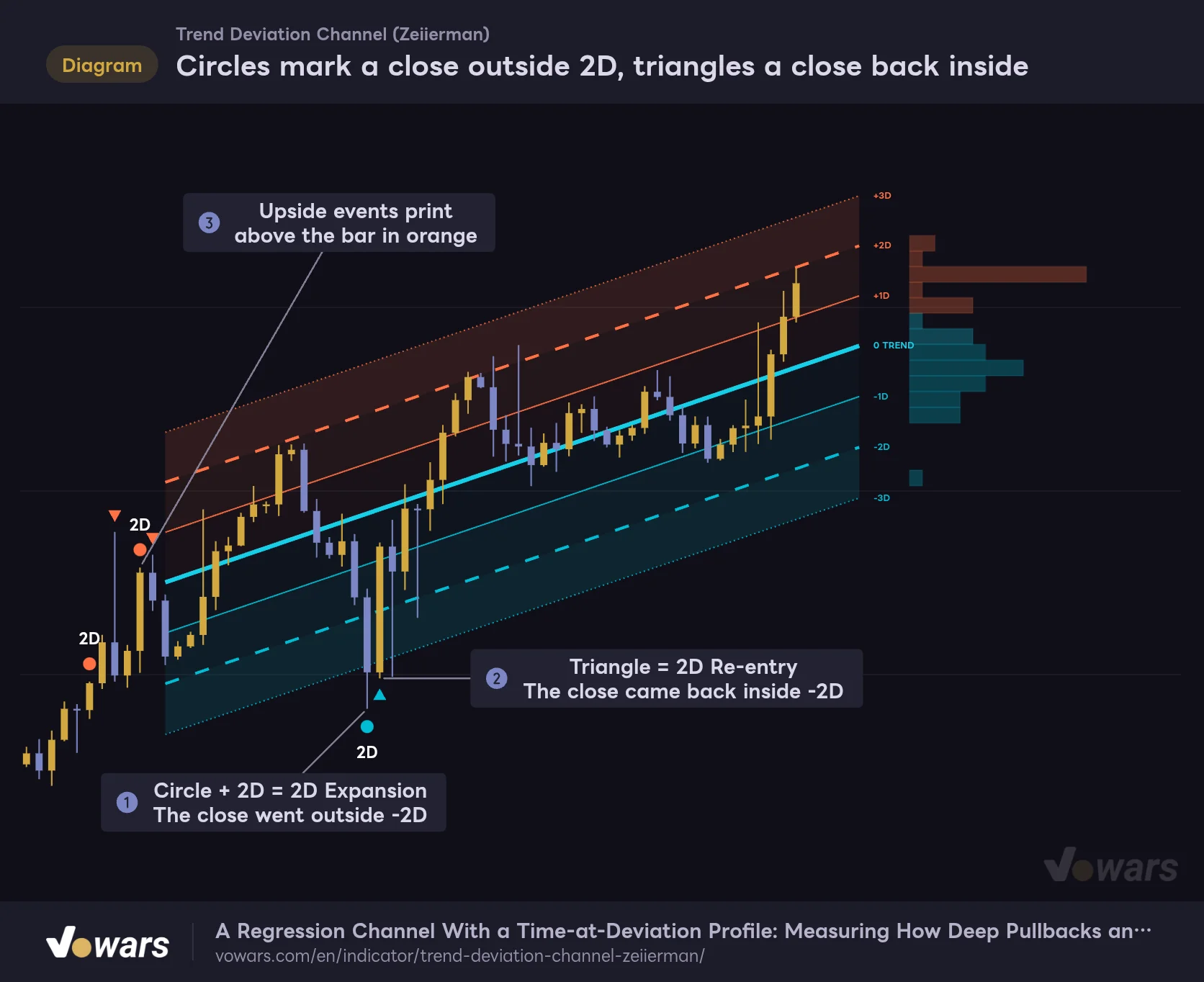
Circles mark a close outside 2D, triangles a close back inside
Both 2D Expansion and 2D Re-entry only print on bars that have closed.
Vowars DE ver.3.12.30
The circle at Figure ① prints on a bar that closes outside the 2D rail. When a later bar closes back inside, the triangle at Figure ② prints. Upside events appear above the bar, as in Figure ③, and downside events below it.
| Marker | Condition | Default |
|---|---|---|
| Circle + “2D” | Bar closes outside ±2D (2D Expansion) | Shown |
| Small triangle | Bar closes back inside ±2D (2D Re-entry) | Shown |
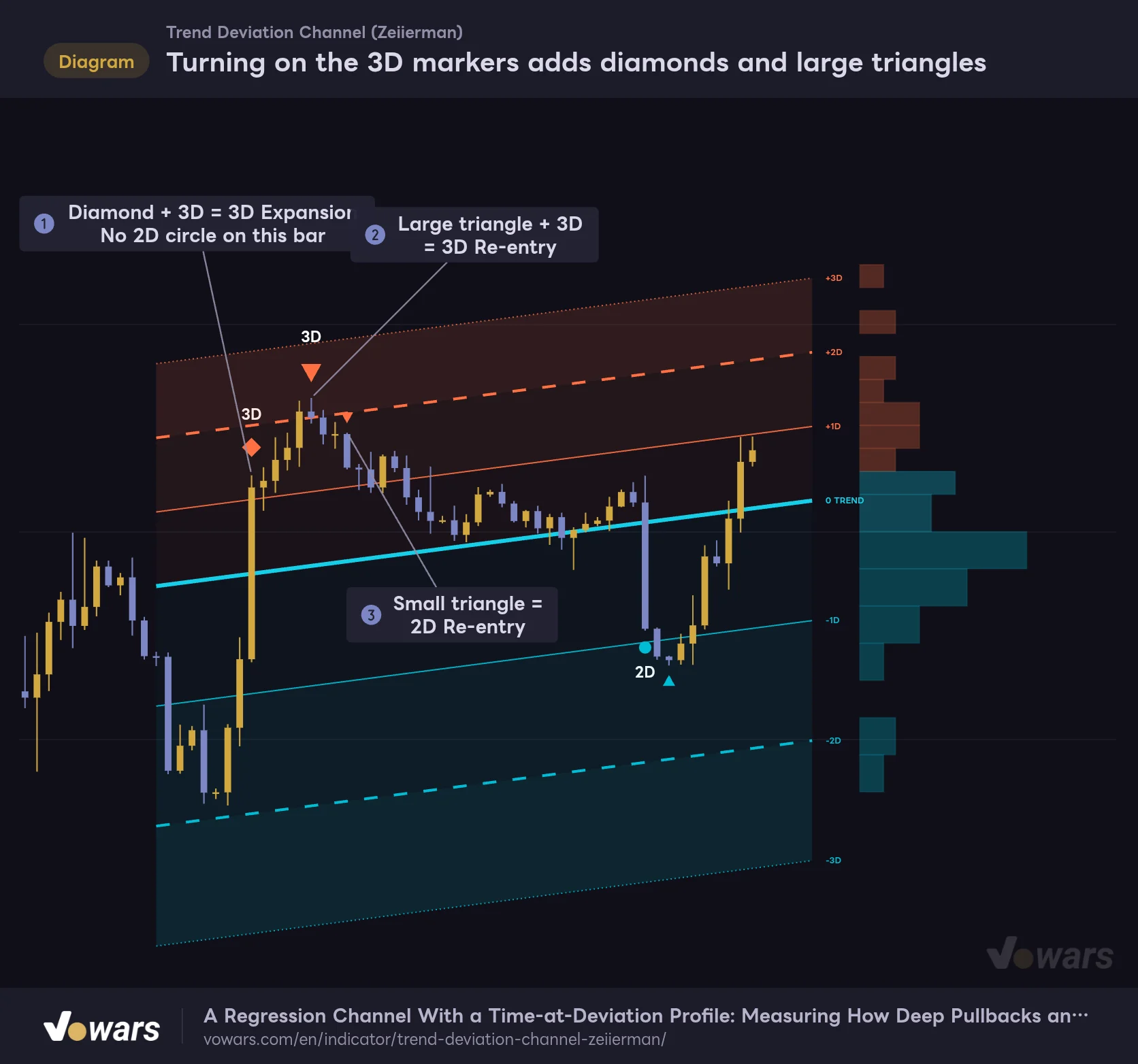
| Diamond + “3D” | Bar closes outside ±3D (3D Expansion) | Hidden |
| Large triangle + “3D” | Bar closes back inside ±3D (3D Re-entry) | Hidden |
The two 3D markers show up once you turn on Show 3D Expansion and Show 3D Re-entry.
Turning on the 3D markers adds diamonds and large triangles
Show 3D Expansion and Show 3D Re-entry are off by default. This is how the chart looks with them on.
Vowars DE ver.3.12.30
When a single big candle clears both 2D and 3D at once, only the diamond prints, as in Figure ①, and the 2D circle is skipped. On the way back, markers print from the outside in: the 3D Re-entry at Figure ②, followed by the 2D Re-entry at Figure ③.
Every marker prints only after the bar closes, and never disappears or moves afterward. A wick poking through a rail is not enough, so you won’t see markers flashing on and off mid-bar.
Why Past Markers Don’t Seem to Line Up With the Current Rails
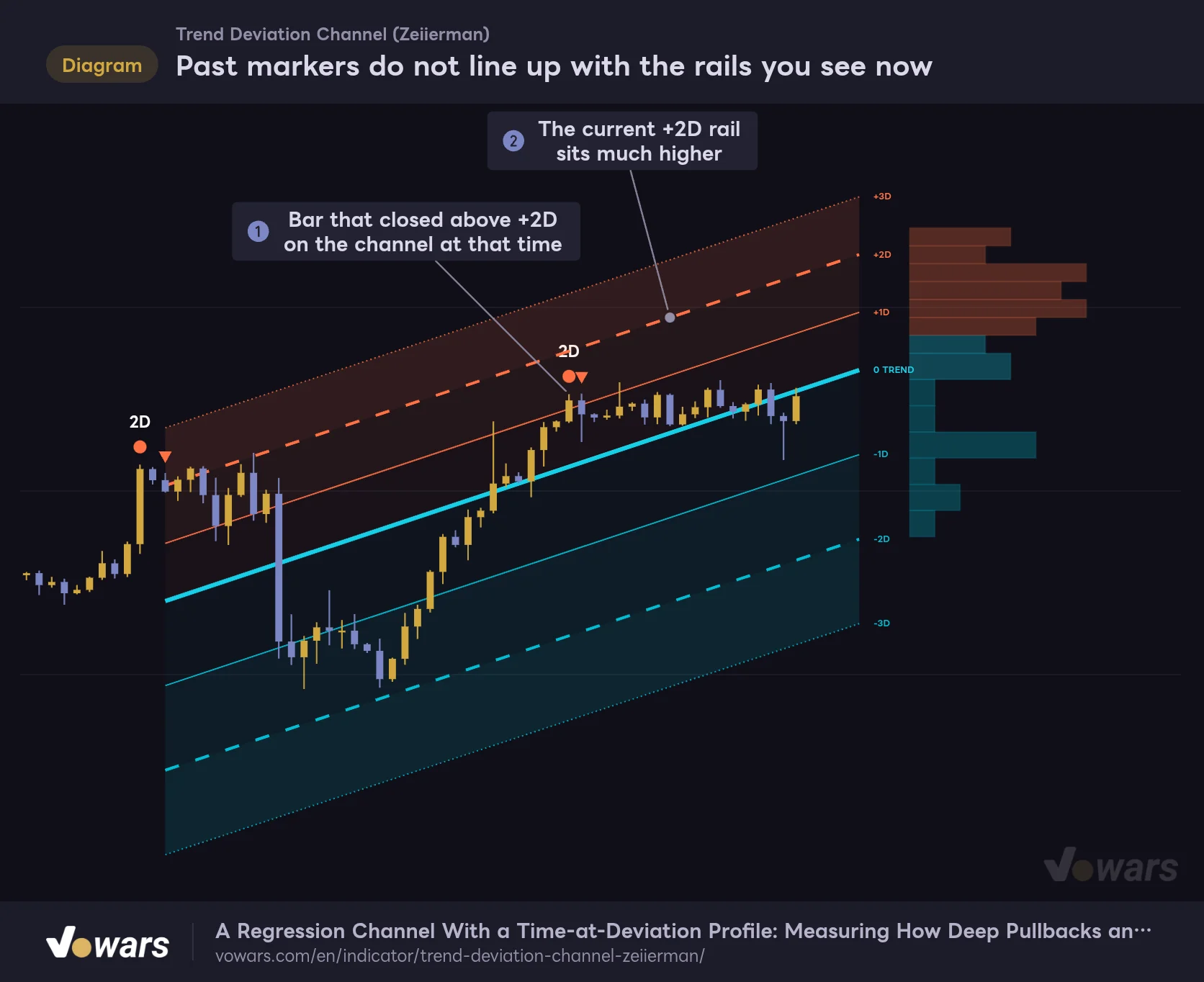
This was the first thing that tripped me up. Scrolling back, I found a “2D” circle on a bar that came nowhere near the +2D dashed line. I honestly thought it was broken.
Past markers do not line up with the rails you see now
Markers are judged against the channel as it stood on that bar, while only the latest channel is drawn.
Vowars DE ver.3.12.30
The reason is simple: the chart only draws the channel for the latest bar. Each time a new bar closes, the regression line is refitted and the whole channel shifts a little. The markers, on the other hand, were judged against the channel as it stood when the bar at Figure ① closed. The channel has moved since then, so the marker no longer matches the current +2D rail, as Figure ② shows.
So read past markers not as “where price was relative to the current rails” but as a record that price was 2D or more away from trend at that moment.
Scrolling back does not show you the channel from an earlier point in time. To check it, use TradingView’s Bar Replay and rewind to the bar you care about. That replays the channel and markers bar by bar as they were at that point. Which timeframes you can replay and how far back you can go depend on your plan (as of October 5, 2026).
What Moves in Real Time and What Doesn’t
With any channel indicator, the obvious question is whether the display changes after the fact. Here is how “Trend Deviation Channel” behaves before and after a bar closes.
| Element | Until the bar closes | After the bar closes |
|---|---|---|
| Centerline and rails | Do not move | Redrawn to include the new bar |
| Centerline color | Does not change | Evaluated on close and switches if needed |
| Markers | Do not print | Print if the condition is met, then stay fixed |
| Deviation Profile | Shown with the current bar’s position included | Added to the tally as a confirmed position |
| Current price label | Moves with price | Becomes the closing value |
Markers don’t move after the close, so the ones you see in history printed on those same bars in real time. You don’t have to worry that they only look good in hindsight.
The channel lines themselves, though, are redrawn on every bar. That is by design: it reflects the latest trend and does not keep old lines around. You can’t work backward from the current lines to find out where -2D was last week, so for backtesting use Bar Replay as described in the note above.
The Order I Read It In on the Chart
There is a lot on screen, so it helps to settle on an order. This is how I go through it.
1 Get the bias from the centerline color
Cyan is up, red is down, gray is no clear direction. This first check tells you whether to think trend-following or treat it as a range.
2 See which zone price is in
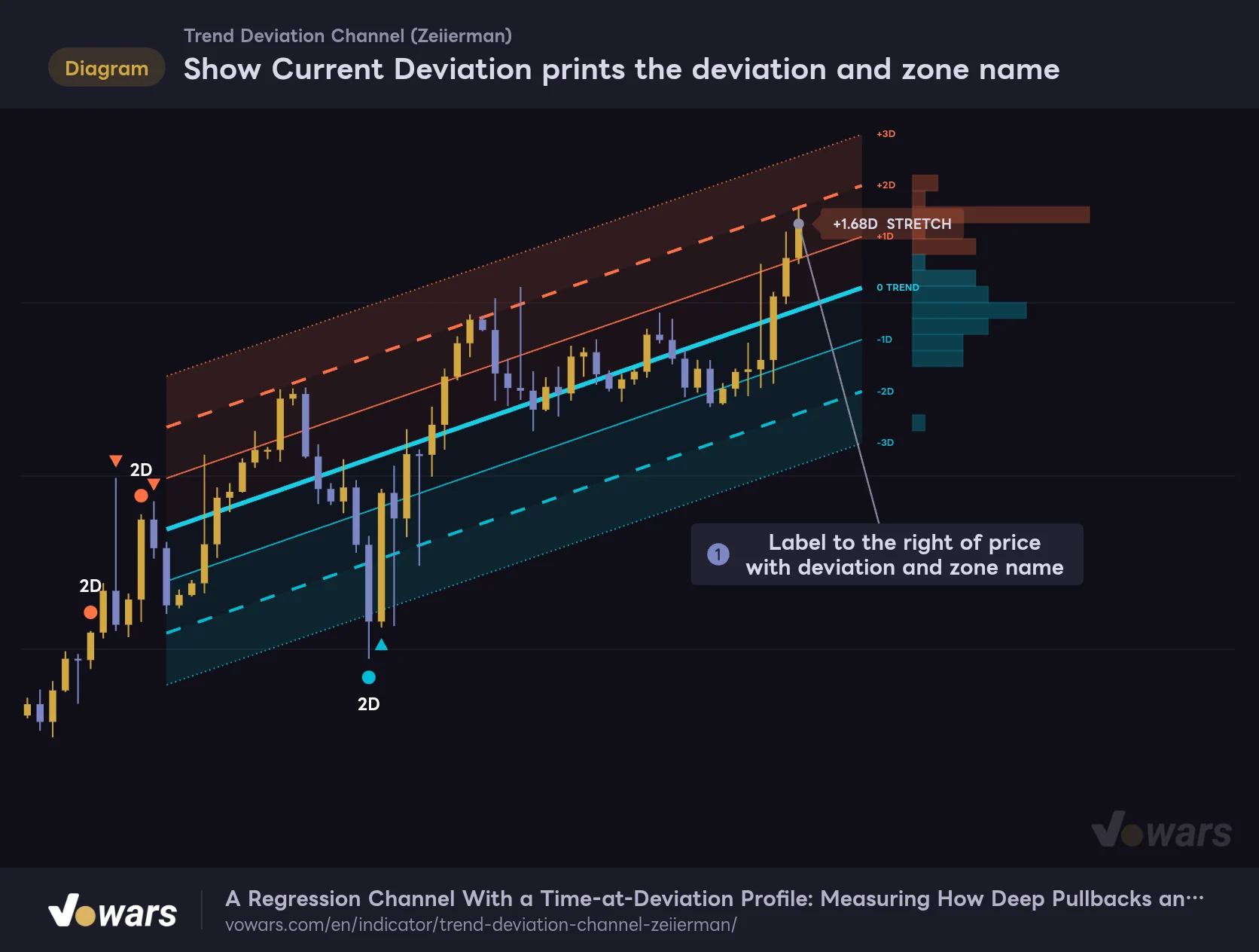
You can judge the position against the rails by eye, but turning on Show Current Deviation gives you the number.
Show Current Deviation prints the deviation and zone name
A label that tells you where price sits within the rails as a number plus a zone name.
Vowars DE ver.3.12.30
The label at Figure ① appears to the right of the current price and shows the deviation and zone name, for example “+1.68D STRETCH”. It is off by default, so I recommend switching it on right away. On timeframes where the rails are tightly spaced, this was far quicker than eyeballing it.
3 Combine the zone with the trend to get the meaning
The same -1.5D means something different with a cyan centerline than with a red one.
- Cyan centerline, price at -1D to -2D: a deep pullback within an uptrend
- Red centerline, price at +1D to +2D: a relief rally within a downtrend
- Price reaching 3D against a long-running trend: the trend itself may be starting to change
- Gray centerline, price near ±2D: the edge of the range
One thing to be careful about: the rails are not drawn as support or resistance. You can’t assume price will bounce just because it tagged 2D. All it tells you is that price is twice as far from trend as usual, so if you are looking for a reversal, it is safer to wait for the Re-entry triangle.
4 Use the profile skew to confirm which way the pressure is leaning
Last, look at the bars on the right. If the bulk sits on the same side as the trend, pressure in that direction is still there. If it is clustered around 0D, price has settled near the regression line. It is not the main input, but there were times it gave me a good reason to pass on an entry.
Adding RSI to Back Up the 2D Markers
“Trend Deviation Channel” measures distance from trend. How overbought or oversold the market is belongs to a different yardstick, so adding one oscillator gives you more to work with. The one I found pairs best is RSI.
Paired with RSI, 2D markers get an overbought confirmation
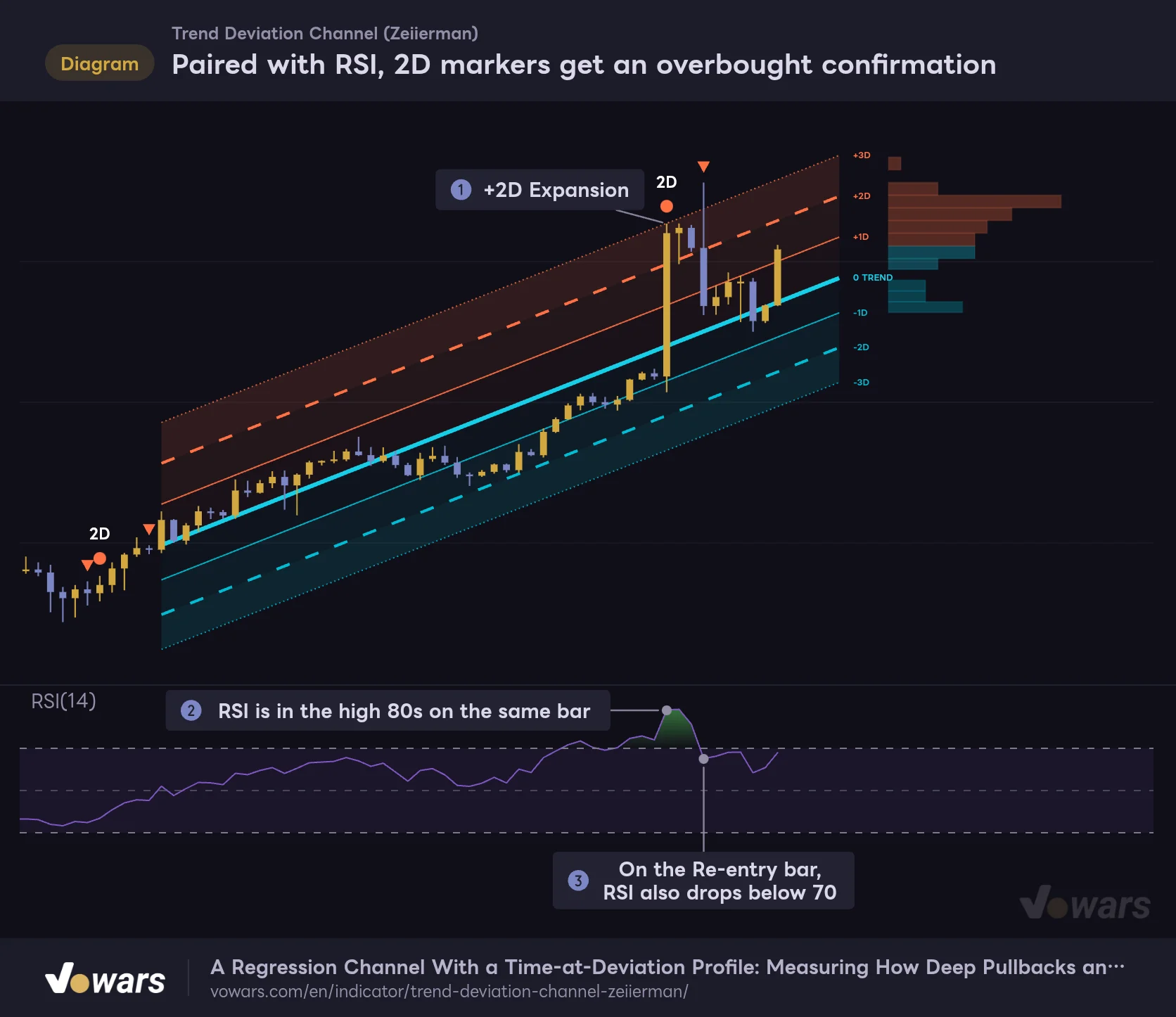
This combination uses the lower pane to check whether RSI is also overbought on the bar where a +2D Expansion prints.
Vowars DE ver.3.12.30
Take the bar where the +2D Expansion printed at Figure ① and check it in the lower pane. If RSI is also elevated, as in Figure ②, you have both distance and overbought conditions lining up. After that, the Re-entry and RSI dropping below 70 came together at Figure ③.
That said, a +2D Expansion in an uptrend is often just the start of a further leg up. Don’t fade the Expansion circle. Wait until the Re-entry and the RSI turn line up, then think about it. Sticking to that order alone cuts out a lot of early entries.
How It Looks on Different Timeframes
With Trend Length left at 200, a single regression line smooths roughly 2 days of price action on the 15-minute chart, about 8 days on the 1-hour, and about 200 days on the daily (around six and a half months for crypto, which trades around the clock).
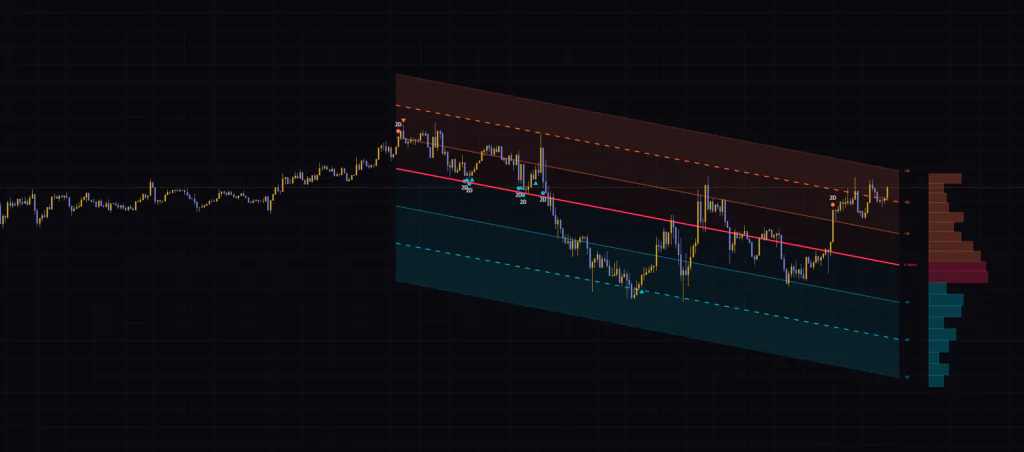
The channel shape comes out clean on lower timeframes too, but you get more markers. My impression is that the 15-minute to 1-hour charts work well for day trading, and the 4-hour to daily for swing trading. On instruments that tend to trend hard in one direction, like gold, price often does not come back right after an Expansion, so turning on the 3D markers as well lets you see the stages and makes the situation easier to follow.
There is no timeframe input in the settings. If you want to see the higher-timeframe channel at the same time, either switch the chart timeframe or use a multi-chart layout. How many charts you can place side by side depends on your TradingView plan (as of October 5, 2026).
Settings, and Which Ones to Touch First
The list looks long, but day to day you only need three: Trend Length, Deviation Shape, and Show Current Deviation. I had no trouble leaving the rest at their defaults.
| Setting | Default | Suggested | Effect |
|---|---|---|---|
| Source | close | Leave at default | Price used to fit the regression line and measure deviation. Markers are judged on this price too |
| Trend Length | 200 | 50 to 100 for short term, 200 or more for long term | Number of bars in the regression line (20 to 400). Higher is smoother and slower, lower hugs recent price action |
| Trend Enter Strength | 1.0 | Leave at default | Slope strength required to enter Up or Down. Raising it means more time in Neutral |
| Trend Exit Strength | 0.25 | Leave at default | Below this strength the state returns to Neutral. Lowering it keeps the trend state active longer |
| Deviation Shape | Asymmetric | Leave at default | Measure the upside and downside widths separately (Asymmetric) or use one width (Symmetric) |
| Residual Shock Cap (ATR) | 4.0 | Leave at default | Cap on how much a single bar can affect the width calculation (multiple of ATR) |
| Minimum Deviation Width (ATR) | 0.05 | Leave at default | Floor for the width of 1D (multiple of ATR). Stops the rails from collapsing onto the centerline |
| Minimum One-Side Samples | 12 | Leave at default | Bars needed on one side before that side gets its own width. A side with too few uses the shared width |
| Deviation 1 | 1.0 | Leave at default | Position of the first rail. The boundary between CORE and STRETCH |
| Deviation 2 | 2.0 | Leave at default | Position of the second rail. The threshold for 2D markers and alerts |
| Deviation 3 | 3.0 | Leave at default | Position of the third rail. The threshold for 3D markers and alerts |
| Stretch Memory | 0.90 | Leave at default | How long the memory of being beyond 1D is kept. Does not change the rail positions |
| Show Rail Labels | On | On | Shows the +1D, 0 TREND and other labels at the right end of the rails |
| Show Current Deviation | Off | On | Shows the label with the current deviation and zone name |
| Up Trend / Down Trend / Neutral Trend | Cyan / Red / Gray | Consider another color for Up Trend | Centerline color for each state |
| Upper Deviation / Lower Deviation | Orange / Cyan | Leave at default | Color of the upper and lower rails, fills, profile bars, and markers |
| Show 2D Expansion / Show 2D Re-entry | On / On | On | Shows the 2D markers |
| Show 3D Expansion / Show 3D Re-entry | Off / Off | On for volatile instruments | Shows the 3D markers |
| Show Deviation Profile | On | On | Shows the profile on the right edge |
| Bins | 20 | Leave at default | Number of profile rows (11 to 61). More is finer, fewer is smoother |
| Profile Range (D) | 3.1 | Leave at default | Range counted in the profile. It never goes below Deviation 3 |
| Profile Gap | 12 | Around 4 on a small screen | Gap from the right end of the channel to the profile (in bars) |
| Profile Max Width | 24 | Around 12 on a small screen | Width of the longest profile bar (in bars) |
Change Trend Length and You Get a Different Channel
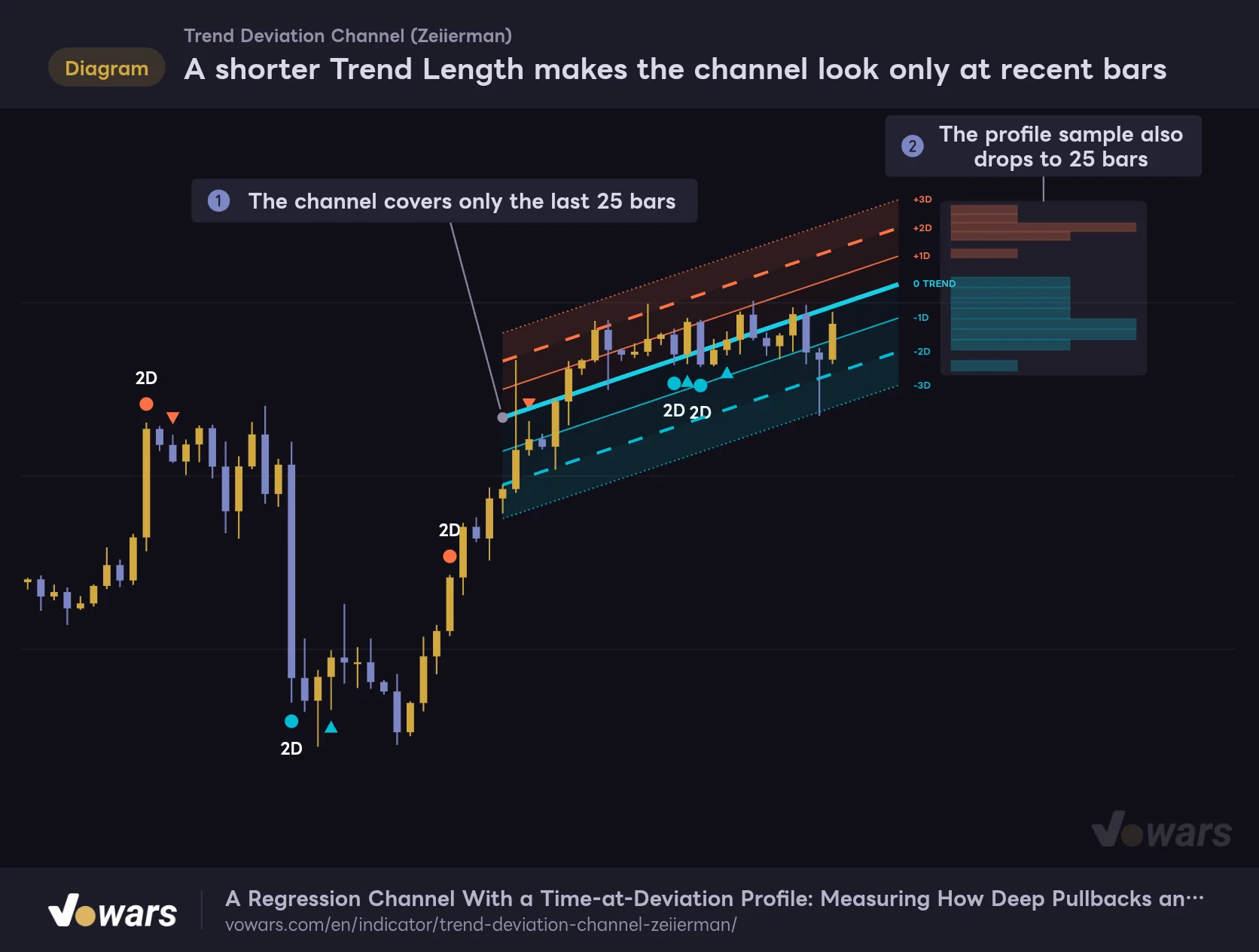
The setting with the biggest impact on what you see is Trend Length.
A shorter Trend Length makes the channel look only at recent bars
Same price action with Trend Length set to 25. Both the slope and the width differ from the 50 setting.
Vowars DE ver.3.12.30
This is the same price action as the first figure (50 bars), changed to 25. As Figure ① shows, the channel now covers only the most recent stretch, and both the slope and the width have changed. The profile at Figure ② is tallied over the same number of bars, so set it too short and the bars get sparse.
As a rough guide, use 50 to 100 to follow the short-term flow, and 200 or more to capture the bigger move in one line. I give a range for the suggested value because the same bar count covers a completely different period depending on the timeframe. Work backward from “how many days of trend do I want as my baseline” and you will land on a value that fits.
Deviation 2 is treated as at least 0.1 above Deviation 1, and Deviation 3 as at least 0.1 above Deviation 2. Even if you enter values that would swap the order, they are corrected automatically. If the numbers in the settings don’t seem to match where the rails are, check this first.
Extra Info When You Hover Over the Labels
It is easy to miss, but the labels on the chart carry extra detail. Hover over the “0 TREND” text and you get the current state, the slope strength, the strength required to enter Up or Down, and how straight the price path has been (Path Efficiency). It came in handy when I wanted to know how close the color was to flipping.
The current price label shows a number called Stretch memory. It grows the longer price stays beyond 1D, and Stretch Memory controls how quickly that number fades. It has no effect on the rails or markers, so you can leave it alone if it doesn’t matter to you.
Eight Alert Conditions, All Firing on Bar Close
There are eight alert conditions in total: upper and lower Expansion and Re-entry, for both 2D and 3D.
- Upper 2D Expansion / Lower 2D Expansion
- Upper 2D Re-entry / Lower 2D Re-entry
- Upper 3D Expansion / Lower 3D Expansion
- Upper 3D Re-entry / Lower 3D Re-entry
Select “Trend Deviation Channel” in TradingView’s alert dialog and you can choose from these eight. The 3D alerts can be set even when the 3D markers are hidden. Like the markers, they are evaluated on bar close, so you won’t get an alert mid-bar only to find the condition gone by the close.
There is no condition for a change in trend state (Up, Down, Neutral). If you want to track the color change, you will need to open the chart and look. The number of alerts you can create depends on your TradingView plan.
Where It Shines and Where to Be Careful
Where it shines
- Trend direction and distance from it in a single display
- Rails don’t move mid-bar, and markers don’t change after the close
- Separate upside and downside widths show the market’s skew in the rail shape
- The profile shows which distances price tends to hang around
- Deviation can be read as a number plus a zone name
Where to be careful
- Past markers don’t line up with the rails currently on screen
- Right after a sharp trend change, the regression line still carries the old price action
- The rails are not support or resistance, so a touch alone tells you little
- Lower timeframes print more markers, and each one carries less weight
The second point comes with using a regression line and can’t be avoided. Right after a sharp spike or dump, price looks like it is stuck outside 2D or 3D until the line catches up with the new price action. In those spots I found it safer not to take the deviation number at face value, and to wait until the centerline color flips or the channel slope settles.
“Trend Deviation Channel” gives you a measurement of how far price is from trend. It does not tell you where price goes next. Avoid taking trades just because a marker printed, and weigh it together with the higher-timeframe trend, other indicators, and where your stop goes. Settings that seemed to work well on past charts won’t necessarily work the same way going forward.
For Traders Who Want “Distance From Trend” as a Number
 Image
ImageThe biggest change for me after using “Trend Deviation Channel” is that I now think about “overextended” as a number instead of a feeling. +2.3D and EXTREME, with the bulk of the profile near +1D. Reading it that way, I spend less time second-guessing the same chart.
It should suit you especially well if you want to measure how deep pullbacks and rallies run, if you prefer to time counter-trend entries off a Re-entry, or if you are tired of redrawing regression channels by hand. Start by turning on Show Current Deviation and watch it for a few days on the timeframe you normally trade. By the time the relationship between the rails and the markers feels natural, I think you will find it hard to take off the chart.