
![Two Humps Make a [B], With an LVN Dotted Line at the Valley](https://vowars.com/wp-content/uploads/vowars-figures/1522/6712e97f1e3e-cf817925.webp)
See Who Traded Where: Volume Turned Into Candle Colors and Profile Shapes
A volume profile, candle coloring, support and resistance bands, and a dashboard that sums up the current state. Normally that’s four separate indicators, but “CME Institutional Order Flow & AMT Lens” ships with all of them built in. My first reaction after adding it to the chart was being overwhelmed by how much information it shows. Still, what’s on screen falls into four groups.
- Candle colors that separate absorption, initiative, and dead volume
- Gold and purple shelves that extend to the right from the price where absorption or initiative occurred
- Session profiles that draw buying and selling as separate humps, plus POC, VAH, and VAL lines
- The dashboard at the bottom right that sums up the current state in short text
The idea behind it is Auction Market Theory (AMT). It treats the market as an auction in which buyers and sellers search for a fair price, and it reads the price zone where volume gathered as value, the price the market agreed on. Think of “CME Institutional Order Flow & AMT Lens” as an indicator that lays out, automatically, the material you need for that kind of reading. It is not the type that prints buy and sell arrows.
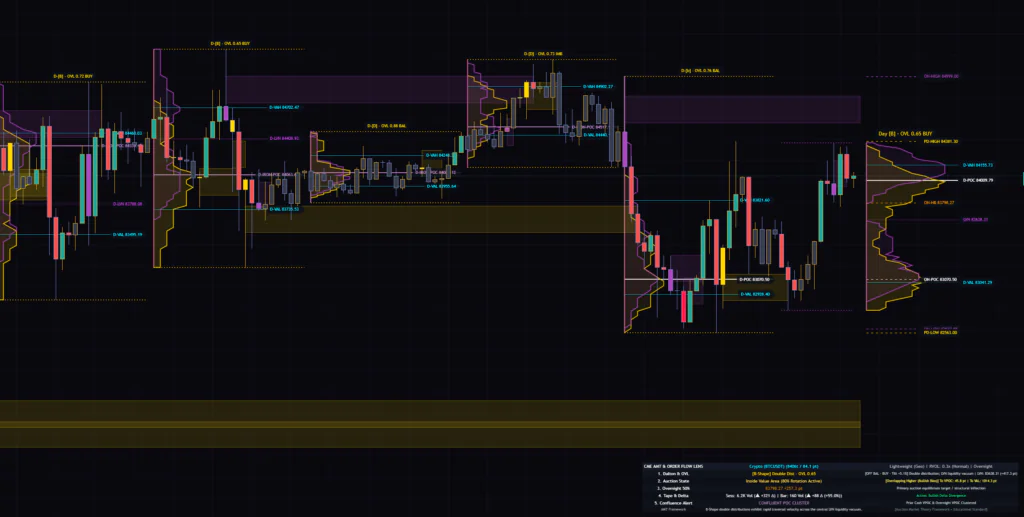
As the CME in its name suggests, it was designed mainly for CME equity-index futures such as NQ and ES. That said, it detects the instrument type from the symbol, so it also works as is on crypto, US stocks, and gold futures. In this article I’ll focus on what I checked on a Bitcoin chart, and walk through how to read the display, the settings, and what to watch out for.
The Default Is “Lightweight Mode”, So Check This First
Before getting into how to read it, there’s one thing worth knowing. Fast Replay / Lightweight Mode (Universal Free & Premium), the very first setting in the settings panel, is switched on by default. In this mode, buy and sell volume are not counted from actual executed trades. Instead, volume is split into buying and selling based on where the close sits within each candle.
For example, if a candle closes exactly at its high, 100% of its volume counts as buying. If it closes at the midpoint of its range, the split is 50/50, and if it closes on the low, 100% counts as selling. That’s a little different from what you might picture from “Order Flow” in the indicator’s name, so it’s worth understanding before you rely on it. If “Lightweight (Geo)” appears at the right of the dashboard’s top row, you’re running in this mode.
Uncheck it and the indicator switches to whichever method you’ve picked in Order Flow Engine (when Lightweight Disabled). The default, “Native Footprint (Tick Precision)”, uses TradingView’s footprint data to tally buying and selling from actual executed trades. Loading footprint data is offered only on the Premium and Ultimate plans (as of October 2, 2026), so on any other plan you stay in Lightweight Mode.
What I tested was the Lightweight Mode display. The profile shapes, POC, and shelf positions are all drawn without problems in this mode. However, because “buy” and “sell” are estimates derived from the close position, you can’t tell what actually happened in the order book at a given level. It’s closer to the truth to think of it as picking out “absorption-like behavior” from candle shape and volume.
Two Standard Candle Colors, Plus Five More
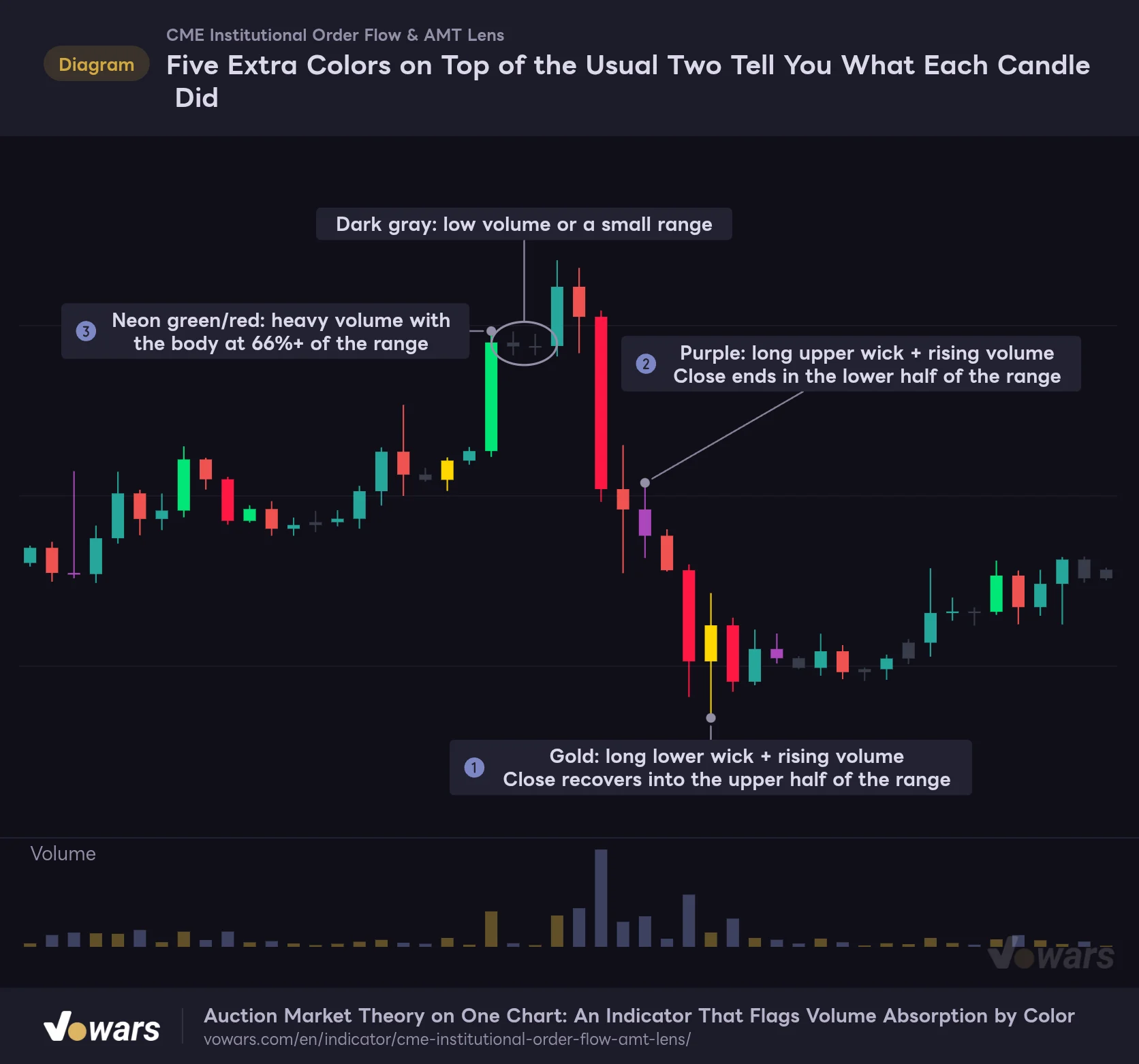
The first thing you notice after adding it is the change in candle colors. The default Candle Display Style is “Native Bar Re-color”, which repaints your chart’s own candles in place. Regular bullish candles are a muted green and bearish candles are red. On top of that come five extra colors: gold, purple, neon green, neon red, and dark gray.
Five Extra Colors on Top of the Usual Two Tell You What Each Candle Did
On top of the regular bullish and bearish colors, each candle can be painted for absorption (gold, purple), initiative (neon green, neon red), or dead volume (dark gray).
Vowars DE ver.3.12.26
Gold and purple are the ones to watch. A gold candle looks like callout ①: a long lower wick, swelling volume, and a close that recovers into the upper part of the range. Sellers showed up but couldn’t push price all the way down, so you can read it as buyers absorbing the selling. Purple is the mirror image, as in callout ②, with the long wick on the upside.
Neon green and neon red mark initiative candles. As in callout ③, only candles with volume well above average and a body covering most of the range get the vivid colors. Dark gray marks candles with low volume or a small range, so “nothing is happening right now” is clear at a glance. I found it easy to use as a rule: while gray candles keep printing inside a range, I stay out.
The table below summarizes the conditions. The numbers are for the 1-hour chart with Institutional Effort Sensitivity (1 – 10) at its default of 5.
| Color | Name | Condition (1-hour chart, sensitivity 5, Lightweight Mode) |
|---|---|---|
| Gold | Demand Absorption | Lower wick is about 30% or more of the range. The close is above roughly the 63% point of the range, measured from the low. Volume is 1.5x the baseline or more, or the buy–sell difference is 1.25x the 20-bar average or more |
| Purple | Supply Absorption | Upper wick is about 30% or more of the range. The close is below roughly the 37% point of the range, measured from the low. The volume condition is the same as gold |
| Dark gray | Dead Volume / Micro-Chop | Volume is below 0.7x the baseline, or the range is below 0.4x ATR(14). Applied only to closed candles |
| Neon green | Initiative Bull Drive | Bullish candle with a body of about 66% or more of the range and volume of about 1.6x the baseline or more |
| Neon red | Initiative Bear Drive | Bearish candle with a body of about 66% or more of the range and volume of about 1.6x the baseline or more |
When a candle meets several conditions, the priority runs gold, purple, gray, then neon. So even a big bullish candle on heavy volume turns gray if it meets the gray condition on something other than volume.
The “volume baseline” depends on the timeframe. It’s normally the average of the last 20 bars, but on the 1-hour chart only, volume is compared with the historical average for the same hour of the day (New York time). Volume is naturally heavy when the New York market opens, so the check subtracts that effect. Colors are less likely to be skewed by time-of-day volume patterns, which is a perk unique to the 1-hour chart.
The wick length required for gold and purple is about 37% of the range on 1-minute charts and below, about 34% up to 15-minute, about 30% up to 4-hour, and about 25% on daily and above (at sensitivity 5). Shorter timeframes require longer wicks, which keeps gold and purple from firing too often on noisy timeframes.
Where Gold and Purple Shelves Form, and When They Stop
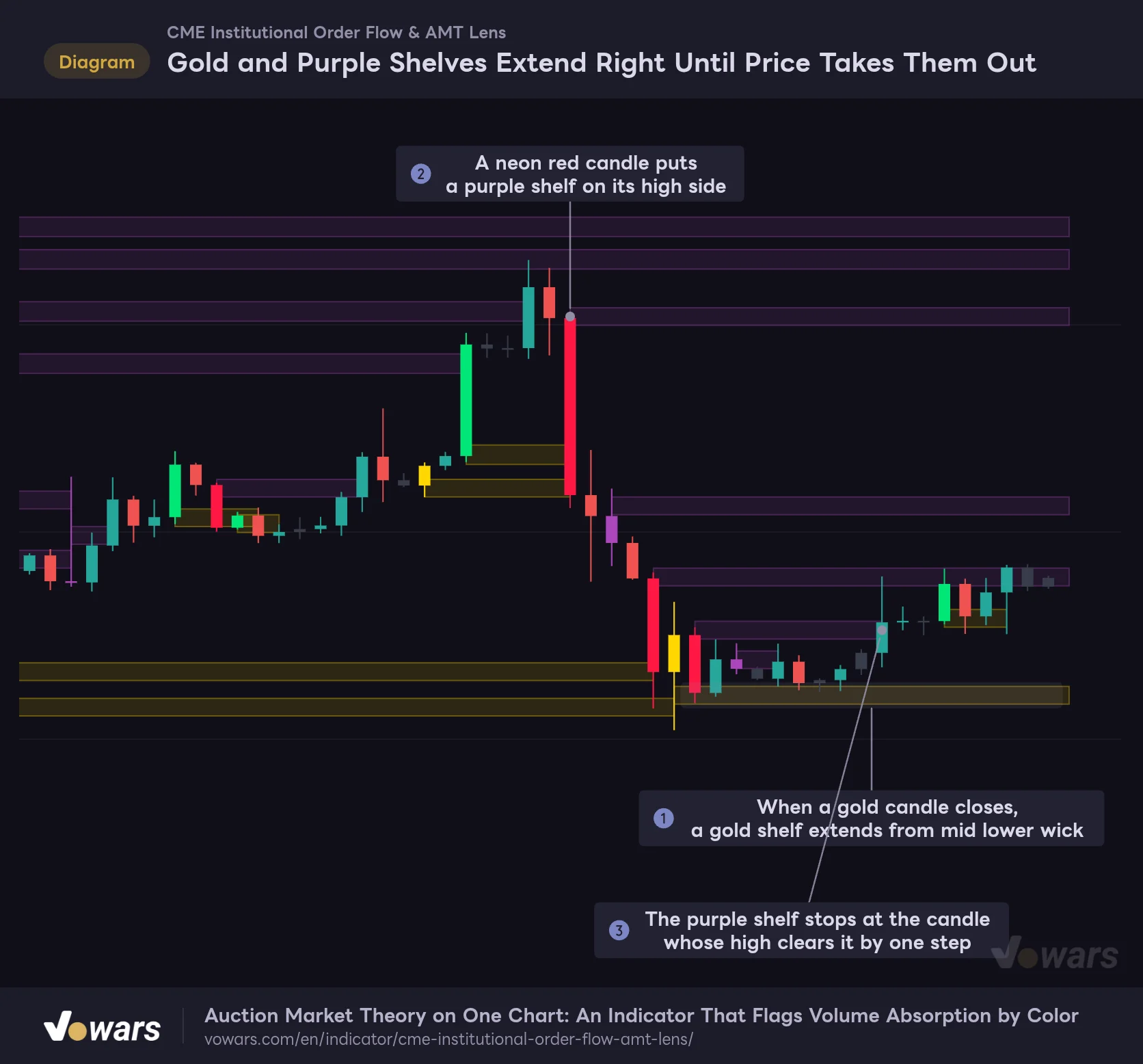
After the candle colors, the next thing that stands out is the translucent bands extending to the right. They’re called Imbalance Shelves in the settings, and I’ll just call them “shelves” in this article. A gold shelf shows up as a candidate support level, and a purple shelf as a candidate resistance level.
Gold and Purple Shelves Extend Right Until Price Takes Them Out
When an absorption or initiative candle closes, a shelf three steps thick (Imbalance Shelf) is placed on the wick side of that candle.
Vowars DE ver.3.12.26
Shelves are triggered by candle colors. In Lightweight Mode, one gold shelf is placed when a gold candle or a neon green candle closes. As in callout ①, a gold candle starts the shelf from the middle of its lower wick, a neon green candle starts it from the low, and it’s drawn upward three steps thick. Purple shelves are the mirror image. For a neon red candle, as in callout ②, the high becomes the top edge.
The size of one “step” is set automatically from the instrument and timeframe. For crypto it’s a percentage of price: on the 1-hour chart, one step is 0.1% of price. On the 1-hour chart I checked, the dashboard read “8406t / 84.1 pt”. That works out to about $84 per step and about $250 for a three-step shelf.
| Timeframe (crypto) | Step height | Shelf thickness at sensitivity 5 (3 steps) |
|---|---|---|
| 1 minute or lower | 0.01% of price | 0.03% |
| Up to 5 minutes | 0.02% | 0.06% |
| Up to 15 minutes | 0.04% | 0.12% |
| Up to 1 hour | 0.10% | 0.30% |
| Up to 4 hours | 0.20% | 0.60% |
| Longer timeframes | 0.40% | 1.20% |
When a shelf stops is also defined. A gold shelf ends when a candle closes more than half an ATR below the shelf’s bottom edge, or when a low undercuts the bottom edge by one step. Purple shelves work the opposite way. As in callout ③, the right edge is fixed at the candle that broke the shelf and doesn’t extend afterward. Only shelves that haven’t been broken keep extending to the latest candle, so a shelf that reaches the right edge is a live shelf, and that’s all you need to remember.
The number of live shelves is capped by Max Active Shelves, which defaults to 20. When a 21st shelf forms, the oldest one disappears from the chart. Shelves aren’t shown at all on daily and higher charts, because Auto-Suppress Intraday Overlays on Macro/HTF is on by default. Turn it off and you can show shelves on daily charts too.
In Lightweight Mode, shelves are not the result of counting trades at each price level. A band of fixed thickness is simply placed where a gold, purple, or neon candle appears. In footprint mode, the price zones where buying or selling imbalances stack up consecutively become the shelves themselves, so the position and number of shelves change even on the same chart.
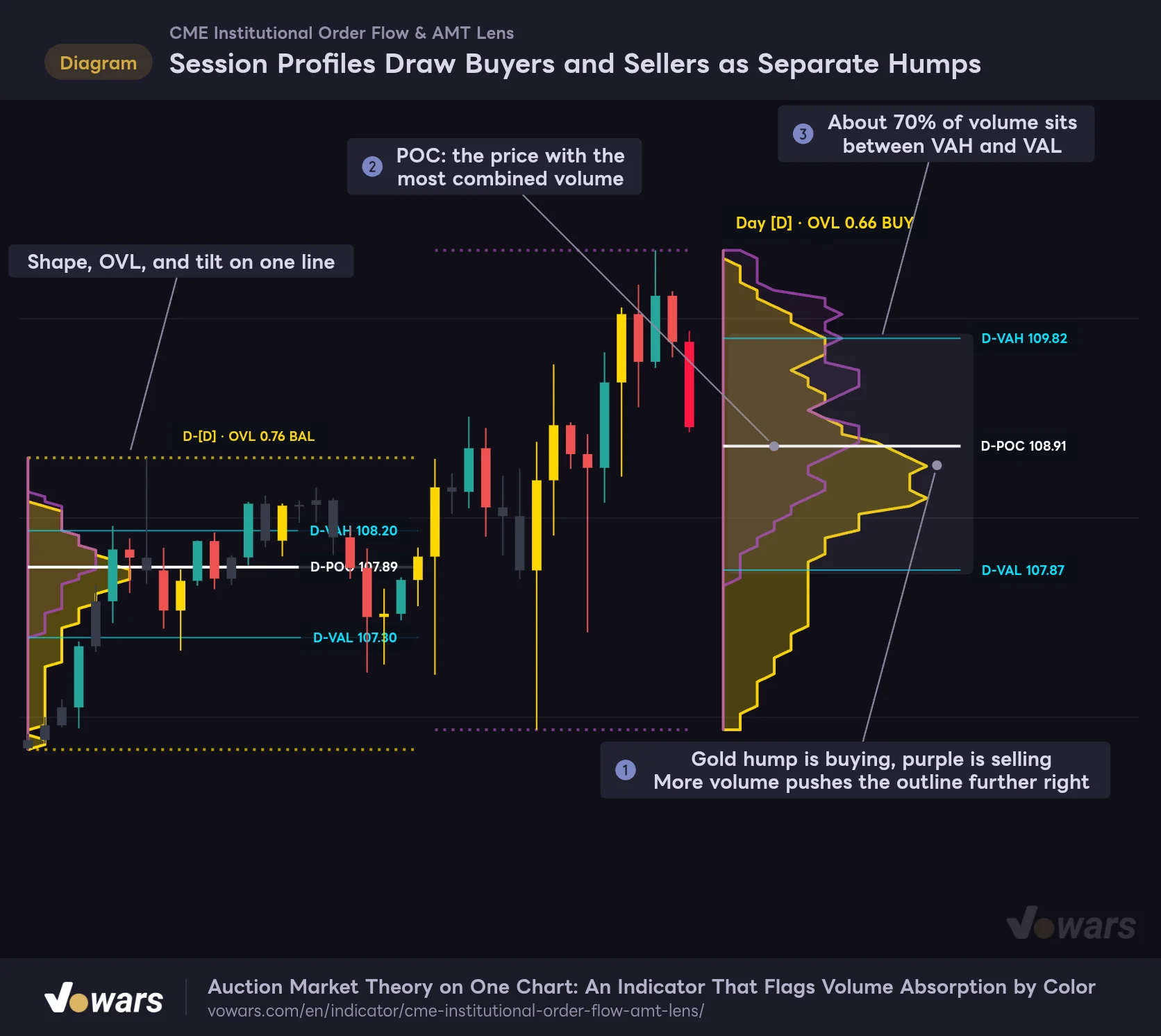
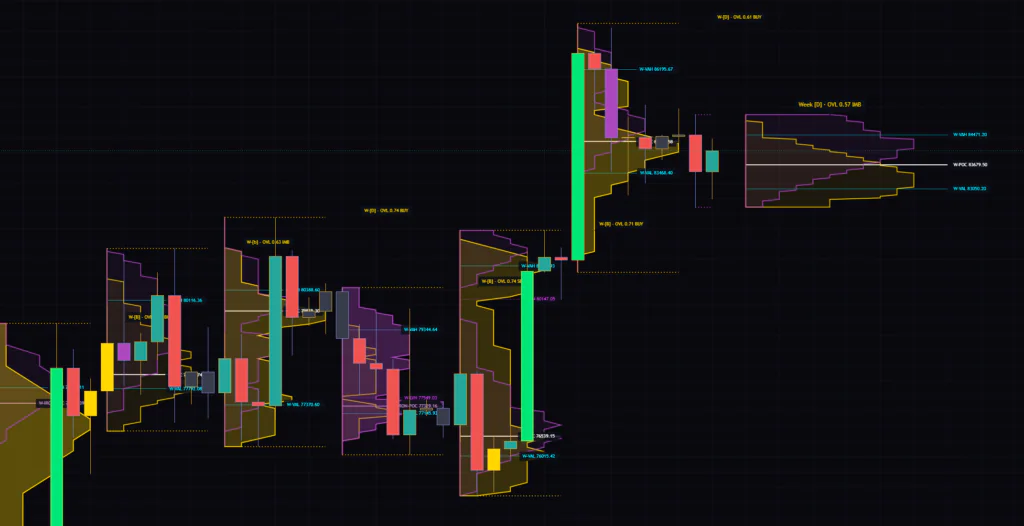
Session Profiles Draw Buyers and Sellers as Separate Humps
The profile is where I spend the most time with this indicator. A typical volume profile is a horizontal-bar histogram, but “CME Institutional Order Flow & AMT Lens” draws two outlines instead, gold for buying and purple for selling. Since each hump is just an outline, it’s less likely to get in the way when it overlaps the candles, and I like that.
Session Profiles Draw Buyers and Sellers as Separate Humps
Completed sessions are drawn at the candle where they began, and the developing session in the right margin, each with two outlines: gold (buying) and purple (selling).
Vowars DE ver.3.12.26
Reading it is simple, as shown at callout ①: the further a price level extends to the right, the more volume traded there. When the gold and purple humps nearly overlap, buyers and sellers were trading in the same zone, and when they’re offset vertically, one side was in control. The white line is the POC, the price with the most combined buy and sell volume. The two light-blue lines are VAH and VAL, and roughly 70% of volume falls between the two.
A completed session’s profile sits at the candle where that session began. Only the developing session is drawn to the right of the latest candle, in the margin, and its shape changes as price moves. By default the indicator shows 15 past sessions, and you can change that from 1 to 35 with Completed Sessions to Display.
Most profiles build the Value Area by expanding outward from the POC until it captures 70% of volume. “CME Institutional Order Flow & AMT Lens” instead stacks volume up from the bottom, putting VAL at the 15% price and VAH at the 85% price. As a result, in a session where volume is skewed toward the bottom, POC and VAL can sit at almost the same price. If labels look like they overlap, this method is the likely reason.
Change the Timeframe and the Session Boundaries Change Too
What threw me at first was that switching timeframes changes how profiles are split. With Profile Scope Horizon at its default of “Auto-Adaptive”, the aggregation unit is picked automatically to suit the timeframe. For Bitcoin and other crypto, it works like this.
| Chart timeframe | Session unit | Label prefix |
|---|---|---|
| Under 1 hour (15-minute, 30-minute, etc.) | Day (9:30–16:00 New York time) and Night (everything else) | D- / N- |
| 1 hour up to under daily | 1 day | D- |
| Daily | 1 week | W- |
| Weekly and monthly | 1 month | M- |
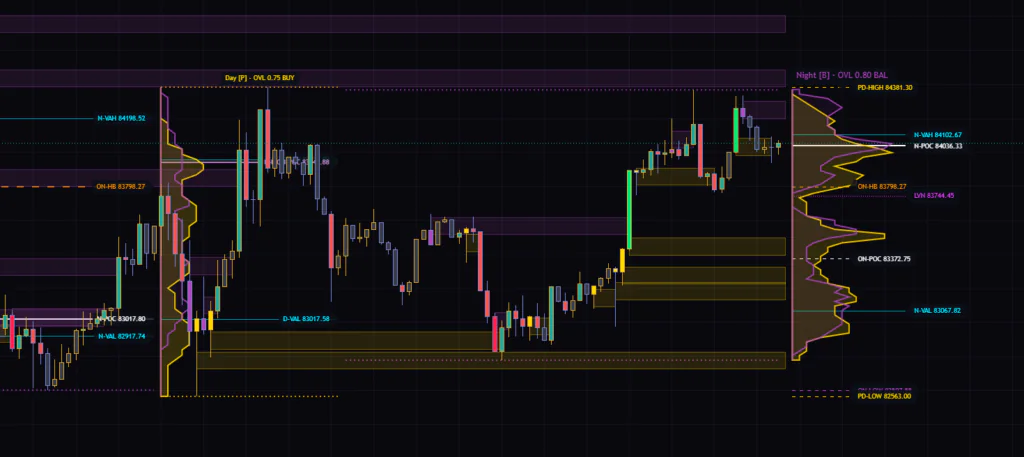
Crypto trades around the clock, so it has no natural equivalent of CME futures’ “Cash” and “Overnight” sessions. To fill that gap, the indicator splits every day, weekends included, into Day (9:30–16:00 New York time) and Night (the rest). A gold dotted line marks the high and low of the Day session, and a purple dotted line marks the Night session’s. On equity-index futures and gold futures, these show up labeled “Cash” and “ON”.
The [D] [P] [b] [B] Badges Come From Hump Shape and Position
Each profile gets a badge on top, like “D-[B] · OVL 0.72 BUY”. The single letter in square brackets is one of the four shapes commonly used in Market Profile. The criteria are below. The indicator checks for [B] first, and if that doesn’t match, the POC position sorts the rest into the other three.
| Badge | Name | Criteria | Common interpretation |
|---|---|---|---|
| [B] | Double Distribution | Two volume humps separated by 20% or more of the range, with the valley between them at 72% or less of the lower hump (1-hour chart) | Value was accepted in two price zones. Price tends to move through the valley quickly |
| [P] | P-shape | POC is above the 65% point of the range, measured from the bottom | Volume is concentrated near the top. Short covering or a buyer-led move |
| [b] | b-shape | POC is below the 35% point of the range, measured from the bottom | Volume is concentrated near the bottom. Long liquidation or a seller-led move |
| [D] | D-shape | None of the above | A bell shape with volume concentrated in the middle. A balanced state |
Two Humps Make a [B], With an LVN Dotted Line at the Valley
A session with two volume humps, upper and lower, and a sufficiently thin valley between them is classified as [B] (Double Distribution).
Vowars DE ver.3.12.26
A session classified as [B] gets a magenta dotted line at the thinnest price in the valley, as shown at callout ②. This is the LVN (Low Volume Node). Callout ① shows clearly how the humps split into upper and lower groups. An LVN is a spot with little volume, meaning the market didn’t accept that price much, so it’s a place to watch whether price slices through or gets rejected when it comes back.
What stood out as I watched the screen was how often [B] appears. On the 1-hour chart I checked, three of the six sessions on display were [B]. Because the valley criterion is loose (“72% or less of the lower hump”), even a slight dip qualifies. I’d avoid assuming that a [B] makes it a special day. You can see the valley’s depth directly in the outline, so I treat the badge as a rough guide and check the shape itself.
“OVL 0.72 BUY” in the latter half of the badge is a number showing how much the buy hump and sell hump overlap, plus which side is heavier. OVL ranges from 0 to 1, and the closer it is to 1, the more alike the two humps are.
- BAL … OVL is 0.75 or higher. Buying and selling are balanced in the same price zone
- BUY … OVL is below 0.75, and buy volume is 5% or more higher overall
- SELL … OVL is below 0.75, and sell volume is 5% or more higher overall
- IMB … OVL is below 0.75, but the buy–sell difference is under 5%
Turn off Show Ata Sabanci Overlap Metrics (OVL & Tilt %) and these numbers disappear, leaving only the shape. Note that in Lightweight Mode the buy and sell split is determined by the close position, so OVL and the BUY/SELL readings are also values derived from candle shape.
What Those Short Dashed Lines in the Right Margin Are
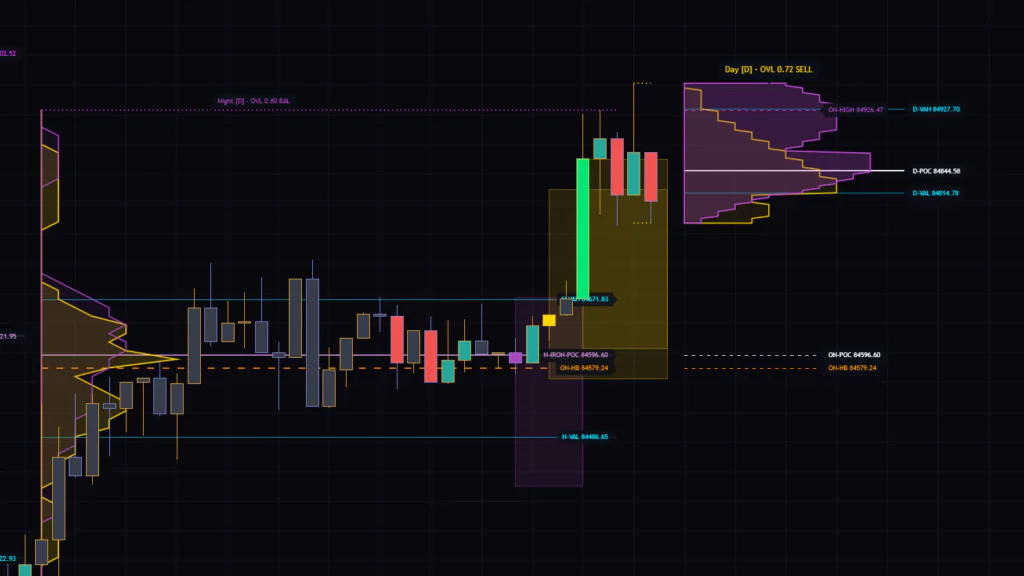
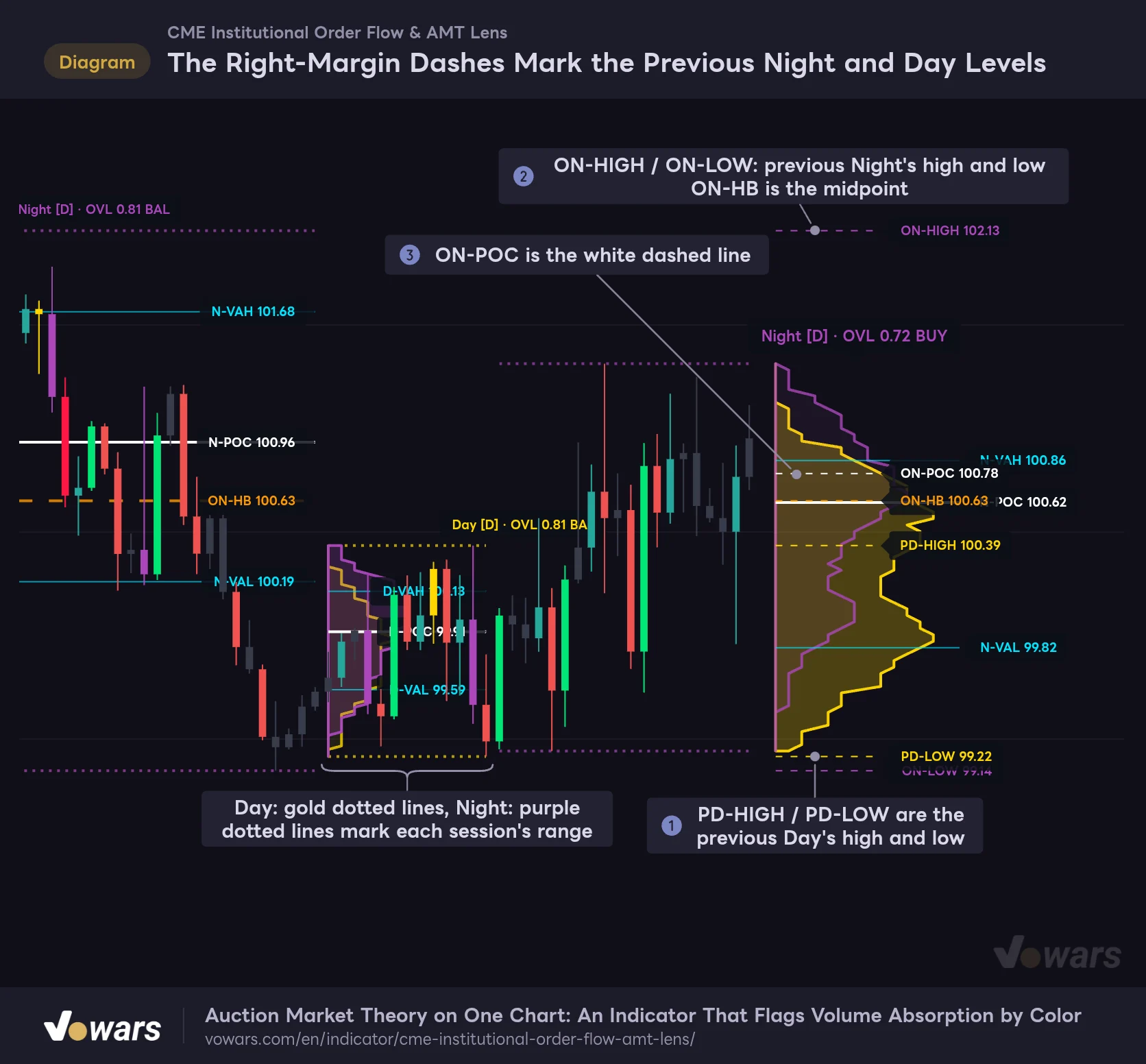
On 1-hour and lower charts, several short dashed lines line up over the developing profile. They come from Show Smart Key Level Dashes (Right Margin), and they show the previous session’s key levels only at the right edge. Because the indicator doesn’t draw long horizontal lines across past candles, the chart doesn’t turn into a mess of lines.
The Right-Margin Dashes Mark the Previous Night and Day Levels
On 15-minute and 30-minute charts, each day splits into Day (9:30–16:00 New York time) and Night, and the previous session's high, low, and midpoint line up as short dashed lines in the right margin.
Vowars DE ver.3.12.26
| Label | Color | Price shown |
|---|---|---|
| PD-HIGH / PD-LOW | Gold | High and low of the previous Day session (the cash session on futures) |
| ON-HIGH / ON-LOW | Purple | High and low of the previous Night session (the overnight session on futures) |
| ON-HB | Orange | Exactly midway between ON-HIGH and ON-LOW |
| ON-POC | White | The center of volume of the previous Night session. When it’s close to the current POC it’s labeled “CONFLUENT POC” and turns light purple |
PD-HIGH and PD-LOW at callout ① are the previous Day’s range. ON-HIGH, ON-LOW, and ON-HB at callout ② show the range and midpoint of the Night session before it. In futures, many traders watch the overnight session’s 50% midpoint (the half-back) as a reference when the day session opens, and this applies the same idea to crypto. Each dashed line can be turned off individually with Show Overnight Extremes (ON-HIGH / ON-LOW), Show Overnight Half-Back (50% Midpoint), and Show Prior Day Extremes (PD-HIGH / PD-LOW).
When I opened a 15-minute chart in the middle of a Night session, the ON-POC in the right margin pointed to a different price than the N-POC of the previous Night drawn on the left. On my screen N-POC was 83,017.80 and ON-POC was 83,372.75. In this situation, ON-POC is a volume-weighted average of the closes of each Night candle, which is a different value from the price with the most volume in the profile. If you need the exact POC, trust the label on the profile at the left.
Completed Night profiles also get an orange dashed ON-HB, which is the midpoint of the Night’s high and low, the same idea as the ON-HB in the right margin. Also, when the POCs of nearby sessions line up at almost the same price, the white POC line turns light purple and the label becomes “IRON-POC”. The comparison window is four sessions on either side, and for crypto, POCs within 0.15% of price count as the “same”. Since it’s a price agreed on across several sessions, it’s a level worth weighting above other POCs.
Read the Current State as Text in the Bottom-Right Dashboard
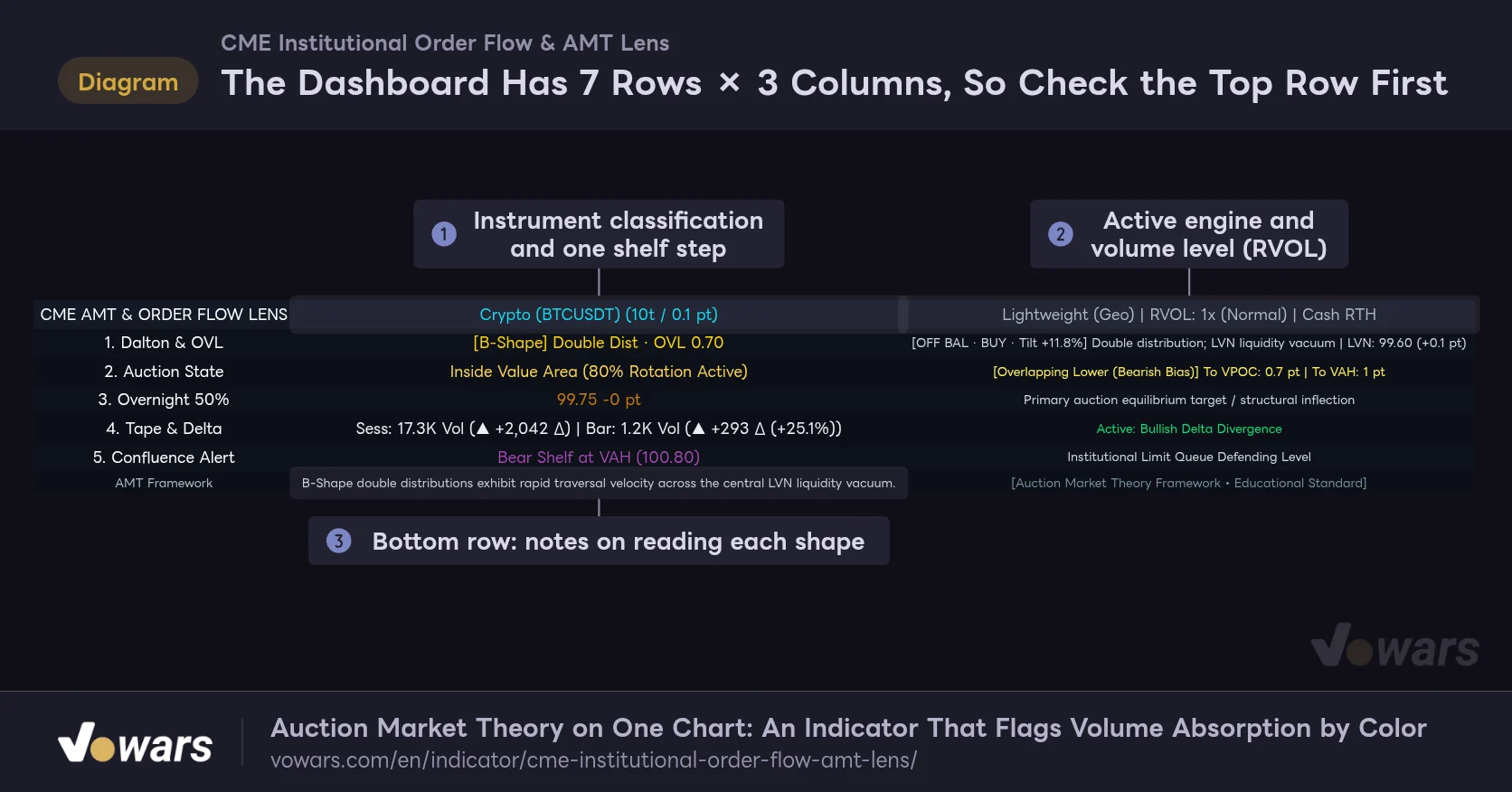
A 7-row, 3-column dashboard appears at the bottom right of the chart. At first, all that dense text made me not want to read it, but once I understood each row’s role, I started reading it before looking at the chart.
The Dashboard Has 7 Rows × 3 Columns, So Check the Top Row First
The left column holds item names, the center shows the current state, and the right adds detail. The top row shows how the instrument was classified, the shelf step width, and the engine in use.
Vowars DE ver.3.12.26
On the top row, callout ① shows how the instrument was classified and the width of one shelf step, and callout ② shows the engine in use and the volume level. RVOL shows how many times the baseline the volume is, and reads “Active” at 1.2x or more and “High Vol” at 2x or more. Here’s what the second row onward shows.
| Row | Center column | Right column |
|---|---|---|
| 1. Dalton & OVL | Shape and OVL of the developing session | Tilt and a description of the shape. For [B], the LVN price and its distance from the current price |
| 2. Auction State | Whether the close is above, inside, or below the Value Area | Value migration versus the previous session, and distance to POC, VAH, and VAL |
| 3. Overnight 50% | ON-HB price and its distance from the current price | A supporting note. Shows “N/A” on daily and higher |
| 4. Tape & Delta | Session and current-candle volume, and the buy–sell difference | Assessment of the latest candle (absorption, initiative, delta divergence, etc.) |
| 5. Confluence Alert | Whether a live shelf is near VAH, VAL, POC, or ON-HB | A supporting note |
| AMT Framework | Reading notes for each shape | (Fixed text) |
The center of row 2 shows one of “Above Value”, “Inside Value Area”, or “Below Value”. It’s green when the close is above VAH, red when it’s below VAL, and yellow in between. The right column’s “Overlapping Higher” or “Lower Value” shows whether the developing Value Area sits above or below the previous session’s. It tells you in a word whether value is migrating higher or still overlapping, so this is the first place I look.

If the table feels too big, set HUD Display Mode to “Compact Status Pill” for a two-row display. “Disabled” hides it, and Dashboard Position lets you place it in any of the four corners.
Build Your Settings Around a Single Control: Sensitivity
The settings panel is split into nine groups and has plenty of options, but only a handful actually change what you see. Here are the ones you’ll touch first.
| Setting | Default | Suggested | Effect |
|---|---|---|---|
| Fast Replay / Lightweight Mode (Universal Free & Premium) | On | Try turning it off if you’re on Premium or Ultimate | When on, buying and selling are estimated from the close position. Turn it off to aggregate from real data such as footprint |
| Candle Display Style | Native Bar Re-color | Leave as is | Repaints your chart’s own candles. Ghost Glow, Full Solid HD, and Hollow draw their own candles on top. Disabled turns off the coloring |
| Institutional Effort Sensitivity (1 – 10) | 5 | 5–6 (around 3 to get more signals on short timeframes) | Higher values make the gold, purple, and neon conditions stricter, and shelf steps increase from 2 to 3 to 4 |
| Profile Scope Horizon | Auto-Adaptive | Leave as is | The profile aggregation unit. Chosen automatically to match the timeframe. You can fix it manually if you prefer |
| Completed Sessions to Display | 15 | 5–10 | How many past sessions are shown. Fewer makes the chart lighter and easier to read |
| Imbalance Shelf Box Transp (%) | 88 | 88–92 | Transparency of the shelf fill. Raise it if overlapping shelves are hard to read. At 100 the fill disappears |
| Max Active Shelves | 20 | 10–20 | Maximum number of untouched shelves kept at once. Anything beyond that disappears oldest first |
| HUD Display Mode | Full Educational Dashboard | Compact Status Pill once you’re used to it | Size of the dashboard. Disabled hides it |
The core setting is Institutional Effort Sensitivity (1 – 10). This single value moves the volume needed for absorption, the wick length, the share of range the body must cover for initiative, and the number of shelf steps, all at once.
| Sensitivity | Volume needed for absorption | Body needed for initiative | Shelf steps |
|---|---|---|---|
| 1 | 1.1x baseline or more | 55% or more of the range | 2 steps |
| 5 (default) | 1.5x or more | About 66% or more | 3 steps |
| 10 | 2.0x or more | 80% or more | 4 steps |
If you’re chasing fast moves on 5-minute and lower charts, lowering sensitivity to around 3 gives you more gold and purple candles and thinner two-step shelves. Conversely, to catch only the big turning points on a longer timeframe like the 4-hour, raising it to 7–8 sharply cuts the number of colored candles. On 15-minute and lower charts the wick threshold is stricter than on the 1-hour, so if you see too few colored candles, try lowering it by just 1–2. Shelves only come from gold, purple, and neon candles, so when colored candles decrease, the number of shelves drops with them.
At its default of 15, Completed Sessions to Display puts about a week of Day and Night sessions on a 15-minute chart. That gets crowded, so I usually narrow it to 5–10 to find the session I want more easily. To change the profile colors, Profile Shading Style can switch them to a single color, and setting Profile Fill Transp (%) to 100 leaves only the outlines.
Extend Virgin POC to Live Bar is described as “extend the previous session’s POC to the latest candle with a dotted line”. In the public version as of September 29, 2026, however, no extension line is drawn whether it’s on or off, because a different fixed internal value takes priority. The LVN from Show LVN Vacuum Corridor (B-Shape) also stops at the session’s right edge for completed sessions and doesn’t extend further. If the extension lines don’t appear, it isn’t a mistake in your settings. It’s how the current version behaves.
From Opening the Chart to Making a Call
Now that the display makes sense, here’s the order in which I actually look at it: get the big picture on the 1-hour chart, then narrow down the location on the 15-minute chart.
1 Check where price sits within value on the 1-hour chart
First, on row 2 of the dashboard, I check whether the close is above, inside, or below the Value Area. If it’s inside, price tends to rotate between VAH and VAL. If it’s outside, the question is whether price comes back to VAH or VAL or keeps moving away. If the previous session’s badge was [D] with BAL, I expect rotation. If it was [P] or [b] with BUY or SELL, I assume a flow tilted to one side.
2 Look for where levels and shelves overlap on the 15-minute chart
Next, drop to the 15-minute chart and check how the right-margin dashes, the POC, and the live shelves relate to each other. If a gold shelf extending to the right edge sits right next to VAL or ON-HB, for example, that becomes a place to watch. If row 5 of the dashboard shows something like “Bull Shelf at VAL”, the indicator has already detected the same overlap.
3 Watch the candle color when price arrives
When price reaches that spot, wait for the candle color. If price touches a gold shelf with a lower wick and a gold candle closes, you can read it as a sign that buyers absorbed the selling. If instead a neon red candle breaks through the shelf and the shelf’s right edge gets fixed, that level has been broken. Deciding that colors only count once the candle has closed keeps you from getting whipsawed by colors that change mid-candle.
This process works best when price is moving inside a defined range. When [D] sessions keep printing and Value Areas overlap, VAH, VAL, and POC work clearly as reference levels. On the other hand, on a news-driven one-way run, shelves get taken out one after another and the profile stretches vertically without settling into a shape. On those days I just watch the dark gray and neon candles and use them to check whether momentum is continuing, which feels about right to me.
In terms of trading style, day trading on the 15-minute to 1-hour charts is the best fit, in my impression. Move up to the daily chart and the weekly profiles are useful for finding swing levels, but shelves and the right-margin dashed lines are no longer displayed. It also runs on 1-minute and 5-minute charts for scalping, but in Lightweight Mode candle shape is the only input, so an environment where footprint is available is a better match.
Overlay VWAP to See the Gap Between the Average and the Most-Traded Price
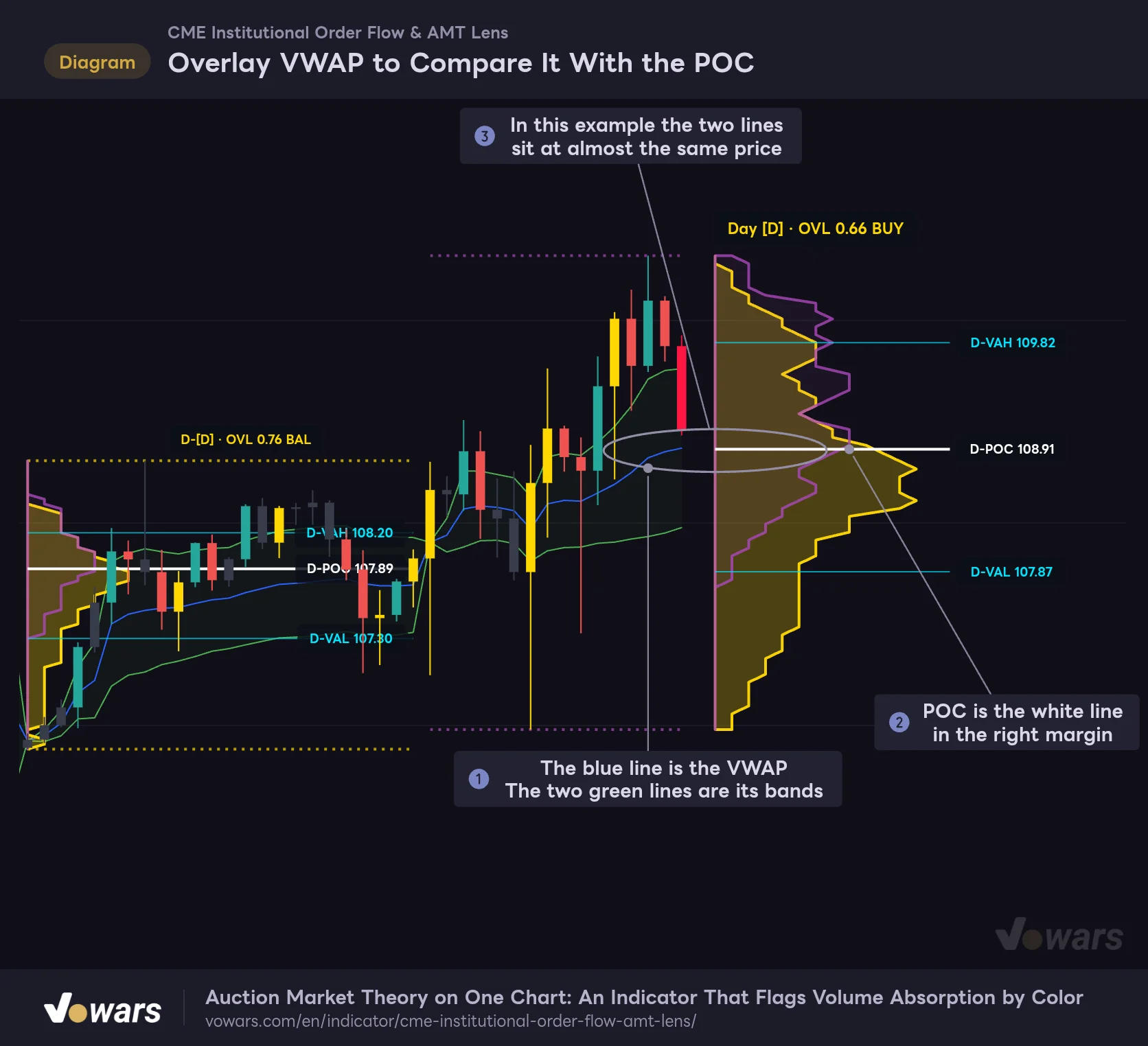
If I had to pick one indicator to pair with it, I’d choose TradingView’s built-in VWAP. The POC is “the most-traded price” and the VWAP is “the volume-weighted average price”. They look similar but mean different things, and plotting both gives you a three-dimensional feel for what happened in the session.
Overlay VWAP to Compare It With the POC
An example with TradingView's built-in VWAP (blue) on the same chart. The POC is the price with the most volume, and the VWAP is the volume-weighted average price.
Vowars DE ver.3.12.26
Callout ① is the VWAP and callout ② is the POC. When the two sit at almost the same price, as in callout ③, the average and the most-traded price agree, meaning volume is concentrated in one price zone. When they’re far apart, a considerable amount of trading also happened in a zone away from the volume hump. A [B] session has two humps, so the VWAP, being an average, tends to land between them.
On the 1-hour Bitcoin chart, the VWAP anchor (Session) and the profile boundaries both line up at the date change, so you get to compare the same day with two different yardsticks. On the 15-minute chart, profiles split into Day and Night while the VWAP stays on a daily basis. Keep in mind that the boundaries differ.
Where It Shines and What to Watch Out For After Using It
Where it shines
- Colors, shelves, profiles, and the dashboard come together in one indicator, giving you a full set of AMT reading tools
- Buying and selling are drawn as separate humps, so you can spot a session led by one side from its shape
- Session units and shelf widths switch automatically to match the timeframe and instrument
- One sensitivity setting adjusts the colors and shelves together
- No long horizontal lines across past candles, with key levels gathered in the right margin
What to watch for
- The default is Lightweight Mode, where buying and selling are estimated from the close position
- Many display elements, so labels often overlap each other and the candles
- The [B] criteria are loose, so many sessions get a [B] badge
- No alert conditions are provided
- The public description doesn’t match the current version’s settings and defaults in some places
Things to Know Before You Add It
Colors Keep Changing Until the Candle Closes
The colors and shelves of closed candles never change afterward, and reloading the chart gives the same result. The color of the candle currently forming, however, keeps changing until it closes. That’s because for a forming candle the indicator converts volume into “how many times the baseline it would reach at this pace” and judges on that. Right after a candle opens, even small volume can produce a high multiple, so gold or neon can appear and then vanish. Only dark gray is applied exclusively to closed candles.
Shelves are also created when a candle closes, so no shelf extends from a forming candle. The developing profile is redrawn every time price moves, and the POC, VAH, VAL, and shape badge keep moving until the session ends. It helps to think of it this way: only “closed candles” and “completed sessions” are fixed information. I found no mechanism in it that peeks at higher-timeframe or future candle data.
Set Up Your Own Alerts
There’s a setting called Detect Imbalances at Key Levels, which the public page presents as a feature that notifies you with sound and an on-screen display. In the current version, this setting only toggles the display on row 5 of the dashboard. Conditions specific to “CME Institutional Order Flow & AMT Lens”, such as “a gold candle appeared” or “price touched a shelf”, can’t be selected in the alert creation dialog, because the indicator hasn’t registered any alert conditions.
If you want notifications, TradingView’s own features can fill the gap. You can draw a horizontal line at the POC or VAL price and set an alert on that line, or set a price alert at the same level. Profile levels change every session, so you’ll have to redraw them each day. Getting notified the moment a gold candle appears isn’t possible with this approach.
The Public Page’s Description Differs From the Current Version in Places
The public page lists the settings, but the list seems to be based on an earlier version. For example, items such as “Ratio Multiplier”, “Stack Depth”, and “Ticks Per Row” don’t exist in the current settings panel. They’ve all become internal values set automatically from the sensitivity number. The candle display is also described as defaulting to “Ghost Glow”, but the current default is “Native Bar Re-color”.
“Unfinished Auction Magnets”, which draws dotted lines at wick tips, and “Overnight Shaded Box”, which shades the overnight range, are also in the description, but I couldn’t find them in the current version. Since the indicator is updated quickly, it’s safer to rely on the description attached to each setting in the settings panel (the “i” icon) than on the public page.
Performance and Data Limits
Because it draws a large number of lines, labels, and polygons, the chart isn’t light to work with. The width of the developing profile in the right margin changes with the number of bars visible on screen, which is why recalculation runs every time you zoom in or out. If it feels heavy, the easiest fix I found was reducing Completed Sessions to Display. Setting Developing Profile Width to a fixed width such as “Fixed Compact (18 Bars)” keeps the width from changing when you zoom.
A single session can aggregate at most the latest 4,500 bars. In extreme combinations, such as specifying a monthly profile on a 1-minute chart, the start of the session drops out of the calculation. Also, neither the profile nor the color coding works on instruments with no volume data. On markets without exchange-reported volume, such as forex, keep in mind that what you see is based on tick counts.
Gold candles and shelves are just observations that “buyers may have absorbed selling here”. It’s easy to notice only the spots that look like bounces on past charts, so count the shelves that were broken and had their right edge stopped, too. Judge market direction together with the higher-timeframe trend and the economic calendar, and always decide your stop-loss placement separately.
For Traders Who Want Volume on a Single Chart
 Image
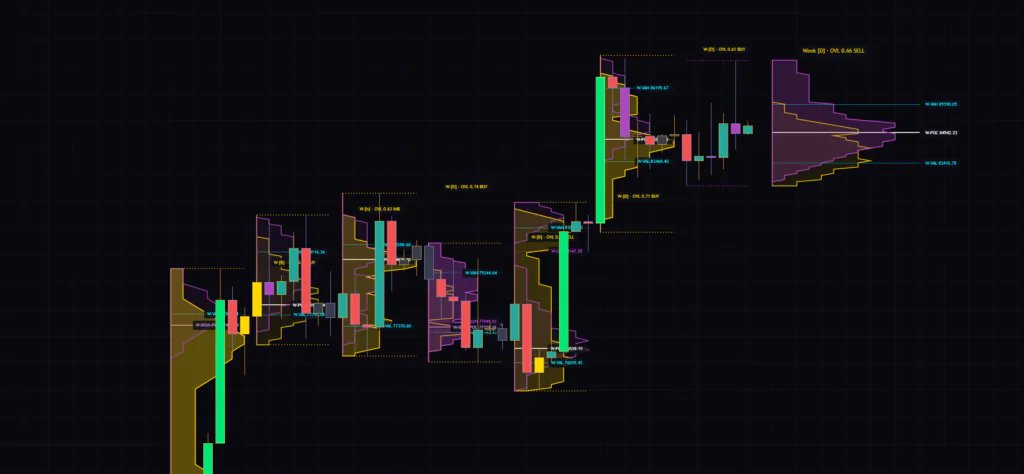
Image“CME Institutional Order Flow & AMT Lens” overlays where volume gathered and where it was absorbed onto a single chart. It won’t tell you when to buy or sell. In exchange, it prepares the places worth watching, VAH, VAL, POC, and shelves, automatically every day. If you’ve been drawing profiles by hand, the prep time simply disappears.
Just remember that in the default Lightweight Mode, the buy and sell breakdown is an estimate. If you read candle colors and shelves as “a classification from candle shape and volume” and the profile as “the distribution of volume”, the display and actual price action will feel less mismatched. If you’re on Premium or Ultimate, it could be interesting to compare how shelf positions change when you turn Lightweight Mode off.
Start by adding it to a 1-hour chart and reducing Completed Sessions to Display to 5. The screen gets cleaner and the relationship between profile shape and badge is easier to grasp. From there, drop to the 15-minute chart and look for overlaps between shelves and levels. That’s the order I’d recommend for getting comfortable.