

Auto Range Detector: Stop Drawing Range Boxes by Hand
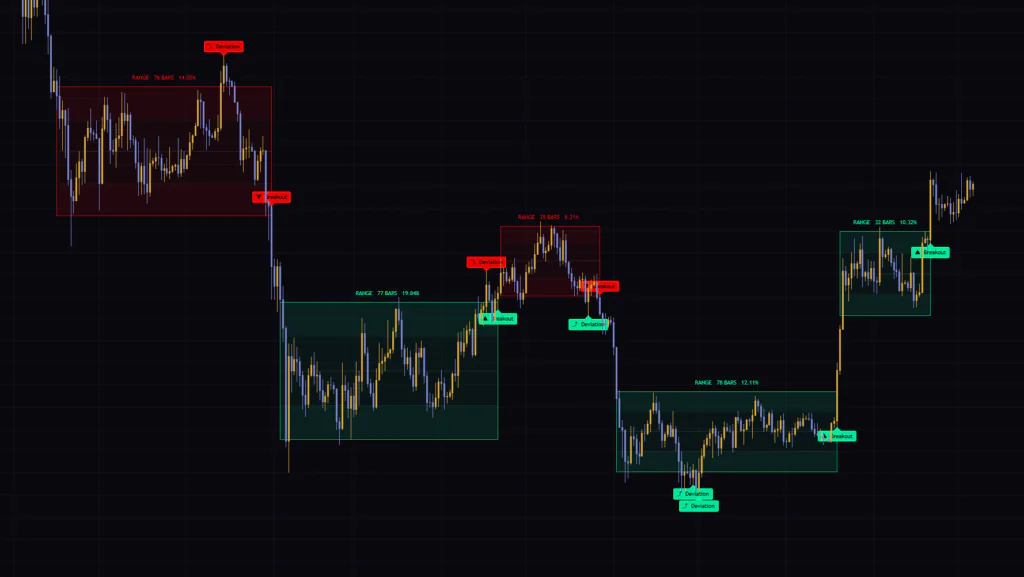
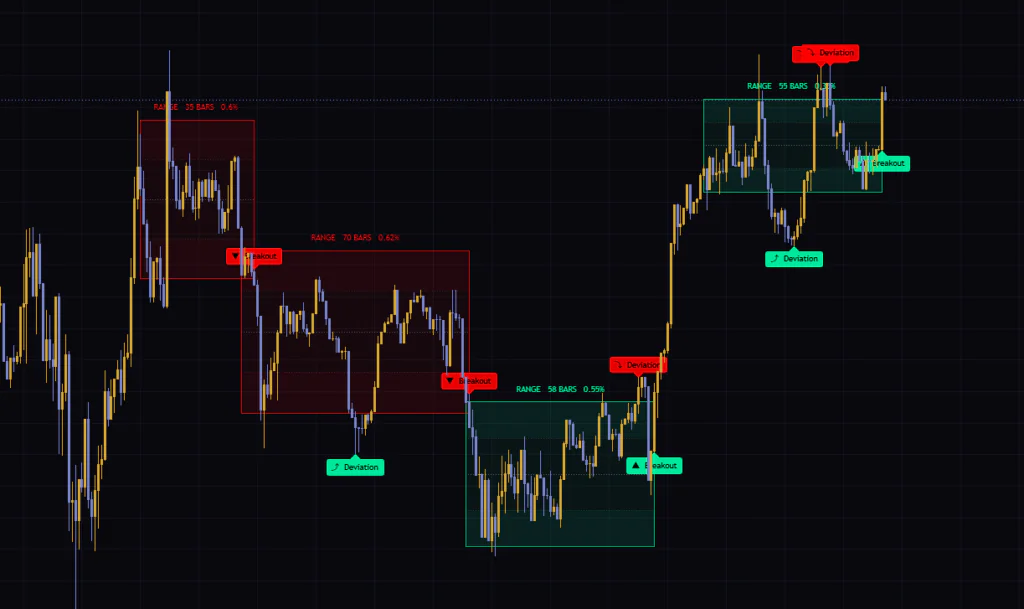
If you find yourself redrawing horizontal lines and rectangles over every sideways high and low each time you open a chart, the TradingView indicator “Auto Range Detector” is built for you. It automatically finds stretches where price is rotating between two boundaries, draws the range as a box, and marks both the bar that breaks out and the spot where a failed break snapped back inside.
There are plenty of range-box tools out there, but what makes “Auto Range Detector” interesting is that it splits the question “what actually counts as a range?” into five separate tests, each of which you can tune. A tight price band alone is not enough. Price has to rotate back and forth repeatedly, tag both edges more than once, stay flat, and keep most of its closes inside. Only a stretch that passes every test becomes a box.
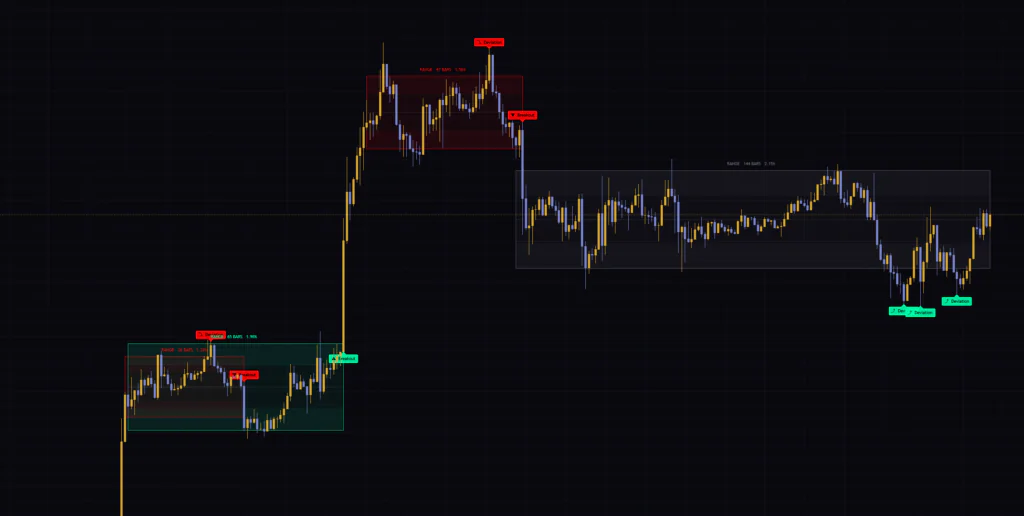
I loaded it on Bitcoin 5-minute, 1-hour, and daily charts, and without touching a single setting the boxes landed very close to the areas I would have eyeballed as chop. Honestly, I was a little surprised that the output did not change dramatically from one timeframe to the next.
What You See on the Chart: A Box, Dotted Lines, a Tag, and Two Kinds of Markers
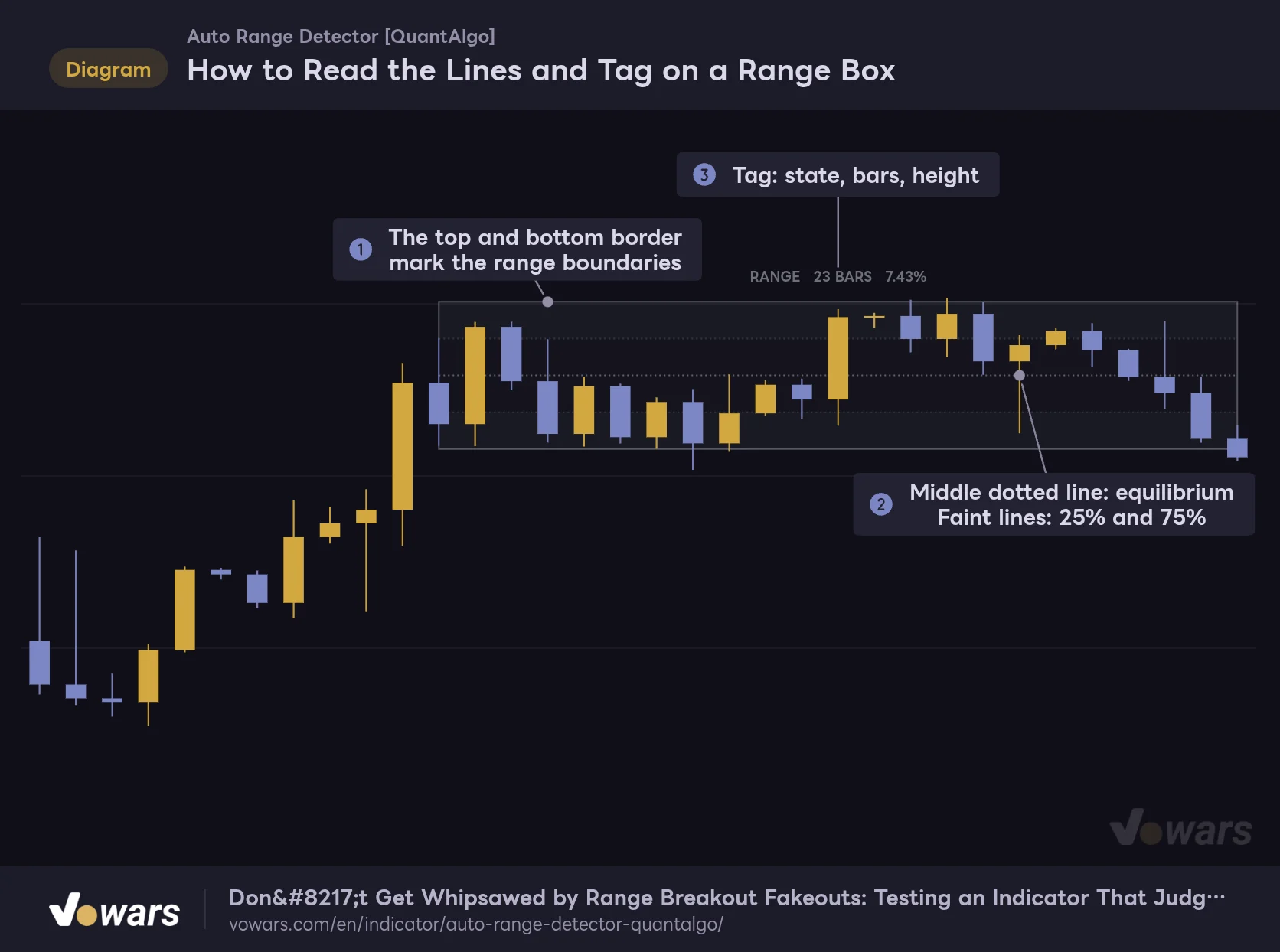
“Auto Range Detector” does not draw much on the chart. Let’s start with the figure to see what a live range looks like.
How to Read the Lines and Tag on a Range Box
A range found by "Auto Range Detector" is drawn as a gray box behind the price action.
Vowars DE ver.3.12.30
The border in Figure ① is the top and bottom of the range. By default it sits at a level that trims the most extreme few highs and lows, so a long wick can poke slightly outside the border. That is not a bug. It is by design, so that a single stray wick does not get to define the size of the box.
Figure ② shows the three dotted lines inside the box. The darker one is the equilibrium line, right at the midpoint, and the two fainter ones sit at 25% and 75% of the range. Even when price is nowhere near an edge, you can tell at a glance where you are inside the range, so these three lines are what I lean on the most.
The tag in Figure ③ shows three things: the state, how many bars the box has lasted, and its height. The height is the box height divided by the bottom price, shown as a percentage. When I tested the 1-hour chart, the live box read “RANGE 144 BARS 2.15%”. That is 144 bars, or six full days, stuck inside a band of just over 2%, and the numbers tell you so directly.
The Box Color Tells You How the Range Ended
The box changes color with its state. Once you know what each color means, you can scan back through past ranges and see at a glance which way each one resolved.
| Box color | State | Marker shown |
|---|---|---|
| Gray | Range is still live | None |
| Green | Ended with an upside break | ▲ Breakout below the bar |
| Red | Ended with a downside break | ▼ Breakout above the bar |
One thing to watch is the color of the Deviation marker. A dip below the range that gets reclaimed is marked in green, and a poke above the range that fails is marked in red. The color follows the logic that a failed breakdown is bullish and a failed breakout is bearish, so it looks like the opposite of the Breakout colors. I misread it myself at first.
A Dashed Border and FORMING Mean “Not Confirmed Yet”
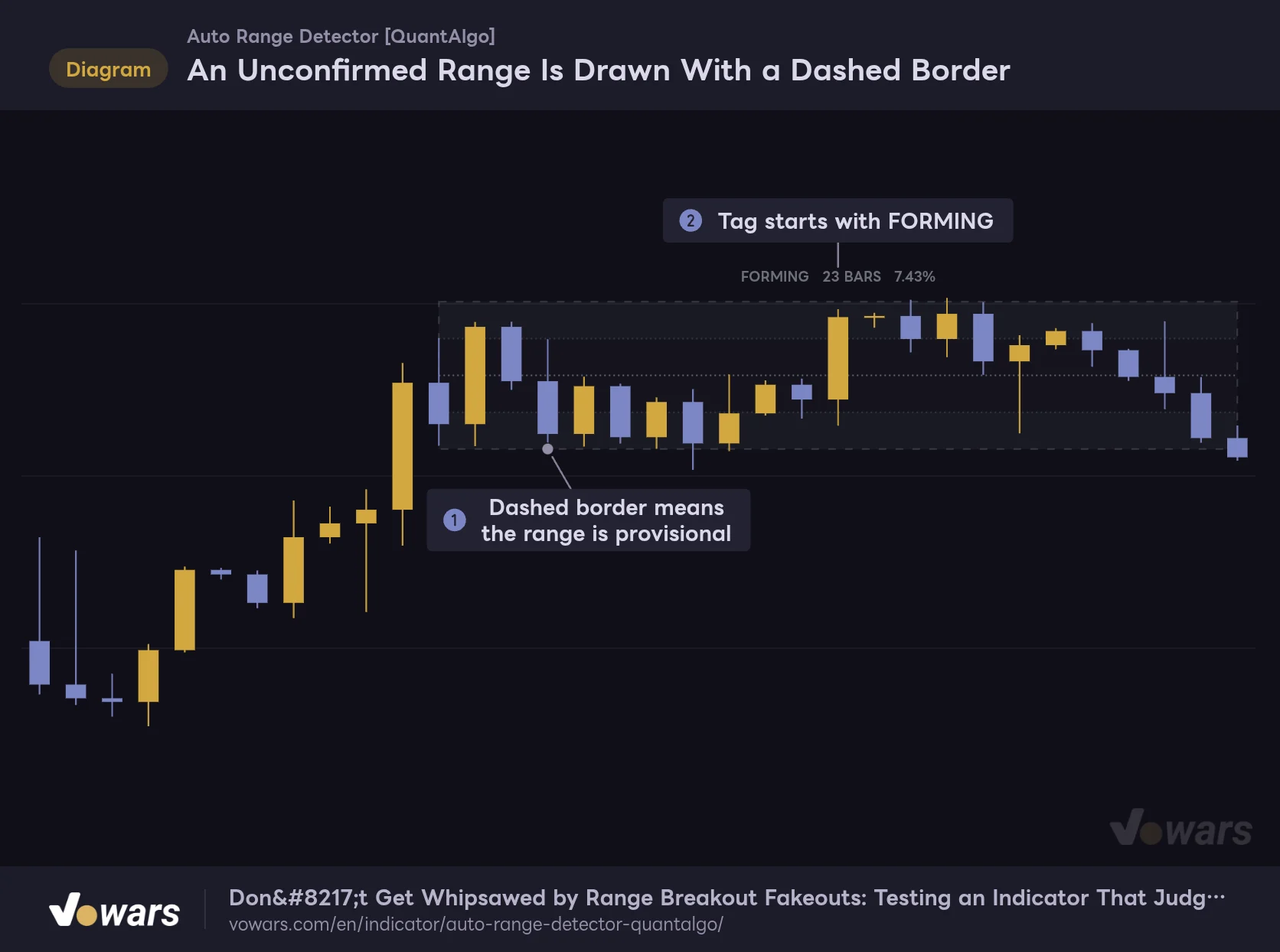
An Unconfirmed Range Is Drawn With a Dashed Border
Until the box spans as many bars as Minimum Range Bars, it is treated as a provisional range.
Vowars DE ver.3.12.30
A freshly detected range has a dashed border, as in Figure ①, and its tag starts with FORMING, as in Figure ②. Once the box spans as many bars as Minimum Range Bars, the border turns solid and the tag switches to RANGE.
If price breaks a boundary while the box is still provisional, the box simply disappears from the chart without leaving a marker. Only ranges that held for a while stay on the chart.
The default for Minimum Range Bars is 10, but the shortest window used for detection is 20 bars. So on default settings a box counts as confirmed on the very bar it appears, and you will almost never see the dashed border. The figure above was captured with this value raised to 40. If you want a provisional stage, set it above 20.
What Kind of Price Action Counts as a “Range”?
Every time a bar closes, “Auto Range Detector” checks three windows: the last 20, 40, and 60 bars. For each window it places a provisional top and bottom, then checks whether all five of the following tests pass.
| Test | What it measures | Threshold on default settings |
|---|---|---|
| Compression | How tight the window is compared with the same symbol and timeframe in the past | Within the tightest 40% of past readings |
| Rotation | How many times the close crossed the equilibrium line | At least 4 crosses in 20 bars, 7 in 40, 11 in 60 |
| Touches on both edges | How many bars reached close to the top and the bottom | At least 2 bars on each side |
| Drift | How much the regression line tilts across the window | Tilt covers no more than 45% of the box height |
| Containment | Share of bars that closed between the top and the bottom | 70% or more |
When more than one window passes, the indicator uses the longest one. That is why a single configuration picks up both a small 20-bar coil and a big 60-bar consolidation.
The part I personally think is clever is the rotation test. A V-shaped reversal can span the same distance as a range, so width alone cannot tell the two apart. But a V only crosses its midpoint about twice. Counting the back-and-forth is what separates real consolidation from a plain reversal.
Why It Feels the Same on Any Symbol or Timeframe
Compression is not judged against a fixed number like “within X dollars”. The band height is normalized by ATR and then ranked against that symbol’s own history on that timeframe. The touch tolerance and the distance required for a break are ATR multiples as well.
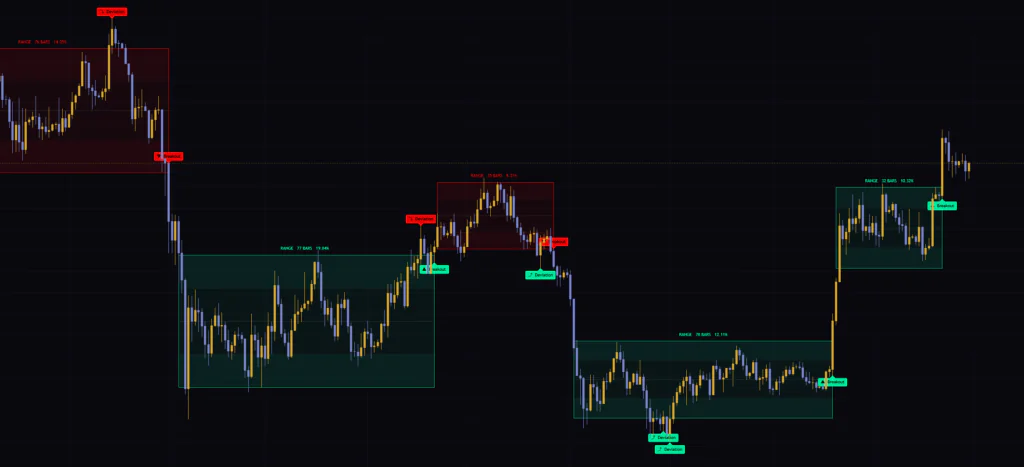
So whether it is Bitcoin on the 5-minute or the daily, or gold or an equity index, you can use it as is without swapping numbers. When I switched to the daily chart, boxes 10–20% tall ran for 77 and 78 bars, and I could see they were drawn by the same logic as the roughly 0.5% boxes on the 5-minute chart.
The compression ranking needs ATR Length bars of history (200 by default). No boxes appear for roughly the first 200 bars of the chart. On newly listed symbols, or on charts with few bars such as the monthly, boxes can take a long time to show up. In that case, shortening ATR Length lets detection start sooner.
Breakout Marks the Moment a Range Ends
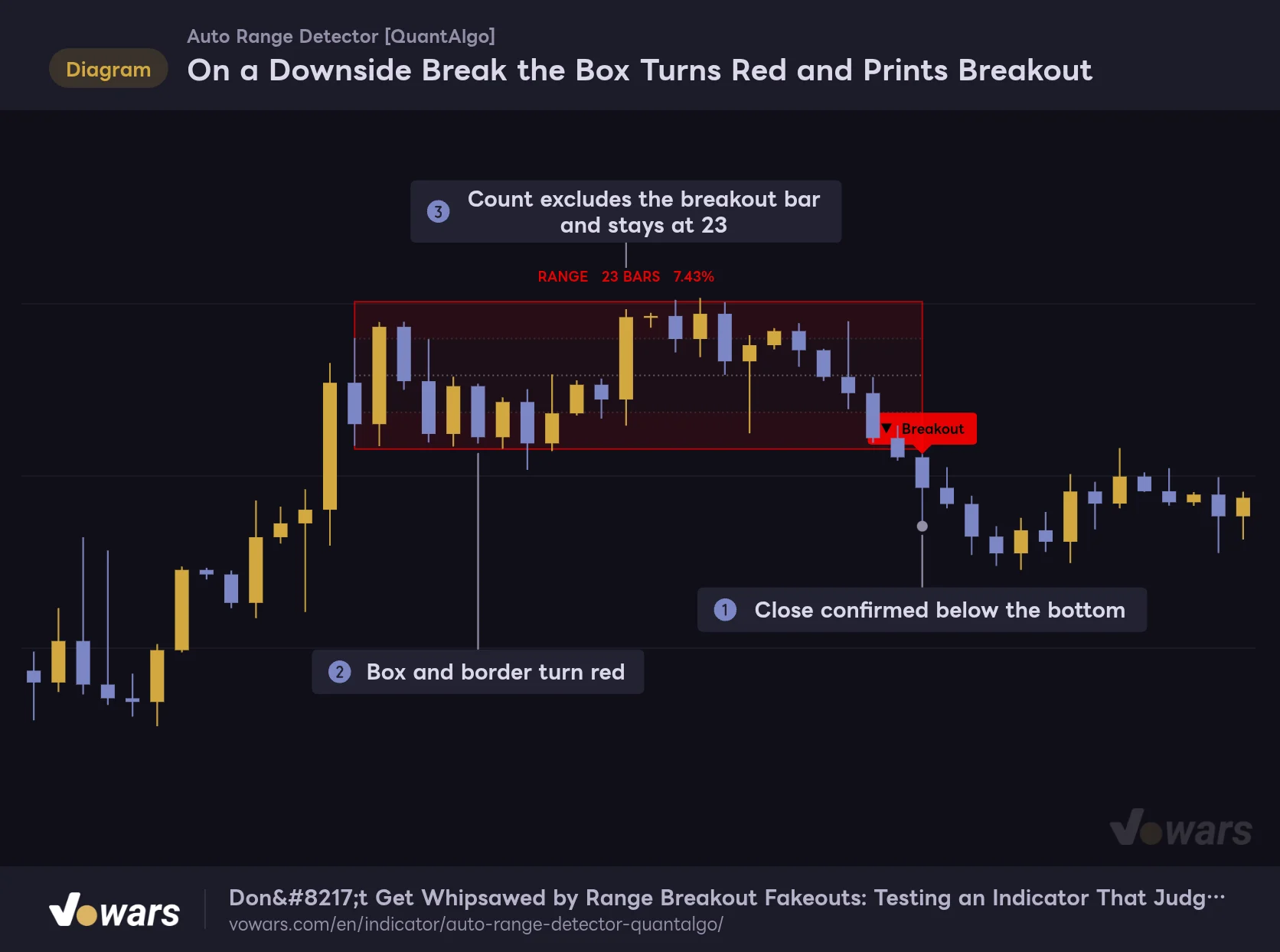
On a Downside Break the Box Turns Red and Prints Breakout
When a bar closes beyond a confirmed range, the box closes on that bar and is recolored for the direction of the break.
Vowars DE ver.3.12.30
When price breaks a confirmed range, the box closes on that bar. Figure ① is the breakout bar. On default settings, a wick through the boundary is not enough. The bar has to close beyond the boundary by more than 0.15 ATR before it counts as a Breakout.
At that moment the box and border change color, as in Figure ②, and a ▼ prints above the bar on a downside break or a ▲ below the bar on an upside break. The marker sits on the opposite side of the bar from the break direction, presumably so it does not cover the price action that follows.
A small detail: the bar count on the tag in Figure ③ does not include the breakout bar. The box itself extends to the breakout bar, so the number can be off by one from what you get by measuring the box width with TradingView’s measure tool.
Wicks that poke just outside a boundary are handled by Absorb Overshoot. If the bar closes inside the box and the excursion is within 0.25 ATR, the box stretches out to the tip of the wick. That spares you the annoyance of a box closing on every little wick and a new one opening a few ticks away.
Failed Breaks That Come Back Inside Are Kept as Deviations
The biggest headache in range trading is the fakeout: price breaks, then comes right back. “Auto Range Detector” treats this as its own case.
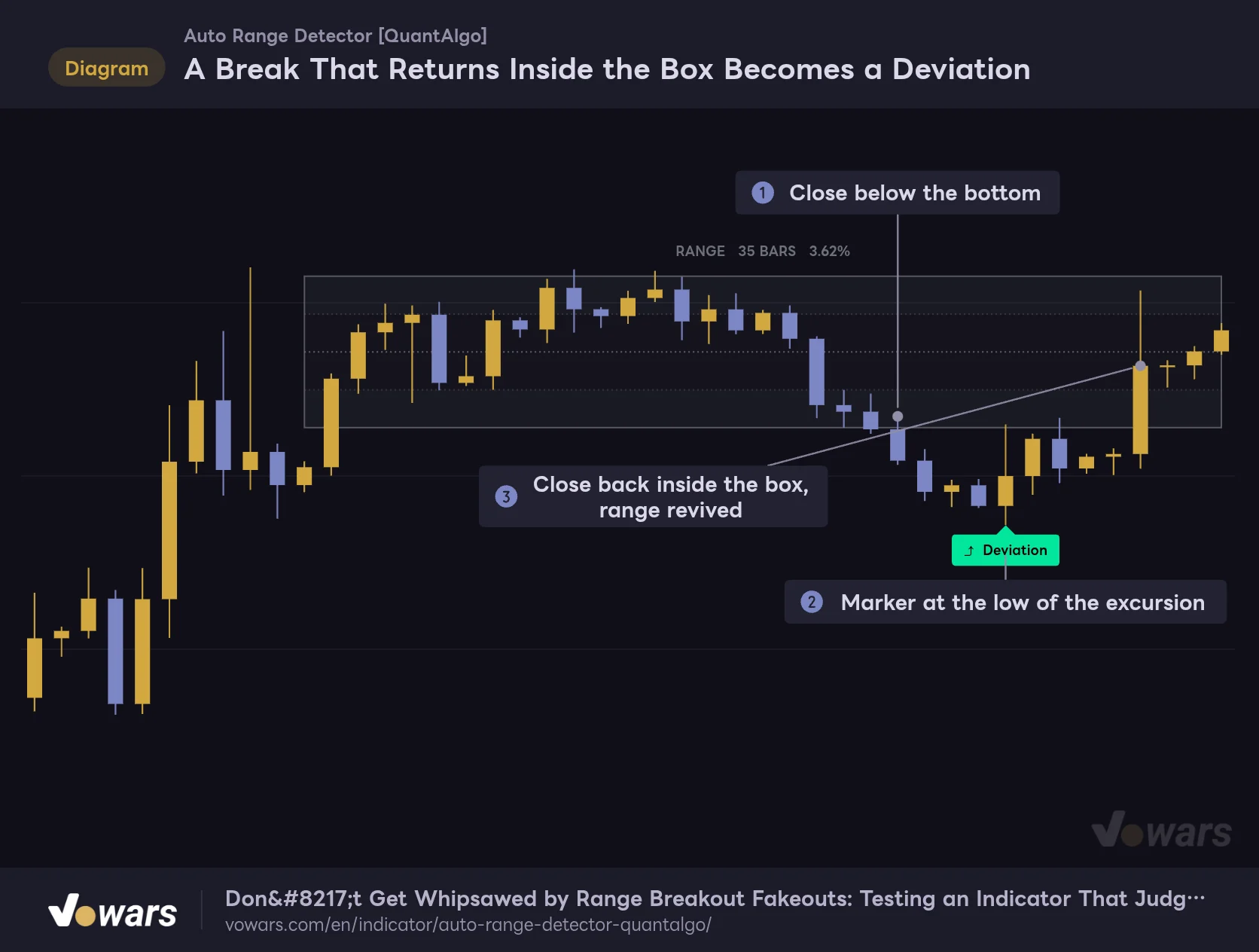
A Break That Returns Inside the Box Becomes a Deviation
If price closes back inside the box within 10 bars of breaking out, the Breakout is withdrawn and the range continues.
Vowars DE ver.3.12.30
At Figure ① the bar closes below the bottom and a ▼ Breakout prints. But when the bar at Figure ③ closes back inside the box, the Breakout marker is withdrawn, the box turns gray again, and it carries on from its original left edge. In its place, the Deviation marker in Figure ② is printed at the lowest low of the excursion.
How long it waits for price to return is set by Deviation Window, which defaults to 10 bars. If price does not come back within 10 bars, the break is confirmed as real and the box stays red.
What you end up with on the chart is one long range with a single fakeout inside it. I found that far easier to read than a box that gets cut on every break, leaving a pile of near-identical boxes over the same price zone. On the 5-minute chart these Deviations print quite often, which shows just how much more price pokes outside the boundaries on lower timeframes.
While Merge Deviations is on, a Breakout marker can still be withdrawn for up to 10 bars after it prints. The Breakouts left on a historical chart are only the ones that never came back, so the indicator tends to look better in hindsight than it did live. If you trade by jumping in on the breakout bar, keep this firmly in mind.
When You Want Breaks to Be Final
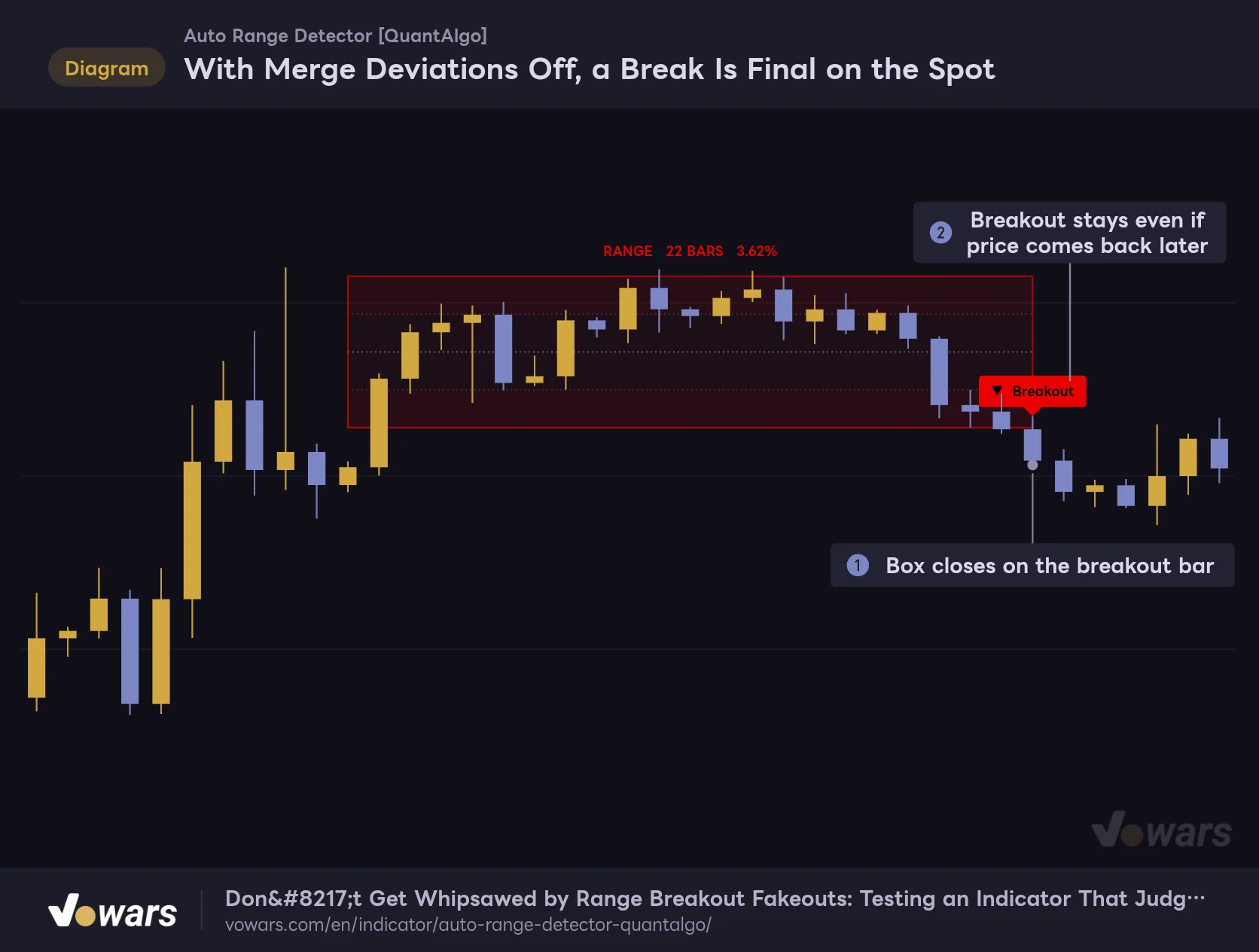
With Merge Deviations Off, a Break Is Final on the Spot
On the same price action, turning Merge Deviations off means the break is not withdrawn.
Vowars DE ver.3.12.30
With Merge Deviations turned off, the box closes on the bar at Figure ① and the Breakout stays put, as in Figure ②. Even if price comes back afterward, the box does not reopen. Markers never vanish, but in exchange the box gets chopped up on every fakeout. Off suits traders who want to test breakouts mechanically, and on suits those who want the full picture of the range.
How to Use It in Actual Trading
“Auto Range Detector” is a tool that lays out whether you are inside a range, out of it, or looking at a failed break. Here is the order I would use it in.
1 Check the Higher Timeframe: Are You Inside a Box?
First, open the 1-hour or 4-hour chart and see whether a gray box is showing. If it is, go easy on trend-following trades on the lower timeframes. That alone cuts down a lot of the situations where you trade with momentum in the middle of chop and get whipsawed. The higher the bar count on the tag, the longer the range has lasted, which also makes the eventual break more worth watching.
2 Use the Box Edges and the 25% / 75% Lines as Fade Levels
If you trade inside the range, the edges of the box are where to look. The classic playbook is to sell when upper wicks stack up near the top and buy when lower wicks stack up near the bottom, and the box works as a ready-made ruler for that. It is also easy to set targets: take profit at the equilibrium line, or at the 25% or 75% line on the far side if you want to let it run. The standard stop goes just outside the boundary, but on symbols that print a lot of Deviations, check how far past markers reached before deciding how much room to give it.
3 After a Break, Give It 10 Bars to See If It Comes Back
Once a Breakout prints, the decision is whether to chase it right away or wait for a retest. On default settings the break is withdrawn if a bar closes back inside the box within 10 bars, so I find it calmer to use the high or low of the breakout bar as the stop reference and wait for price to retest the boundary from the outside and bounce. If a Deviation marker prints instead, the setup flips: you are now looking for a move away from the failed side, toward the opposite edge of the box.
Where It Fits and Where It Does Not
Its strength is making sense of a market that has lost direction and watching for the break out of it. It works on any timeframe, from day trading to swing trading. Keeping it on the daily or weekly chart for context in position trading is not a bad idea either.
On the other hand, in a market running hard in one direction no window passes the tests, so no box appears. That is correct behavior more than a weakness, and you can read it as information: no box means no consolidation. The box edges can still serve as reference levels for scalpers closing trades in seconds to minutes, but the default settings wait for the bar to close, so do not expect it to be fast as a trigger.
Add RSI to Back Up Bounces at the Edges
“Auto Range Detector” tells you where the edges are, but not how much momentum is left when price gets there. The indicator I found fits best to fill that gap is RSI.
Pairing the Box Bottom With RSI to Gauge the Bounce
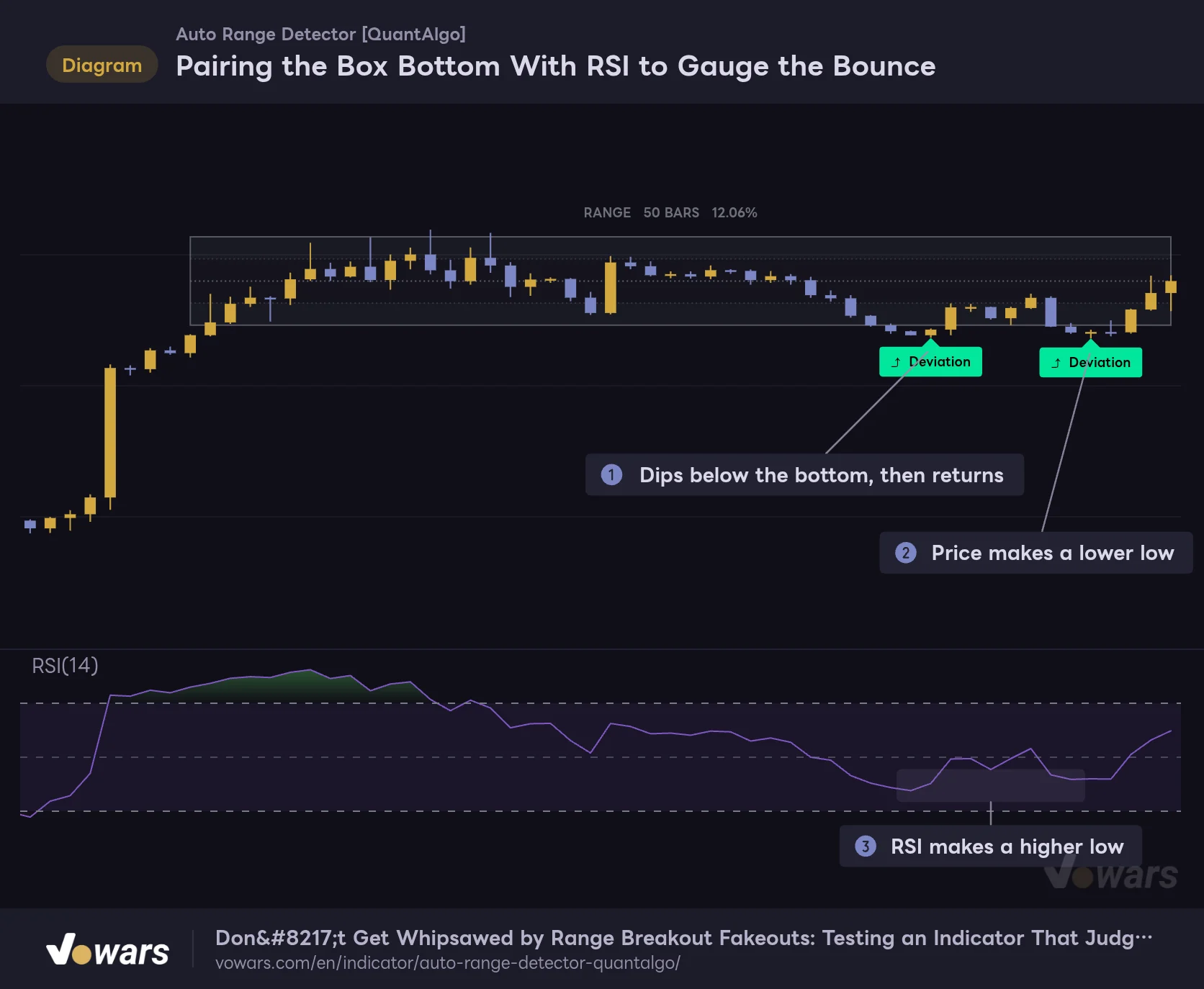
An example of reading RSI direction against an "Auto Range Detector" boundary.
Vowars DE ver.3.12.30
At Figure ① price dips below the bottom and comes back, printing the first Deviation. Then at Figure ② it makes a marginally lower low, but Figure ③ shows RSI making a higher low. Price is lower while selling pressure is fading: a textbook bullish divergence. When location (the bottom of the box) and momentum (the higher low on RSI) line up, the case for playing the bounce becomes much easier to trust.
A few other tools pair well with it.
- Volume – Rising volume on the Breakout bar is a clue as to whether the break has follow-through. It is safest to assume a low-volume break is more likely to end up as a Deviation.
- ADX – If ADX stays low while the box is live and turns up as price breaks, you get a second confirmation of the shift from consolidation to trend.
- Bollinger Bands – If a squeeze in the bands overlaps the box, a separate calculation is confirming that price is coiling.
Which Settings Are Worth Touching?
The settings come in four groups, and there are a lot of them. You do not need to understand every one to use the indicator, though. I suggest running the defaults for a few days and only adjusting what bothers you: too many boxes, too few, or a left edge you do not like. This section sticks to the settings that make the biggest difference.
Detection / Window Length and Boundary Placement
| Setting | Default | Suggested | Effect |
|---|---|---|---|
| Scan Scaling | Base + 2x + 3x | Base + 2x + 3x | Number of windows tested. Base only tests just the base length and limits detection to short ranges |
| Base Scan Length | 20 | 15–30 | Length of the shortest window. Lower values also pick up brief pauses inside a trend, higher values leave only long consolidations |
| Boundary Basis | Percentile band | Percentile band | How the boundaries are placed. Absolute extremes uses the highest high and lowest low, Body extremes uses candle bodies only |
| Boundary Percentile | 90 | 85–95 | With Percentile band, how much of the wicks gets trimmed. At 100 it matches the highest high and lowest low |
| Signal Timing | Bar close | Bar close | Whether to wait for the bar to close. Live bar also evaluates the forming bar |
| ATR Length | 200 | 200 | Lookback of the ATR used as the unit of distance. Shorter values make the reference follow recent volatility |
Base Scan Length changes the character of the boxes more than anything else. As a guide, use around 15 if you want to catch small consolidations on lower timeframes, and around 30 if you only want the big ones on the daily. Boundary Basis is fine left alone in most cases, but on thin symbols prone to abnormally long wicks, switching to Body extremes makes the box settle onto the cluster of candle bodies.
Structure Filters / Tighten or Loosen the Definition of a Range
| Setting | Default | Suggested | Effect |
|---|---|---|---|
| Compression Percentile | 40 | 30–50 | Threshold for compression. Higher values also box wider consolidations, lower values leave only tight ones |
| Calibration Lookback | 500 | 500 | How much history compression is ranked against. Shorter values adapt faster to a volatility shift |
| Min Rotation Rate | 0.18 | 0.15–0.25 | Midline crossings required per bar. Higher values pick up only busy two-sided rotation |
| Touch Definition | Wick reaches | Wick reaches | Whether a wick reaching the boundary counts as a touch, or only a close |
| Min Boundary Touches | 2 | 2–3 | Touches required on each side. Higher values leave only boxes that were defended repeatedly |
| Touch Tolerance (ATR) | 0.10 | 0.10 | How close to the boundary a bar must get to count as a touch |
| Max Drift | 0.45 | 0.30–0.60 | How much tilt is allowed. Higher values also box sloping channels |
| Min Containment | 0.70 | 0.70–0.80 | Share of closes inside the box. Higher values tighten the box and drop windows with too many excursions |
If you feel there are too many boxes, start by lowering Compression Percentile to 30. The loose, vaguely sideways areas drop out and only tight consolidations remain. If that is still too many, set Min Boundary Touches to 3. Conversely, on symbols where boxes rarely appear, raising Compression Percentile to 50–60 or loosening Max Drift to around 0.6 should let it pick up gently sloping consolidations too.
Range Behavior / The Left Edge and How a Range Ends
| Setting | Default | Suggested | Effect |
|---|---|---|---|
| Range Anchoring | Extend to containment | Extend to containment | How the left edge is set. Scan window only draws the box across just the window that was tested |
| Anchor Lookback | 300 | 300 | Maximum number of bars the left edge can walk back |
| Minimum Range Bars | 10 | 10 (around 30 if you want a provisional stage) | Bars required before the box counts as confirmed |
| Absorb Overshoot | On | On | Takes a marginal wick into the box |
| Overshoot Tolerance (ATR) | 0.25 | 0.25 | Largest excursion that can be absorbed |
| Break Confirmation | Close beyond | Close beyond | Confirms a break on the close. Wick beyond counts a break as soon as a wick crosses |
| Breakout Buffer (ATR) | 0.15 | 0.15–0.30 | Distance past the boundary required for a break to count |
| Merge Deviations | On | Depends on use | Merges a break that comes back inside into the original box |
| Deviation Window | 10 | 5–15 | Bars to wait for price to return |
| Cooldown Bars | 3 | 3 | Wait time after a box ends before the next one can open |
| Max Range Age | 0 | 0 | Lifespan of a box. 0 is unlimited. A positive value retires the box after that many bars |
The setting in this group that visibly changes the chart is Range Anchoring.
With Scan window only, the Box Covers Just the Window That Was Tested
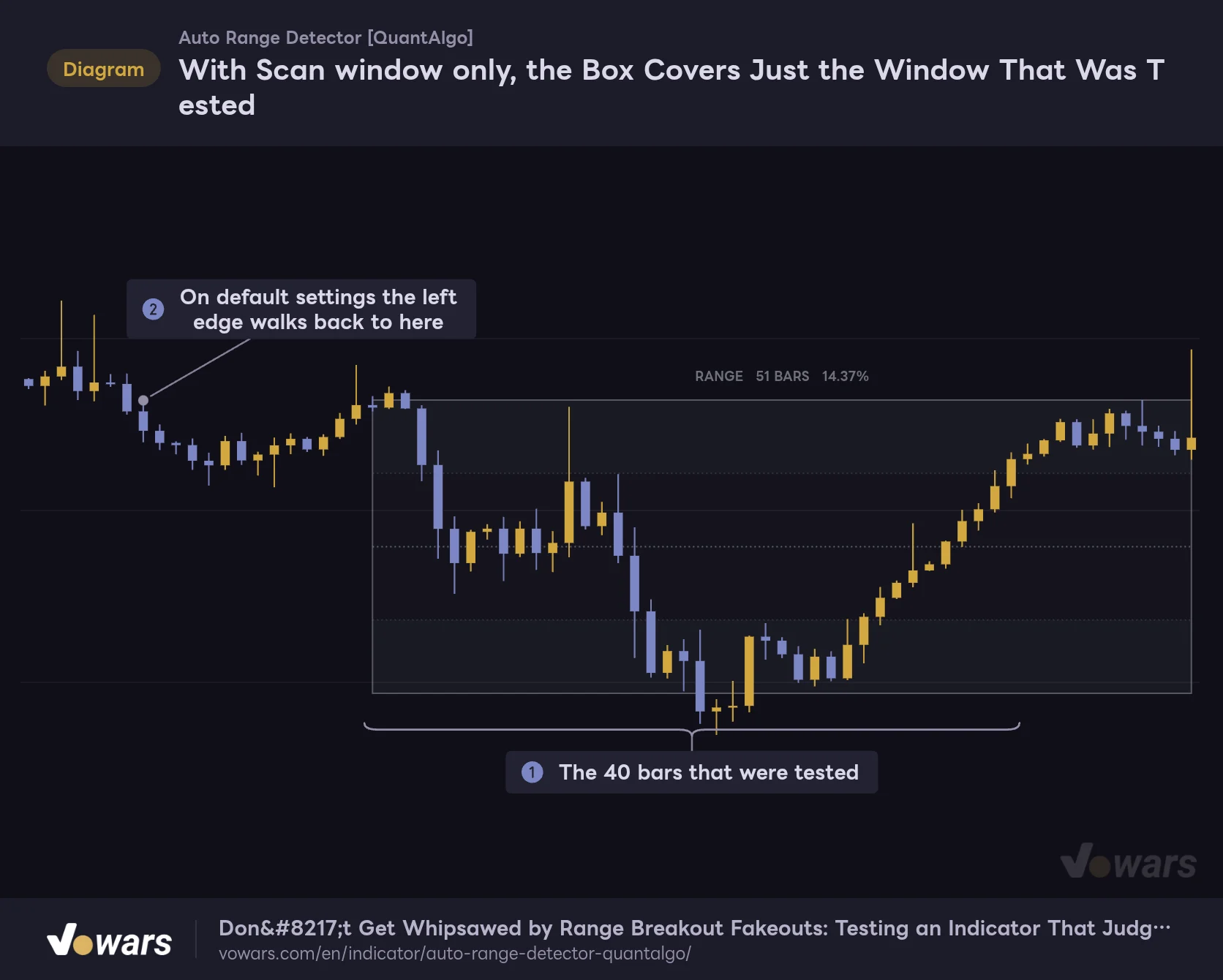
Range Anchoring decides where the left edge of the box is placed.
Vowars DE ver.3.12.30
With Scan window only, the window used for detection becomes the start of the box, as in Figure ①. The default, Extend to containment, walks the left edge further back from there for as long as closes stay inside the box. In the same spot it reaches the position shown in Figure ②, so the box covers the consolidation from where it began.
I prefer the default. When I draw a box by hand I usually start from the first bar of the consolidation too, so it matches my instinct. The trade-off is that because the left edge reaches back, a box can overlap an older one. If the overlap bothers you, try Scan window only.
Breakout Buffer (ATR) ties directly to how many fakeouts you see. On symbols with a lot of marginal breaks, raising it to 0.25–0.30 filters out the weak ones. Confirmation comes later as a result, so it is a trade-off between speed and certainty. Setting Break Confirmation to Wick beyond closes the box as soon as a wick crosses. It is aimed at traders who want to capture quick moves such as stop runs, and Absorb Overshoot does not apply in this mode.
Visual Settings / Adjusting the Look
| Setting | Default | Suggested | Effect |
|---|---|---|---|
| Color Preset | Custom | To taste | Color scheme for upside and downside breaks. Choose from Classic, Aqua, Cosmic, Cyber, Neon, and Custom |
| Bullish Color / Bearish Color / Range Color | Green / Red / Gray | To taste | Colors for upside breaks, downside breaks, and live ranges when Custom is selected |
| Gradient Steps | 4 | 2–4 | Number of slices in the box shading. Fewer slices let more past boxes stay on the chart |
| Fill Transparency | 88 | 85–95 | How light the box shading is. Higher values make the candles easier to see |
| Show Equilibrium Line | On | On | Shows the equilibrium line |
| Show Quartile Levels | On | On | Shows the 25% and 75% lines |
| Show Range Labels | On | On | Shows the tag |
| Show Breakout Markers | On | On | Shows the Breakout markers |
| Show Deviation Markers | On | On | Shows the Deviation markers |
| Label Text Size | Small | Small | Text size for tags and markers |
Colors are contrast-corrected against the background automatically, so the lines stay visible on both light and dark themes. When the chart gets crowded with other indicators, turning off Show Quartile Levels and keeping only the equilibrium line cleans things up nicely.
Suggested Setups by Goal
| Goal | What to change | Why |
|---|---|---|
| Catch small consolidations on lower timeframes | Base Scan Length to 15, Deviation Window to 5 | Scans from a shorter window and shortens the wait for a return, so it reacts faster |
| Fewer boxes, big consolidations only | Compression Percentile to 30, Min Boundary Touches to 3 | Narrows it down to tight windows whose edges were tested repeatedly |
| Test breakouts mechanically | Merge Deviations off | Printed markers never disappear later, so your records match the results |
| Stabilize boxes on symbols with erratic wicks | Boundary Basis to Body extremes | Boundaries come from bodies only, so sudden wicks do not throw the box off |
Does It Repaint?
Whether you can trust the boxes and markers on past bars is a fair question. The answer depends on the settings, so let’s take it piece by piece.
The default Signal Timing is Bar close, which means range detection, break confirmation, and alerts all happen only after the bar closes. A reading made when a bar closes never changes for that bar afterward. On the forming bar, all you see is the right edge of the box extending out to the current bar.
That does not mean nothing ever moves once it is drawn, though. Three things happen by design.
- A box first appears on the bar where it is detected, and at that point its left edge is drawn back into the past. The left portion of the box was not on the chart in real time.
- When Merge Deviations is on, a Breakout marker can be withdrawn for up to 10 bars, and when that happens a Deviation marker is printed on a past bar.
- An unconfirmed (FORMING) box disappears without a trace the moment it breaks.
All of this is spelled out in the settings tooltips, so none of it is hidden repainting. Even so, do not look at a historical chart and conclude you could have bought at the left edge of the box. To see how things actually looked in real time, step through bar by bar with TradingView’s Bar Replay. Daily and higher timeframes can be replayed over the full history on any plan, while on intraday timeframes how far back you can go depends on your plan and the timeframe (as of October 6, 2026).
Setting Signal Timing to Live bar runs the evaluation on the forming bar too. Signals come earlier, but boxes and markers can appear and disappear until the bar closes. It is meant for discretionary traders who want an early heads-up. For backtesting and alerts, staying on Bar close is the safer choice.
TradingView caps a single indicator at 500 boxes. “Auto Range Detector” uses five boxes per range, so only about the last 100 ranges stay on the chart. Anything older is removed as new boxes are drawn. If you want to look further back, lowering Gradient Steps increases how many ranges can be kept.
Five Alerts, All Firing on Bar Close
“Auto Range Detector” comes with five alert conditions. In TradingView’s Create Alert dialog, select “Auto Range Detector” under Condition and you can pick from the following.
| Condition | When it fires |
|---|---|
| Range Detected | A new range was detected |
| Range Breakout Up | A confirmed range broke to the upside |
| Range Breakdown | A confirmed range broke to the downside |
| Any Range Break | A break in either direction |
| Range Deviation | After a break, a bar closed back inside the box |
The one I find most useful is Range Detected. It tells you when a symbol on your watchlist has gone into consolidation, so you can wait for the box to form before you even open the chart. Range Deviation is also handy if you like to trade reversals off fakeouts.
Alert frequency is chosen in the Create Alert dialog. On the default Bar close setting the evaluation itself only runs when a bar closes, so whichever frequency you pick, the alert will not fire before the close. Note that when a provisional range breaks, there is no marker and no alert.
Strengths I Found in Use, and Things to Watch
What you can rely on
- It checks rotation, touches, drift, and containment as well as width, so the boxes land close to where your eye would put them
- Detection is based on ATR and a comparison with history, so the same settings carry across symbols and timeframes
- Failed breaks are merged into one box as Deviations, so the chart does not get chopped into pieces
- The equilibrium line and the 25% / 75% lines show where price sits inside the box at a glance
- Default settings evaluate on bar close, and five alert conditions are included
What to watch
- A box only appears once the conditions are met, so it is not on the chart in the early part of a consolidation
- While Merge Deviations is on, a Breakout marker can be withdrawn for up to 10 bars
- The left edge is drawn back into the past, so historical charts make it look like you could have spotted the range earlier than you really could
- Detection does not start for roughly the first 200 bars of the chart
- For trade decisions at the box edges, adding a momentum indicator makes it easier to build a case
Most of the points to watch come from the fact that it confirms a range before drawing it. No box appears until one of the three windows passes the tests, so the display inevitably starts in the later part of a consolidation. In return, every box you see has made it through those tests. It is best used with the understanding that it puts reliability ahead of speed.
A Dedicated Ruler for Consolidation, With a Definition of “Range” You Set Yourself
“Auto Range Detector” takes the simple job of boxing sideways price action and builds it out with remarkable care. Width, rotation, touches, drift, containment: each element that makes up a range is its own condition, and every one can be matched to your own standards.
![Auto Range Detector [QuantAlgo]](https://vowars.com/wp-content/webp-express/webp-images/uploads/2026/10/Auto-Range-Detector5-1024x451.png.webp) Image
ImageThe defaults are plenty to start with. Check the higher timeframe for a box, use the box edges and the three dotted lines as reference levels, and after a break give it 10 bars to see whether price comes back. Once that routine feels natural, nudge the number of boxes and the left-edge placement toward your own taste, and it should slot in comfortably as a replacement for the rectangles you used to draw by hand.
Of course, a box does not guarantee a bounce, and a Breakout does not guarantee follow-through. Confirm momentum with RSI or volume, decide where your stop goes first, and use it as a ruler for reading consolidation.