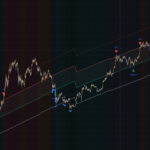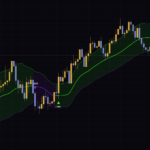


“Strong Gradient Channel”: Volume That Stacks Along the Trend
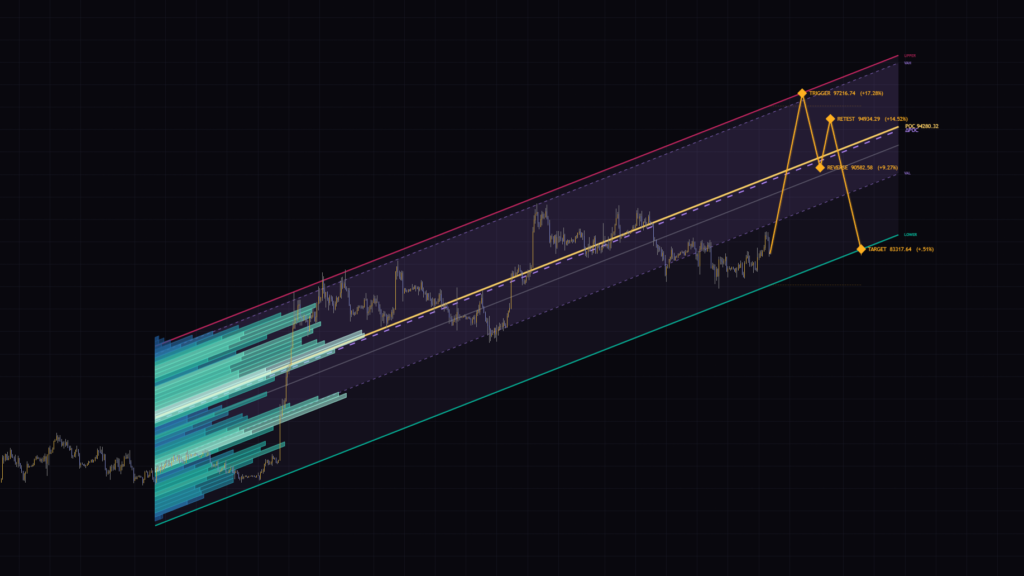
“Strong Gradient Channel” is an open-source indicator published on TradingView. It plots a linear regression channel and then builds a volume profile that follows the channel’s slope. A regular volume profile stacks horizontal bars at each price, but the bars in “Strong Gradient Channel” run diagonally at the same angle as the channel.
On top of the channel and the profile, it packs in “FADE” signals that call contrarian setups at the channel walls, a “scenario” path projected forward from the last bar, and a dashboard that sums up the current state. I ran it on BTCUSDT across six timeframes, from the 5-minute up to the daily. The first time I loaded it on the 4H chart, my honest reaction was “that’s a lot going on.” Once the pieces clicked, though, I realized its real edge: you can see where volume has built up inside an uptrend while keeping the trend’s angle intact, which is something other profile indicators just don’t give you.
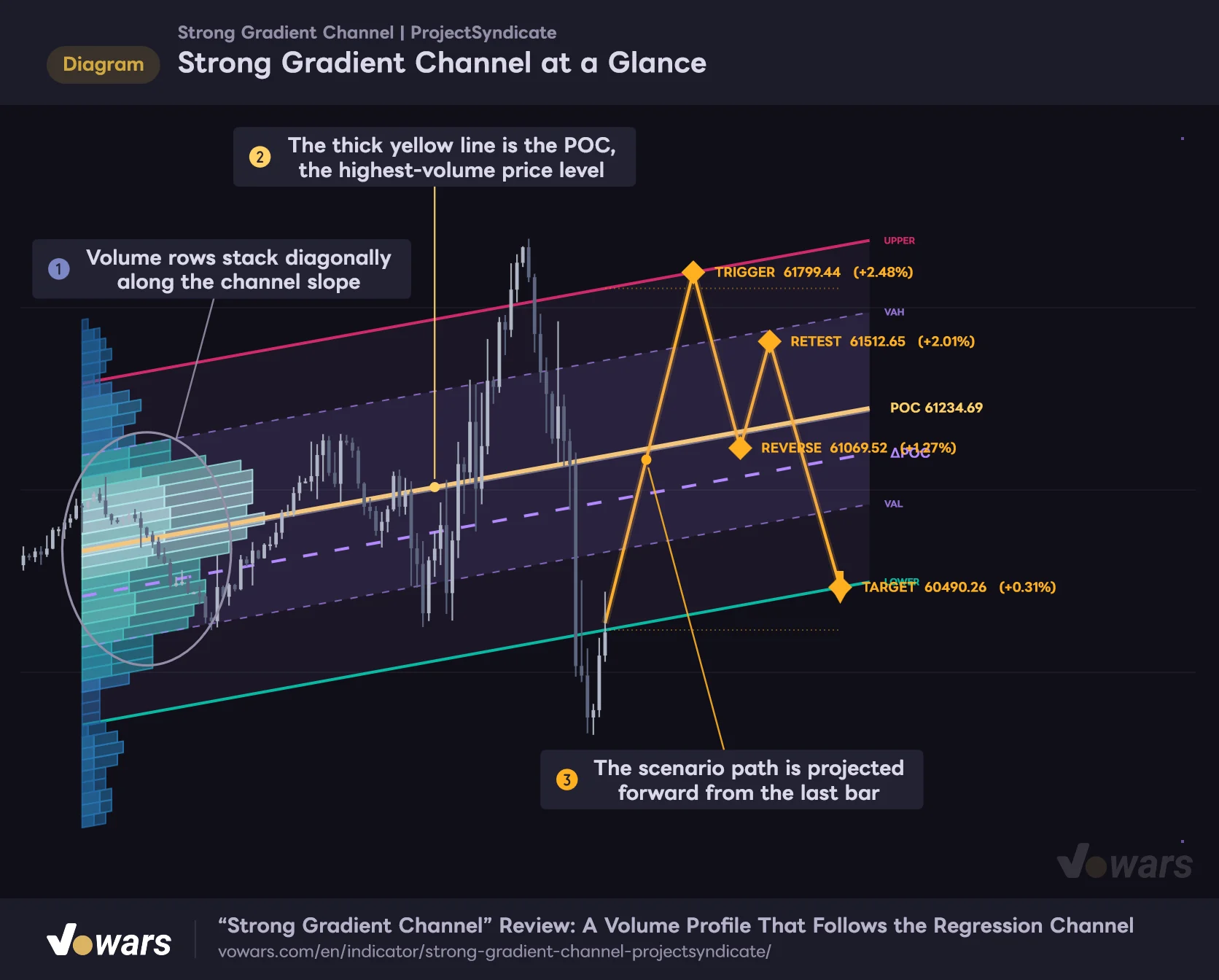
Strong Gradient Channel at a Glance
The channel, the sloped profile and the scenario path all live together on a single chart.
Vowars DE ver.3.12.35
The figure shows the full picture. The diagonal band extending from the left edge is the volume profile, and as Figure ① shows, the whole band is tilted. The thick yellow line is the POC, the price level with the most traded volume inside the channel, marked by Figure ②. The orange zigzag running to the right of the last bar is the scenario path in Figure ③.
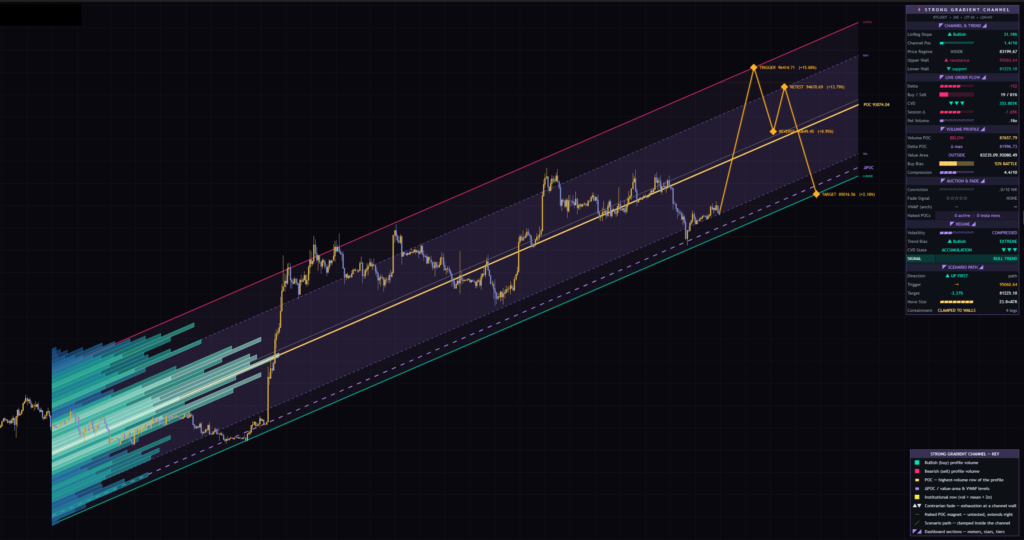
A channel built around the straight line that best fits price over a set period (the regression line), with walls drawn above and below it. Because the slope of that line directly reflects the direction and strength of the trend, it tells you “how steep has price been moving over this window?” more clearly than a moving average does.
What’s on the Chart
The first time you load it, the number of lines and labels can be a bit overwhelming. Going through what each element means in the table below will make the rest of this review much easier to follow. Colors refer to the default “Obsidian Aurora” theme.
| Element | Color / Style | What It Shows |
|---|---|---|
| Upper wall (UPPER) | Solid red line | The wall above the regression line. Shown as resistance on the dashboard |
| Lower wall (LOWER) | Solid green line | The wall below the regression line. Shown as support on the dashboard |
| Midline | Thin white line | The regression line over the channel window |
| POC | Thick solid yellow line | The price level with the most volume inside the channel |
| VAH / VAL | Dotted purple lines with a light fill | The top and bottom of the range holding 70% of the volume (the value area) |
| ΔPOC | Dashed purple line | The price level with the largest gap between buying and selling |
| Profile | Bands from blue to bright green | Volume at each price level. The brighter the row, the more volume |
| Yellow rows | Yellow bands | Price levels where volume exceeds the mean + 2σ |
| FADE ▲ / FADE ▼ | Green / red labels | Contrarian signals flagging an overextension at a wall |
| Scenario | Orange zigzag with diamonds | The projected path beyond the last bar (TRIGGER, REVERSE, RETEST, TARGET) |
The Regression Channel and Three Ways to Size the Walls
The channel is calculated from the most recent Channel Length bars (480 by default). The midline is a regression line fitted to the price chosen in Source (hlc3 by default, the average of high, low and close), and both the profile and the POC are built from those same 480 bars.
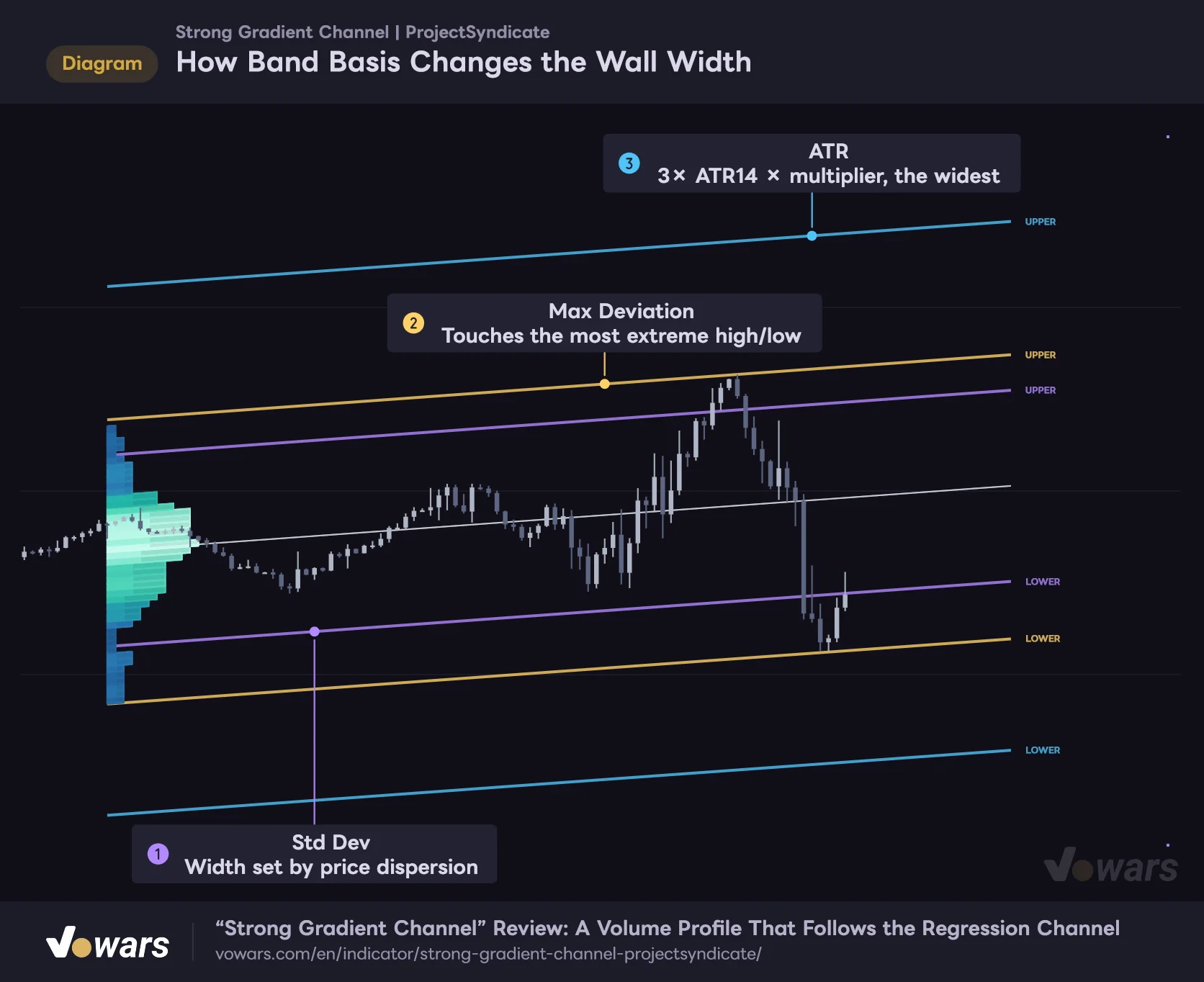
How wide the walls sit is decided by Band Basis. There are three options, and the figure overlays all three on the same chart.
How Band Basis Changes the Wall Width
Same window, same midline, yet switching Band Basis moves the walls a lot.
Vowars DE ver.3.12.35
Std Dev in Figure ① places the walls at the dispersion of price around the regression line (standard deviation) multiplied by Upper Band Mult / Lower Band Mult (both 2.0 by default). Max Deviation in Figure ② simply snaps the walls to the high and low that stray furthest from the regression line during the window. In this mode the multipliers aren’t used at all, so changing them won’t move the walls. ATR in Figure ③ sets the width at 3× ATR(14) times the multiplier. At the default 2.0 that works out to 6 ATRs, which usually makes it the widest of the three.
Since the upper and lower multipliers are set independently, you can build an asymmetric channel, for example tightening the lower wall a little in an uptrend. The walls, the midline, the POC and the other levels are extended Extend Channel Right (bars) bars (100 by default) past the last bar, with price labels at the right end.
The Sloped Profile Splits Every Row into Buyers and Sellers
The profile takes the range between the high that sits furthest above the regression line and the low that sits furthest below it, and splits it into Profile Rows rows (45 by default). Because price is measured as the distance from the regression line, the rows themselves tilt at the same angle as the channel. Each bar’s volume is spread evenly from its high to its low and added to every row it overlaps.
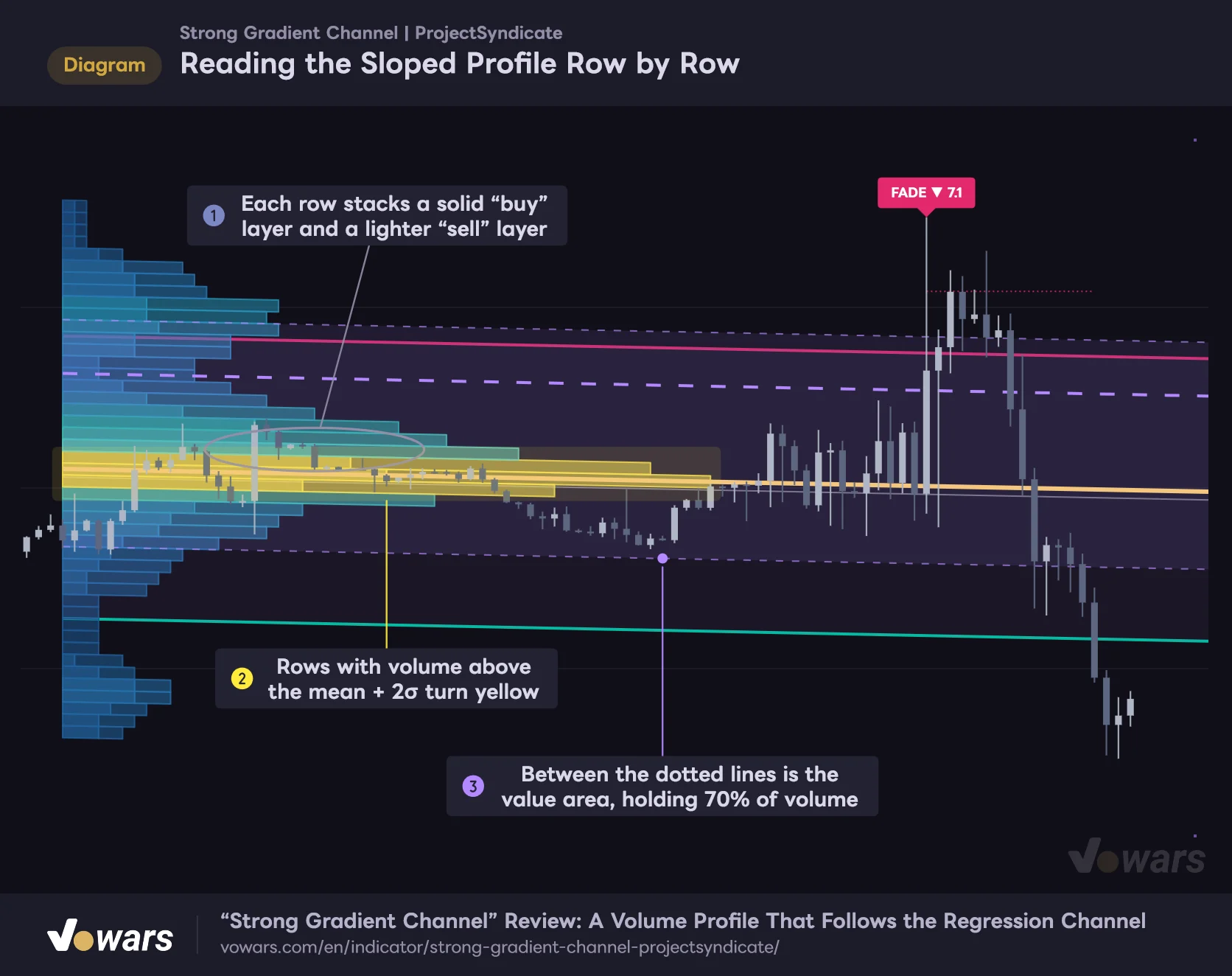
Reading the Sloped Profile Row by Row
Each row tells you which side traded more at that price level.
Vowars DE ver.3.12.35
As Figure ① shows, each row is drawn as two stacked layers: a solid “buy” part and a lighter “sell” part (when Split Buy / Sell is on). The longer the solid part, the higher the share of buying at that price level. With Spectral Ramp (volume-weighted) turned on, the row color is set by volume: thin rows are deep blue, and heavier rows shift through bright green toward white. Turn it off and you get a simple scheme with buys in green and sells in red.
The yellow rows in Figure ② are price levels whose volume exceeds the average row volume plus two standard deviations. The setting is called Highlight Institutional Rows and the legend says “Institutional row,” but the test is based purely on volume size. Keep in mind it isn’t actually picking out individual large orders.
The area between the dotted lines in Figure ③ is the value area. Starting from the POC row, it expands one row at a time toward whichever side has more volume and stops once the total reaches Value Area % (70% by default). The ΔPOC is drawn through the middle of the row with the biggest difference between buying and selling.
How Does It Split Buying and Selling Inside a Bar?
The buy/sell split happens in two steps. First, for each bar (or each lower-timeframe bar inside it), it works out a “buy share” from where the close sits between the high and the low (Close Location) and whether the candle is bullish or bearish (Body Direction). The default Volume Classification is Blend, which mixes close location at 65% and candle direction at 35%. That ratio is controlled by Blend — Close Location %.
When Use Intrabar Volume is on, the dashboard’s “LIVE ORDER FLOW” section and the FADE logic use buying and selling calculated bar by bar on a lower timeframe. With Intrabar Granularity set to Auto, the lower timeframe is picked automatically from your chart timeframe.
| Chart Timeframe | Lower Timeframe Used (Auto) |
|---|---|
| Below 15m | 1m |
| 15m to below 1H | 5m |
| 1H to below 4H | 15m |
| 4H and above | 1H |
On the six charts I checked, the readout at the top of the dashboard showed “LTF 1” on the 5m, “LTF 5” on the 15m and 30m, “LTF 15” on the 1H, and “LTF 60” on the 4H and daily, exactly as the table says.
The sloped profile, on the other hand, splits buying and selling using the share from each chart bar, not the lower timeframe. The lower timeframe only feeds the dashboard numbers and the FADE logic. Either way, it isn’t using tick-by-tick trade data, so these are estimates derived from the shape of the bars.
FADE: A Contrarian Signal That Rarely Fires
The trade signals in “Strong Gradient Channel” are FADE ▲ (long) and FADE ▼ (short). As the name suggests, they fade the move: they look for spots where price has overextended into a channel wall and is running out of steam.
A bar becomes a FADE ▼ candidate when all three of the following line up. FADE ▲ uses the same conditions flipped upside down.
- The high takes out the highest high of the previous Local Extreme Lookback bars (10 by default)
- The high reaches the upper wall used for the signal check
- The upper wick is at least as long as the lower wick
Each candidate gets a score from 0 to 10. The score is the sum of the five components below, and a label only prints when it reaches Min Conviction Score (6.0 by default) or higher.
| Component | Weight | What It Means for FADE ▼ |
|---|---|---|
| Wick | 1.8 | Scores higher the longer the upper wick is relative to the bar’s range |
| Absorbed volume | 2.0 | Scores higher when volume is above its 20-bar average yet the body stays small |
| Failed buying | 2.0 | Added when buyers dominated inside the bar but the close finished below the bar’s midpoint |
| Volume location inside the bar | 1.6 | Added when the bar’s heaviest-volume price sits near the top (a P-shape) |
| CVD divergence | 1.6 | Added when cumulative volume delta (CVD) fails to exceed its recent high |
The CVD comparison looks back CVD Divergence Lookback bars (14 by default). Since the weights only add up to 9.0, the score can never actually hit 10. Bars where the intrabar volume splits into two peaks (a B-shape) get their score cut to 0.55× and are excluded from labels entirely. Signals print on bar close, and after one fires, no new signal appears until Signal Cooldown (bars) bars (5 by default) have passed.
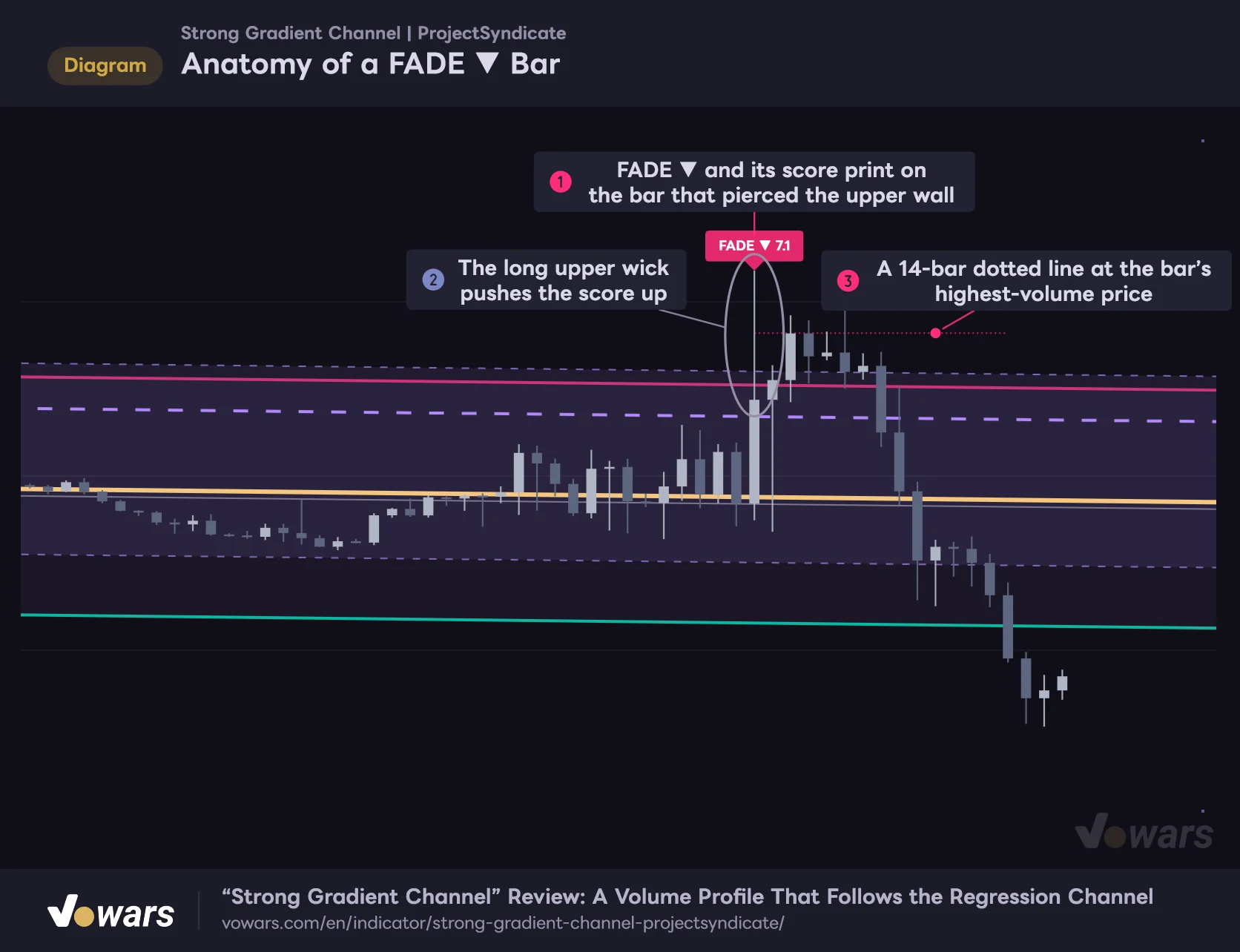
Anatomy of a FADE ▼ Bar
FADE only prints on wall-piercing bars where the wick and the skew of intrabar volume meet the conditions.
Vowars DE ver.3.12.35
Figure ① is the bar where FADE ▼ fired. As Figure ② shows, it left a long upper wick, and the wick component contributes heavily to the score.
FADE really doesn’t fire often. None of the six charts I checked had a single FADE label in the visible range. When I hunted for setups in the data used for the figures, bars scoring above the default 6.0 were also pretty rare. It’s not built for traders who want several signals a day; it’s better treated as a signal you stop and think about when it does show up.
The Signal Wall Isn’t the Wall You See on the Chart
The biggest thing to watch with FADE is that the “touched the wall” check doesn’t use the red and green walls drawn on your chart. It uses a separate wall that is recalculated on every bar.
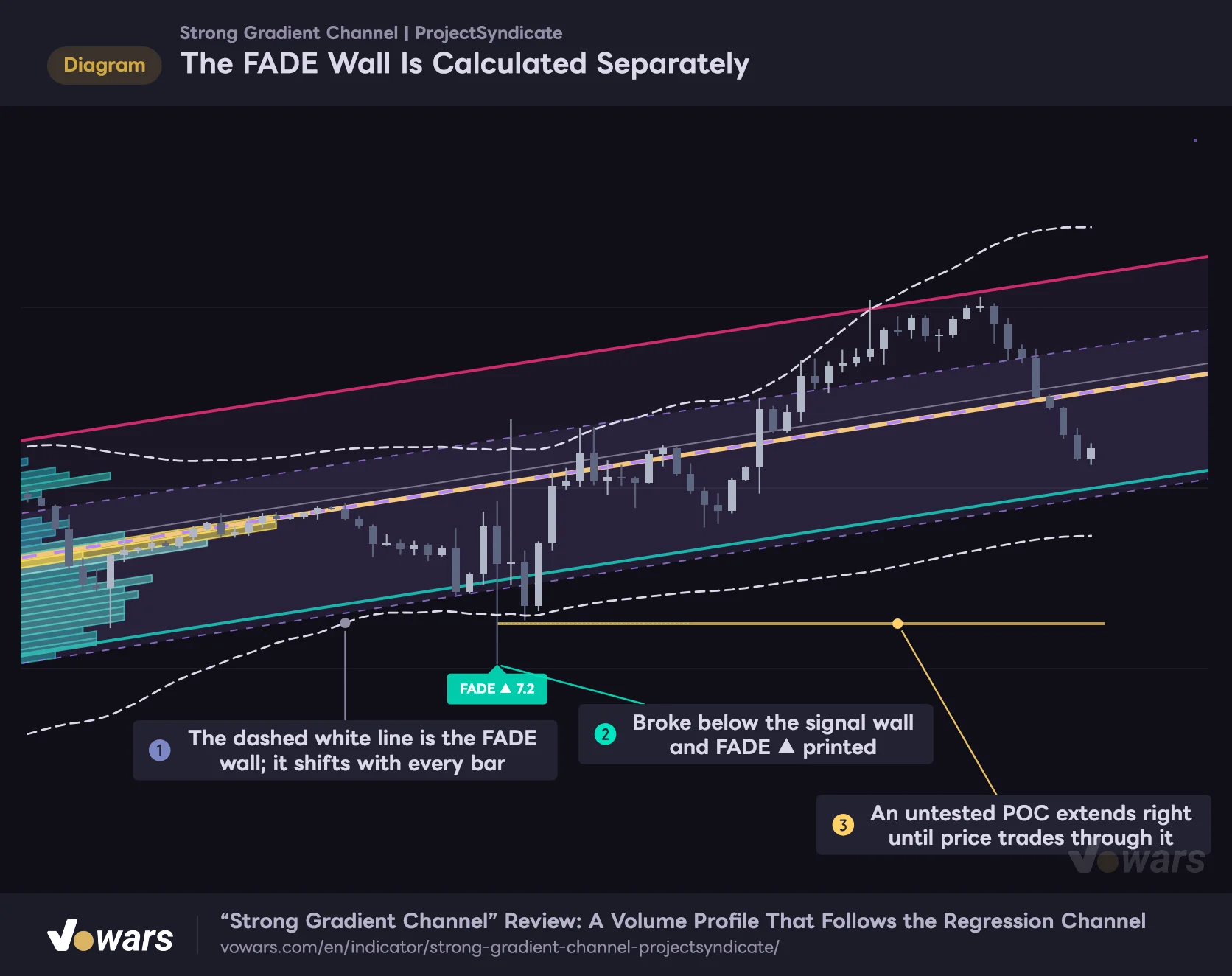
The FADE Wall Is Calculated Separately
FADE is not checked against the chart channel but against a wall rebuilt on every bar from the data up to that bar.
Vowars DE ver.3.12.35
The dashed white line in Figure ① is the wall FADE actually checks against. It takes the end point of the regression line over the past Channel Length bars at each bar, then adds and subtracts the dispersion of price itself (standard deviation) × the multiplier. The channel on your chart is a single straight line drawn once from the latest bar, while the signal wall moves bar by bar, which is why it looks curved in the figure.
The two walls also measure dispersion differently: the chart channel uses deviation from the regression line, while the signal wall uses dispersion around the average price. The cleaner the trend, the larger the latter gets, so the signal wall tends to sit outside the walls you see. Even if you switch Band Basis to Max Deviation or ATR, the signal wall keeps using this calculation.
That’s why you can get a wick poking through the red wall on your chart with no FADE, and on the flip side, a signal can fire further inside than you’d expect from the visible walls, as in Figure ②. If you ever think “price tagged the wall but nothing printed,” this is the reason.
Putting the Dotted Line and Naked POCs to Work
When FADE fires and Fade Target / Invalidation is on, a dotted line is drawn from the signal bar for Target Line Length bars (14 by default). The line sits at the price where the signal bar traded the most volume. However, if there’s a Naked POC still open in the signal’s direction (above the close for FADE ▲, below it for FADE ▼), the nearest one takes priority.
In Figure ③, the dotted line sits above the close even though it’s a FADE ▼. Bars whose intrabar volume peaks near the top score higher, so this is actually a common look on short signals. When there’s no Naked POC nearby, I found the line works better as an invalidation reference, “if price breaks back above here, the idea is off,” than as a take-profit target.
A Naked POC is a line drawn at the intrabar POC of any bar that scored Naked POC Min Score (6.0 by default) or higher. It’s created regardless of whether a label was printed or the cooldown was active. As Figure ③ shows, it keeps extending to the right until a later bar’s range trades through that price, and it disappears the moment it gets tagged. Up to Max Active Naked POCs (8 by default) can stay on the chart at once.
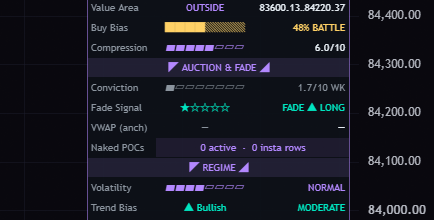
The dashboard’s “Fade Signal” and “Conviction” rows react to candidates on the still-forming bar too. On the 5m chart I saw it display “FADE ▲ LONG” while Conviction was only 1.7/10 (WK). That’s not a confirmed signal. Go by whether a FADE label actually prints on the chart.
The Scenario Path Is a Map, Not a Forecast
The scenario starts near the last bar’s close and zigzags through TRIGGER, REVERSE, RETEST and TARGET in that order. With Path Detail set to Standard, it plays out like this.
| Waypoint | How It’s Placed |
|---|---|
| TRIGGER | The first objective. In Channel Extremes mode, the wall on the trigger side |
| REVERSE | Retraces Reverse Retrace (% of trigger leg) (55% by default) of the move to TRIGGER |
| RETEST | Recovers Retest Recovery (% of reverse leg) (55% by default) of the pullback to REVERSE |
| TARGET | The objective on the far side. In Channel Extremes mode, the opposite wall |
Simple shows only TRIGGER and TARGET, while Extended adds an EXTENSION leg that travels half of the remaining distance from TARGET toward the wall on the same side. In Channel Extremes mode TARGET already sits next to the wall, so EXTENSION barely moves. Bars are allocated to each leg in proportion to its price distance within Projection Length (bars) (70 by default), and every waypoint is kept Wall Padding (% of channel width) (2% by default) inside the walls.
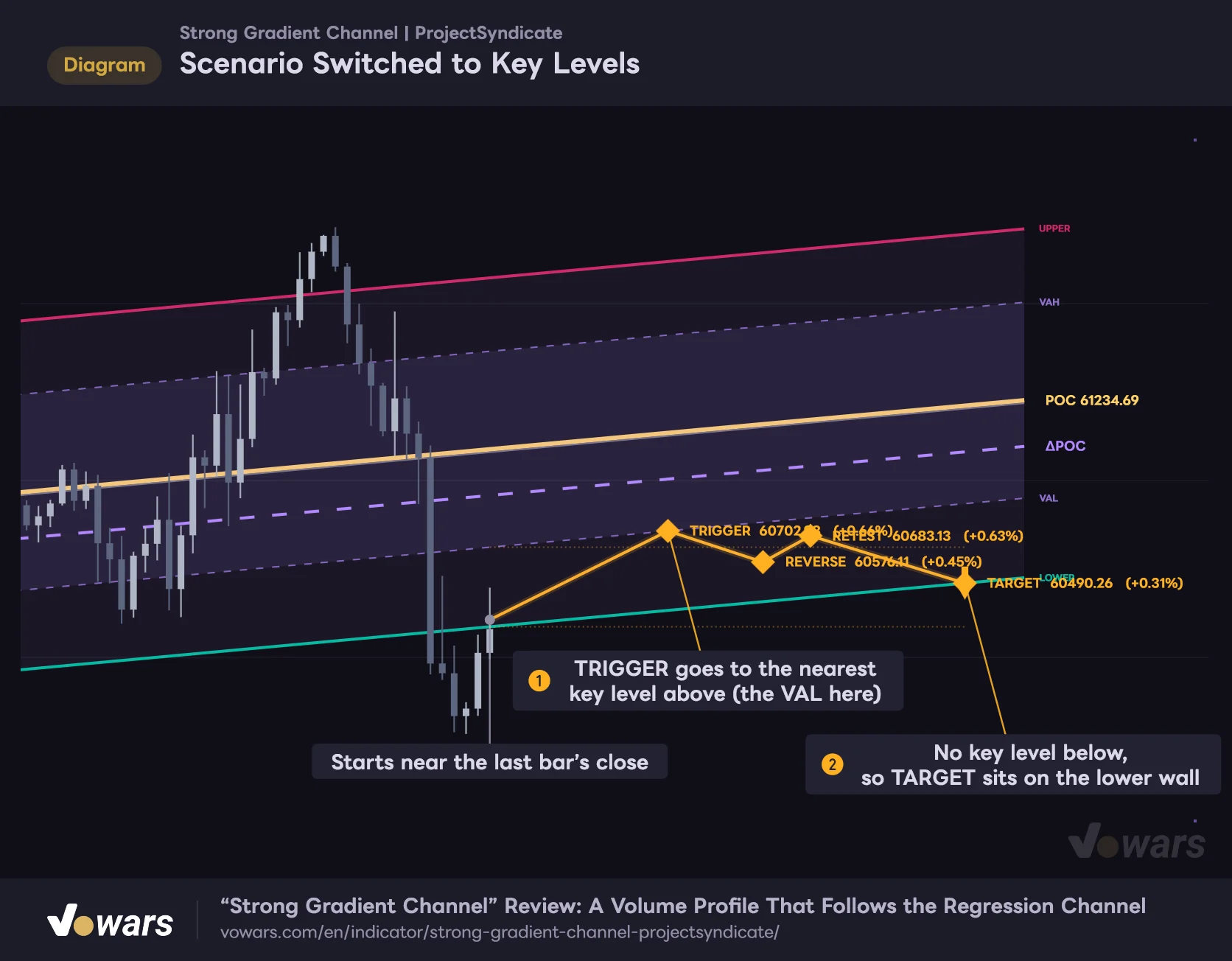
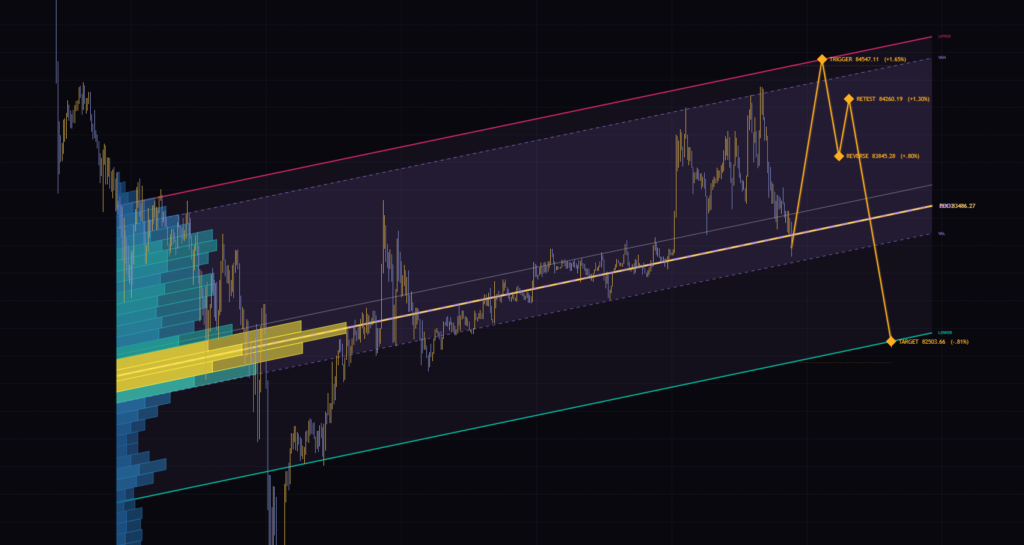
Figure ③ in the overview uses the default Channel Extremes mode, with TRIGGER and TARGET on the upper and lower walls. Switch Trigger / Target Anchor to Key Levels and the path gets pulled toward the POC and value area lines, as in the figure below.
Scenario Switched to Key Levels
With Key Levels, the waypoints snap to the POC and value area lines, producing a tighter scenario.
Vowars DE ver.3.12.35
In Figure ①, the nearest level above current price, the VAL, becomes TRIGGER. As Figure ② shows, when there’s no key level at all on the opposite side, TARGET falls back to the wall.
Direction Mostly Follows the Channel Slope
When Trigger Direction is set to Auto (net flow), whether the path goes up or down first is decided by adding up these three values.
- The buy share across the whole channel minus 0.5
- +0.15 if the channel slopes up, −0.15 if it slopes down
- +0.05 if CVD is positive, −0.05 if negative
As long as the buy share stays between 40% and 60%, the ±0.15 from the slope decides the outcome no matter how the other values combine. On my six charts, every rising channel showed “UP FIRST” and every falling one showed “DOWN FIRST.” “Auto” sounds like it’s reading order flow in fine detail, but in practice it just follows the channel’s direction. If it disagrees with your own read, feel free to switch to Up First or Down First.
The Trigger and Target on the dashboard are the wall prices at the last bar, while the labels on the chart show prices at the bars further along the path. Because the channel is sloped, the same TRIGGER shows two different numbers. Also, in a rising channel, a TARGET on the lower wall can still be above the current price, so its % reading can come out positive.
In the default Channel Extremes mode, the ends of the path always sit near the walls, so “Containment” at the bottom of the dashboard reads “CLAMPED TO WALLS” almost all the time. All six of my charts showed exactly that. The path isn’t meant to call future price action; it works best as a map that says, “given the current channel and where volume sits, these are the levels that matter.”
Reading the Market State from the Dashboard
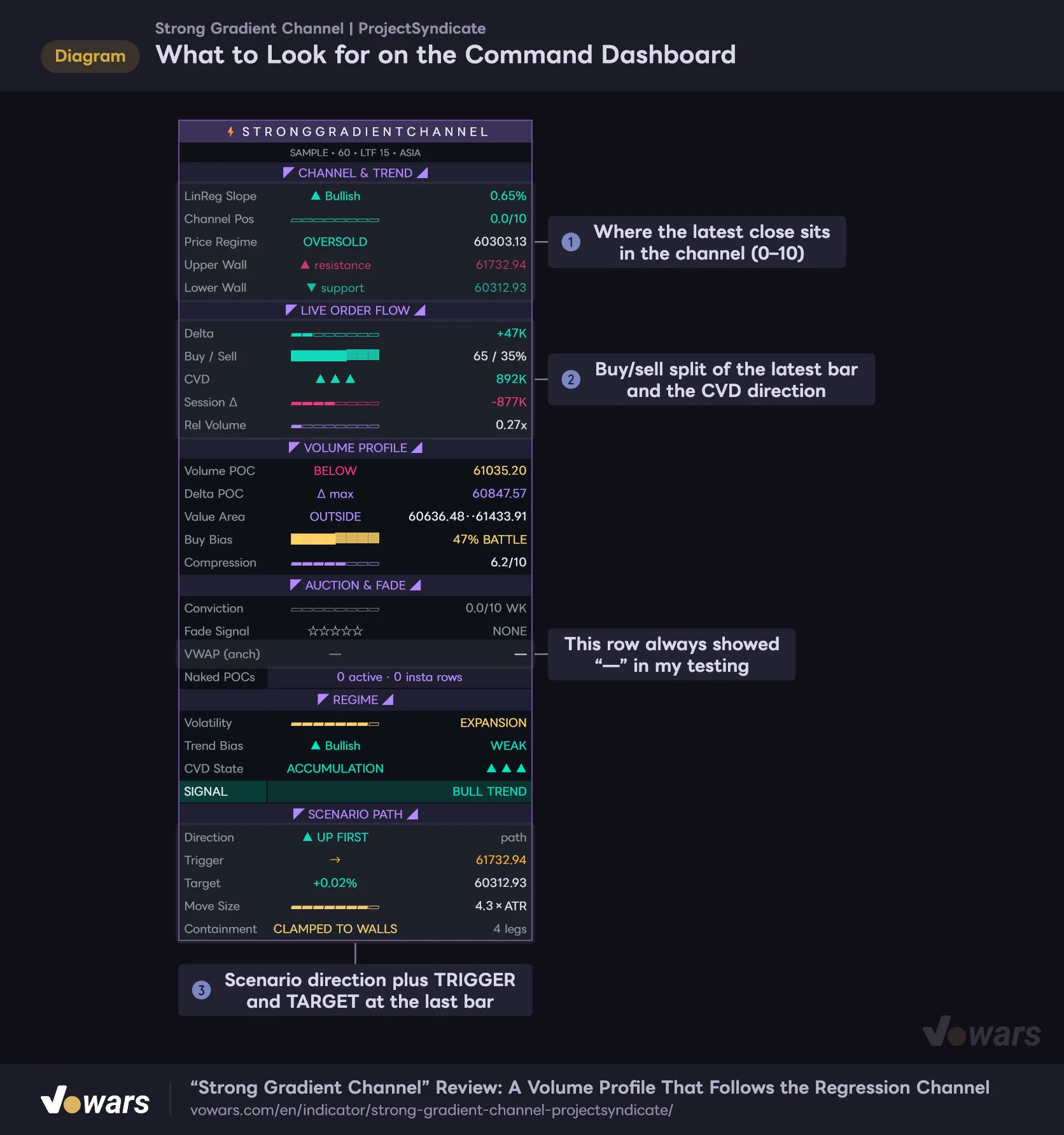
The dashboard is made up of six sections. From top to bottom: position within the channel, order flow on the latest bar, the volume profile, FADE, the overall regime, and the scenario.
What to Look for on the Command Dashboard
The dashboard has six sections, read top to bottom: position → order flow → volume levels → FADE → regime → scenario.
Vowars DE ver.3.12.35
“Channel Pos” in Figure ① rates where the close sits between the lower and upper walls on a 0–10 scale. “Price Regime” reads OVERBOUGHT when the close is above the upper wall, OVERSOLD when it’s below the lower wall, and INSIDE in between.
“Delta” and “Buy / Sell” in Figure ② are values for the latest bar only. “Session Δ” resets to zero at each new daily bar. “CVD” is a running total from the first calculated bar, so the arrow direction (higher or lower than five bars ago) is more useful than the absolute number.
The “SIGNAL” line in the “REGIME” section is a one-line summary decided in the following order.
- OVERSOLD, and the buy share across the channel is 50% or more: “BULLISH REVERSAL WATCH”
- OVERBOUGHT, and the buy share is 50% or less: “BEARISH REVERSAL WATCH”
- Otherwise, “BULL TREND” or “BEAR TREND” depending on the channel slope
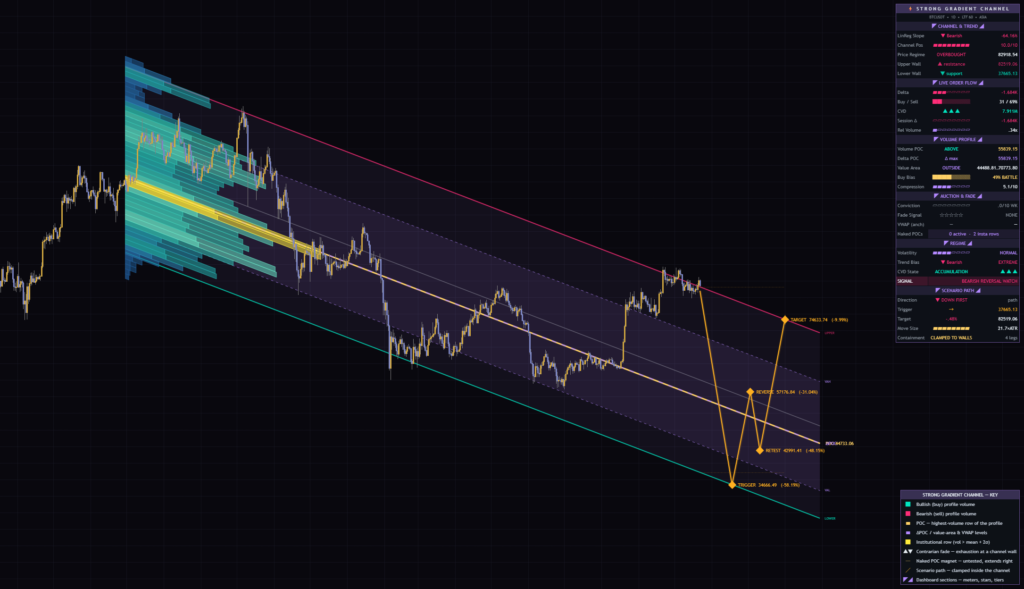
On the daily, the close was above the upper wall, flipping the regime to “OVERBOUGHT” and showing “BEARISH REVERSAL WATCH.” Price was breaking out of the top of a descending channel, so rather than treating it as a short signal, it felt more natural to read it as a cue to ask whether the channel itself was starting to change.
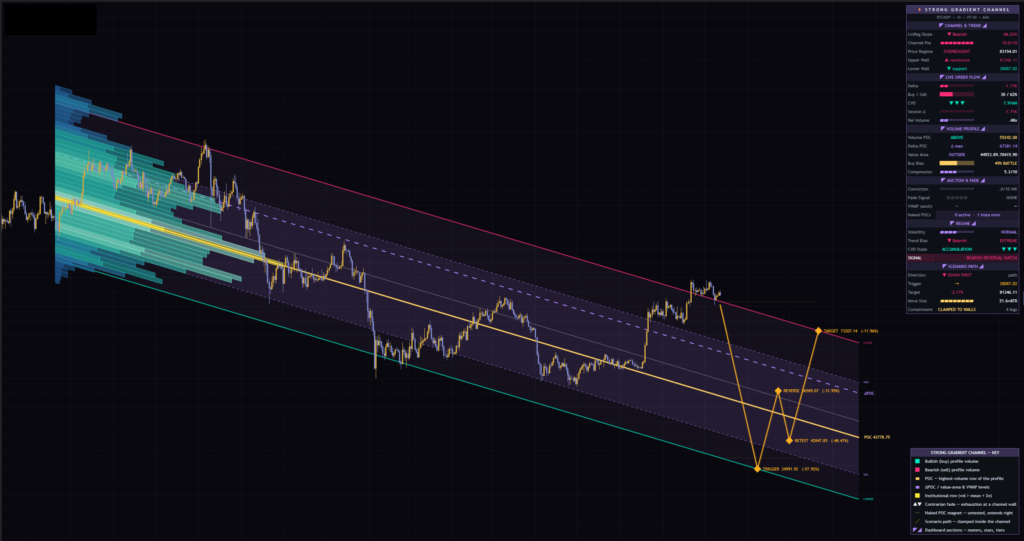
Here’s what the remaining rows show.
| Row | What It Shows |
|---|---|
| Compression | Higher when the value area is narrower (0–10) |
| Volatility | Ratio of ATR(14) to ATR(100). Three states: COMPRESSED, NORMAL, EXPANSION |
| Trend Bias | Size of the rise or fall across the whole channel window, rated in five steps from WEAK to EXTREME |
| Naked POCs | Number of open Naked POCs and number of yellow rows |
| Move Size | How many ATRs the distance from TRIGGER to TARGET covers |
As the figure shows, the “VWAP (anch)” row stayed at “—”. On all six charts I checked, it showed “—” even on BTCUSDT, which has volume data. I wouldn’t rely on this row; if you need VWAP, draw an Anchored VWAP separately with TradingView’s drawing tools.
Settings and How to Tune Them by Timeframe
The settings are split into seven groups. The table covers the ones you’ll touch most.
| Setting | Default | Suggested | Effect |
|---|---|---|---|
| Channel Length | 480 | 480 on 15m–1H, 240–480 on 4H, 120–250 on the daily | Lookback for the channel, the profile and the FADE signal wall. Longer gives a broader structure; shorter reacts to recent price action |
| Source | hlc3 | hlc3 | Price the regression line is fitted to. Less sensitive to wicks than close |
| Band Basis | Std Dev | Std Dev | How the walls are sized. Max Deviation touches the most extreme high/low; ATR uses ATR(14) × 3 × multiplier |
| Upper Band Mult | 2.0 | 2.0 | Upper wall multiplier for Std Dev and ATR |
| Lower Band Mult | 2.0 | 2.0 | Lower wall multiplier for Std Dev and ATR |
| Profile Rows | 45 | 45 | Number of profile rows. Max 50 |
| Profile Width % | 34 | 20–34 | Length of the longest row (as a percentage of the channel length) |
| Value Area % | 70 | 70 | Share of volume included in the value area |
| Intrabar Granularity | Auto | Auto | Lower timeframe used to estimate intrabar buying and selling |
| Min Conviction Score | 6.0 | 6.0 (5.0 to see more candidates) | Minimum score for a FADE label to print |
| Signal Cooldown (bars) | 5 | 5 | Bars to wait after a FADE before the next one can fire |
| Trigger / Target Anchor | Channel Extremes | Depends on your use | Whether scenario waypoints anchor to the walls or to levels like the POC |
| Extend Channel Right (bars) | 100 | 50–100 | How far the channel and levels extend to the right |
| Projection Length (bars) | 70 | 40–70 | Total length of the scenario path |
Rethink Channel Length for Each Timeframe
The setting with the biggest impact is Channel Length. The default 480 bars equals roughly 5 days on the 15m, about 20 days on the 1H, and about 80 days on the 4H. On the daily it’s around 16 months, long enough for the market to cycle through several phases. The script’s published description also recommends shortening the length on higher timeframes.
On the daily, starting somewhere around 120–250 bars makes it easier for the profile to line up with the angle of the most recent leg up or down. I left my daily chart at 480, and since the channel covered the entire decline from late 2025, the profile’s volume peak was heavily skewed to the upper left. The most reliable approach is to decide first which move you actually want to analyze, then enter that number of bars.
When You Want More (or Fewer) FADE Signals
If FADE feels too rare, lowering Min Conviction Score to around 5.0 will surface more candidates. But since the weights max out at 9.0, the lower you go, the more you’ll pick up bars that just have a long wick. Shortening Local Extreme Lookback has a similar effect, letting smaller swing highs and lows meet the condition. Either way, adjust them on the assumption that you’ll filter the extra signals with something else, like ADX, instead of taking them at face value.
When the Chart Gets Too Busy
Until you get used to it, turning off Show Legend Key to hide the legend and Waypoint Labels to hide the scenario text makes the chart much easier to read. Labels like POC, ΔPOC and TRIGGER tend to pile up on the right edge; on my 15m chart the POC and ΔPOC text overlapped and was hard to read. Dropping Profile Width % to around 20% also reduces the overlap between the profile and the candles. Shortening Extend Channel Right (bars) and Projection Length (bars) trims the empty space on the right so the candles can take up more of the screen.
How I Read It on a Live Chart
After using it for a while, this is the order I settled on.
1 Check Position and Slope on the Dashboard
Start with “LinReg Slope” and “Channel Pos” to see whether the channel is pointing up or down and which wall price is leaning toward. While “Price Regime” reads INSIDE, you can treat the action as movement within the channel.
2 Read Where the Volume Sits on the Profile
Find the POC, the value area and any yellow rows. If price is holding above a rising POC with plenty of buy-heavy rows, the POC and VAL lines are your reference levels for buying the dip. Conversely, if price is below a falling POC with sell-heavy rows, the POC and VAH lines mark where a rally is likely to stall.
3 Near a Wall, Wait for FADE and Check the Score
When price approaches a wall, watch for a FADE label. Signals scoring above 7 are bars where several factors line up, such as the wick and the skew of intrabar volume. Once a signal prints, check where the dotted line is and where the signal bar’s high is (for FADE ▼), and decide in advance which break would invalidate the idea. That makes it much easier to manage.
4 Use the Scenario to Map Key Levels
Use the scenario path as a map of where TRIGGER and TARGET sit relative to the volume levels. Don’t count on price actually following the path. Switching Trigger / Target Anchor to Key Levels produces a shorter path that steps through the POC and value area, which is handy for spotting intraday levels for day trading.
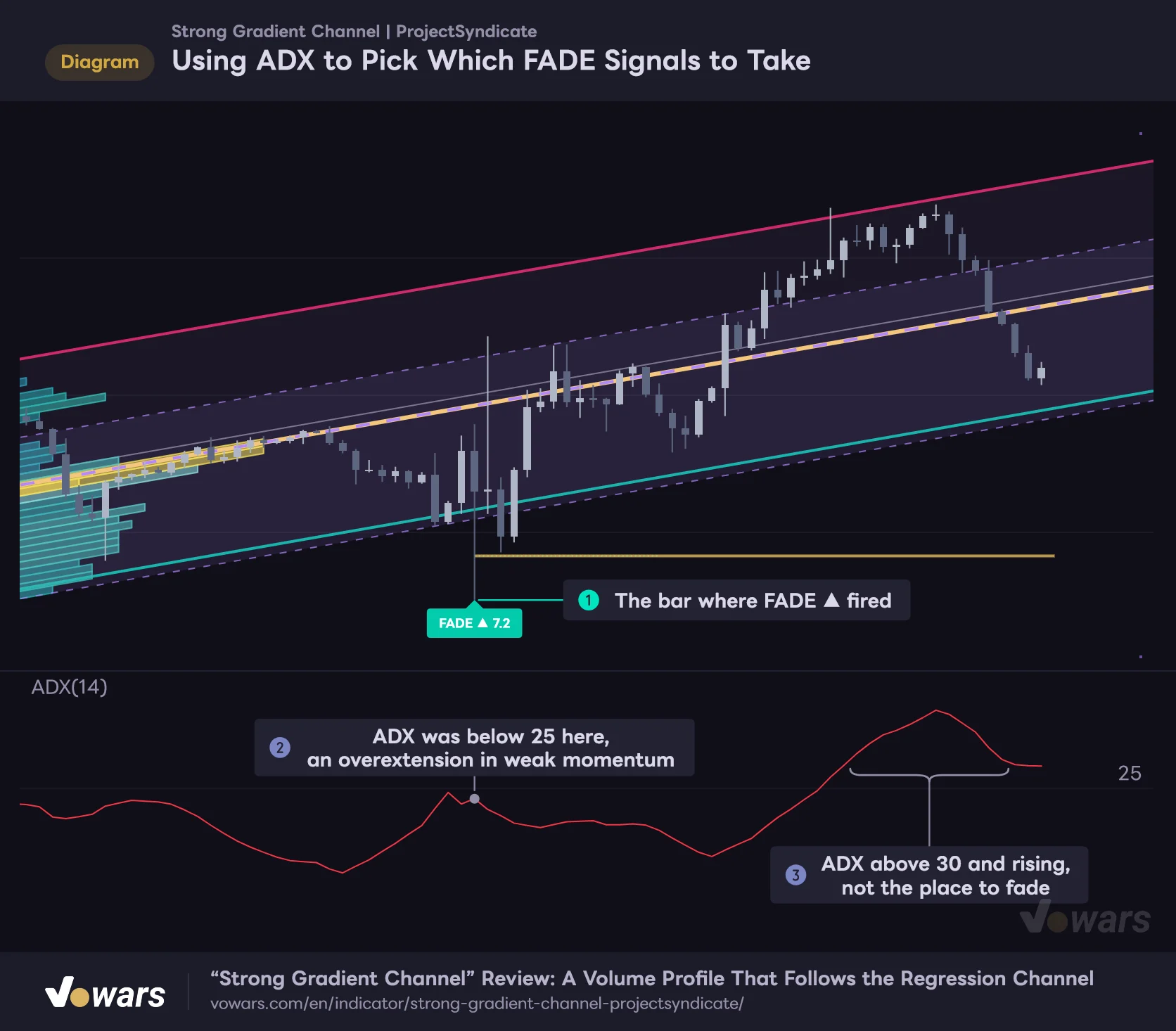
Filtering FADE Signals with ADX Underneath
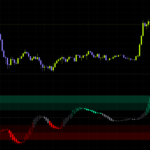
FADE is built to catch the snap-back from an overextension, so signals that fire in the middle of a strong trend are the ones most likely to fail. That’s why I found ADX, which measures trend strength, to be a good match.
Using ADX to Pick Which FADE Signals to Take
FADE aims for the snap-back from an overextension, so putting ADX underneath to gauge trend strength makes it easier to separate setups to take from ones to skip.
Vowars DE ver.3.12.35
On the bar where FADE ▲ fired in Figure ①, ADX was below 25, as Figure ② shows. It was an overextension in a weak-momentum market, which gives you a reason to play the bounce. By contrast, in a stretch like Figure ③ where ADX is above 30 and still climbing, a FADE ▼ at the upper wall would mean fighting the trend. Just committing to take signals only when ADX is low made picking setups a lot easier for me.
A few other combinations are worth considering.
- Add Bollinger BandWidth (BBW) below the chart and prioritize FADE signals when the bands are squeezing
- Load the same “Strong Gradient Channel” on the next higher timeframe and skip FADE signals that go against the higher-timeframe channel
- Since the dashboard’s VWAP row doesn’t work, anchor a VWAP with the drawing tools at the start of the channel and compare it with the POC
Behavior to Know Before You Use It
What Repaints and What Stays Put
The channel, profile, POC, value area, ΔPOC and scenario are recalculated over the most recent Channel Length bars every time a new bar forms, and they’re redrawn including the historical portion. That’s why the channel you looked at yesterday can sit at a slightly different angle today.
FADE labels and dotted lines, on the other hand, are placed once the bar closes, and they don’t move afterward. Naked POCs are also created on confirmed bars, and the fact that they disappear once price tags them is by design. The dashboard values do update on the forming bar. If you want to see how the channel looked at a past point in time, TradingView’s Bar Replay lets you step through bar by bar. It works on daily and higher timeframes on every plan, while how far back you can go on intraday timeframes depends on your plan and the timeframe.
Calculation Window and Intrabar Data Limits
“Strong Gradient Channel” is set to calculate on only the most recent 5,000 bars. The CVD running total, FADE labels and Naked POCs only appear within that 5,000-bar window.
There’s also a cap on intrabar data. According to TradingView’s documentation, the number of lower-timeframe bars a script can request is the latest 100K on Basic, Essential, Plus and Premium, 125K on Expert, and 200K on Ultimate (as of 2026/10/22). FADE is only evaluated on bars that have intrabar data, so if you set Intrabar Granularity too fine, older bars stop producing FADE signals. For example, using 1-minute data on a 1H chart pushes the older part of the 5,000-bar window past that cap. Sticking with Auto is the safe choice.
Chart Types It Won’t Run On
It throws an error and won’t run on Heikin Ashi or Renko charts. Since it calculates from volume and the shape of the bars, use it on standard candlesticks.
Because it’s volume-based, keep in mind that volume means different things in different markets. For symbols without centralized exchange volume, like forex, the volume shown on TradingView is aggregated per broker or data provider and may not read the same way as stock or crypto volume.
Strengths and Weaknesses Side by Side
Where It Shines
- Volume is read along the trend’s angle, so the POC and value area stay aligned even when the market grinds diagonally
- The stacked buy/sell layers show which side traded more at each price level
- FADE scoring is transparent, and the strict conditions keep it from spamming signals
- The scenario and dashboard show how the walls, volume levels and current price relate at a glance
- Wall sizing, multipliers and visibility toggles are highly adjustable, so it adapts to any timeframe
Where to Be Careful
- The FADE signal wall differs from the chart channel, so price can touch the wall without a signal
- The channel and profile repaint with every new bar
- Labels crowd the right edge, and the default layout is busy
- The dashboard’s VWAP row stayed at “—” in my testing
- The buy/sell ratio is estimated from bar shape, not actual trade data
For Traders Who Want to See Where Volume Builds in a Sloped Market
 Image
ImageWhat sets “Strong Gradient Channel” apart is that it shows where volume has built up inside a trend while preserving the trend’s angle. With a horizontal profile, the POC tends to get stranded at old prices as an uptrend moves on; with this indicator, the key levels move at the same angle as the midline.
FADE is a rare signal, and the wall it checks is calculated separately from the walls on your chart. Rather than jumping on it the moment it prints, it pays to check what’s behind the score and the broader context, such as ADX. The scenario is a map, not a forecast. Once you understand those two traits, it’s an indicator you can lean on for a long time, mainly on the 1H to 4H, as a guide for buy-the-dip and sell-the-rally levels in swing trading and day trading.