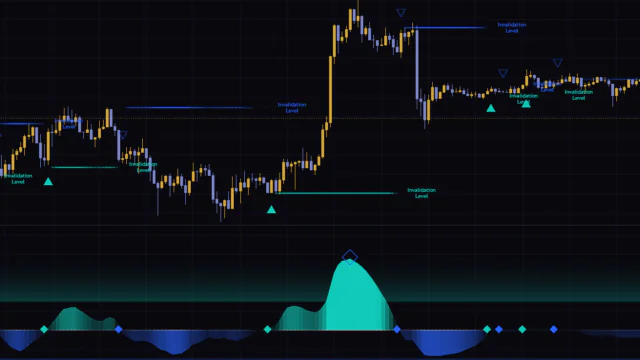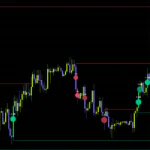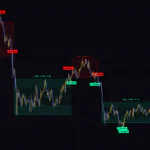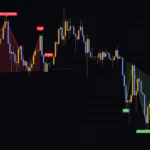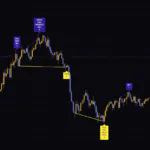


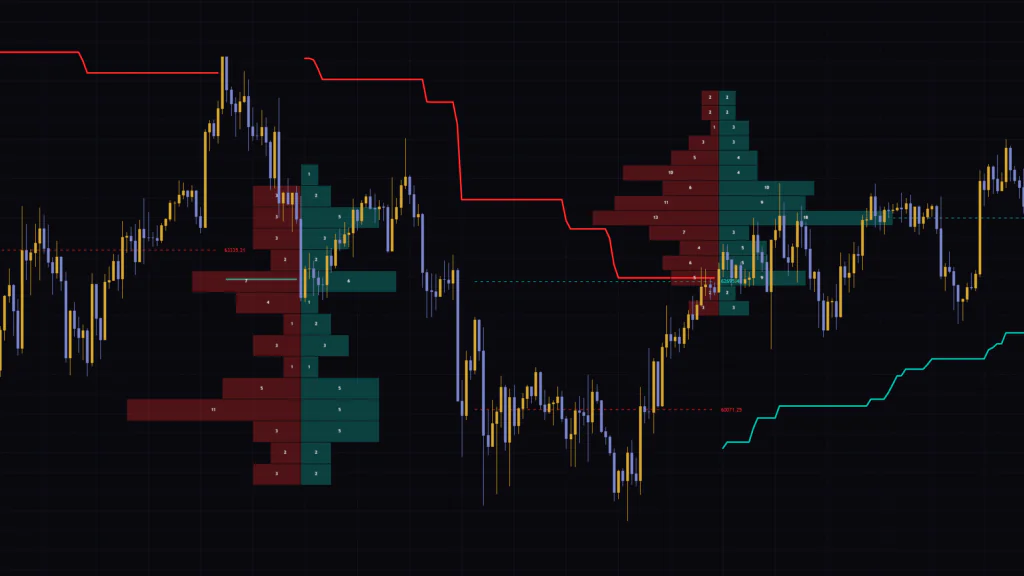
“Macro Trend Split Profile” splits one trend leg into a bull side and a bear side
When a trend is running, the question that usually matters isn’t just “which way?” It’s “where did buyers pile in during this move?” and “where did sellers put up a fight?” Any trend indicator will tell you the direction, but what actually happened inside that move is surprisingly hard to read just by staring at candles.
“Macro Trend Split Profile” is a TradingView indicator that puts numbers on exactly that. It uses a Supertrend to cut the chart into trend legs, then plants a histogram at the start of each leg, with bullish candle counts stacked to the right and bearish candle counts stacked to the left. The price zone with the highest count on each side gets a dashed line, labeled +POC and -POC.
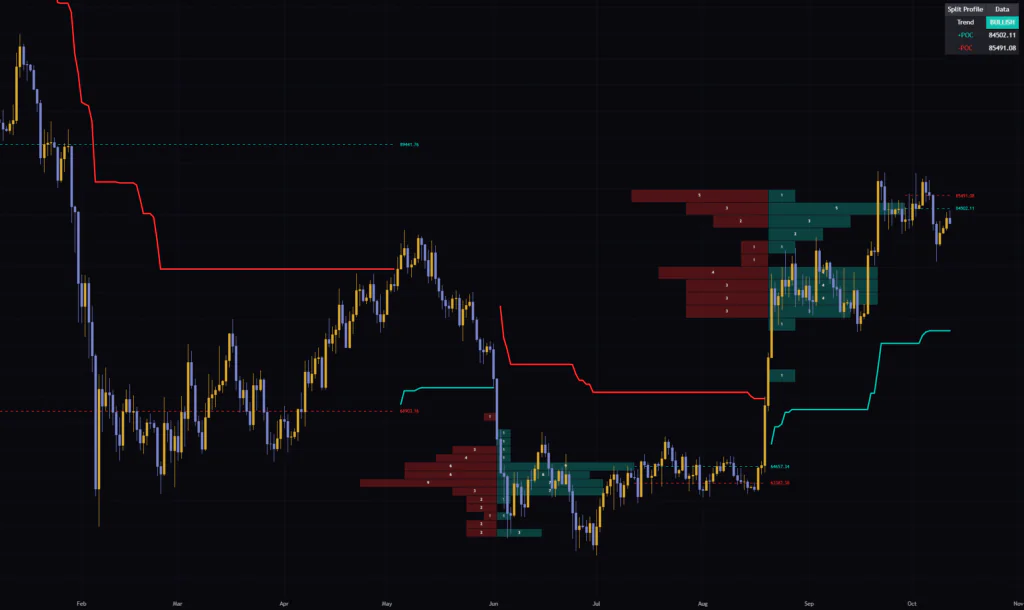
I ran it on Bitcoin across seven timeframes, from the 5-minute to the weekly, and my first impression was simple: you can instantly see which price zones each trend leg spent its time in. The more I used it, though, the more quirks I found that are worth knowing about. This review walks through both the strengths and the caveats, always starting from what you actually see on the chart.
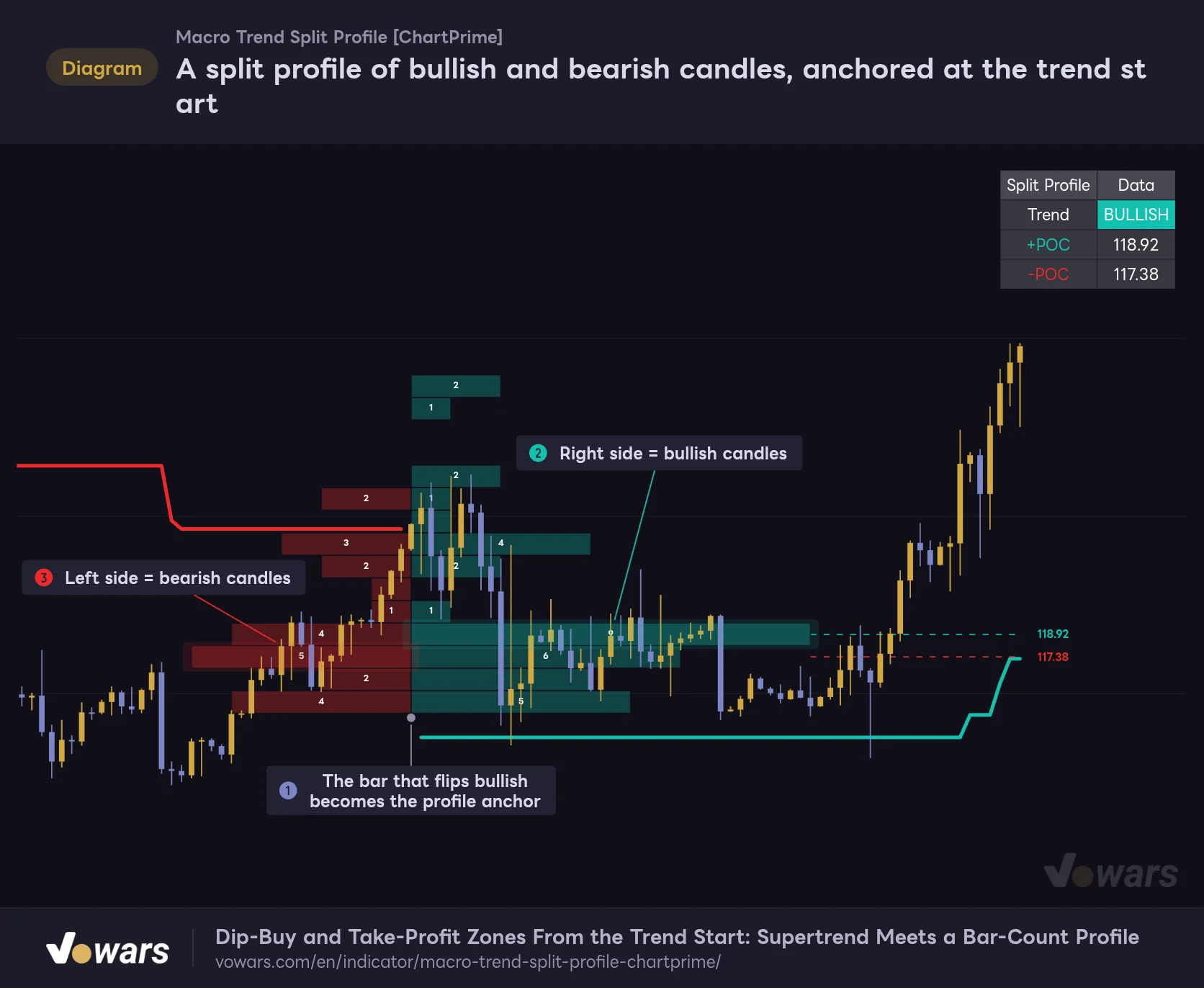
A split profile of bullish and bearish candles, anchored at the trend start
Anchored to the bar where the trend flips bullish, bullish candle counts stack to the right and bearish counts stack to the left.
Vowars DE ver.3.12.33
Let’s start with the big picture. The bar where the trend flips bullish, shown in Figure ①, is the anchor for the profile. The green rows extending right are bullish candle counts, and the red rows extending left are bearish candle counts. The number inside each row is literally “how many bars printed in this price zone,” so there’s really no guesswork in reading it.
A thick line showing trend direction (Macro Trend), a split profile anchored at the start of the trend, and the +POC / -POC dashed lines along with a dashboard. All three are tied to the same trend leg, and that is the defining feature of “Macro Trend Split Profile.”
What this profile is actually measuring
It counts bars, not volume
To avoid any confusion, let me get this out of the way first: the profile in “Macro Trend Split Profile” doesn’t use volume at all. It looks at every bar in the leg, sorts it by which price zone it sat in and whether it closed green or red, and simply counts them.
The script’s TradingView page describes it in volume-profile terms, but what you actually get is a distribution of bar counts. A bar with a massive volume spike and a bar from a dead, low-liquidity session both count as exactly “one bar.”
How each bar gets sorted into a row
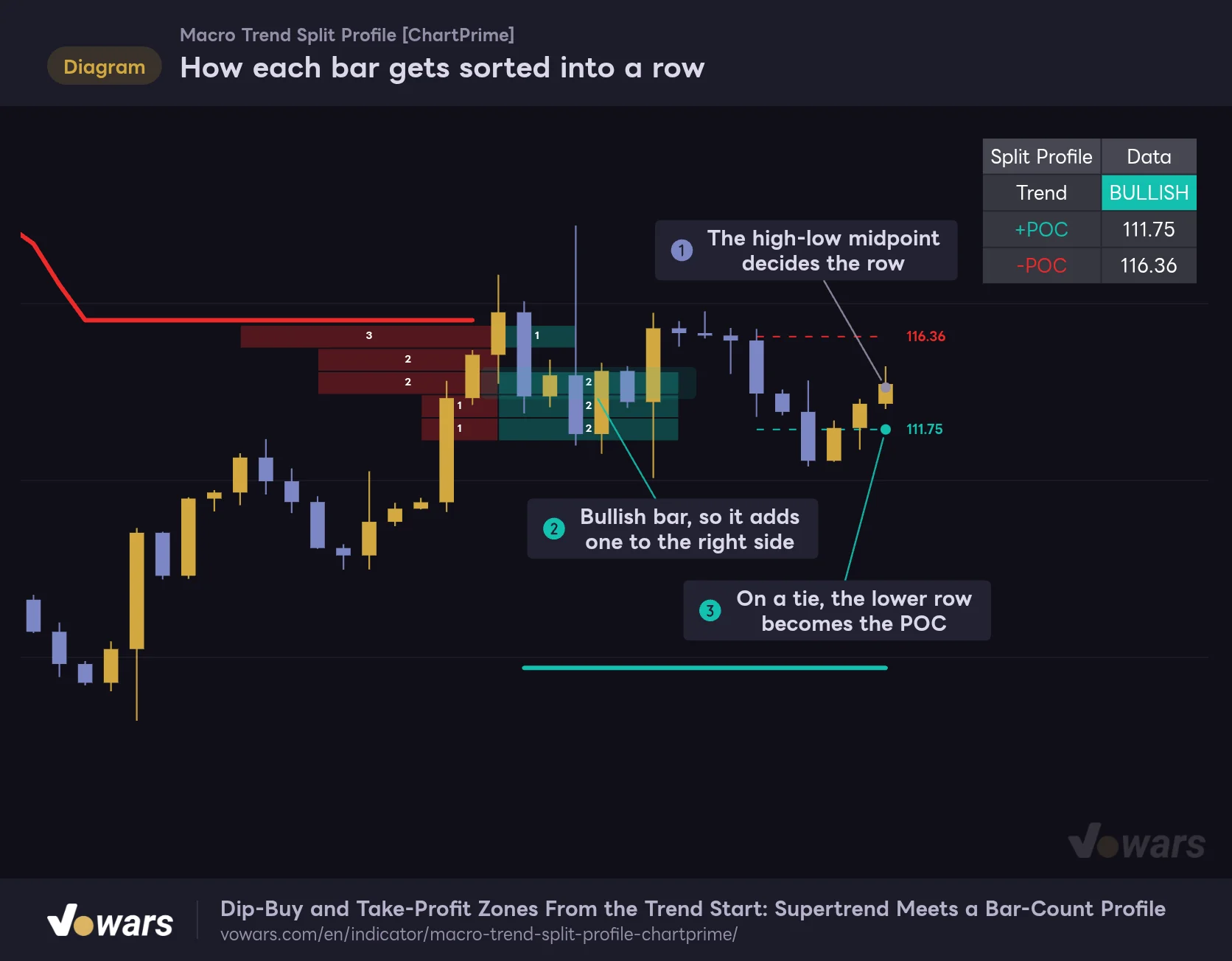
Each bar is placed by the midpoint of its high and low, then adds one to the right side of that row if it is bullish, or to the left side if it is bearish.
Vowars DE ver.3.12.33
The figure shows the counting logic in detail. Each bar is assigned to a row based on the exact midpoint between its high and low, as in Figure ①. A bullish candle adds one to the right side of that row and a bearish candle adds one to the left, as in Figure ②. Dojis, where the open equals the close, aren’t counted on either side.
The price range is set by the highest and lowest high-low midpoints in the leg, and that range is divided into equal rows according to Number of Profile Bins. Wick extremes fall outside the profile’s range, so a high or low set by a long wick may not get a row of its own.
One more detail: when several rows tie for the highest count, the lowest one becomes the POC, as in Figure ③. That happens even in an uptrend, so it’s safer not to treat the POC as gospel.
If you want to know where the most trading actually happened, you’ll need a separate profile that uses volume. What “Macro Trend Split Profile” tells you is how many bars spent time in each price zone, in other words, where time was concentrated.
The anchor is the bar where the trend flips
The profile isn’t centered on the leg. It’s anchored to the bar where the trend flipped. The bullish rows on the right overlap the candles of the leg itself, while the bearish rows on the left spill back into the previous leg.
It feels a bit odd at first, but once you’re used to it, the profile’s position tells you at a glance where each leg began. Since the anchor stays put no matter how long the leg runs, it’s also easy to line up past legs and compare them side by side.
The Macro Trend line is just a Supertrend
The thick line that switches between green and red uses the same calculation as TradingView’s built-in Supertrend. The defaults are an ATR period of 20 and a multiplier of 5.0. Compared with the standard Supertrend defaults (period 10, factor 3), that’s very slow, so minor pullbacks and bounces won’t flip it. That’s presumably where the “Macro” in the name comes from.
Line below price and green means uptrend; line above price and red means downtrend. The line breaks for a moment on the bar where the direction flips, so you can also spot where one leg ends and the next begins by looking for those gaps.
Reading the chart, one checkpoint at a time
1 Check the line color for the current leg’s direction
The color of the Macro Trend line is the direction of the leg. The profile is also tallied per leg, so step one is always confirming whether you’re in an up leg or a down leg.
2 Compare the left-right imbalance of the profile
You’ll often see an up leg where the left (bearish) rows are long. That’s a price zone where lots of red candles printed during the rally, meaning sellers held their ground there. A row that’s long only on the right, on the other hand, reads as a zone price either ripped through on green candles or ground higher while hanging around.
Both sides share the same scale: the row with the highest count in the leg is drawn as long as Max Profile Width (in bars) bars, and every other row is shortened proportionally. So you can compare left and right row lengths directly.
3 Find the +POC and -POC dashed lines
A +POC dashed line is drawn through the middle of the row with the most bullish bars, and a -POC line through the middle of the row with the most bearish bars, with the price labeled at the right end. Each dashed line starts Max Profile Width (in bars) bars to the right of the profile’s anchor and runs to the latest bar (or to the leg’s final bar once the leg is over).
4 Confirm the numbers on the dashboard
The table in the top-right corner gives you the current leg’s direction and the exact +POC and -POC prices.
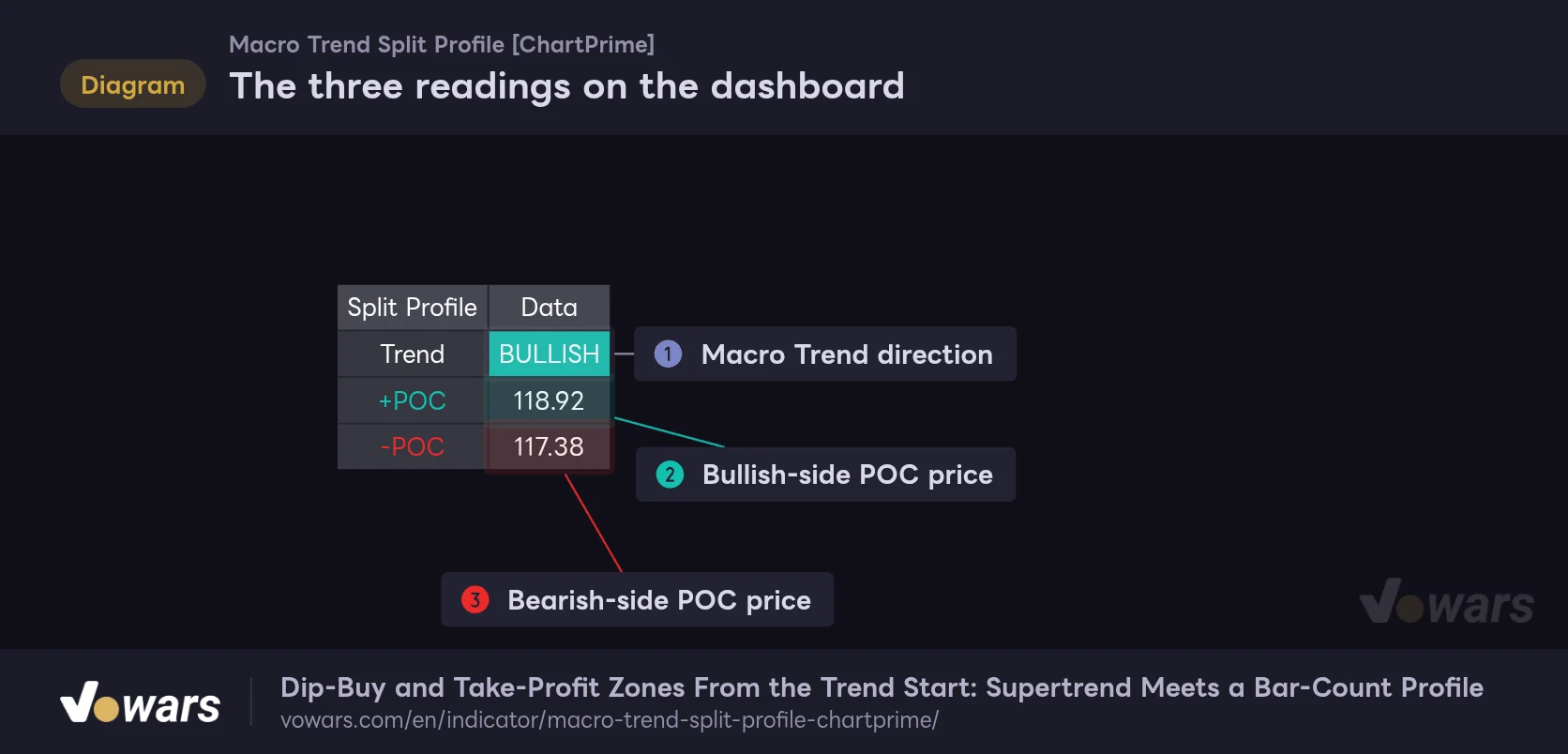
The three readings on the dashboard
The small table in the top-right corner shows the current trend direction plus the +POC and -POC of the active leg.
Vowars DE ver.3.12.33
On the dashboard, “Trend” is the Macro Trend direction shown in Figure ①, “+POC” is the bullish-side POC in Figure ②, and “-POC” is the bearish-side POC in Figure ③. Right after a new leg starts, it reads “Waiting… (40 Bars),” and you’ll have to wait for the POC prices to fill in.
+POC and -POC landing on the same price is normal
Use it for a while and you’ll regularly see +POC and -POC print the exact same price. On the 30-minute chart I was watching, both dashboard values read 83056.51.
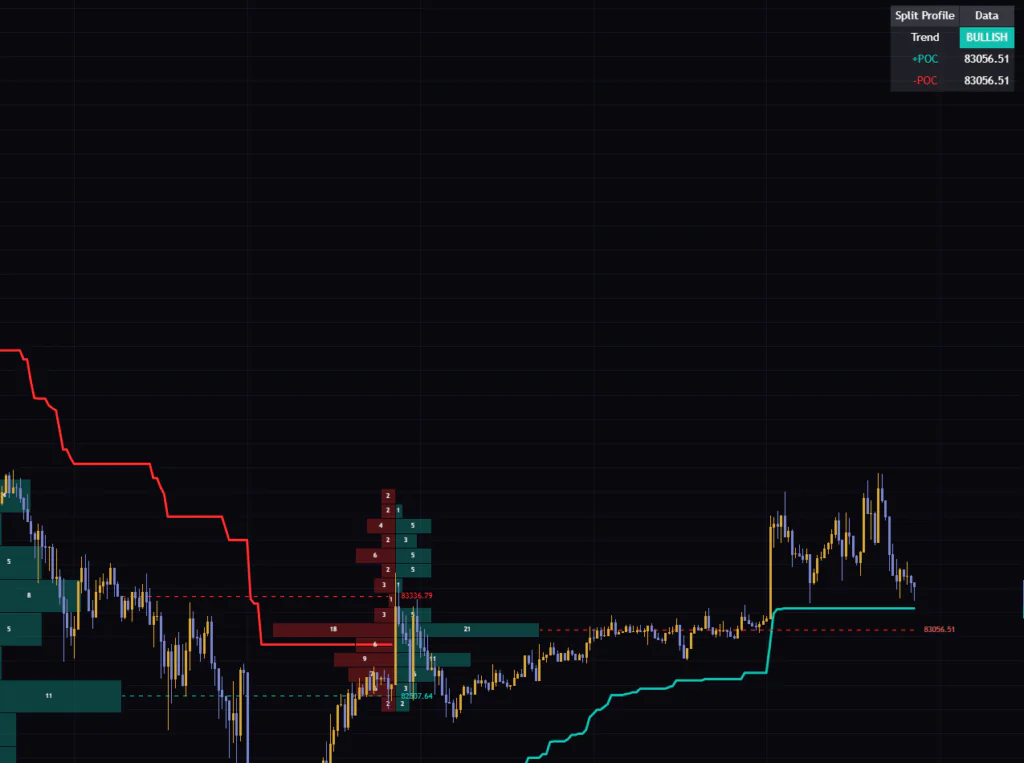
It just means the most bullish bars and the most bearish bars both ended up in the same row. Most of the leg’s price action was chopping around in that zone, so if anything, you can read it as the leg having a very clearly defined core price area. Because the two dashed lines and their labels sit right on top of each other, it looks like there’s only one line on the chart.
What happens when the trend flips?
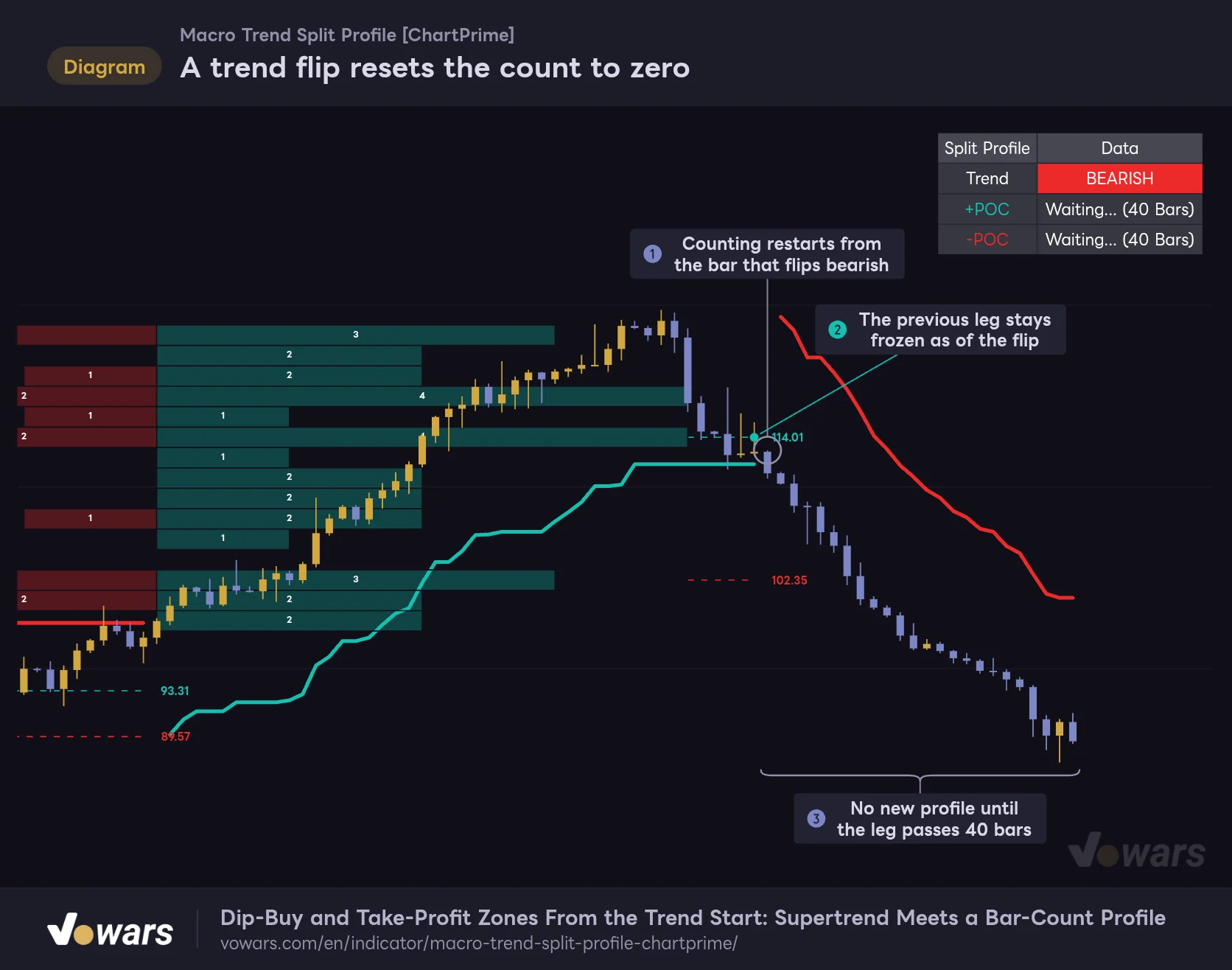
A trend flip resets the count to zero
When the Macro Trend line flips, the running tally is wiped and the new leg starts counting from scratch.
Vowars DE ver.3.12.33
From the bar where Macro Trend flips, the tally starts over from zero, as in Figure ①. The previous leg’s profile and dashed lines don’t disappear. They stay on the chart exactly as they were on the bar before the flip, as in Figure ②.
The new leg’s profile only appears once Minimum Bars for Profile is satisfied. The default of 40 means “the bar that is 40 bars after the flip,” so counting the flip bar as bar 1, the profile shows up on bar 41, as in Figure ③. Until then, the dashboard displays “Waiting… (40 Bars).”
It’s worth remembering that right after a flip, there’s a stretch with no profile at all. This isn’t built for catching the very start of a trend in the first place. I found it much easier to use once I accepted it as a tool for examining what’s going on inside a trend that’s already underway.
“Macro Trend Split Profile” is set to use up to 500 boxes, and each profile takes twice the value of Number of Profile Bins (30 boxes at the default). At default settings, that leaves roughly 16 legs’ worth of profiles on the chart, and anything older stops being displayed. Raise the bin count to 30 and you’re down to about 8 legs.
The easy-to-miss part: lines get redrawn
Redrawing directly affects real trading decisions, so I’ll go through it in more detail.
For the active leg, the profile and POCs are recounted from the leg’s first bar every time a new bar closes. If the price range widens, the row boundaries shift, and if a different row takes the lead, the POC dashed line jumps to a new level, line and all.
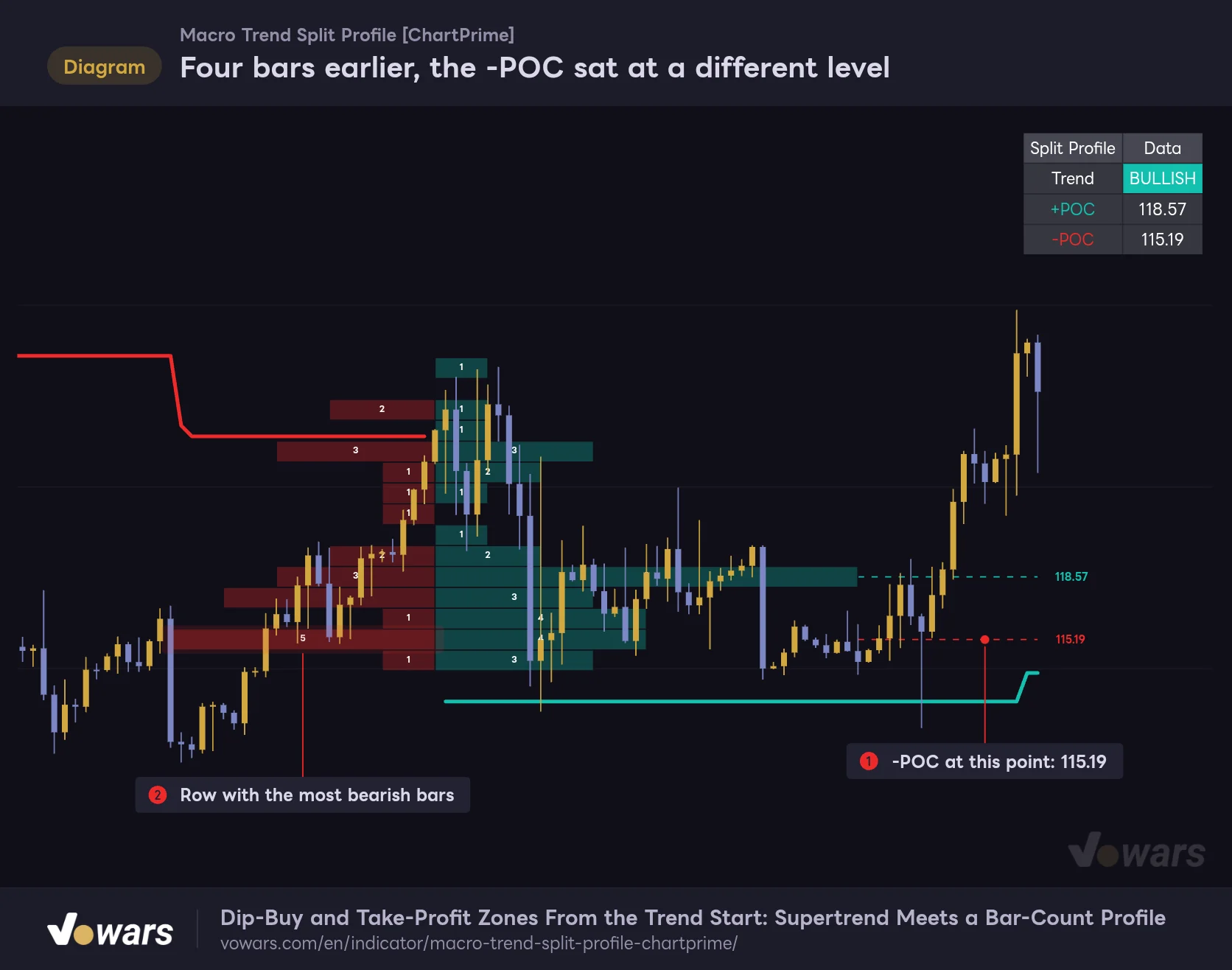
Four bars earlier, the -POC sat at a different level
The same market as the first figure, stopped four bars earlier. At this point the -POC dashed line was plotted about 2 points lower than it is now.
Vowars DE ver.3.12.33
This figure shows the same market as the first overview, stopped four bars earlier. At that point the -POC was 115.19, as in Figure ①. Four bars later it moved to 117.38, and the dashed line was redrawn at the new level along its entire length, from mid-leg all the way to the latest bar.
Where this bites you is when you look back at past charts. Price may appear to have tagged the POC line perfectly mid-leg and bounced, but at the time of that bar, the line may well have been somewhere else. Judging purely by the picture, I also thought at first, “Look at that clean dip into the POC,” but when I checked, the POC on that bar was at a different price.
Once a leg has ended, its profile and dashed lines are frozen as they were at the flip and never change after that. Only the active leg moves. Even on a frozen leg, though, the dashed line sits where it was calculated on the leg’s final bar, so that price wasn’t necessarily visible earlier in the leg.
If you want to see what it really looked like at the time, use TradingView’s Bar Replay. The indicator is recalculated as you step forward one bar at a time, so you can follow how the profile and POCs evolved in order. That said, how far back you can go depends on the symbol and timeframe.
On the live, unconfirmed bar, the display also shifts with price. If a bar that was green closes red, that bar moves over to the left side, and the Macro Trend direction itself can flip mid-bar and then flip back by the close. As a rule, wait for the bar close before you act on anything.
How it looks from the 5-minute to the weekly
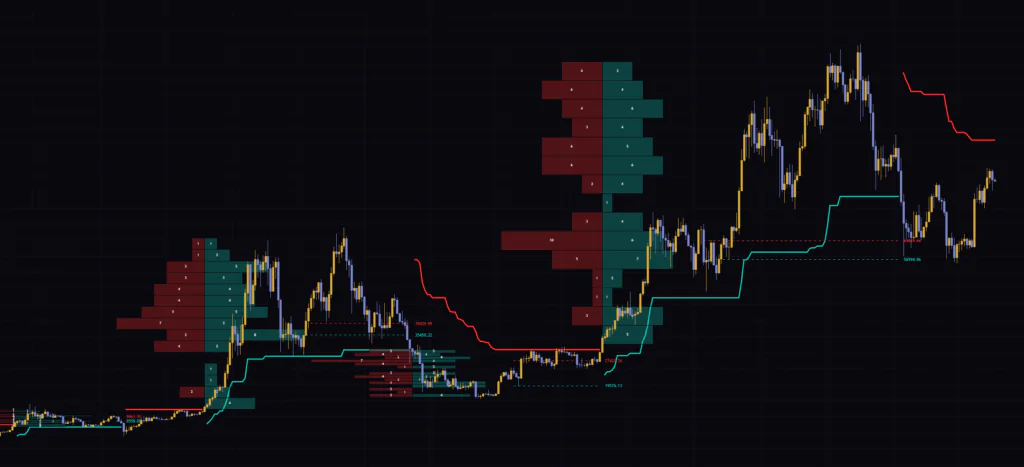
For this review I checked the display on seven timeframes: 5-minute, 15-minute, 30-minute, 1-hour, 4-hour, daily, and weekly. It works properly on every one of them with default settings. The overall feel, however, varied quite a bit.
| Timeframe | How it looks |
|---|---|
| 5m / 15m | Legs often flip quickly, and any leg that doesn’t reach 41 bars gets no profile. In tight, choppy ranges the rows get squashed and small profiles tend to cluster together |
| 30m / 1H | Good balance between leg length and row thickness, and the left-right imbalance is easy to read. Comfortable for day trading through to short-term swing trading |
| 4H / Daily | A single leg can last weeks to months, and the POCs work well as medium-term reference levels. The “Waiting” period right after a flip also gets longer |
| Weekly | Each profile covers a leg lasting a year or more. Great for mapping long-term price zones, but too coarse for timing entries and exits |
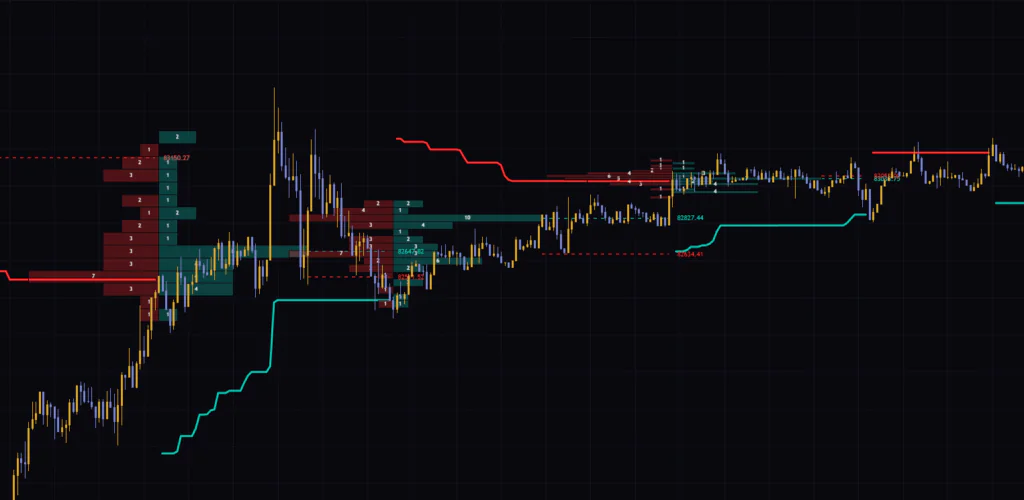
The clutter on lower timeframes comes from two things: legs flip one after another, and when the range is tight the rows themselves get very thin. If you’re using it on the 15-minute or below, try raising Noise Filter (Multiplier), which I cover later, before anything else.
The weekly, on the other hand, was the most interesting. Big profiles stand on multi-year up legs, and you can see in a single view which price zones the market spent a long time grinding through.
Using the POCs to plan dip buys and take profits
“Macro Trend Split Profile” doesn’t generate buy or sell signals. It gives you context to make decisions with, and how you use it is up to you. Here are the ways of reading it that worked well for me, broken down by situation.
Waiting to buy the dip in an up leg
When price pulls back to around the +POC during an up leg, you can read it as price returning to the zone where the most green candles printed in that leg. If the pullback stalls there and green candles show up again, that’s a reason to consider buying the dip. In a down leg, the same logic applies to a rally into the -POC.
Keep the redrawing behavior from earlier in mind, though: you need to recheck the POC price every time a bar closes. Personally, I wouldn’t recommend parking a limit order on the dashed line and walking away.
When price approaches the opposite POC
When price approaches the -POC in an up leg, or the +POC in a down leg, it’s moving into the zone where the most counter-trend candles printed during that leg. That makes it a reasonable spot to scale out and lock in partial profits.
When price breaks a POC and doesn’t come back
If price breaks below the +POC in an up leg and keeps closing under it, you can take that as a sign that price is drifting away from the core of the leg. It’s a good prompt to think about trailing your stop up, but remember that the leg is still technically intact until Macro Trend actually flips.
Because the Macro Trend defaults are so slow, markets like gold or stock indices, which often run for dozens of bars once they pick a direction, produce cleaner legs and are more likely to get a profile. On choppy, back-and-forth markets, more legs will end before reaching 41 bars, so keep that in mind.
What each parameter does and how to tune it
There are five numeric inputs and two color inputs. The table below lists the numeric defaults along with suggested ranges for tuning.
| Setting | Default | Suggested | Effect |
|---|---|---|---|
| Macro Trend Length | 20 | 14–30 | The ATR period used for trend detection. Higher values smooth the ATR and steady the line |
| Noise Filter (Multiplier) | 5.0 | 4.0–6.0 | Multiplier that sets the distance between the line and price. Lower means more flips; higher means longer legs |
| Minimum Bars for Profile | 40 | 25–60 | Bars required before the profile starts showing. Lower values show it sooner, but the POC moves more while bar counts are low |
| Number of Profile Bins | 15 | 10–25 | How many rows the price range is split into. More rows means finer detail but fewer bars per row |
| Max Profile Width (in bars) | 40 | 20–60 | Length of the longest row, in bars. Purely visual; it doesn’t affect the counts |
Lower Noise Filter too far and the profiles vanish
The input with the biggest impact is Noise Filter (Multiplier). Lower it and Macro Trend flips more often, legs get shorter, and fewer of them make it to 41 bars.
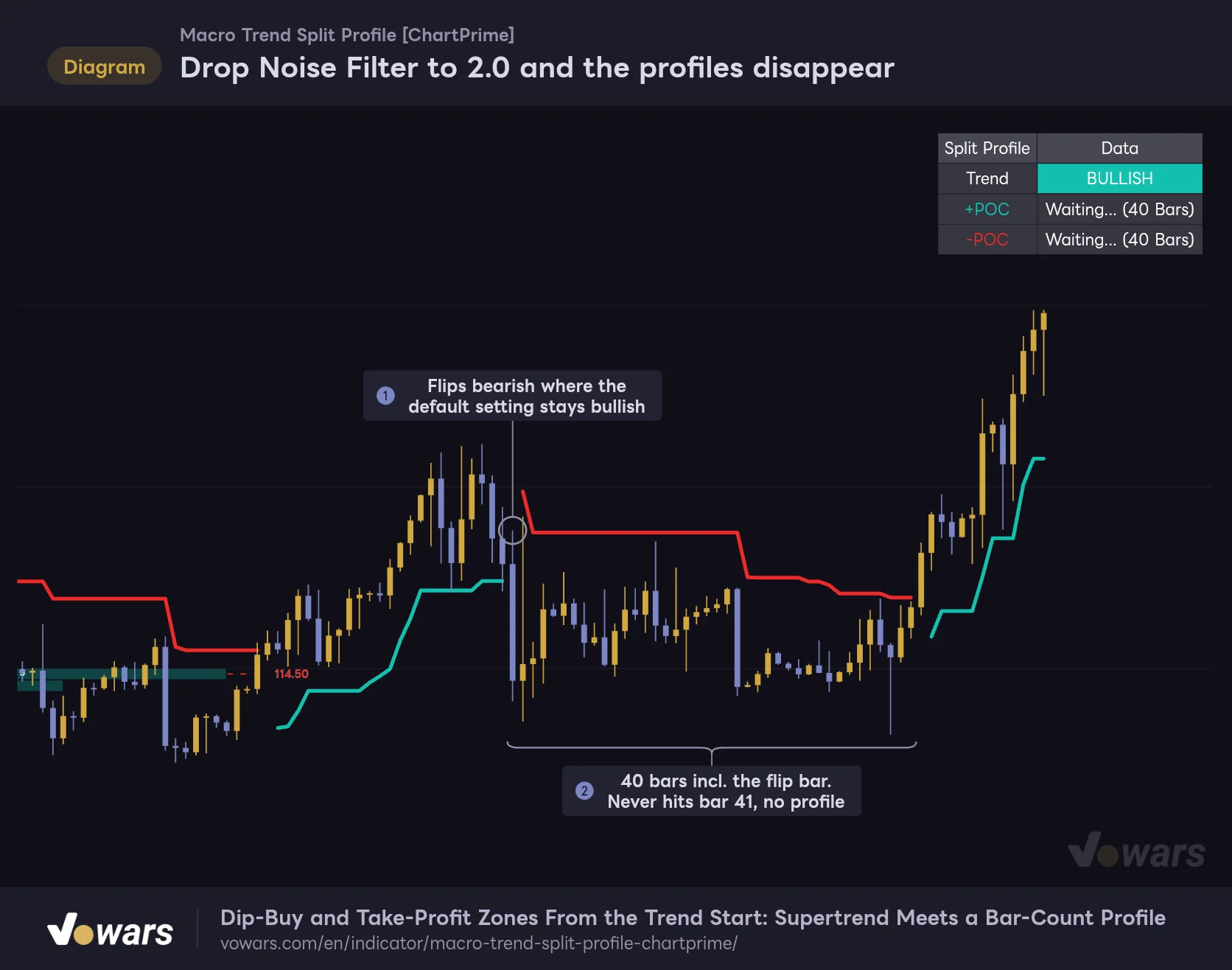
Drop Noise Filter to 2.0 and the profiles disappear
Same market as the first figure, with only Noise Filter (Multiplier) lowered from 5.0 to 2.0. The trend flips more often, and no leg lasts long enough to qualify for a profile.
Vowars DE ver.3.12.33
In this figure, I used the same market as the first overview and only lowered the multiplier to 2.0. It flips bearish in a spot where the default setting stays bullish, as in Figure ①, and that down leg ends after exactly 40 bars. One bar short, so no profile is drawn, as in Figure ②.
If you lower Noise Filter (Multiplier), you also need to lower Minimum Bars for Profile, or you’ll end up with a chart that shows almost nothing. Conversely, if legs keep getting chopped up on a range-bound symbol, raising the multiplier to around 6.0 helps consolidate them into longer legs.
More bins can move the POC
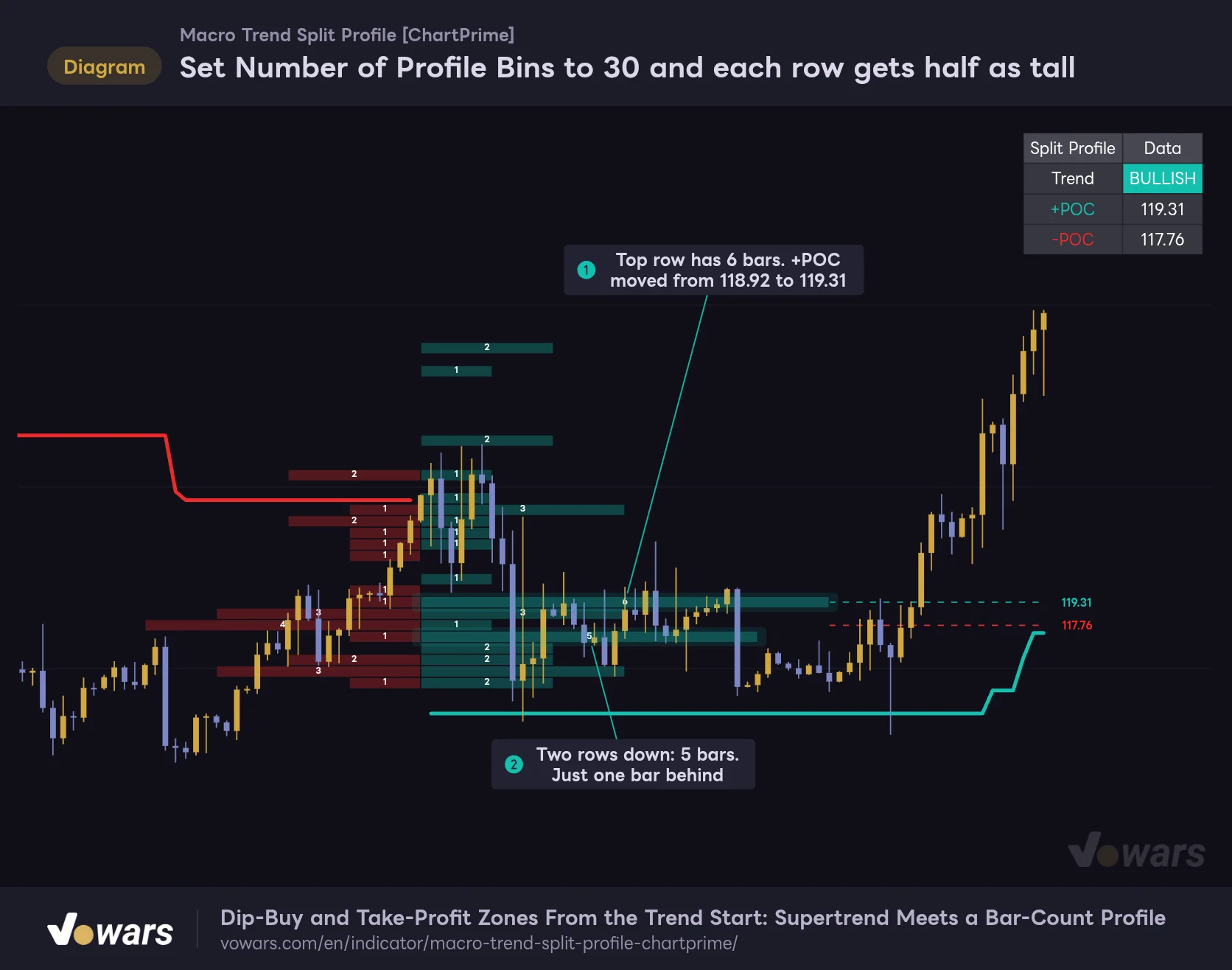
Set Number of Profile Bins to 30 and each row gets half as tall
Same market as the first figure, with only Number of Profile Bins raised from 15 to 30. Each row covers half the price range, so differences between rows show up in finer detail.
Vowars DE ver.3.12.33
Raising Number of Profile Bins from 15 to 30 cuts each row’s height in half. In the figure, the +POC moved from 118.92 to 119.31, as in Figure ①. And just two rows down, there’s a row with 5 bars, only one bar behind, as in Figure ②.
Finer rows give you more price precision, but each row holds fewer bars, so a single bar’s difference can swap the POC. On daily or weekly charts where legs run past 100 bars, bumping it up to 20–25 is worth it. On timeframes dominated by short legs, I found the default 15, or even 10 for thicker rows, easier to read.
Suggested settings by use case
| Use case | What to adjust | Why |
|---|---|---|
| Day trading on 15m and below | Noise Filter (Multiplier) to 5.0–6.0, Minimum Bars for Profile to 40–60 | Cuts down on minor flips and only shows a profile once enough bars have built up |
| Swing trading on 1H–4H | Keep the defaults | This range had the best balance between leg length and row thickness |
| Daily and above, when you want an earlier read | Minimum Bars for Profile to 25–30 | Waiting 40 bars takes more than a month. The trade-off is a longer period where the POC can shift around |
| Profile overlaps the candles too much | Max Profile Width (in bars) to 20–30 | Shorter rows mean less overlap with the candles. The counts themselves don’t change |
The color inputs (Bull Color and Bear Color) apply to the bullish and bearish sides of the profile, the POC dashed lines, and the dashboard text. If they’re too close to your candle colors they can be hard to tell apart, so it’s worth adjusting them to match your chart theme.
Pairing it with something that adds volume
Since it only counts bars, you’ll naturally want to fill in the volume picture from somewhere else. Of the options I tried, the one that worked best was Chaikin Money Flow (CMF).
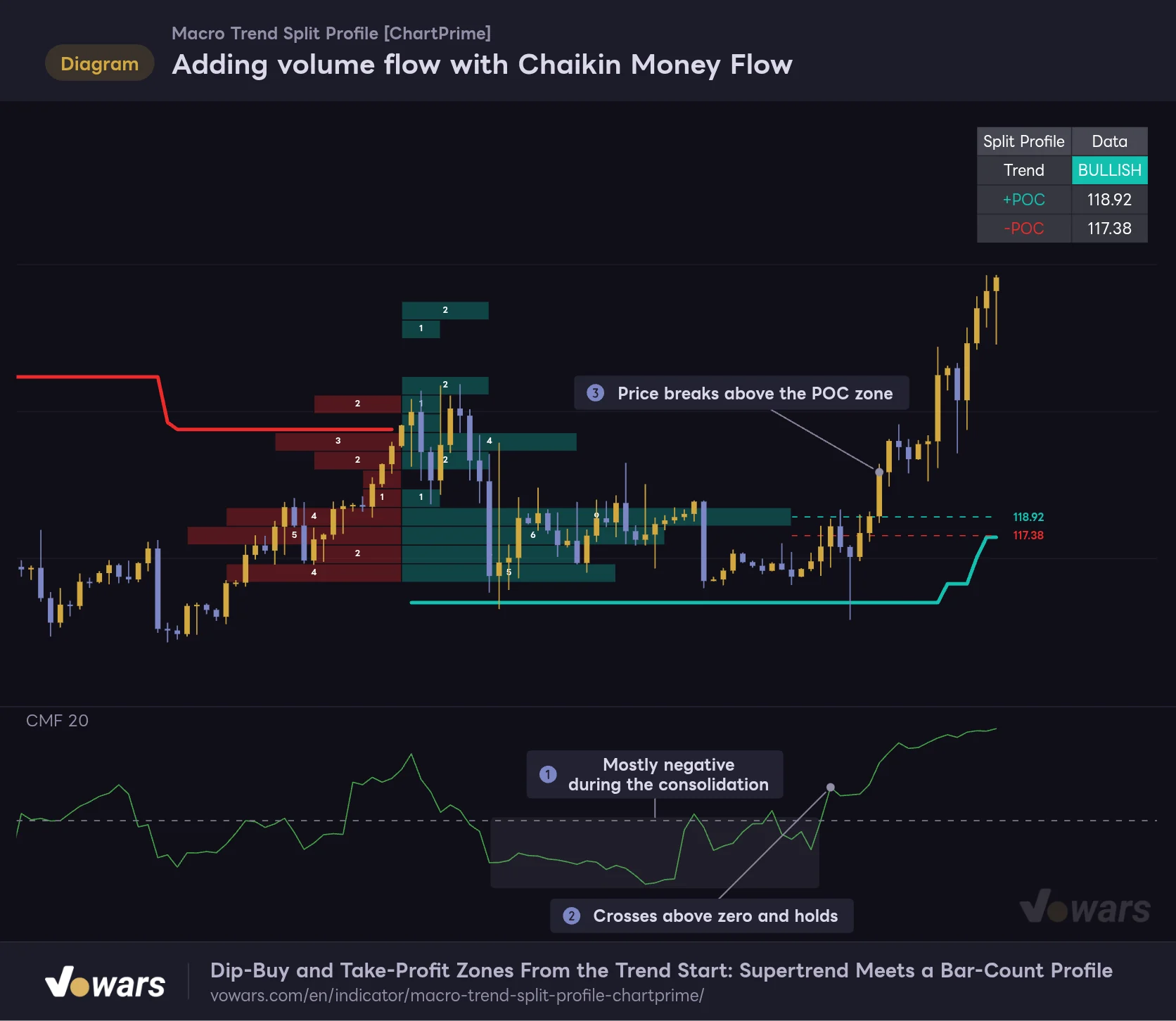
Adding volume flow with Chaikin Money Flow
The profile only counts bars, so the lower pane uses Chaikin Money Flow (CMF) to fill in the volume side of the story.
Vowars DE ver.3.12.33
CMF is an oscillator that weights volume by where each bar closed within its range, sums it up, and averages it over a set period. Above zero means volume is leaning toward buyers; below zero means it’s leaning toward sellers.
In the figure, CMF stayed mostly negative during the consolidation inside the up leg, as in Figure ①. Then CMF crossed above zero and held there, as in Figure ②, and price broke out above the POC zone in Figure ③. The profile shows where the market spent its time, and CMF shows which way volume was leaning during that time. That’s the division of labor.
A few other combinations worth trying:
- Anchor a VWAP to the bar where the leg flipped, and you can compare the bar-count distribution with the volume-weighted average price over the same leg
- Keep an eye on ADX for trend strength, which makes it easier to spot weak trends whose legs are likely to end early
- Overlay a fixed-range volume profile on the same leg to check whether the bar-count imbalance and the volume imbalance actually line up
About alerts
“Macro Trend Split Profile” doesn’t come with any built-in alert conditions. There’s no way to get notified of a trend flip or a POC touch through the indicator’s own settings alone.
That said, you can use TradingView’s alert feature to select the Macro Trend line as a condition and get notified when price crosses it. The POC dashed lines, however, are drawings rather than plots, so if you want an alert at the POC price, the reliable way is to draw a horizontal line at that price and set the alert on the horizontal line. Since the POC moves bar by bar, you’ll also need to keep repositioning that line.
Where it shines and what to watch out for
Where it shines
- Lets you compare, at a glance, where bullish and bearish candles clustered in each trend leg, split left and right
- Counts are printed inside each row, so you can check the size of the imbalance in actual numbers
- Profiles from finished legs stay on the chart, making it easy to compare past legs
- Works from the 5-minute to the weekly without changing any settings
What to watch out for
- It doesn’t use volume; it’s a distribution of bar counts
- The active leg’s POC is redrawn bar by bar, so a dashed line across past bars isn’t necessarily what was on the chart at the time
- No profile appears until bar 41 after a trend flip
- On lower timeframes and in choppy markets, small profiles cluster together and get hard to read
For traders who want to see what’s inside a trend, bar by bar
“Macro Trend Split Profile” isn’t an indicator for calling trend direction. It’s an analysis tool that shows which price zones bullish and bearish candles gathered in during each trend leg. The left-right split is simple, and once you’re used to it, you can size up a leg’s character in a few seconds.
At the same time, there are two things you really need to understand before using it: it counts bars, not volume, and the active leg’s POC moves with every bar. Keep those two points in mind and treat the POCs as reference zones for dip buys and profit-taking, and it can be a solid companion for swing trading on roughly the 1-hour to daily charts.