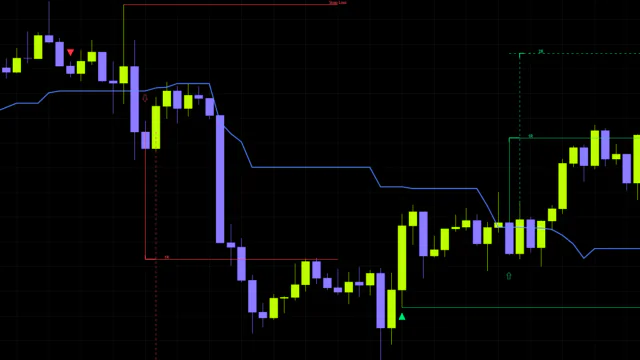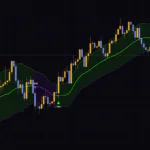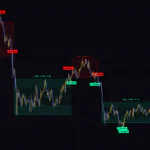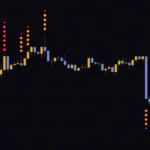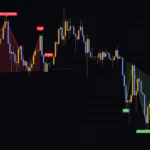


Read the trend from the line color, time entries with three closes: “Colored TMA Trend Signals”
Buy when the moving average points up, sell when it points down. It’s probably the first idea most of us try when we start trading. But once you actually trade it, you notice that by the time the line turns, price has already run a long way, and you end up asking yourself, “Am I really chasing this here?”
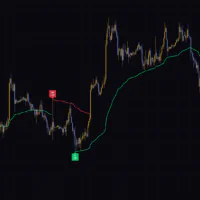
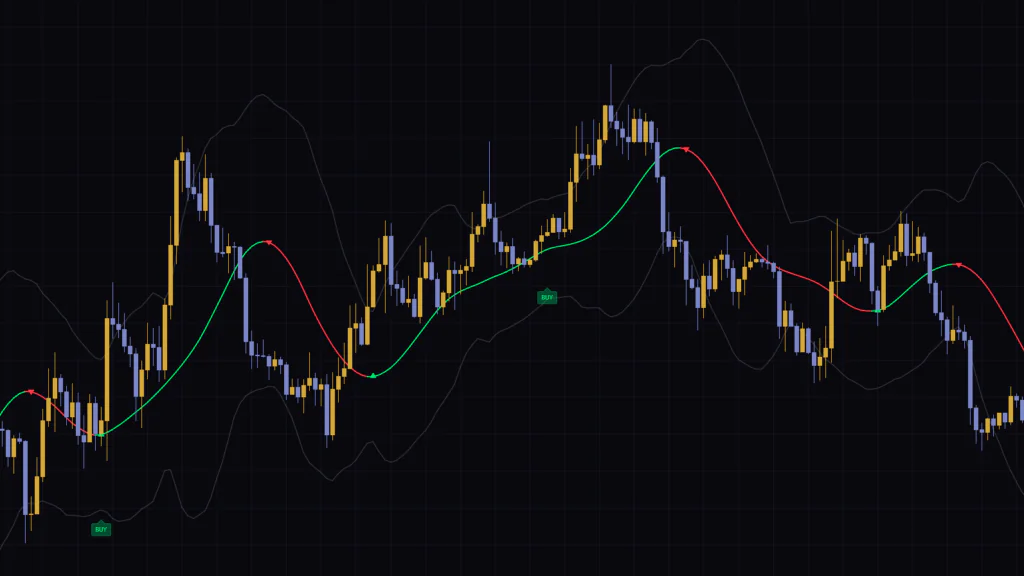
“Colored TMA Trend Signals” is a TradingView indicator built to take some of that hesitation out of the equation. It’s based on a smooth moving average called the Triangular Moving Average (TMA), and the line is colored green when it’s rising and red when it’s falling. On top of that, it prints a small triangle when the line changes color and a BUY/SELL label as a trade cue, and the two show up at different times.
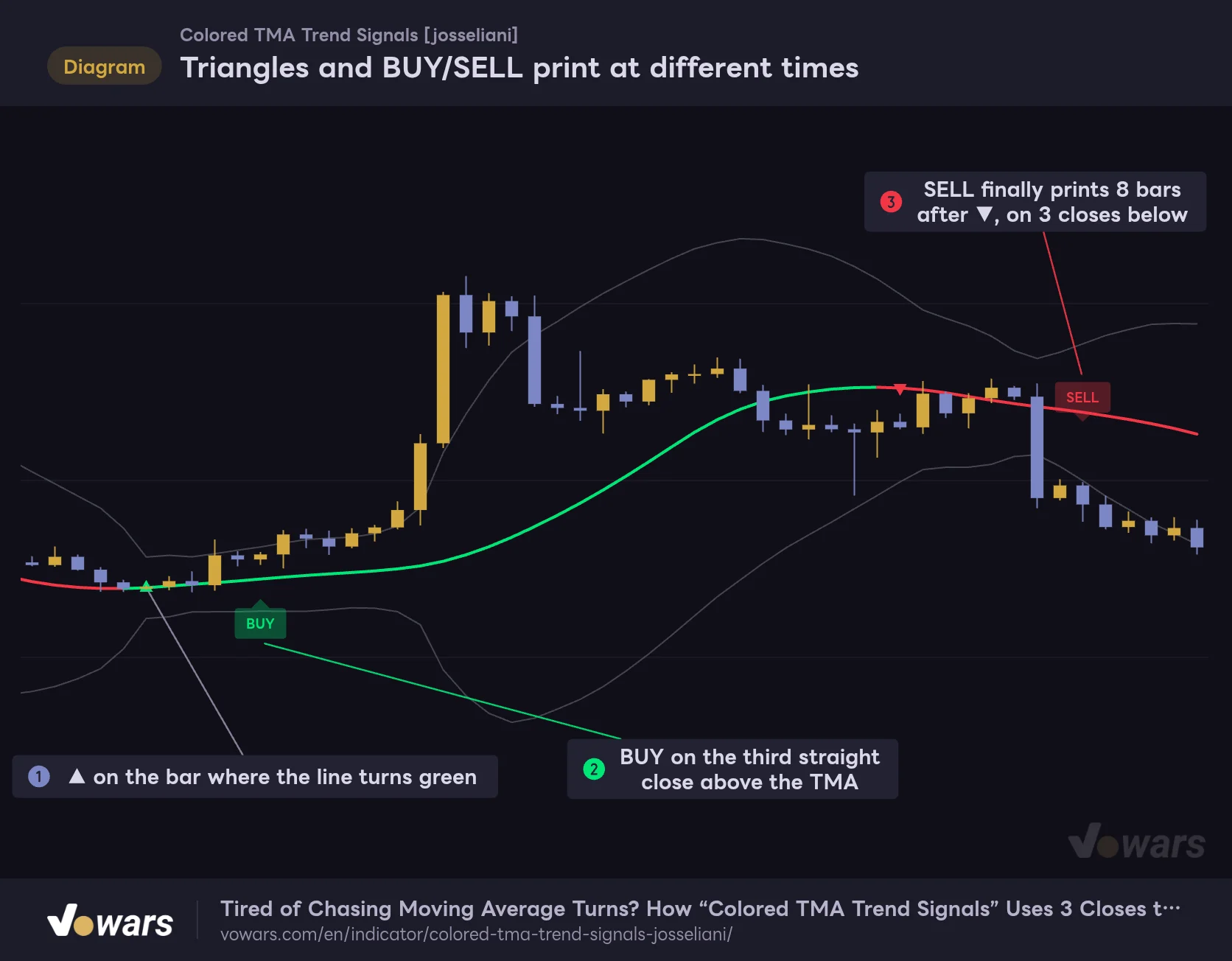
The triangle only tells you one thing: “the TMA just changed direction.” A BUY/SELL label appears only after price has closed above (or below) the TMA for a set number of bars in a row. That’s why there are a few bars between the triangle in Figure ① and the BUY in Figure ②.
Triangles and BUY/SELL print at different times
A triangle marks the bar where the line turns; BUY/SELL marks the bar where the close-based confirmation lines up.
Vowars DE ver.3.12.32
I mainly compared it on three timeframes, the weekly, 1H and 15m charts, and tweaked the settings to see how it behaves. The first thing that struck me was how clean the chart stays. It’s just one line, a faint band and a few small markers, so it doesn’t get in the way when you stack it with other indicators. That said, the BUY/SELL logic has a few quirks, and if you don’t know them you’ll end up scratching your head wondering, “Why didn’t it fire here?” This article walks through those rules one by one with visual breakdowns.
| What you see on the chart | What it means | When it appears |
|---|---|---|
| Green/red line (TMA) | Green if the TMA is higher than on the previous bar, red if lower. Gray on bars where the value doesn’t change | Moves on the live, unclosed bar |
| Faint gray lines above and below | A band built by adding/subtracting standard deviation to/from the TMA | Moves on the live, unclosed bar |
| Small ▲/▼ | The bar where the TMA flips from red to green (▲) or green to red (▼) | On bar close |
| BUY/SELL labels | The bar where the close-based confirmation is met. BUY sits below the candle, SELL above it | On bar close |
The core TMA is “an SMA averaged one more time”
In “Colored TMA Trend Signals,” the TMA is built by first taking a simple moving average (SMA) of price, then smoothing that result with another SMA of the same length. With the default Half Length of 12, that means a 12-bar SMA averaged again over 12 bars. The total lookback works out to “2 × 12 − 1 = 23 bars.”
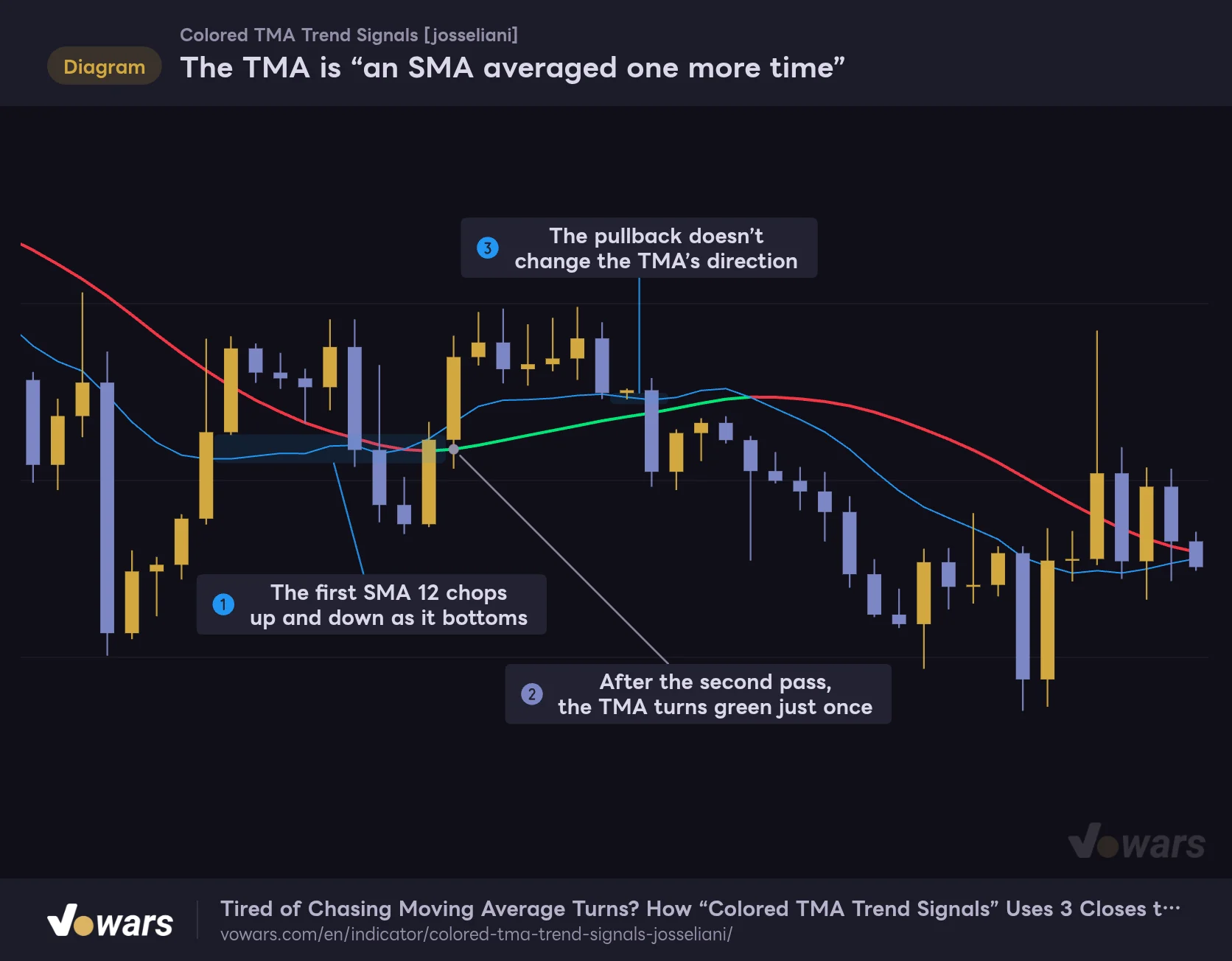
The point of averaging twice is to iron out the small wiggles left in the first SMA. In Figure ①, the blue line (the first SMA) chops up and down around the bottom, while the TMA turns green just once, as shown in Figure ②, and keeps climbing. Even through the pullback in Figure ③, it holds its direction.
The TMA is “an SMA averaged one more time”
This TMA is a 12-bar SMA of Weighted Price, averaged again over 12 bars. The second pass smooths out the wiggles from the first.
- TMA(Half Length 12)
- First-pass SMA 12 (for comparison)
Vowars DE ver.3.12.32
The trade-off is that it turns later than the first SMA. You can see it in the figure too: the blue line bottoms first, and the TMA only flips green a few bars later. If you think of it as “smoothness vs. speed,” the settings later in this article will make a lot more sense.
The price used in the calculation is set by Price Source, which defaults to Weighted Price, i.e. (High + Low + Close × 2) ÷ 4. Because it double-counts the close while still mixing in the high and low, each bar jumps around a bit less than a close-only calculation.
Some TMA versions are built the “centered” way, using future bars to center the line, and those TMA bands are known for redrawing past values every time a new bar prints. “Colored TMA Trend Signals” is a trailing version that only uses price data up to the current bar. Lines, bands and markers on closed bars never get redrawn after the fact.
The band around the line sits “standard deviation × Band Deviation” above and below the TMA. Standard deviation measures how spread out price moves are, so the band widens when the market gets volatile and tightens when it calms down. It’s a similar idea to Bollinger Bands, except the midline is the TMA and the spread is measured over the same 23 bars as the TMA.
The three conditions a BUY/SELL has to clear
BUY/SELL labels in “Colored TMA Trend Signals” don’t fire the moment the TMA changes color. With the default settings, they print on the bar where all three of the conditions below line up, right when that bar closes. I’ll use BUY as the example here, but SELL works the same way, just flipped.
1 The close is above the TMA on “exactly the third bar”
For a BUY, the indicator counts consecutive bars that close above the TMA. A single close at or below the TMA resets the count to 0, and it starts again from 1. The check only happens on the bar that hits the number set in Confirm Bars exactly, which is 3 by default.
Each close is compared with the TMA value on that same bar. Since the TMA moves bar by bar, price can go sideways and still stop counting as “closing above” if the TMA rises into it.
2 The TMA is green (rising) on that bar
When Only With TMA Trend is on (the default), no BUY prints unless the TMA is green on that third bar. For a SELL, the TMA has to be red.
3 No BUY yet within the same green stretch
With One Trade Per Color on (the default), every flip to green unlocks exactly one BUY. Once a BUY prints, a second one won’t appear until the TMA turns red and then green again. The flip to green also locks out the SELL side, so you won’t see a SELL inside a green stretch either.
Missed the third bar? Wait for a reset
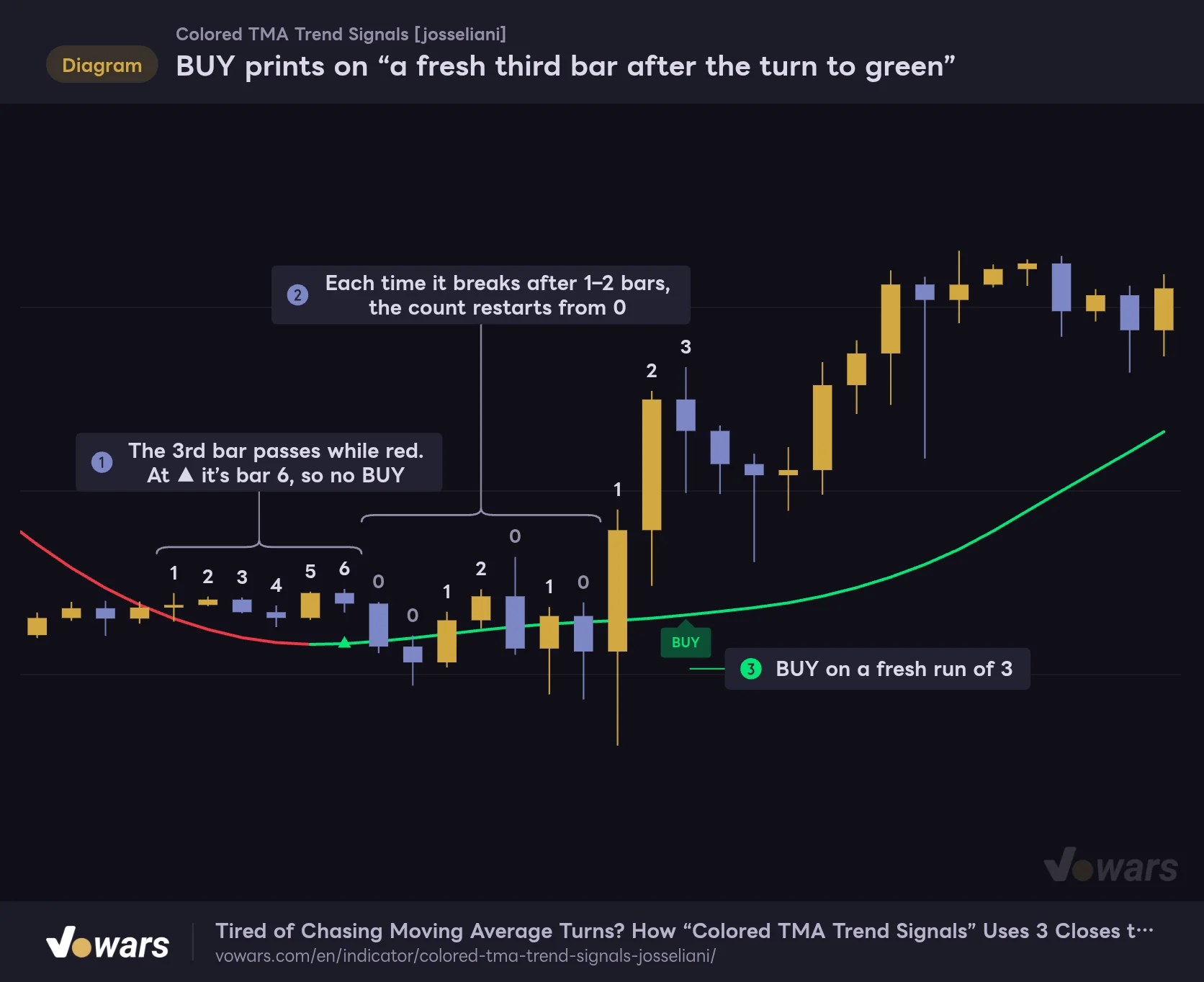
The part that trips people up most is the “exactly” in the first condition. Take a look at Figure ①. Price is already closing above the TMA while the TMA is still red, so when the third bar arrives the TMA is red and no BUY prints. By the time the TMA flips green on the ▲ bar, the count is already at 6, so there’s still no BUY.
BUY prints on “a fresh third bar after the turn to green”
The numbers show consecutive closes above the TMA. If the third bar has already passed by the time ▲ prints, no BUY appears from that run.
Vowars DE ver.3.12.32
After that, price closes back below the TMA, the count resets to 0, and as you can see in Figure ②, it keeps getting cut off after one or two bars and starting over. The BUY finally prints on the bar in Figure ③, where a fresh run of three closes lines up.
A third bar that failed the conditions doesn’t get recycled later, even if the conditions line up afterward. The rule is there to skip some of the buys that come late in a move, when price has already stretched away from the TMA. Keep in mind, though, that it doesn’t actually measure the distance between price and the TMA. A fresh third bar after a reset can still show up far away from the TMA.
One BUY per green stretch
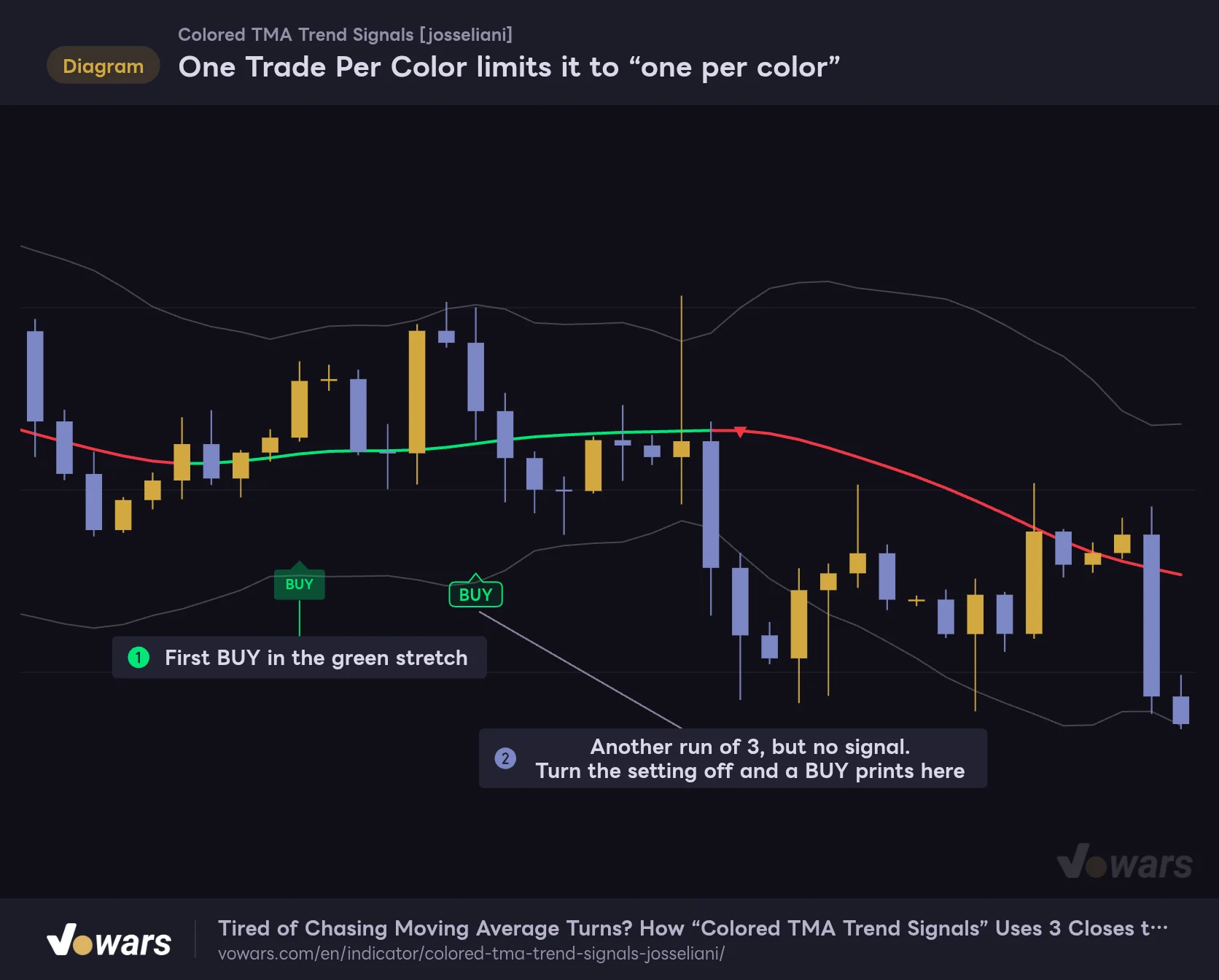
Figure ① shows the first BUY in a green stretch. After that, price dips below the TMA, then closes above it three bars in a row again. Still no BUY. The dotted box in Figure ② marks where a BUY would appear only if One Trade Per Color were turned off.
One Trade Per Color limits it to “one per color”
By default, once a BUY prints in a green stretch, no second BUY appears until the TMA turns green again.
Vowars DE ver.3.12.32
On the default settings, you get at most one BUY per uptrend leg. That may feel limiting if you like to buy the dip repeatedly on the way up, but it keeps the indicator from nudging you to add again and again in the same move, so your number of entries stays under control.
Switch timeframes and the signals take on a different personality
I loaded it with default settings on the weekly, 1H and 15m charts to see how the same indicator looks across timeframes.
Signals are rare on the weekly
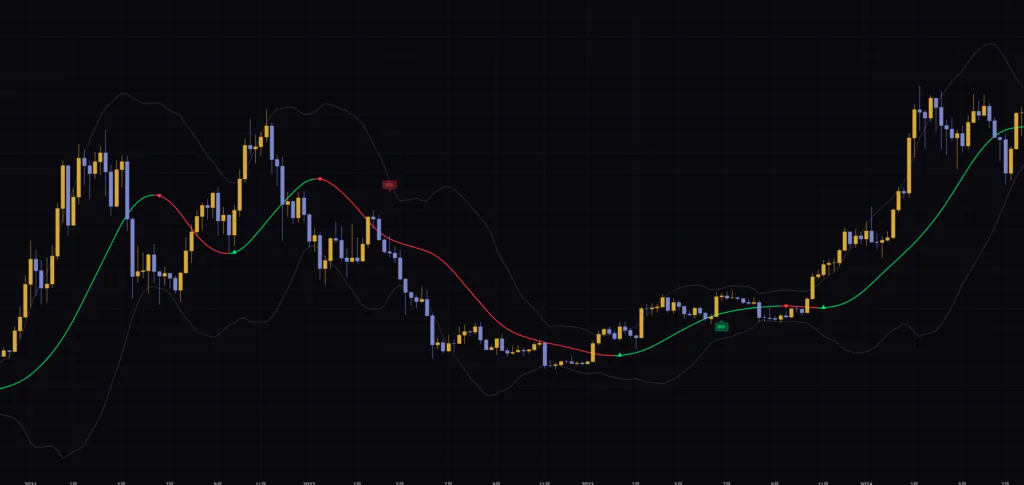
On the weekly chart, even with several years in view, there were only a handful of BUY/SELL labels. A SELL showed up partway through a big decline, a BUY partway through the rally off the bottom, and then things went quiet for a long while. What I found interesting was one case where there was a long gap between the ▲ at the bottom and the BUY. It makes sense once you realize that price had already been closing above the TMA for several bars when the ▲ printed, so the third bar had come and gone. On a timeframe like the weekly, where each bar covers a lot of time, this rule shows up very visibly as “waiting time before the BUY.”
On the 1H, watch out for whipsaws in chop
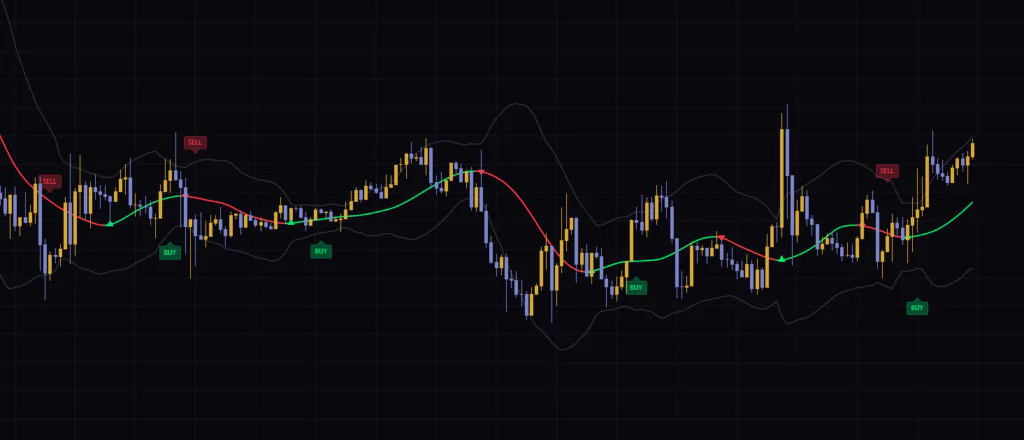
On the 1H chart, after a sharp rally cooled off, there was a stretch of several days where price chopped sideways in a range. During that time the TMA flipped between green and red several times, printing both BUYs and SELLs. None of them ran far before the next color change, so in hindsight it was basically a whipsaw back and forth.
On the 15m, the color flips really stand out
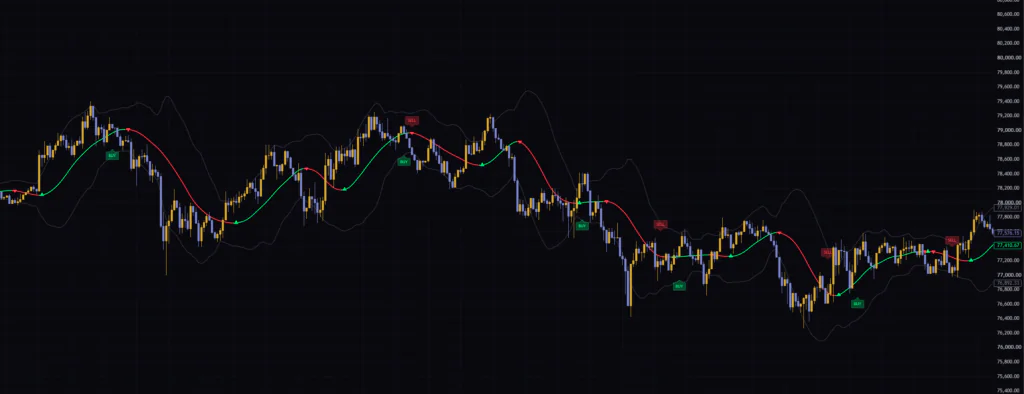
On the 15m chart, the TMA flips color even more often, with ▲ and ▼ showing up every few hours. You also get more BUY/SELL labels, and during sideways sessions there were moments where a BUY printed right after a SELL. If you want to use it on the 15m, it’s probably worth either adjusting the settings covered below or taking the time to check momentum with another indicator.
After comparing all three, my take is that the default settings of “Colored TMA Trend Signals” work most cleanly on 1H to 4H charts when there’s a clear trend, and for swing trading on the daily and above. The same approach should carry over well to markets that tend to trend for longer, like gold or major stock indices.
What each setting does, and how the chart changes when you tweak it
The settings are split into three groups: “TMA,” “VISUAL” and “TRADE SIGNALS.” There aren’t many of them, but every one has a real effect on what you see and how the signals fire.
| Setting | Default | Suggested | Effect |
|---|---|---|---|
| Half Length | 12 | Keep 12 on 1H to daily. 16–24 on 15m and below | TMA averaging length. Actual lookback is 2× minus 1 bar. Higher = smoother and slower, lower = faster with more turns |
| Price Source | Weighted Price | Weighted Price | Price used for the TMA and band. Choose from Close / Open / High / Low / Median Price / Typical Price / Weighted Price |
| Band Deviation | 2.0 | 2.0 (around 1.5 if you use Bands mode) | Standard deviation multiplier that sets band width. Higher = wider band |
| Use Source Smoothing | Off | Turn on only when lower timeframes get noisy | Smooths price with an EMA before the TMA is calculated |
| Smoothing Period | 12 | 5–12 | Length of the EMA above. Only applies when it’s on |
| Show Bands | On | On | Show/hide the band |
| Show TMA Color-Change Signals | On | On | Show/hide ▲▼. Doesn’t affect alerts |
| TMA Line Width | 2 | 2 | TMA line thickness (1–5) |
| Show BUY/SELL Labels | On | On | Show/hide BUY/SELL labels. Calculations and alerts keep running |
| Break Level | TMA | TMA (Bands if you want to catch sharp breakouts) | What the close is compared against: the TMA, or the band (upper band for BUY, lower band for SELL) |
| Confirm Bars | 3 | 2–4 | Number of consecutive closes needed for a BUY/SELL (1–10) |
| Only With TMA Trend | On | On | Limits BUY to green TMA and SELL to red TMA |
| One Trade Per Color | On | On (off if you plan to scale in) | Allows only one signal in that direction per color change |
Use Source Smoothing adds an extra layer of smoothing by running price through an EMA before it goes into the TMA. On 15m and lower charts, or on markets with lots of long wicks, turning it on and setting Smoothing Period to 5–12 cuts down on TMA color flips caused by a single spike. The catch is that you’re now stacking three averages, so turns come even later. On the daily and 4H, I found leaving it off was plenty.
Half Length is your “smoothness vs. speed” dial
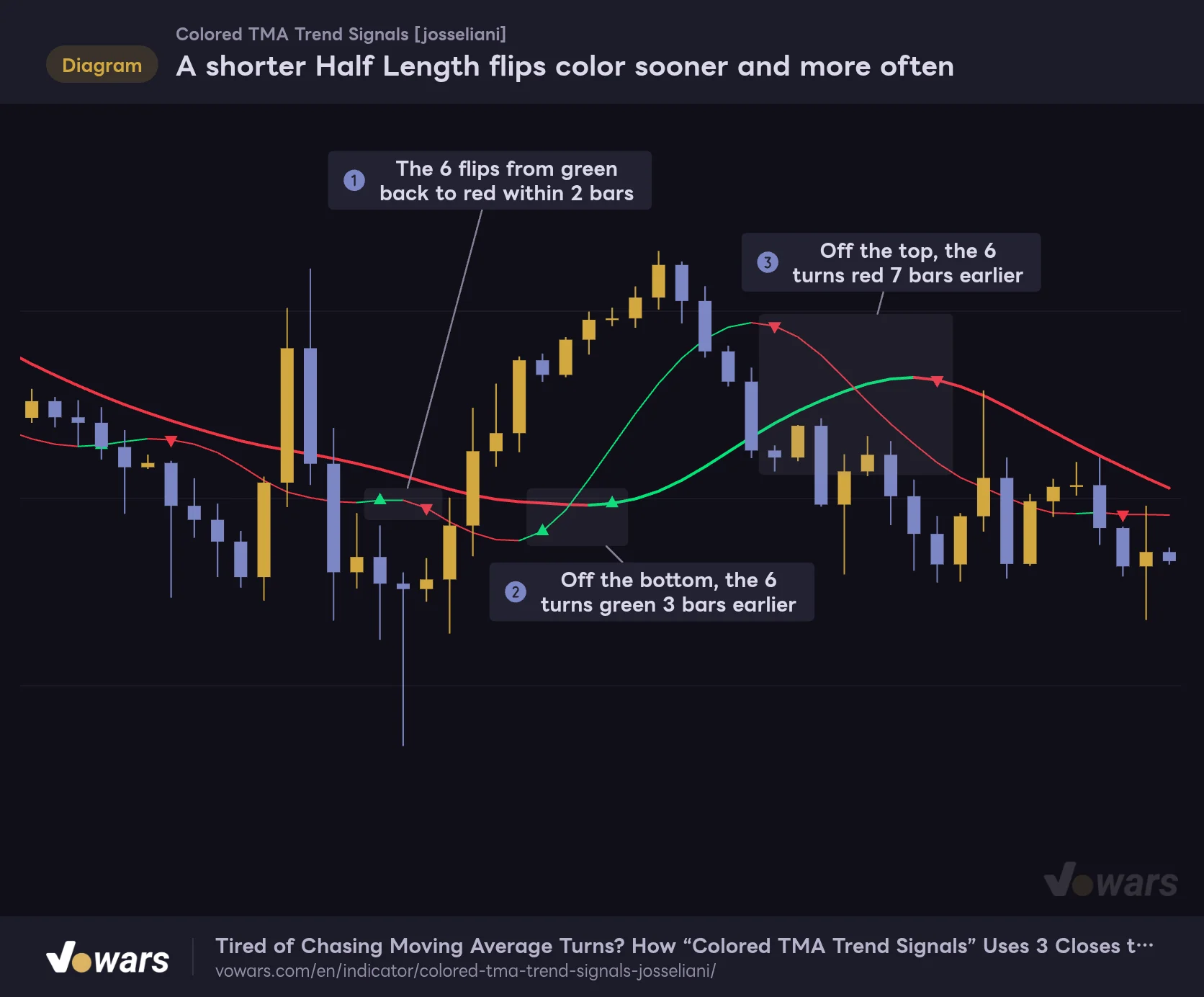
Lowering Half Length makes the TMA turn sooner, but it also flips on smaller pullbacks. In the figure, I overlaid the default 12 (thick line) and 6 (thin line) on the same chart. As Figure ① shows, the 6 sometimes flips from green back to red within two bars, yet it flags the turn off the bottom in Figure ② 3 bars earlier and the turn off the top in Figure ③ 7 bars earlier than the 12.
A shorter Half Length flips color sooner and more often
The thick line is the default Half Length 12, the thin line is Half Length 6. The 6 turns sooner but also flips on small pullbacks.
- Half Length 12 (thick line, default)
- Half Length 6 (thin line)
Vowars DE ver.3.12.32
If the color flips feel excessive on the 15m, try raising Half Length to 16–24. The lookback becomes 31–47 bars, and the number of TMA direction changes drops noticeably. On the other hand, if the daily feels too slow, 8–10 is an easy range to experiment with. Which value fits depends on how the market moves, so the safest approach is to compare how the colors change on historical charts before you settle on one.
Setting Break Level to Bands changes what you’re aiming for
Switch Break Level to Bands, and a BUY is judged on consecutive closes outside the upper band, a SELL on closes outside the lower band. Three straight closes outside the band only happen when momentum is strong, so signals in sideways markets drop off sharply.
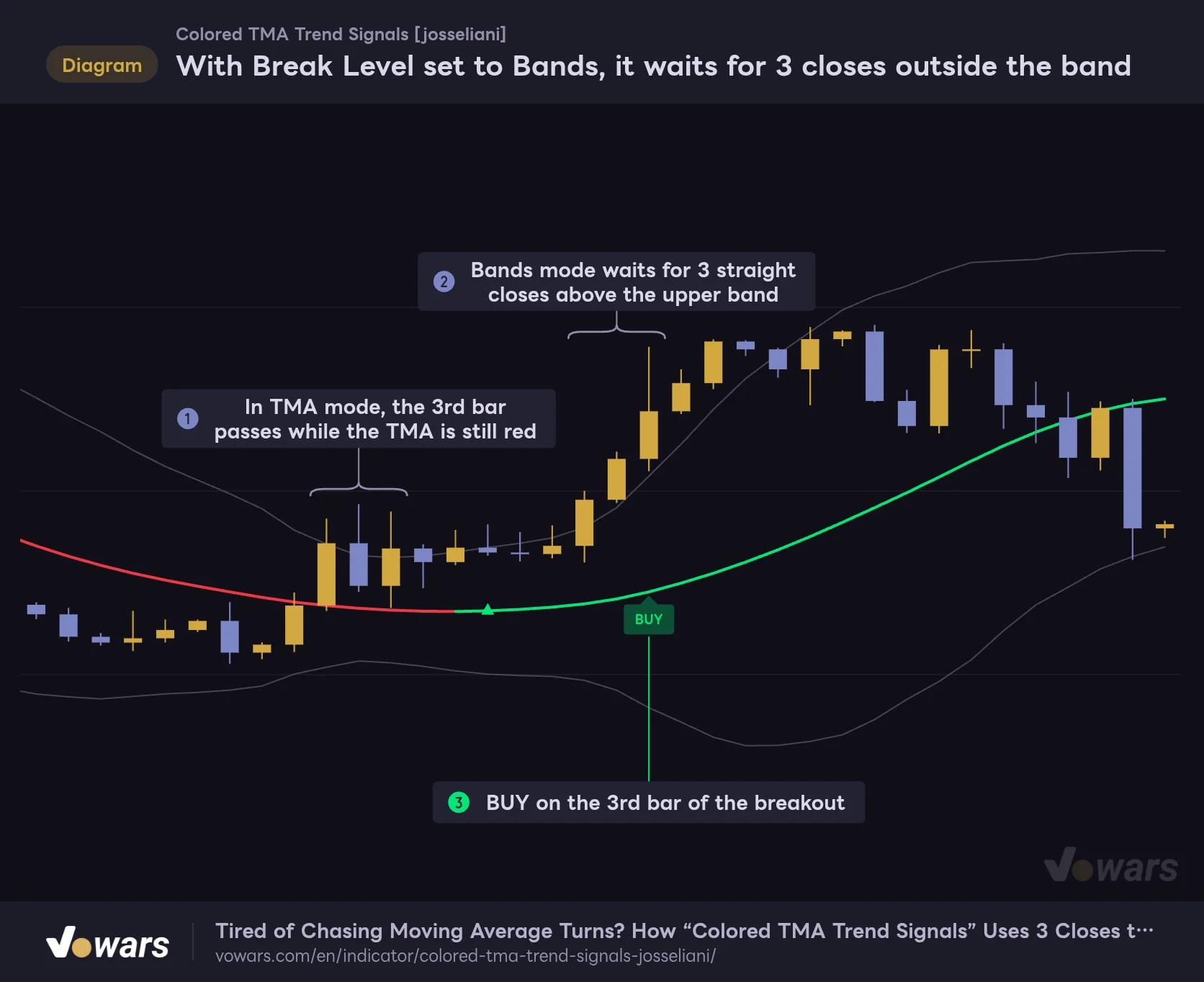
What surprised me here is that in a sharp breakout, Bands mode can actually be more likely to print a BUY. As in Figure ①, with the TMA as the reference, the third bar passes while the TMA is still red, so no BUY appears even after it turns green. With Bands, the count restarts above the band as shown in Figure ②, and a BUY prints on the third bar of the breakout in Figure ③.
With Break Level set to Bands, it waits for 3 closes outside the band
In a sharp breakout, TMA mode can pass the third bar before the turn to green, so no BUY prints. Bands mode restarts the count above the band.
Vowars DE ver.3.12.32
Of course, three closes outside the band means price has already run quite a bit. Whether to enter there needs to be judged together with where your stop would go. Narrowing Band Deviation to around 1.5 makes it easier for price to close outside the band, so Bands-mode signals come a little earlier.
Confirm Bars and the two filters
Setting Confirm Bars to 2 brings the signal one bar earlier, but you also get more fakeouts. Raising it to 4–5 makes it more conservative, but because of the “exactly the Nth bar” rule, the Nth bar is more likely to pass before the TMA changes color, so the signals themselves tend to thin out. In my testing, moving it between 2 and 4 depending on the timeframe was the easiest to work with.
Turn off Only With TMA Trend, and BUY/SELL fire on the close condition alone, regardless of the TMA color. However, if One Trade Per Color stays on, the flip to green locks out SELL and the flip to red locks out BUY, so counter-color signals can only appear until the first turn. Turn both off and you get a very clear-cut display where a signal prints every time the close condition is met.
| Use case | Suggested combo | Why |
|---|---|---|
| Swing trading on daily and above | Default settings | Each bar covers a lot of time, so fewer signals is actually easier to manage |
| Day trading on 1H to 4H | Default settings, Confirm Bars 2–3 | Good balance between TMA lag and the number of confirmation bars |
| Cutting noise on 15m and below | Half Length 16–24, plus Use Source Smoothing on if needed | The TMA is less likely to flip direction on small moves |
| Catching only sharp breakouts | Break Level set to Bands, Band Deviation 1.5–2.0 | Only strong moves that hold outside the band remain |
| Scaling in during an uptrend | One Trade Per Color off | A BUY prints on every fresh third bar, even within the same green stretch |
The values in this table are the starting points that felt easiest to work with when I compared charts. The best values shift with the market and how volatile it is, so check how the colors change and where the signals land on your own market’s historical charts before you lock anything in.
To cut down on whipsaws in chop, keep DMI’s ADX alongside
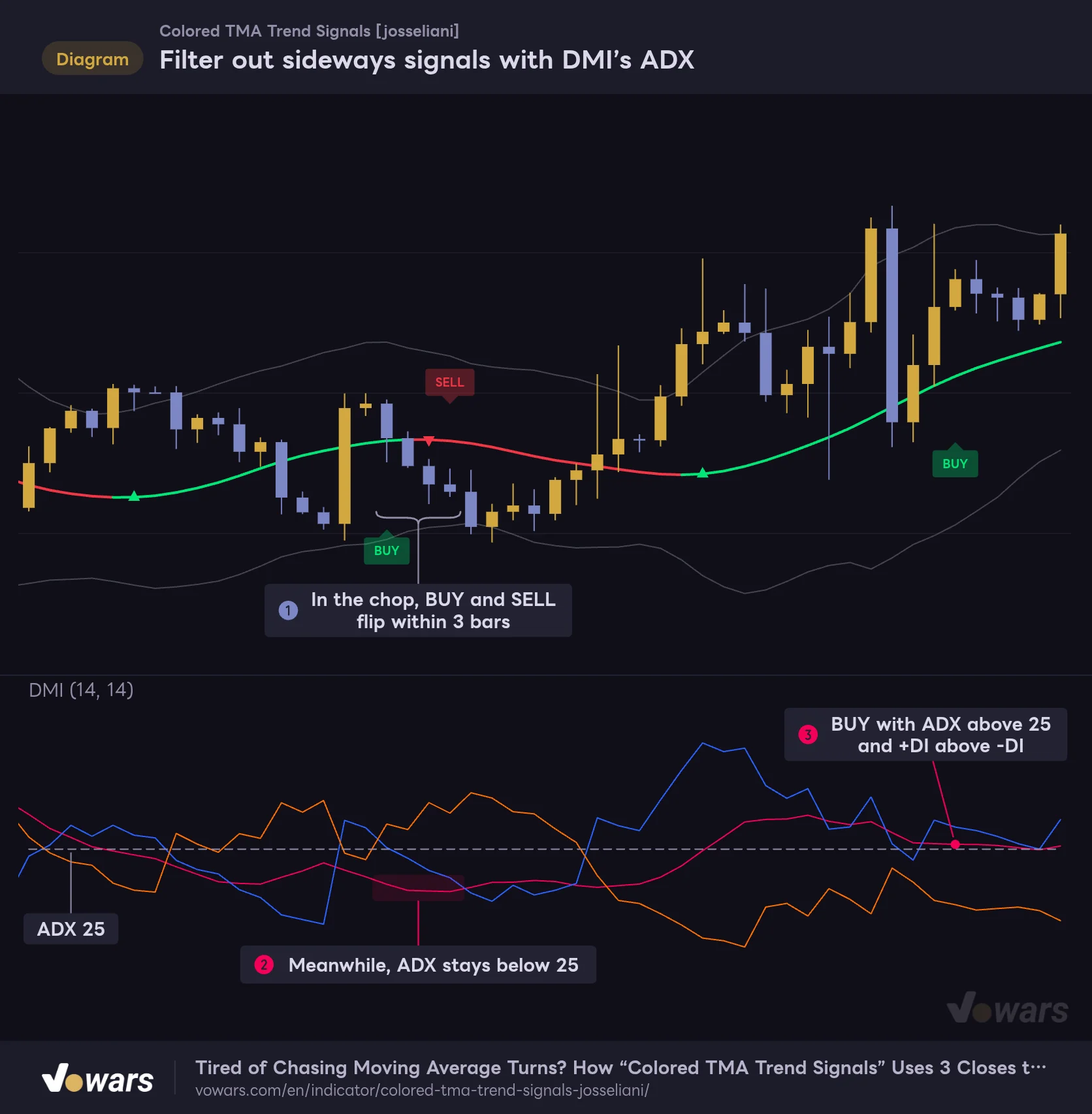
Where “Colored TMA Trend Signals” struggles is in choppy, range-bound markets where price bounces between two levels. The TMA keeps flipping color, and you tend to get whipsaws like a SELL printing right after a BUY. That’s not unique to the TMA; it’s a weakness shared by every indicator built on moving averages.
The pairing that clicked for me was TradingView’s built-in DMI (Directional Movement Index). The ADX line within the DMI shows only trend strength, while direction is read from whether +DI or -DI is on top. In the figure, the BUY and SELL in the chop at Figure ① flip within three bars. Meanwhile, in the lower pane, ADX stays below 25, as shown in Figure ②.
Filter out sideways signals with DMI’s ADX
In sideways chop where the TMA keeps flipping color, ADX stays low. Taking only BUYs where ADX is above 25 and +DI is on top cuts down on whipsaws.
- ADX
- +DI
- -DI
Vowars DE ver.3.12.32
In contrast, the BUY in Figure ③ prints with ADX above 25 and +DI above -DI. If you set a rule like “only take signals when ADX is above roughly 25 and the +DI/-DI relationship matches the signal direction,” you’d skip both the BUY and the SELL in the chop shown here and stay out of the whipsaw. That said, 25 is just a common rule of thumb, and on some markets something closer to 20 may fit better.
It also pairs well with indicators like these:
- Choppiness Index. Higher readings suggest a choppier market, so you can use it as a cue to sit out BUY/SELL signals
- Volume Profile. Checking whether there’s a high-volume node sitting above where a BUY printed gives you a better sense of how much room price has to run
- Higher-timeframe TMA. “Colored TMA Trend Signals” itself has no setting to pull in a higher timeframe, so use a multi-chart layout, put a higher-timeframe chart next to yours with the same indicator on it, and only take signals that agree with the higher-timeframe color
No repainting, but the line moves on the live bar
The TMA, band, ▲▼ and BUY/SELL in “Colored TMA Trend Signals” are all calculated from price data up to the current bar, with no future data involved. It doesn’t request higher-timeframe data either, so what’s on closed bars never changes after the fact, meaning it doesn’t repaint.
The one thing to watch is the latest bar that hasn’t closed yet. The TMA line, its color and the band are recalculated every time price ticks, so on the live bar they can flicker between green and red. ▲▼ and BUY/SELL, on the other hand, are only evaluated on bar close, so they never appear and disappear on the live bar.
Scroll back through history and some BUY bars look like they launched a perfect move. But a BUY only prints the moment the third bar closes, and the earliest you could realistically get in is the next bar’s open. If you estimate performance as if you’d filled at the signal bar’s low or close, you’ll overstate your results.
“Colored TMA Trend Signals” is an indicator, not a strategy, so the Strategy Tester won’t give you a win rate or P&L. If you want to check its behavior, step through bars one at a time with TradingView’s Bar Replay and you can watch the ▲ and BUY labels appear as each bar closes. Daily and higher timeframes can be replayed across the full history, but how far back you can go on intraday charts depends on your plan and the timeframe (as of 2026/10/13).
Six alert conditions
There are six alert conditions built in. They keep working even if you hide the ▲▼ markers or the labels.
- TMA Bullish Color Change (the TMA turned green)
- TMA Bearish Color Change (the TMA turned red)
- Any TMA Color Change (either color change)
- Trade Long (BUY conditions met)
- Trade Short (SELL conditions met)
- Any Trade Signal (either a BUY or a SELL)
Every condition only triggers on bar close, so setting the alert frequency to “Once Per Bar Close” is the safe choice.
What I learned using it: where it shines and what to watch out for
Where it shines
- Just one line and a few small markers, so the chart stays uncluttered even when stacked with other indicators
- The TMA color change and the close-based confirmation are shown separately, so you can think about “the trend turned” and “this might be a good entry” as two different things
- Nothing on closed bars changes after the fact, so what you see on historical charts can be used for backtesting as-is
- Settings like Break Level and One Trade Per Color shape how signals fire, so you can tune it for anything from swing trading to shorter-term trading
- Six alert conditions that work regardless of whether the markers are shown or hidden
What to watch out for
- Averaging twice makes the TMA smooth, but it also means turns are flagged later
- In chop, the color flips easily and BUY/SELL tend to whipsaw
- Because of the “exactly the Nth bar” rule, BUY/SELL may not print when a move takes off fast
- It doesn’t measure the distance between price and the TMA, so signals can appear far from the TMA
- No stop-loss or take-profit levels are shown, so risk management is entirely up to you
Most of the points under “What to watch out for” can be eased quite a bit by adjusting the settings or pairing it with a momentum gauge like the ADX mentioned above. On the flip side, if you try to run your entire trading on “Colored TMA Trend Signals” alone, choppy markets will likely push you around. Treat the signals as a prompt to start thinking about an entry, and decide whether that spot is worth taking alongside recent swing highs and lows and how much risk is on the table.
A first moving average for trading without second-guessing
![Colored TMA Trend Signals [josseliani]](https://vowars.com/wp-content/webp-express/webp-images/uploads/2026/10/Colored-TMA-Trend-Signals5-1024x464.png.webp) Image
Image“Colored TMA Trend Signals” takes the classic approach of trading the direction of a moving average and shapes it into something that’s harder to second-guess. Read the trend from the TMA color, then plan your entry around the BUY/SELL that prints once the close-based confirmation lines up. Because those two steps are kept separate on the chart, it helps cut down on the classic mistake of “the line turned, so I panicked and jumped in.”
On the other hand, with rules this simple, the usual moving-average traits like weakness in chop and lag on turns are still there. Anchor yourself on timeframes from the weekly down to around the 1H where trends tend to form, adjust Half Length and Confirm Bars on lower timeframes, and keep something like the ADX alongside to spot chop. Used this way, it should hold on to the strengths of its clean display while covering its weak spots well.