

A Sweep Detector That Won’t Draw a Zone Off a Wick Alone
Price spikes through a recent high or low with a wick, then snaps right back. That kind of liquidity sweep (a.k.a. a stop hunt) gets a lot of attention as a reversal trigger. The problem is that once you scroll back through a chart, “wicked through the level” candles are everywhere, and plenty of them either turn into a real breakout or just get lost in the chop.
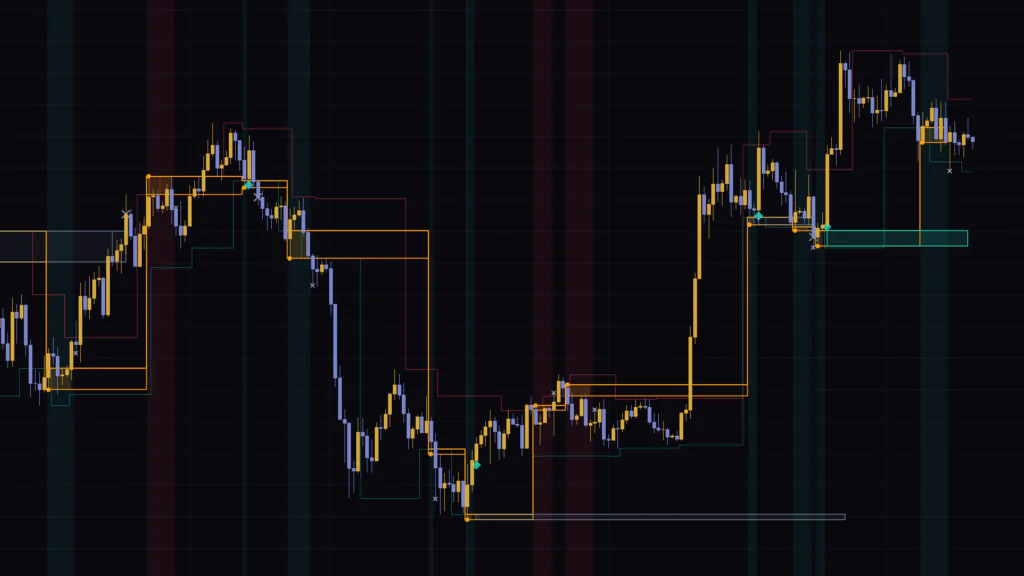
The TradingView indicator “Liquidity Sweep Confirmation Zones” doesn’t treat a “pierce and reclaim” candle as support or resistance right away. Instead, it parks the candle as a candidate and only locks in a zone (box) if price actually moves away cleanly over the next few bars. On the chart it shows up under the short name “Sweep Zones”.
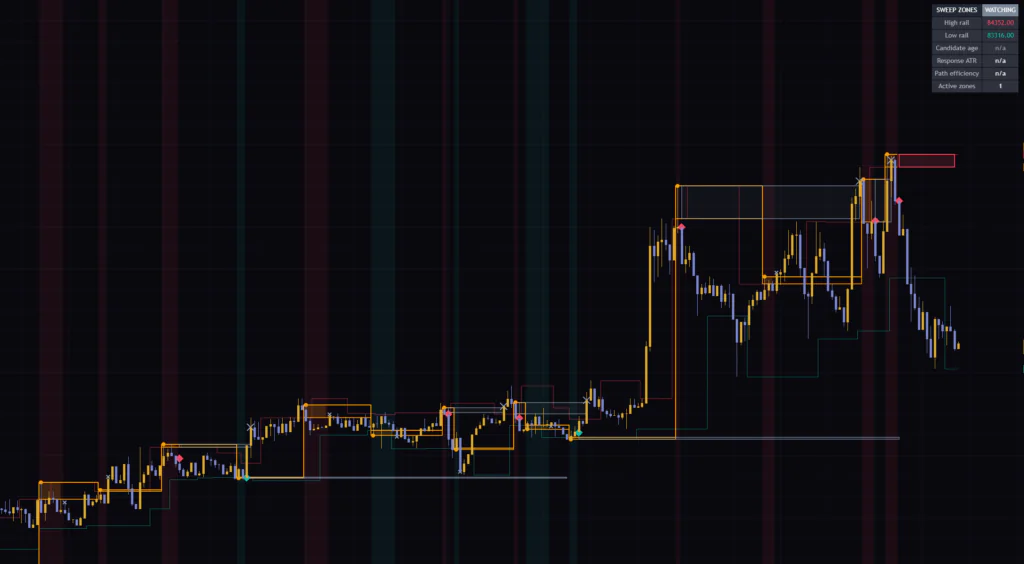
I ran it on seven timeframes, from the 5-minute up to the weekly, and what stuck with me most was that even the candidates that never confirmed stay on the chart as an × mark. You see the whiffs, not just the reversals that worked, which makes it a refreshingly honest indicator to backtest with.
From ● to ◆ to a Box, in Three Stages
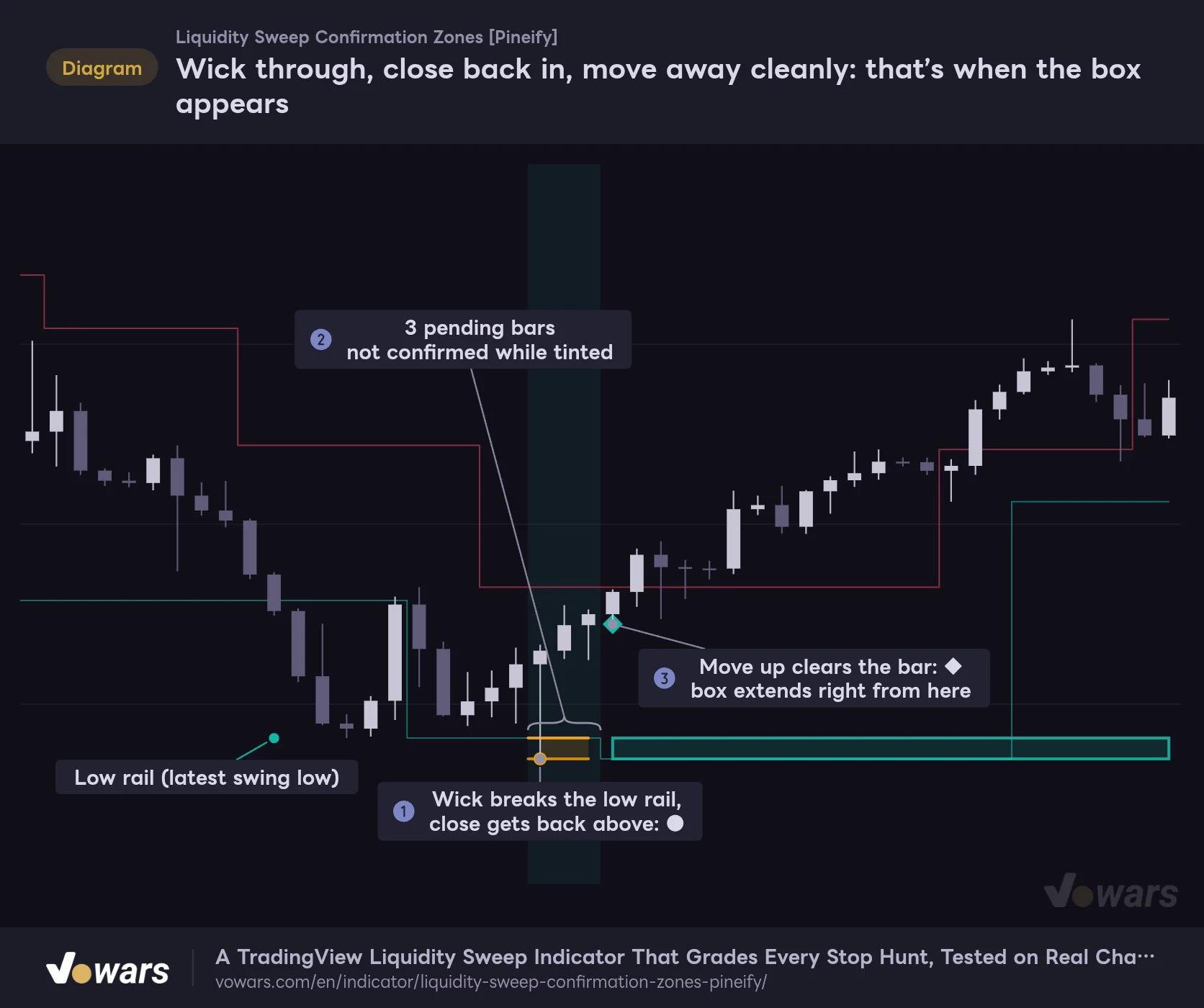
In short, “Liquidity Sweep Confirmation Zones” works in three stages. As Figure ① shows, when a candle wicks below the most recent swing low (the rail) and closes back above it, it gets an orange ●. At that point it’s still just a “candidate”.
While the candidate is live, an orange bridge is drawn between the rail and the wick tip, and the background gets a light tint, as in Figure ②. Once price pushes far enough away to the upside, a ◆ prints, and as Figure ③ shows, the box starts on that candle and extends to the right.
Wick through, close back in, move away cleanly: that’s when the box appears
A wick below the low rail is only a candidate at first. The box starts on the bar that passes the test within the next few candles.
Vowars DE ver.3.12.33
The key detail here is that the box’s left edge starts at the ◆ candle, not the ● candle. The indicator never goes back and paints “this was support all along”, so when you review the chart, a box is only sitting where it was actually confirmed at that moment.
Get to Know Everything It Draws First
The first time you load it, lines, bridges and markers all pop up at once, and it can look like a lot. There are quite a few elements, but each one has a clear job, so it’s worth going through them in one table before anything else. The colors below are the defaults.
| Element | Looks like | Meaning |
|---|---|---|
| High rail / Low rail | Thin red / green step line | The level of a confirmed swing high or low. An “armed” line that can be used for the sweep check |
| Candidate (sweep) | Small orange ● | A candle that wicked through the rail and closed back inside. Not confirmed yet |
| Pending bridge | Two orange lines with a light fill | The area between the rail and the wick tip. The fill only appears while the candidate is pending |
| Pending background | Light green (bullish) / light red (bearish) | Tints the candle background only while a candidate is alive |
| Confirmation | Green or red ◆ | The candle where price moved far enough away after the candidate |
| Zone (box) | Green or red outlined box | The confirmed support or resistance zone. It fades with every retest |
| Failed candidate | Small gray × (on the wick side) | A candidate cancelled by timeout or by a close beyond the wick tip |
| Zone invalidation | Gray × (at the close) | A candle that closed through the far side of the box. The box turns gray |
| Dashboard | Table in the top-right corner | State, rail prices, pending progress, and the number of active boxes |
Having two kinds of × is a little confusing, but the small × sits at the wick tip and the slightly larger × sits at the close, so their position tells them apart. The first means “the candidate never became a ◆”, the second means “a confirmed box got broken”. Two completely different events.
Which Candles Get a ●, and Which Don’t
Rails Only Come From Confirmed Swings
The rails used as the sweep reference are highs and lows that stick out compared with the candles on either side (pivots). By default, Pivot left bars and Pivot right bars are both 3, so a candle’s low becomes a swing low when it’s lower than the three candles on each side.
The catch is that the swing isn’t confirmed until the three candles on the right have formed. Because of that, the rail appears three bars after the swing candle and starts drawing from the bar where it was confirmed. It doesn’t extend the line back to the low itself. That waiting period is why the latest top or bottom sometimes hasn’t turned into a rail yet.
Wick Depth and the Reclaim Are Measured in ATR
To get a ●, a candle has to meet both of these conditions at bar close.
- The wick pokes beyond the rail by at least Minimum wick pierce (ATR) (default 0.05) × ATR
- The close comes back inside the rail by at least Minimum close reclaim (ATR) (default 0.03) × ATR
ATR (Average True Range) tells you how much a symbol typically moves in a single candle. Because distances are measured as multiples of ATR, the same settings behave the same way whether you’re on Bitcoin at tens of thousands of dollars or an FX pair trading around 1.00. The lookback is set by ATR length (default 14).
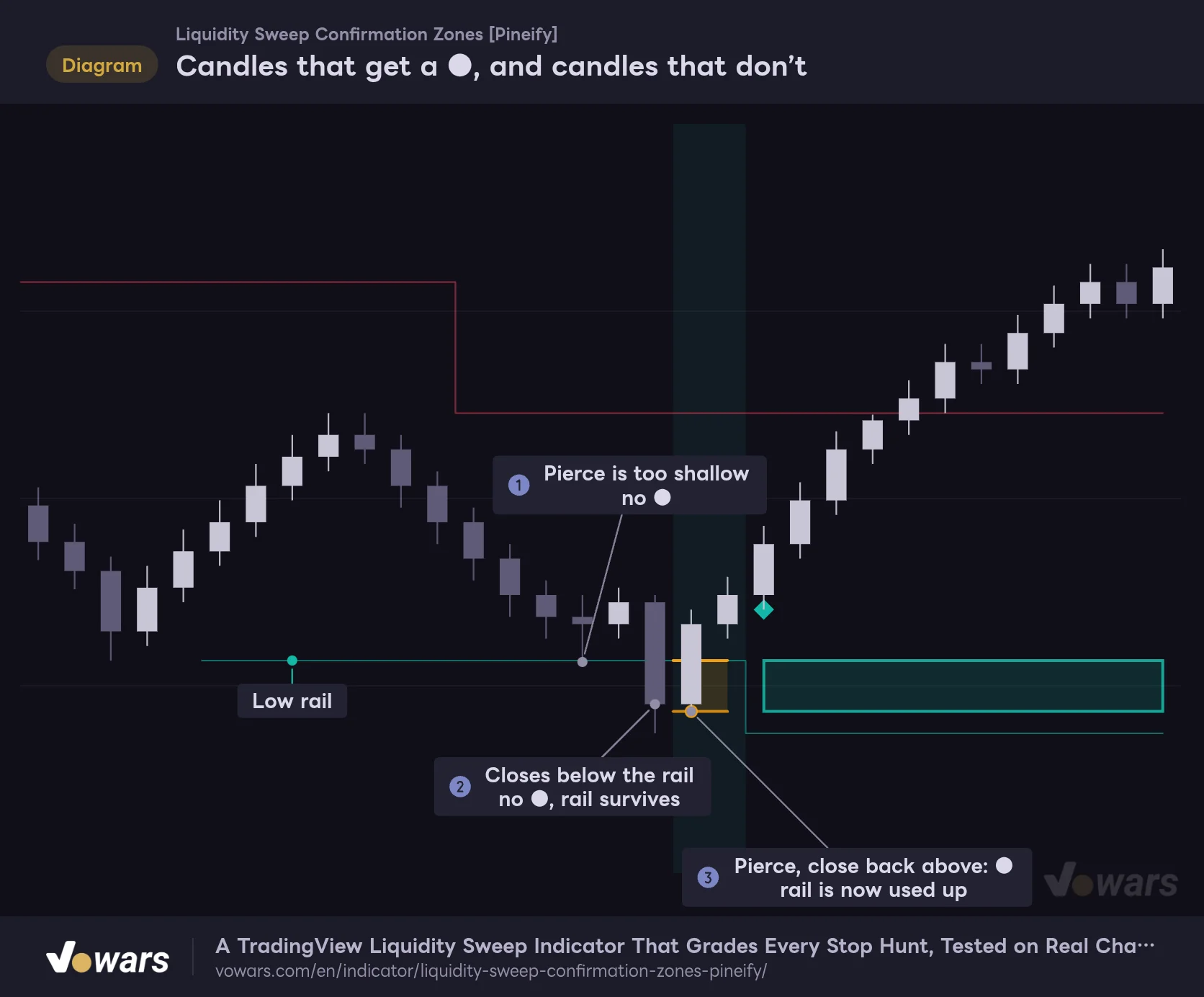
The next figure lines up the kinds of candles that get filtered out. In Figure ① price barely tags the rail, and in Figure ② the candle closes below the rail. Neither gets a ●. Only a candle that pierces the rail and then closes back above it, like Figure ③, becomes a candidate.
Candles that get a ●, and candles that don’t
Price touched the same low rail three times, but only the candle that pierced it and closed back above got a ●.
Vowars DE ver.3.12.33
Right after candle ②, the next candle dips below the low but closes back above, so that one gets the ●. In other words, it also catches the “broke below, then got right back in on the next candle” pattern.
Each Rail Can Only Be Used Once
The moment a ● prints, that rail is used up and the line disappears. That’s why poking the same low over and over doesn’t spam ● marks. A rail only comes back when a new swing gets confirmed.
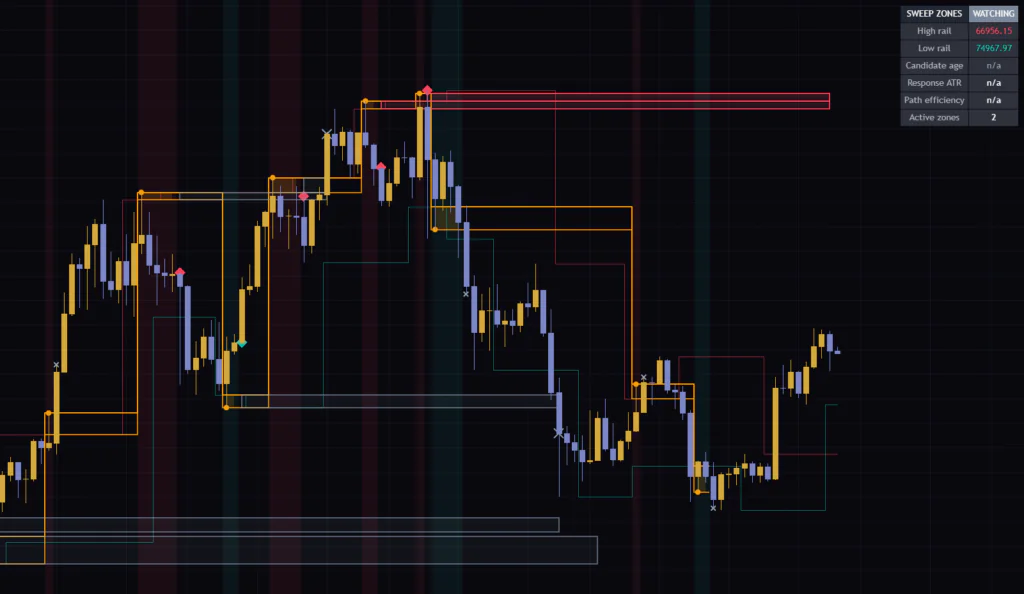
On the flip side, a candle that simply closes through the rail doesn’t remove it. On the weekly chart, the dashboard’s “High rail” was still pointing at 66956.15, well below the current price. Price broke out to the upside, no new swing high has been confirmed since, so the old high rail is just sitting there, still armed.
One more small detail: if a single candle sweeps both the high rail and the low rail, it can’t pick a direction, so it doesn’t become a candidate. This happens more on wide-range candles, and knowing that no ● appears in that case saves you some confusion.
What It Checks in the Bars Before a ◆
This is where “Liquidity Sweep Confirmation Zones” really separates itself from other sweep indicators. On every bar after the ●, it checks the following three things.
- Displacement is how many ATRs price has moved in the intended direction from the close of the ● candle (Required response displacement (ATR), default 0.75)
- Efficiency is the distance gained as a share of the total close-to-close travel (Minimum response path efficiency, default 0.45)
- Position is whether the close is still on the reclaimed side of the rail (above the rail for a bullish setup)
The ◆ prints the instant all three line up on the same candle. The ATR and reference prices used for the measurement are frozen at the moment the ● appears. So you won’t see the bar get easier to clear just because ATR expands later.
Why Path Efficiency Is the Heart of It
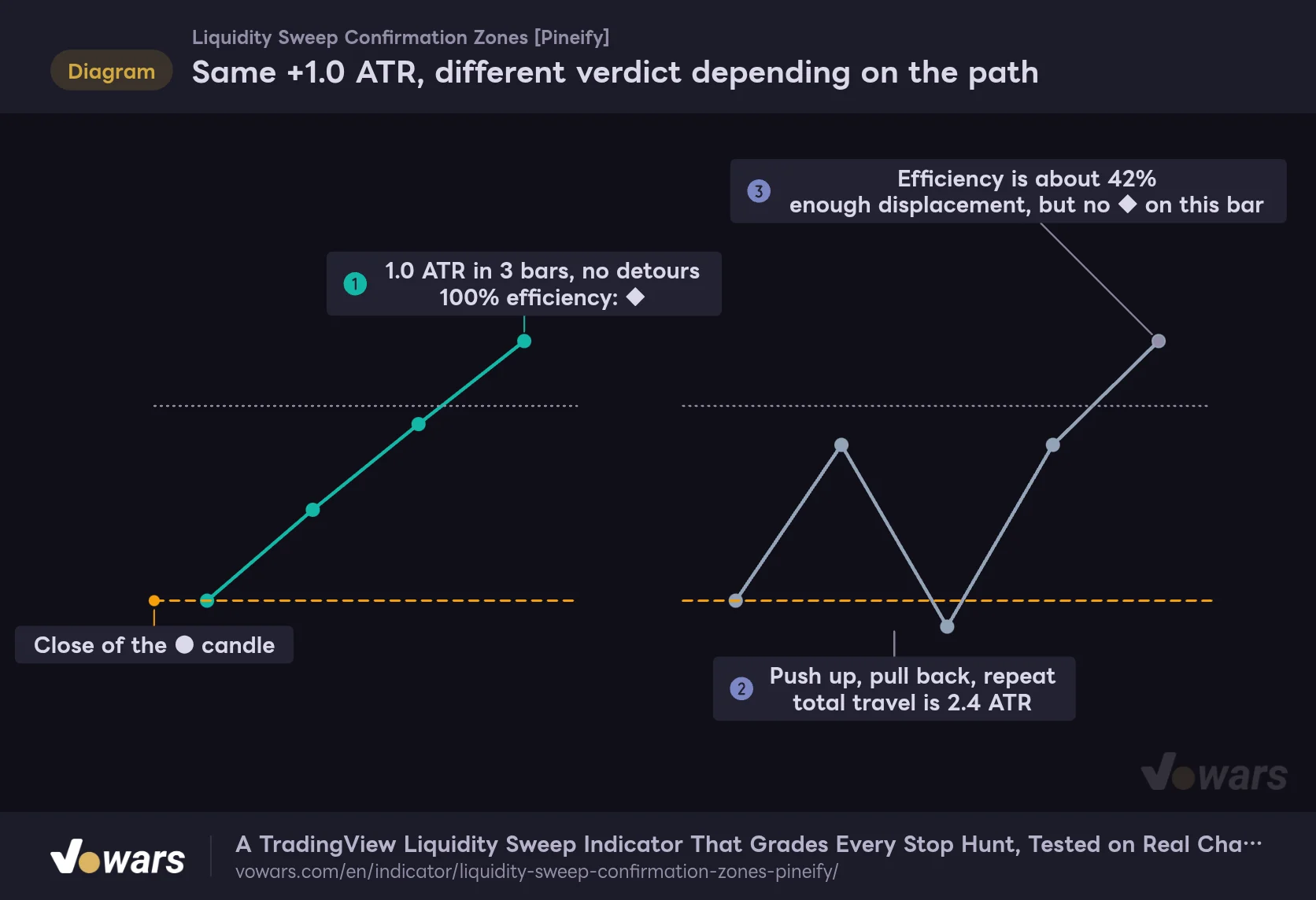
If displacement were the only check, price could zigzag its way there and eventually clear the bar anyway. That’s why there’s a second yardstick, efficiency. The idea is simple: “net distance gained ÷ the sum of every close-to-close move along the way”.
Same +1.0 ATR, different verdict depending on the path
Path efficiency is net distance gained ÷ total close-to-close travel. The more price chops back and forth, the lower it gets.
Vowars DE ver.3.12.33
If price climbs with no detours, as in Figure ①, efficiency is 100%. But if there’s a push-and-pullback in between, as in Figure ②, the total travel balloons even though the gain is the same 1.0 ATR, and as Figure ③ shows, it falls short of the 45% threshold. To me, this is the part that best shows the intent of only keeping the “clean, impulsive move away” right after a sweep.
Candidates That Never Become a ◆ Stay as an ×
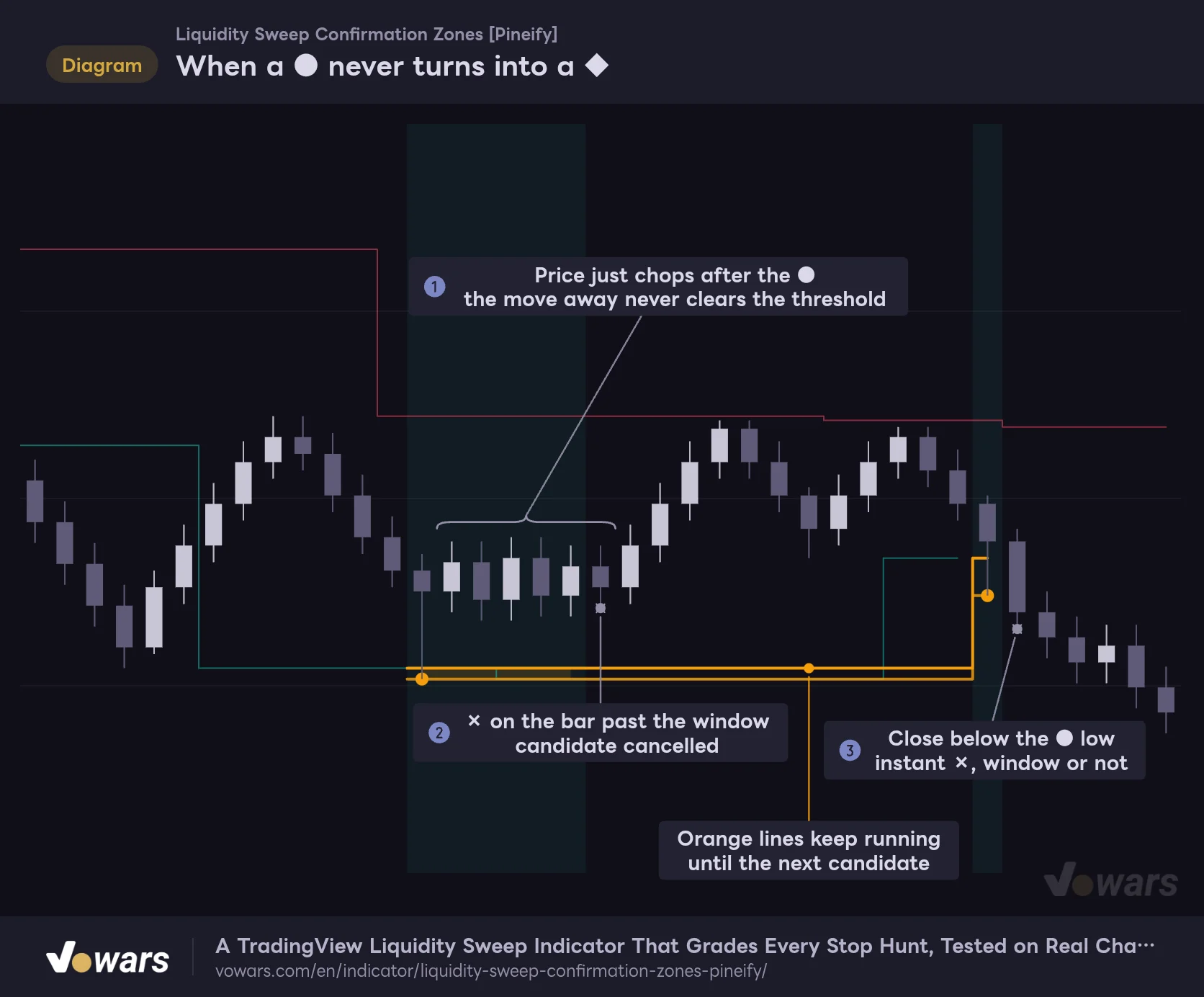
There are two ways a candidate gets cancelled. The first is a timeout. If the conditions still haven’t lined up after the Confirmation window (bars) (default 5) runs out, a small gray × is placed and the candidate is dropped, as in Figure ②.
The second is when a candle closes beyond the wick tip of the ● candle (the low, for a bullish setup). As Figure ③ shows, that triggers an × on the spot, even before the window expires. Price closed below the very low that was supposedly swept, so the reversal idea is treated as dead.
When a ● never turns into a ◆
A candidate gets cancelled in one of two ways, a timeout or a close beyond the wick tip, and leaves an × behind.
Vowars DE ver.3.12.33
With Confirmation window (bars) set to 5, the dashboard counts from “1 / 5” up to “5 / 5”. In the actual logic, though, the 6th bar, one past the window, can still produce a ◆ if the conditions line up on that bar. If they don’t, the × lands on that 6th bar. Rather than “within 5 bars”, think of it as “up to the 6th bar after the ● candle”, and it will match what you see on the chart.
It also helps to remember that only one candidate can be tracked at a time. If the opposite rail gets swept while a candidate is pending, no new ● appears. And on the bar where a candidate resolves into a ◆ or an ×, no new candidate is created either. In a fast market, if you catch yourself thinking “that should have been a ●”, it’s almost always one of these two.
From a Fresh Box to a Gray One
The box created with the ◆ spans from the rail level to the wick tip of the ● candle. In other words, the “part the sweep stabbed into” becomes the zone. A bullish setup gives a green support zone and a bearish one gives a red resistance zone. Apart from the color, the only difference is that everything is flipped upside down.
It Fades With Every Retest
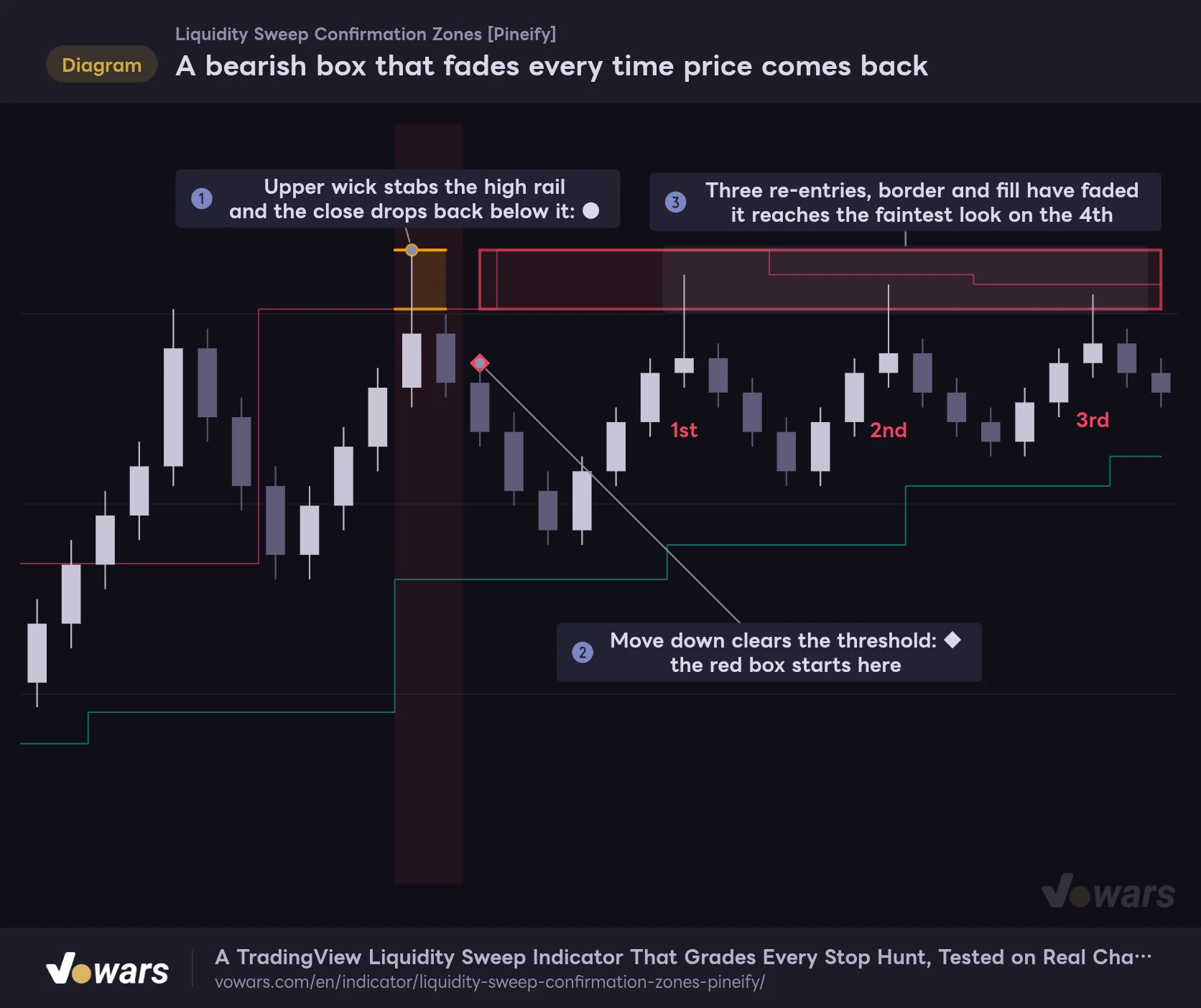
When price that was outside the box comes back into it, that counts as one retest. What’s counted is the number of re-entries, not how many bars price spends inside. Following a bearish example, the high rail gets swept in Figure ①, a red box is born in Figure ②, and after the three retests in Figure ③ the border and fill have faded.
A bearish box that fades every time price comes back
A red box born from a high rail sweep counts each re-entry as a retest, and its color gets lighter each time.
Vowars DE ver.3.12.33
How quickly it fades is set by Retests before exhausted styling (default 4), and the box hits its faintest look on the 4th retest. This setting only changes the styling, so the box itself never disappears no matter how many times it gets retested. If you’re the type who thinks “a level that keeps getting tested will eventually give way”, the color intensity works as a ready-made gauge.
A Close Through the Far Side Kills It, and So Does Time
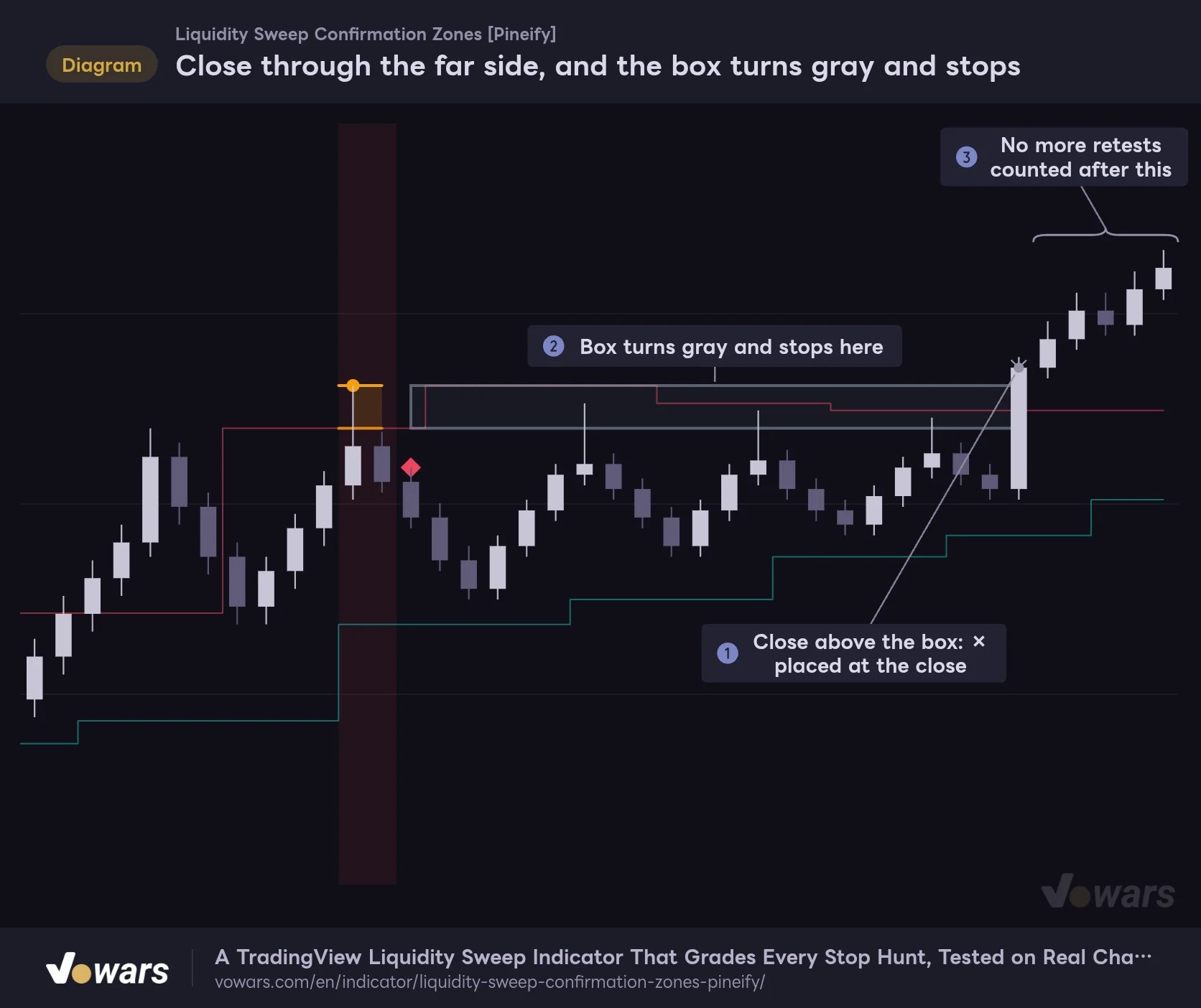
A box can be retired in two ways. The first is invalidation, which happens on the candle that closes through the top (the wick tip) of a bearish box, or the bottom of a bullish one. As Figure ① shows, a gray × is placed at the close, and as in Figure ②, the box turns gray and stops extending on that candle.
Close through the far side, and the box turns gray and stops
A bearish box is invalidated on the candle that closes above the tip of the upper wick. It turns gray and stops extending to the right.
Vowars DE ver.3.12.33
The second is age. Once a box is older than Maximum active zone age (default 80) bars, it turns gray without an ×. Gray boxes stay on the chart, but once the count goes over Maximum stored zones (default 20), the oldest ones get removed. Those 20 include the gray boxes, and when the limit is exceeded, the oldest box is removed even if it’s still active. If you zoom out over a long stretch and think “wait, there used to be a box here”, this limit is the first thing to check.
A deep green or red box is a zone that hasn’t been tested since it formed. A faded box has been tagged several times, and a gray box has already done its job. When you’re scouting for dip-buy or rally-sell areas, start with the deeper-colored boxes and work your way down from there.
Reading the “Right Now” From the Dashboard
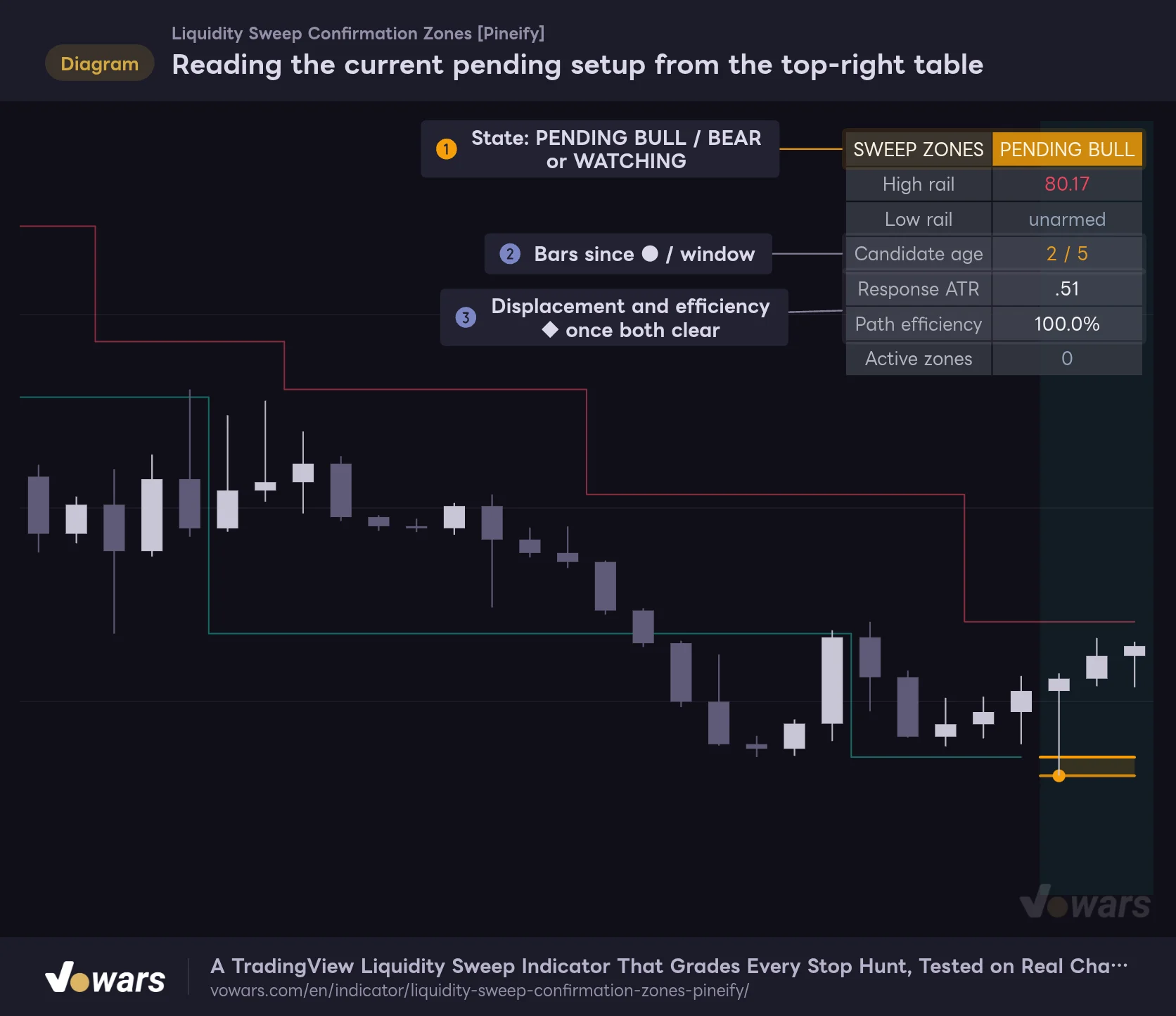
A seven-row table sits in the top-right corner of the chart. Normally it reads “WATCHING”, and when a candidate appears it switches to “PENDING BULL” or “PENDING BEAR”, as in Figure ①. While it’s pending, the bar count in Figure ② and the displacement and efficiency in Figure ③ should give you a good sense of how close it is to a ◆.
Reading the current pending setup from the top-right table
While a candidate is live, the dashboard shows bars elapsed, displacement and efficiency in real time.
Vowars DE ver.3.12.33
| Row | What it shows |
|---|---|
| SWEEP ZONES | State (WATCHING / PENDING BULL / PENDING BEAR) |
| High rail / Low rail | Price of the armed rail. Shows “unarmed” once it’s been used up |
| Candidate age | Bars elapsed since the ● / value of Confirmation window (bars) |
| Response ATR | How many ATRs price has moved from the close of the ● candle (negative while moving against it) |
| Path efficiency | Efficiency (%) |
| Active zones | Number of boxes that haven’t turned gray |
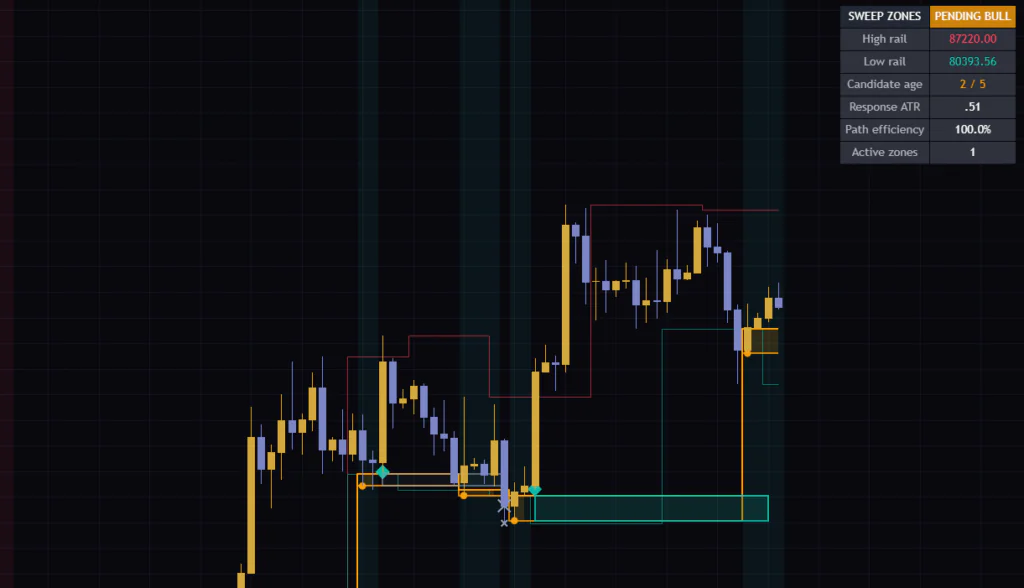
On the daily chart it read “PENDING BULL”, “2 / 5”, “.51” and “100.0%”. That’s 0.51 ATR in two bars with no detours, so it was one decent push away from a ◆. On the 5-minute chart, by contrast, it showed “-.32” and “.0%”, meaning price had moved against the ● candle. It’s just a few numbers, but being able to see at a glance how a candidate is “developing” is genuinely handy.
What Running It From the 5-Minute to the Weekly Taught Me
I loaded it with default settings on the 5-minute, 15-minute, 30-minute, 1-hour, 4-hour, daily and weekly charts and compared them side by side. The easiest to work with was the 1H to 4H range, where the chart was noticeably easier to read than on the other timeframes.
On Low Timeframes, Orange Lines Take Over the Screen
On the 5-minute and 15-minute charts, candidates fire one after another, so the orange lines stay connected as one long staircase. Here’s the thing: those lines keep running sideways after the pending phase ends, all the way to the next candidate. That’s what the long horizontal orange line near the bottom of the figure is, and any section without a fill is just “leftover from a past candidate”.
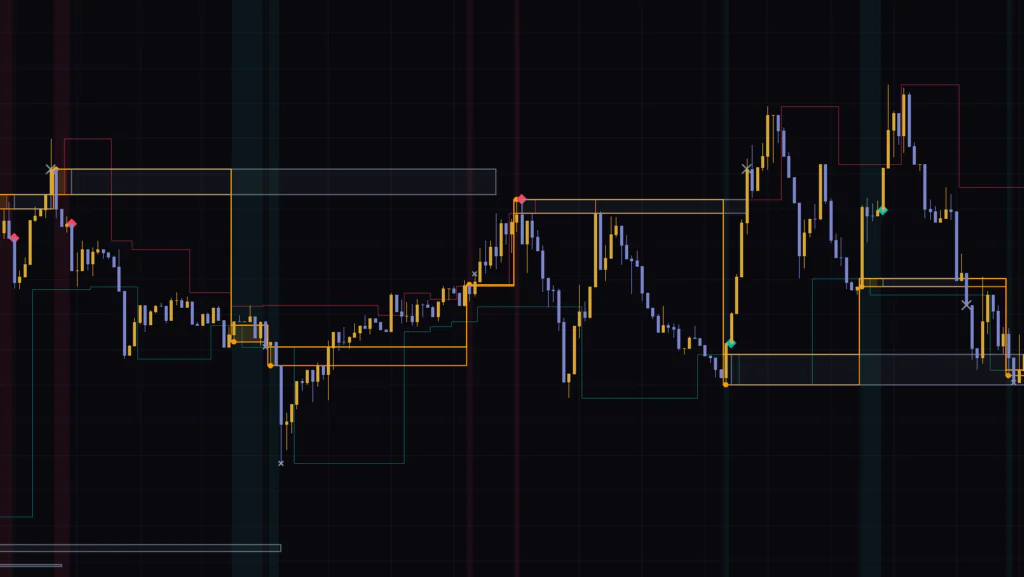
The lower the timeframe and the more candidates you get, the more of these leftovers pile up, overlapping the boxes and rails until they’re hard to tell apart. The trick is to treat only the sections with a fill and a background tint as “pending right now” and ignore the rest.
From 1H to Daily, Each Box Tells a Clear Story
On the 1-hour chart, candidates are spaced out enough that you can trace each box back to “that sweep”. On the 4-hour chart, a big red box from a high sweep in early October was still sitting around 85,650–87,220, and you could clearly see the later bounce getting rejected inside that zone. On the daily, a green box from a mid-September low sweep acted as the launchpad for the rally that followed.
Strong one-way trends are a different story. In a market like the May–June selloff on the daily, where price keeps breaking lows without coming back, ◆ marks are rare and × marks and gray boxes pile up. Since the indicator is built around the wick-through-and-reclaim move, it shines at the edges of a range, or on pullbacks and rallies within a trend where price stabs a swing once.
In terms of markets, it should pair well with liquid instruments where stops tend to cluster around obvious levels, such as Bitcoin, gold (XAUUSD) and the major equity index futures. And since distances are measured in ATR, you barely have to retune the numbers from one symbol to the next, which is a nice bonus.
The Settings, and How Changing Them Plays Out
The settings panel is split into four groups: swing detection, sweep and confirmation, zone lifecycle, and visuals. These are the inputs that affect the signals. Treat the suggested values as a starting point, not a one-size-fits-all answer, and the defaults are no exception.
| Setting | Default | Suggested | Effect |
|---|---|---|---|
| Pivot left bars | 3 | 3–8 | Bars required on the left of a swing. Higher values leave only the bigger peaks and troughs as rails, so you get fewer rails |
| Pivot right bars | 3 | Same as left | Bars required on the right of a swing. Higher values delay when rails appear. Matching left and right keeps things simple |
| ATR length | 14 | 14 | ATR period used to measure wick depth and displacement. Shorter values make the thresholds react faster to recent volatility |
| Minimum wick pierce (ATR) | 0.05 | 0.05–0.15 | Minimum distance the wick must poke beyond the rail. Raising it filters out shallow probes |
| Minimum close reclaim (ATR) | 0.03 | 0.03–0.1 | Minimum distance the close must come back inside the rail. Raising it filters out ambiguous candles that close right at the rail |
| Required response displacement (ATR) | 0.75 | 0.5–1.0 | Displacement needed for a ◆. Higher values keep only strong reactions and reduce the number of ◆ marks |
| Minimum response path efficiency | 0.45 | 0.45–0.55 | Efficiency needed for a ◆. Higher values limit it to reactions with fewer detours |
| Confirmation window (bars) | 5 | 3–5 (low TFs) / 5–8 (higher TFs) | Bars to wait for a ◆. Longer windows weaken the link between the sweep and the reaction |
| Maximum active zone age | 80 | 80–150 | Bars a box can stay active. After that it turns gray |
| Maximum stored zones | 20 | 20 | Maximum number of boxes kept on the chart (gray boxes included). Oldest ones are removed first once exceeded |
| Retests before exhausted styling | 4 | 3–5 | How many retests it takes to reach the faintest color. Only the styling changes |
More Pivot Bars, Fewer Rails
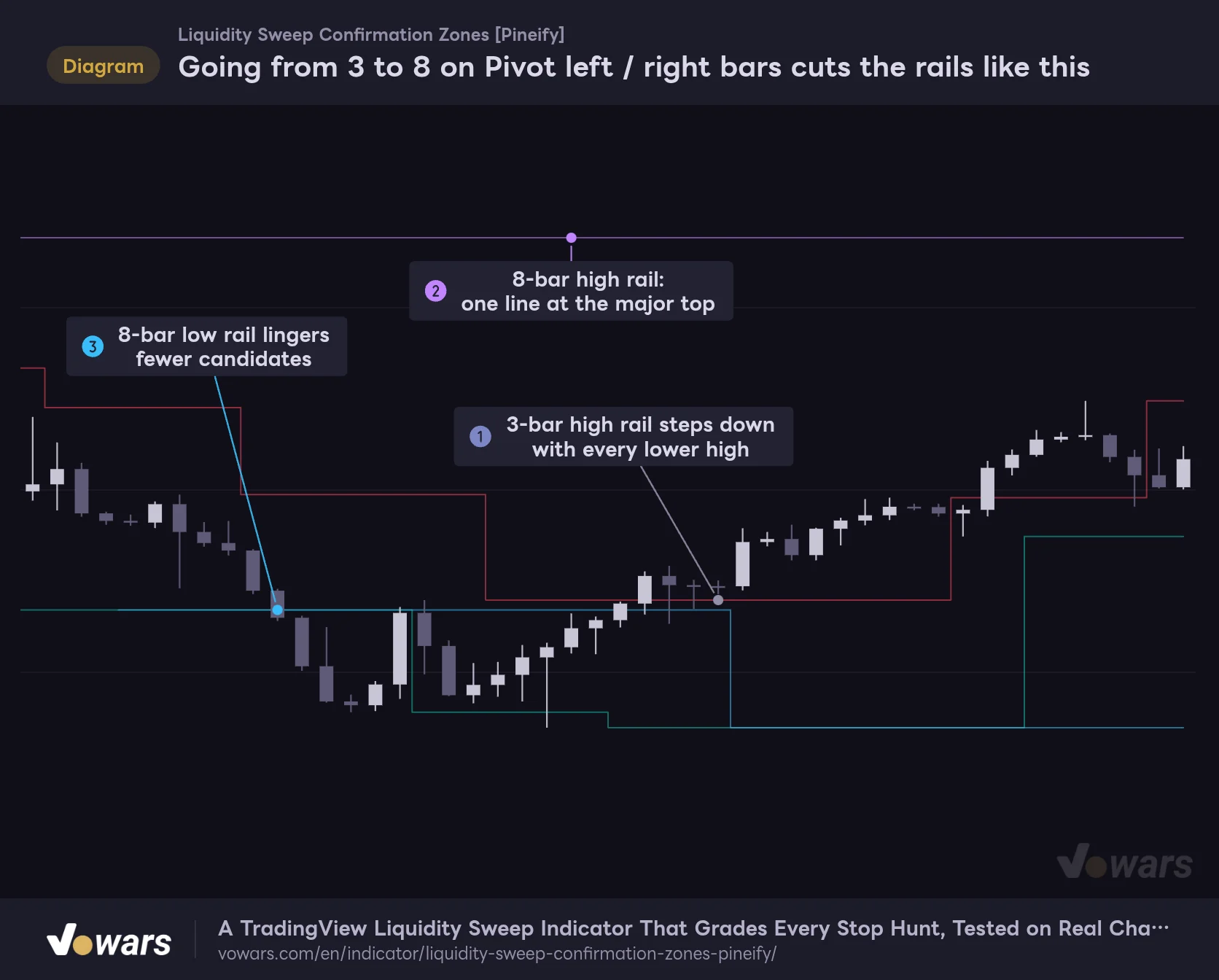
The inputs that change the picture the most are Pivot left bars and Pivot right bars. Overlay 3-bar and 8-bar rails on the same market, and the 3-bar setting in Figure ① switches every time a lower high forms, while the 8-bar setting in Figure ② keeps only one rail at the major top.
Going from 3 to 8 on Pivot left / right bars cuts the rails like this
Two sets of rails overlaid on the same market. Higher values stop minor peaks and troughs from becoming rails and leave only the obvious highs and lows.
- Rail (Pivot 3)
- Rail (Pivot 3)
- Rail (Pivot 8)
- Rail (Pivot 8)
Vowars DE ver.3.12.33
More bars narrow things down to “levels a lot of traders are likely watching”, but as Figure ③ shows, you get fewer candidates, and rails also show up later by the number of right-side bars. For me, around 5 on the 1-hour, and roughly 5–8 when swing trading off the 4-hour, felt like the best balance between how many rails you get and how quickly they appear.
Setting Combos by Goal
1 Cut the noise on low timeframes
On the 5-minute or 15-minute, raising Minimum wick pierce (ATR) to 0.1–0.15 to drop shallow probes, and setting Minimum response path efficiency to around 0.55, cuts down candidates and ◆ marks quite a bit. If the chart still feels crowded, you can turn off Show pending candidate bridge and track pending setups with just the ● and the background tint.
2 Only see the major levels for swing trading
On the 4-hour or daily, raising the pivots to 5–8 and setting Required response displacement (ATR) to around 1.0 means only “levels that got rejected hard” turn into boxes. If you want to reference boxes for longer, extending Maximum active zone age to 120–150 is a reasonable move.
3 Prioritize faster reactions
If you want the ◆ to print earlier, lower Required response displacement (ATR) to around 0.5. The lower the threshold, the more fakeout boxes you’ll get, though, so I’d recommend leaving Minimum response path efficiency at its default. Also keep in mind that lengthening Confirmation window (bars) loosens the link between the sweep and the reaction.
The visual toggles (Show armed liquidity rails, Show pending candidate bridge, Show event markers, Show pending state wash, Show state dashboard) can each be switched on and off independently. You can also change four colors, Bullish confirmed zone, Bearish confirmed zone, Pending candidate and Neutral / expired, and the rail colors follow the box colors.
Repainting and Alerts
Every decision in “Liquidity Sweep Confirmation Zones” only happens on bar close. While a candle is still forming, the ●, ◆ and × marks and the dashboard numbers stay put, and they all update together the moment the bar closes. A ● or ◆ on a confirmed bar never disappears or moves later, and both rails and boxes are only drawn to the right from the confirmed bar. My take is that it doesn’t repaint.
The trade-off is that it’s inevitably a bit late. Rails show up a number of right-side bars after the swing, and the ◆ comes at least one bar after the ●. It isn’t a signal for “entering on the sweep candle”. Once you see it as a way to confirm the reaction was real before you use the box, the lag makes sense.
There are three alert conditions: “Closed-bar liquidity sweep candidate” (●), “Displacement-confirmed liquidity sweep zone” (◆) and “Confirmed liquidity sweep zone invalidated” (box invalidation). There’s no alert for a failed candidate (the small ×). All of them can only fire on a confirmed bar, so when you create an alert, set the trigger to fire once when the bar closes (Once Per Bar Close) so the notification lines up with what’s on the chart.
If you want to step through past price action one bar at a time, TradingView’s Bar Replay does the job. As you advance bar by bar, you can follow the whole sequence from the ● to the ◆ or ×, in the same order it would unfold live. You can replay all available data on daily and higher, while intraday history goes back as far as your plan and timeframe allow.
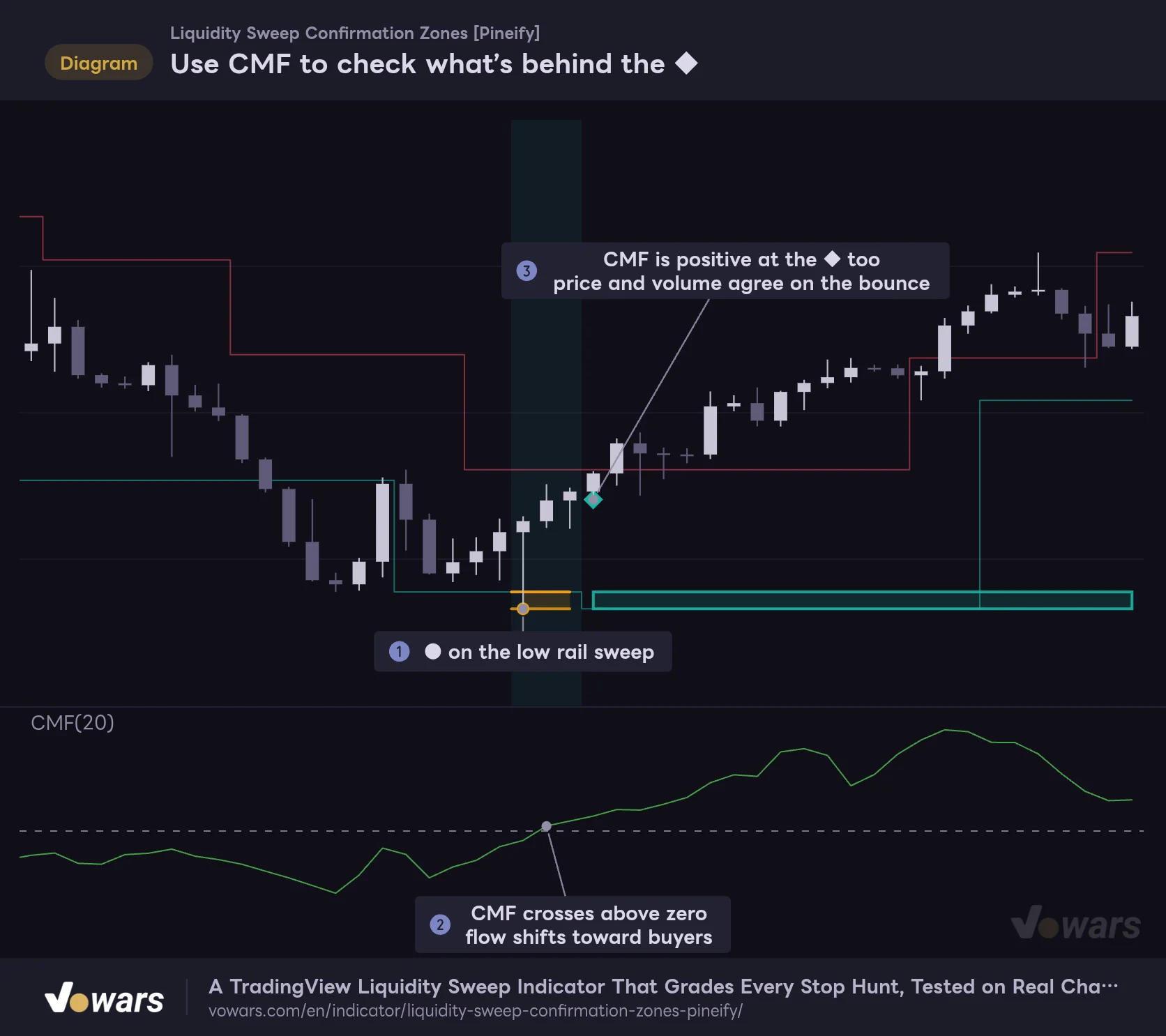
Add CMF to Back Up the ◆
“Liquidity Sweep Confirmation Zones” judges everything from price shape alone, so there’s no volume information in it. What I found pairs well with it is TradingView’s built-in Chaikin Money Flow (CMF). CMF weights where each candle closes within its range by volume and sums that up. Above zero means money flow is leaning toward buyers, below zero toward sellers.
Use CMF to check what’s behind the ◆
A ◆ is based on price shape alone. Putting Chaikin Money Flow (CMF) underneath lets you see whether the bounce has volume behind it at the same time.
Vowars DE ver.3.12.33
Reading it is simple. After the ● in Figure ①, if CMF crosses above zero in Figure ② and is still positive at the ◆ in Figure ③, you can read it as a bounce backed by both price action and volume. If a ◆ prints while CMF is still negative, you might keep the box on your chart but size down, for example.
Other ideas include pairing it with an indicator that plots higher-timeframe highs and lows, so you only go after sweeps that line up with HTF levels, or using a volume profile to check for low-volume price areas. A box is “a zone confirmed on that timeframe”, so adding higher-timeframe context makes it easier to rank them.
What I Liked and What to Watch Out For
Where It Earns Its Keep
- Doesn’t turn every wick-through candle into a box. It filters them by displacement and efficiency first
- The ● / ◆ / × history stays on the chart, so you can review both hits and misses afterward
- Decides on confirmed bars only and never paints anything back in time
- ATR-based, so settings carry over easily across symbols and timeframes
- You can tell how many times a box has been retested from how faded it is
Where to Be Careful
- On low timeframes, leftover orange lines overlap and the chart gets crowded
- Both rails and the ◆ arrive late by however long confirmation takes
- Only one candidate at a time, so it can miss sweeps in fast markets
- In strong one-way trends, × marks tend to stack up
- It uses no volume or order book data, so it can’t tell you whether stops were actually run
All “Liquidity Sweep Confirmation Zones” looks at is each candle’s high, low and close. It can’t know whether stop orders were actually triggered, or which way price moved first inside the candle. A ◆ is a record that “the reaction met the criteria”, with no guarantee that it keeps going from there. Your stop placement and position size need to be decided on your own, separately from the indicator. Also, if you change the settings or the amount of loaded history changes, past ● marks and boxes are recalculated under those new conditions. Don’t judge it by boxes that look clean on a historical chart alone. The safe move is to walk through the order in which things confirmed, with Bar Replay or similar, before you rely on it.
For Traders Who Want “Pierce and Reclaim” on the Record
![Liquidity Sweep Confirmation Zones [Pineify]](https://vowars.com/wp-content/webp-express/webp-images/uploads/2026/10/Liquidity-Sweep-Confirmation-Zones6-1024x437.png.webp) Image
Image“Liquidity Sweep Confirmation Zones” is less an indicator that finds sweeps and more an indicator that grades and logs what happens after a sweep. It flags a candidate with a ●, promotes only the ones that pass both yardsticks, displacement and efficiency, to a ◆ and a box, and still logs the ones that fail with an ×.
It won’t tell you where to enter, but as input for deciding “can I actually trust this bounce?”, it’s really easy to work with. For me, the combo that clicked best was using it on the 1H to 4H, for range edges and pullback or rally decisions, alongside a volume-based indicator like CMF. If you want to look at price action after a stop hunt with a fixed set of rules, it’s well worth loading on your chart and scrolling back through past sweeps.