

Mapping the Highs and Lows That Get Swept Before It Happens: “Liquidity Sweep Hunter Algo”
Price suddenly spikes a long lower wick, then snaps right back. If you spend any time on charts, you have seen this over and over. Stop-loss orders tend to cluster just below a recent low, and price runs those stops in one move before reversing. That is what traders call a liquidity sweep (or a stop hunt).
“Liquidity Sweep Hunter Algo” plots both sides of that story on your chart: the spots likely to get swept, and the exact moment they actually do. On the chart it shows up in the top-left legend as “AlgoAlpha – Liquidity Sweep Hunter”.
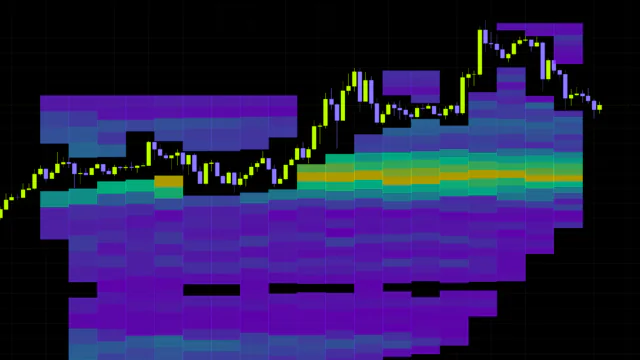
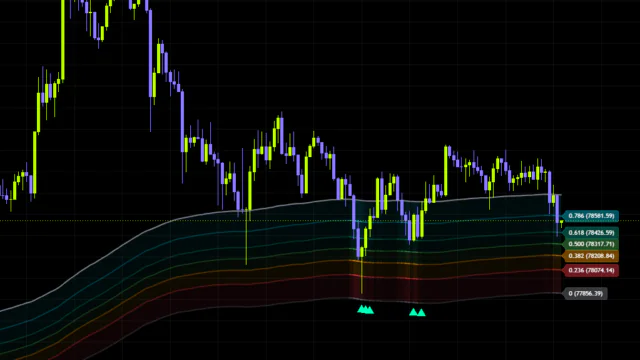
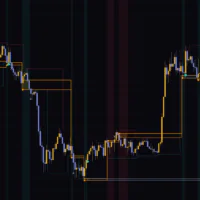
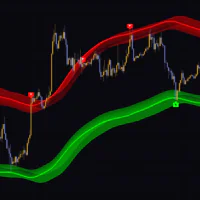
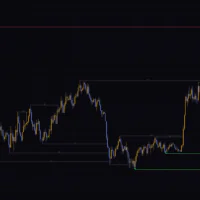
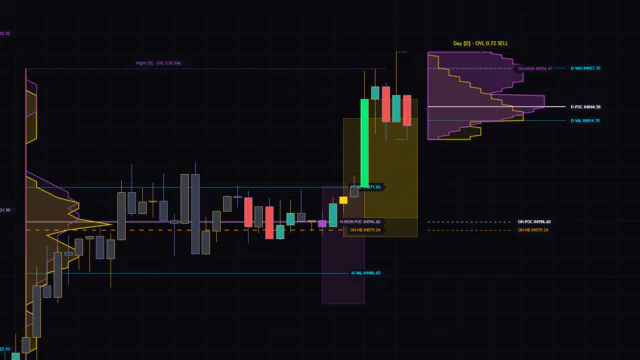
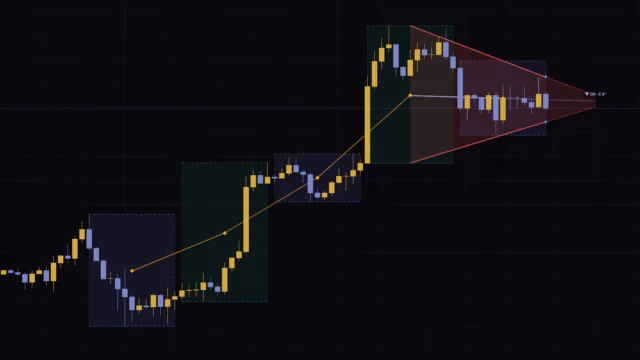
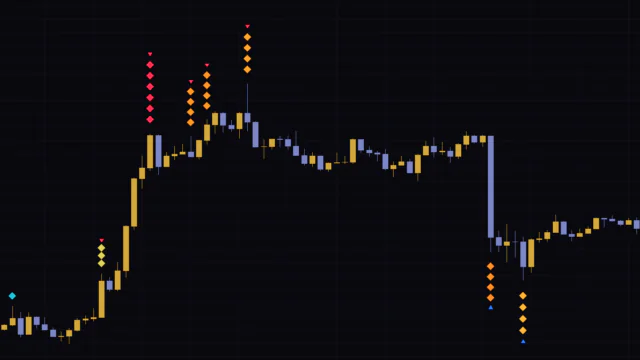
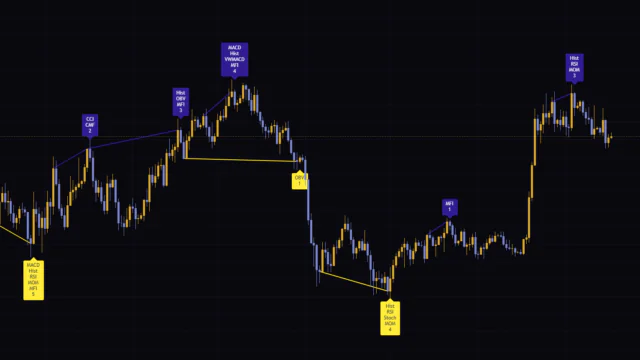
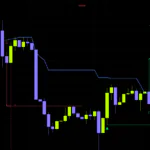
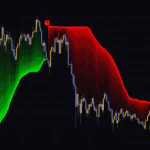
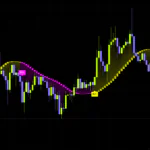
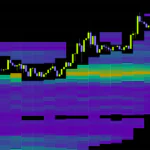
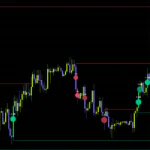
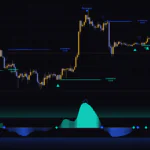
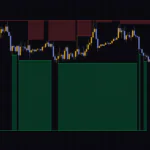
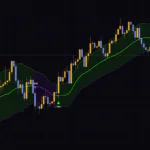
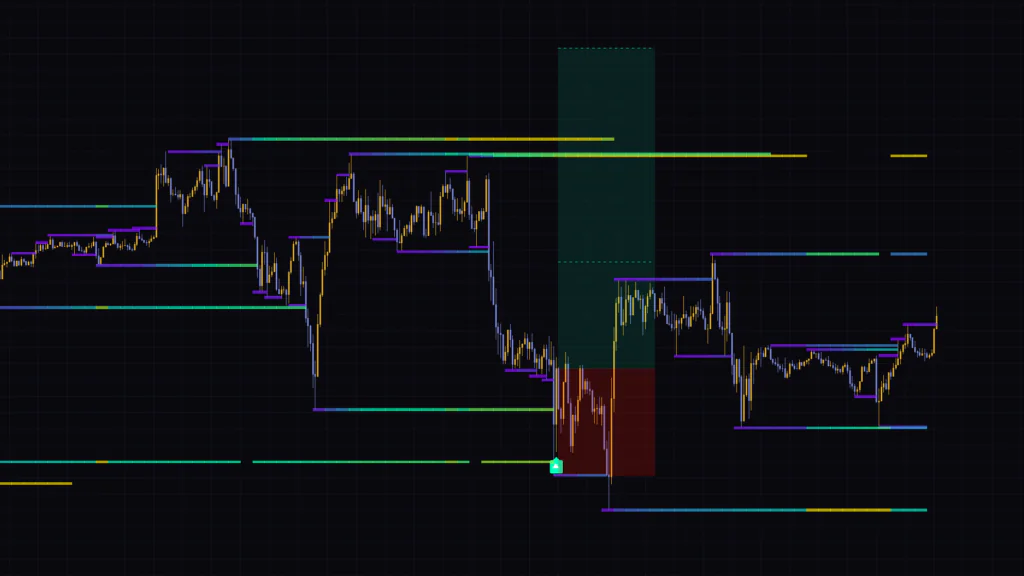
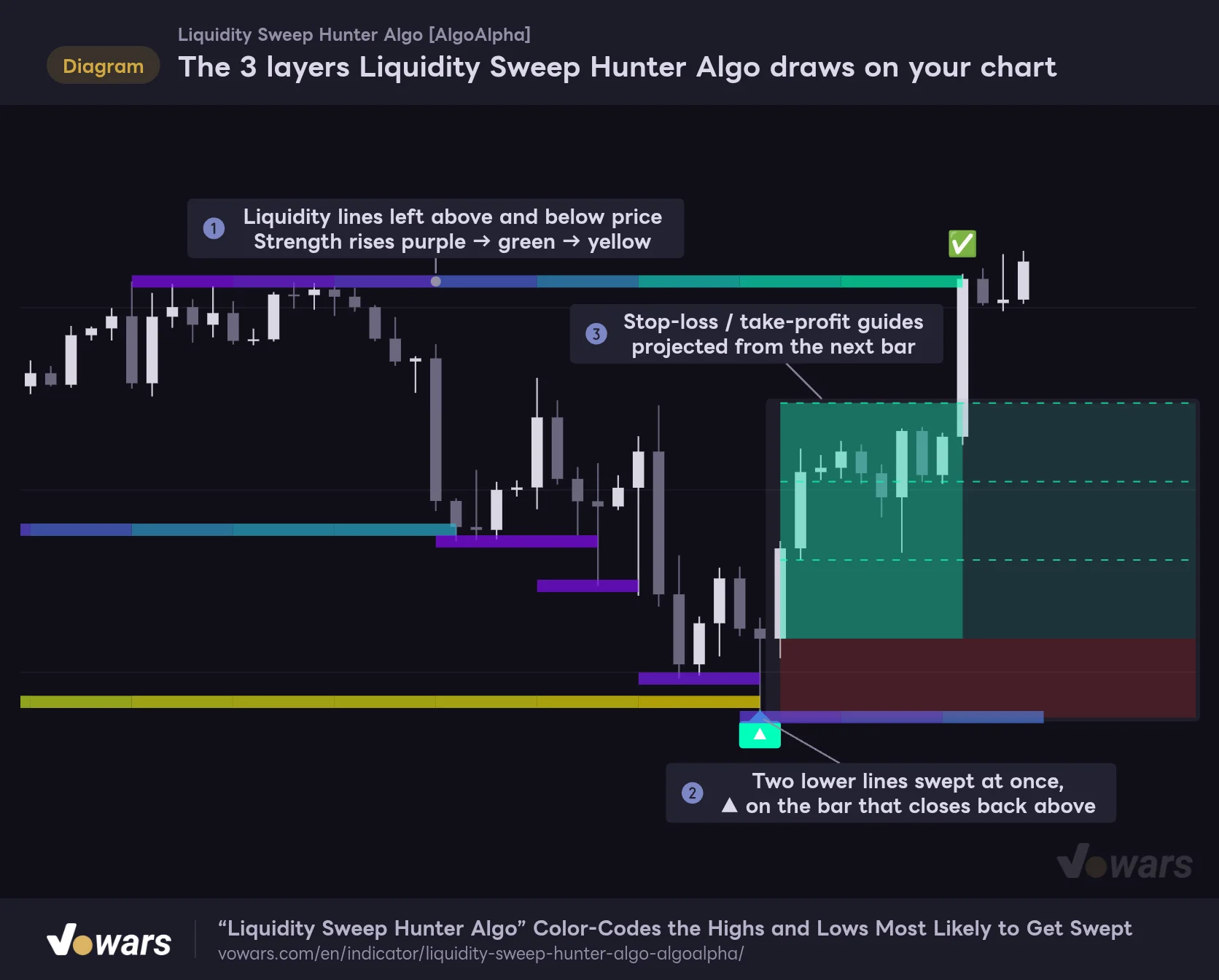
What it draws breaks down into three layers: liquidity lines that sit as horizontal levels above and below price, ▲▼ reversal signals that print after several of those lines get swept at once, and stop-loss and take-profit guides (TP/SL) that project out from the bar after a signal. Figure ① shows the lines, Figure ② the signal, and Figure ③ the TP/SL.
The 3 layers Liquidity Sweep Hunter Algo draws on your chart
A heatmap of liquidity lines, a reversal signal after multiple lines get swept, and stop-loss / take-profit guides, all stacked on one chart.
Vowars DE ver.3.12.33
I ran it on BTCUSDT across six timeframes, from the 5-minute up to the daily, and looked at how the lines form, how often signals fire, and how the TP/SL played out. My takeaway up front: it works every day as a liquidity map, but signals are genuinely rare. Rather than sitting around waiting for a signal, I got more out of it by watching the lines and asking “which level is likely to get swept today?”
| What to watch | How it looks on the chart | When it changes |
|---|---|---|
| Liquidity lines | Horizontal lines in a purple / teal / yellow gradient (up to 3 above and 3 below price) | Recolored every few bars; ends once price touches it |
| Reversal signals | Green ▲ (long) / red ▼ (short) | Evaluated on bar close; never disappears once the bar is confirmed |
| TP/SL | Red stop-loss box, green take-profit box, and 3 dashed lines | Appears on the bar after the signal and extends 40 bars forward |
| Target-hit marker | ✅ | Printed on the first bar that touches the third take-profit level |
Where the liquidity lines come from and why their colors change
The liquidity lines are what stays on your screen the longest. If you misread them, the signals and TP/SL won’t make sense either, so let’s go through them carefully.
Catching new highs and lows across three lookbacks
The lines are built from the highest high and lowest low over three lookbacks: Fast (14 bars), Mid (42 bars), and Slow (120 bars). For example, when the 14-bar high moves above where it was 3 bars earlier and that value holds on the next bar, one upper line gets registered at that price. The low side works the same way: once the recent low steps down and holds for a bar, it becomes a lower line.
Because there are three lookbacks, the same logic picks up everything from a minor lower high to a major high the market has respected for weeks. Highs or lows found at the same price (within 2 ticks) are merged into one line, so even if all three lookbacks catch the same high, you won’t get a triple-stacked line.
Since a line only registers once the same value holds on the next bar, nothing appears on the bar that actually prints the high. On top of that, lines are painted in chunks every Cell Width bars (5 by default), covering the previous 5 bars at once. That’s why, when you watch in real time, a line shows up a little late and starts a few bars back to the left.
Only the 3 nearest lines above and below are shown
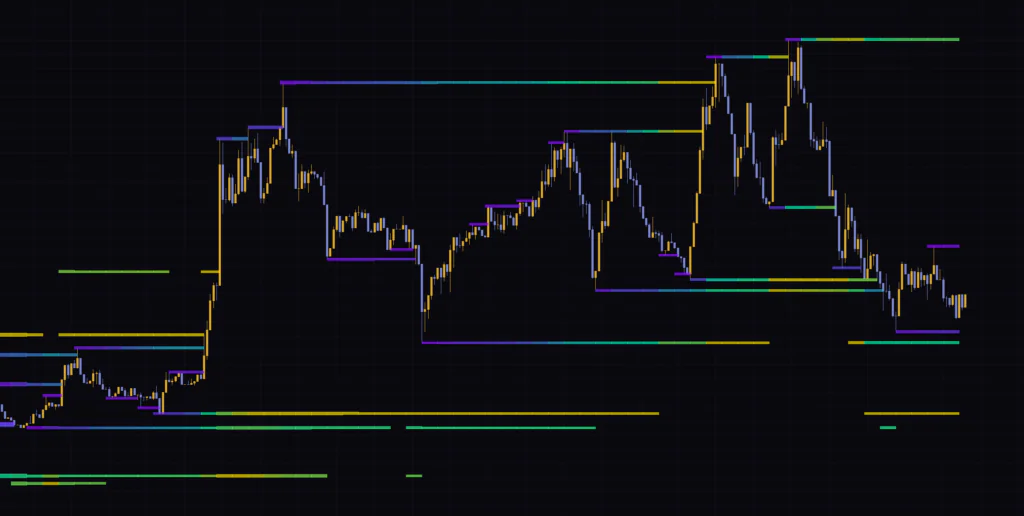
Internally, every registered line is kept in memory, but only the 3 nearest lines above current price and the 3 nearest below are drawn. When price moves and a line gets pushed to 4th place or further, it stops being drawn, and it picks up again once price gets close. That rotation is why you’ll see lines in the screenshot that break off and resume a bit further along.
Color is a relative read on how much volume has stacked up
Line color runs on a gradient from Weak (purple) through Mid (teal) to Strong (yellow), showing each line’s “strength”. Under the hood, that strength is volume.
On every confirmed bar, the indicator takes that bar’s volume divided by the 100-bar average volume (capped at 3). On a bearish candle, that value gets added to the upper lines; on a bullish candle, it goes to the lower lines. The nearest line gets the full amount, the second gets a quarter, and the third gets one-twentieth. The easiest way to think about it: every time sellers show up under an upper line, that line “builds up”, and every time buyers step in above a lower line, that one builds up.
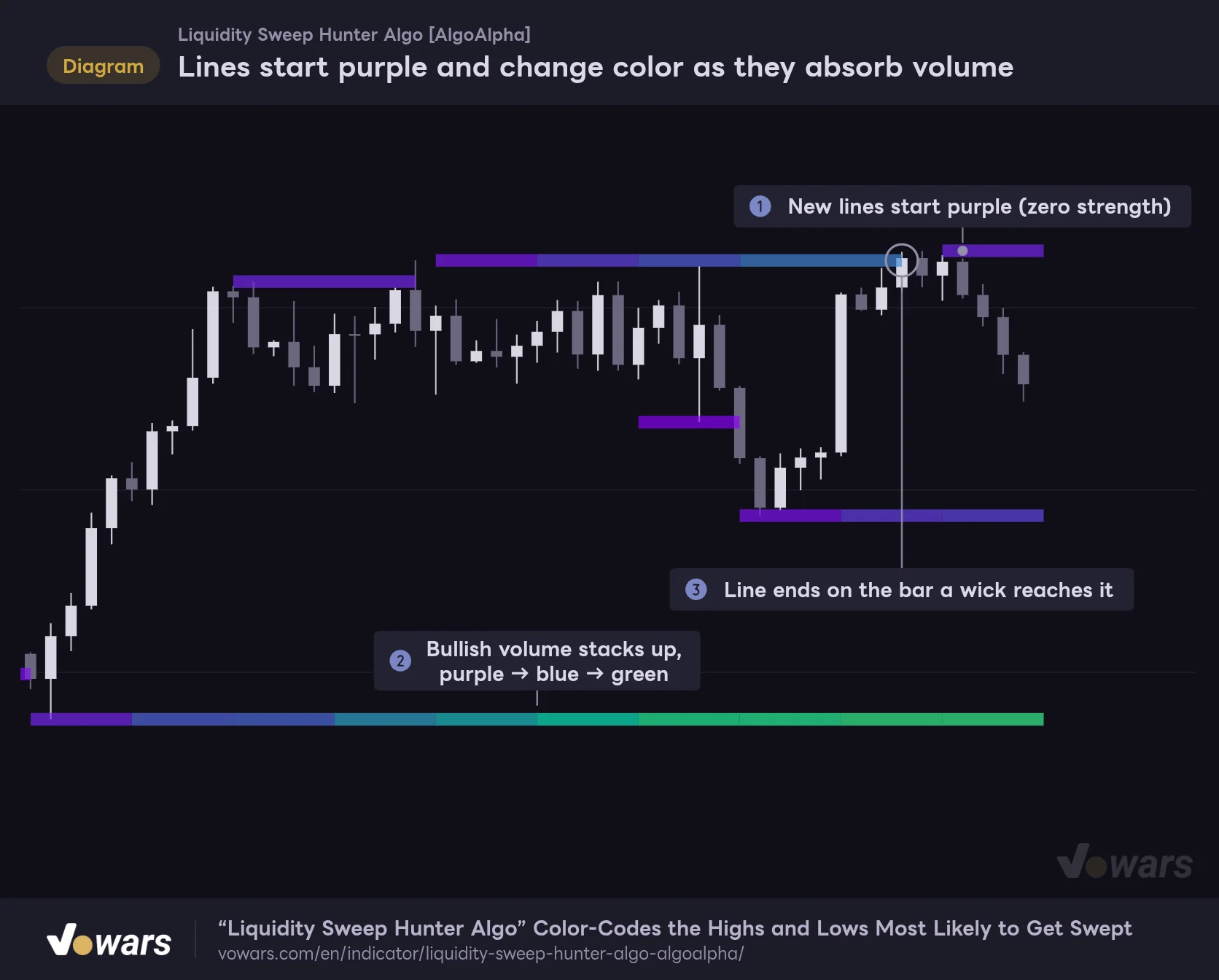
A new line starts out purple with zero strength, and as in Figure ②, it shifts to blue and then green as it soaks up volume from bullish candles.
Lines start purple and change color as they absorb volume
A new liquidity line starts out purple with zero strength, then shifts toward green and yellow as volume from qualifying bars is added.
Vowars DE ver.3.12.33
Color isn’t absolute strength; it’s a comparison among the 6 lines drawn at that moment above and below price. The strongest one always turns yellow, so you’ll still see yellow lines even when volume is thin across the board. On the flip side, when a strong line gets swept and disappears, the remaining lines can all brighten at once. It’s safer not to treat yellow as “price will definitely stop here”.
When a line ends
With the default Remove On = Wick, if the bar’s high (or low, for lower lines) reaches a line at bar close, that line ends on that bar. When it does, the last painted cell is stretched right to the wick bar, so as in Figure ③, you can tell at a glance which bar swept it.
Lines also get cleaned up once they are older than Max Age (1000 bars by default). If a high or low is found again at the same price, its age resets, so levels that keep getting tested stick around longer.
Three checks a setup must clear before ▲▼ prints
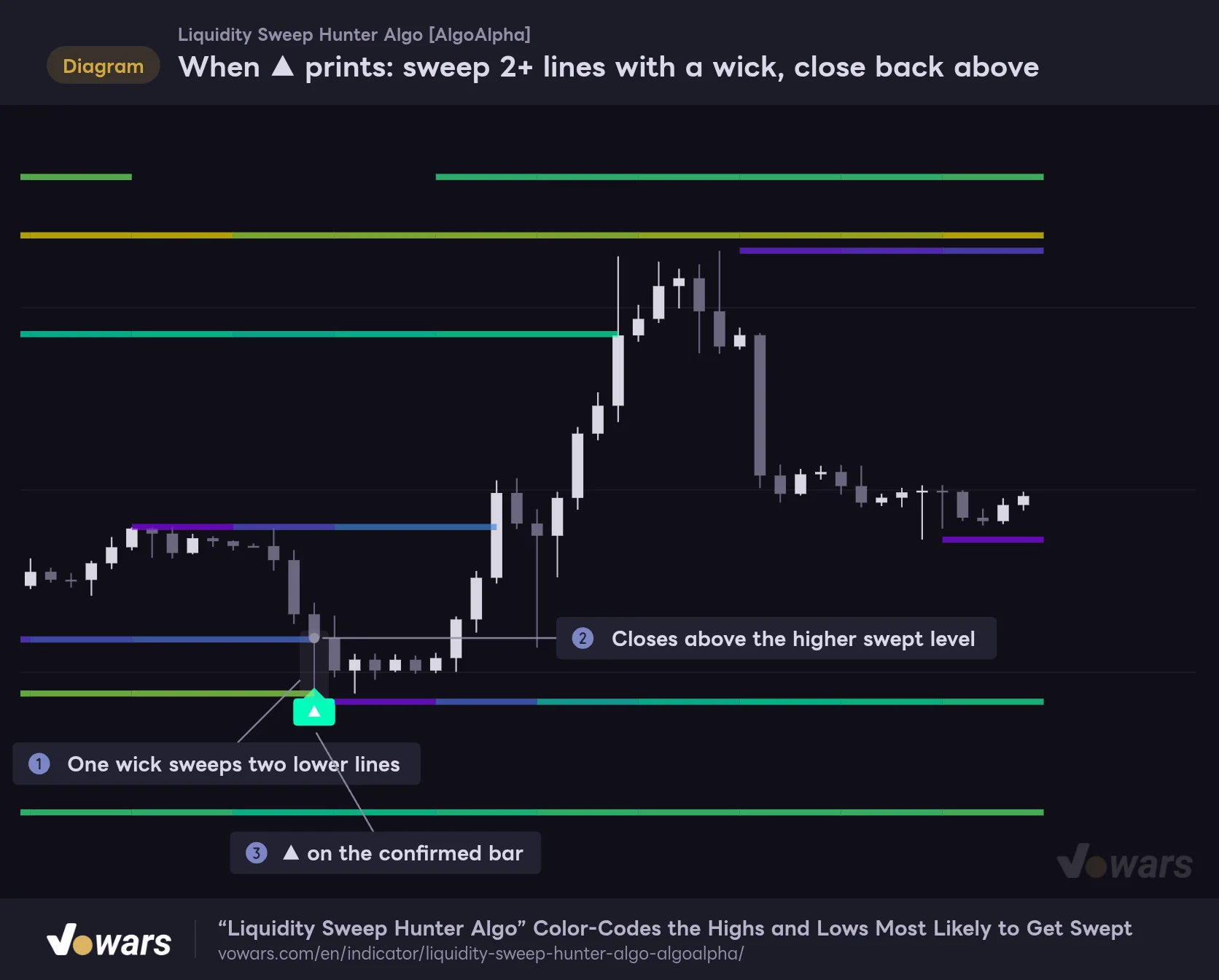
A reversal signal won’t print just because price pokes through a single line and comes back. It only appears when, at bar close, the setup clears the following three checks in order. I’ll walk through the long-side ▲ here (▼ is the exact same logic flipped upside down).
1 One bar sweeps two or more visible lines
The first condition is that the confirmed bar’s low breaks below two or more of the currently drawn lower lines in one go. In Figure ①, a long lower wick takes out both the blue and the yellow-green lines at once.
What gets counted here is the number of “visually separate bands”. If two lines are so close that their thicknesses overlap, they count as one band. Also, only lines drawn in the most recent cell are counted, so in practice it only looks at the nearest 3 lines.
2 The swept lines’ average strength clears the threshold
When Filter Sweeps by Strength is on (the default), the average strength of the swept bands also has to be at least Strength (33% by default). Strength uses the same 0–100% scale as the colors, and where lines overlap inside a band, the stronger value is used. Sweeps that only take out purple lines get filtered out at this step.
3 Closes back above the swept level within 2 bars
Finally, if within 3 bars, counting the sweep bar, price closes above the highest of the swept levels, a ▲ prints. The bar in Figure ② swept with its wick and then closed back above the blue line on that same bar, so as Figure ③ shows, the ▲ printed on the sweep bar itself.
When ▲ prints: sweep 2+ lines with a wick, close back above
A ▲ prints when a single bar's wick sweeps two or more visible lower lines at once and price closes above the swept level within 2 bars.
Vowars DE ver.3.12.33
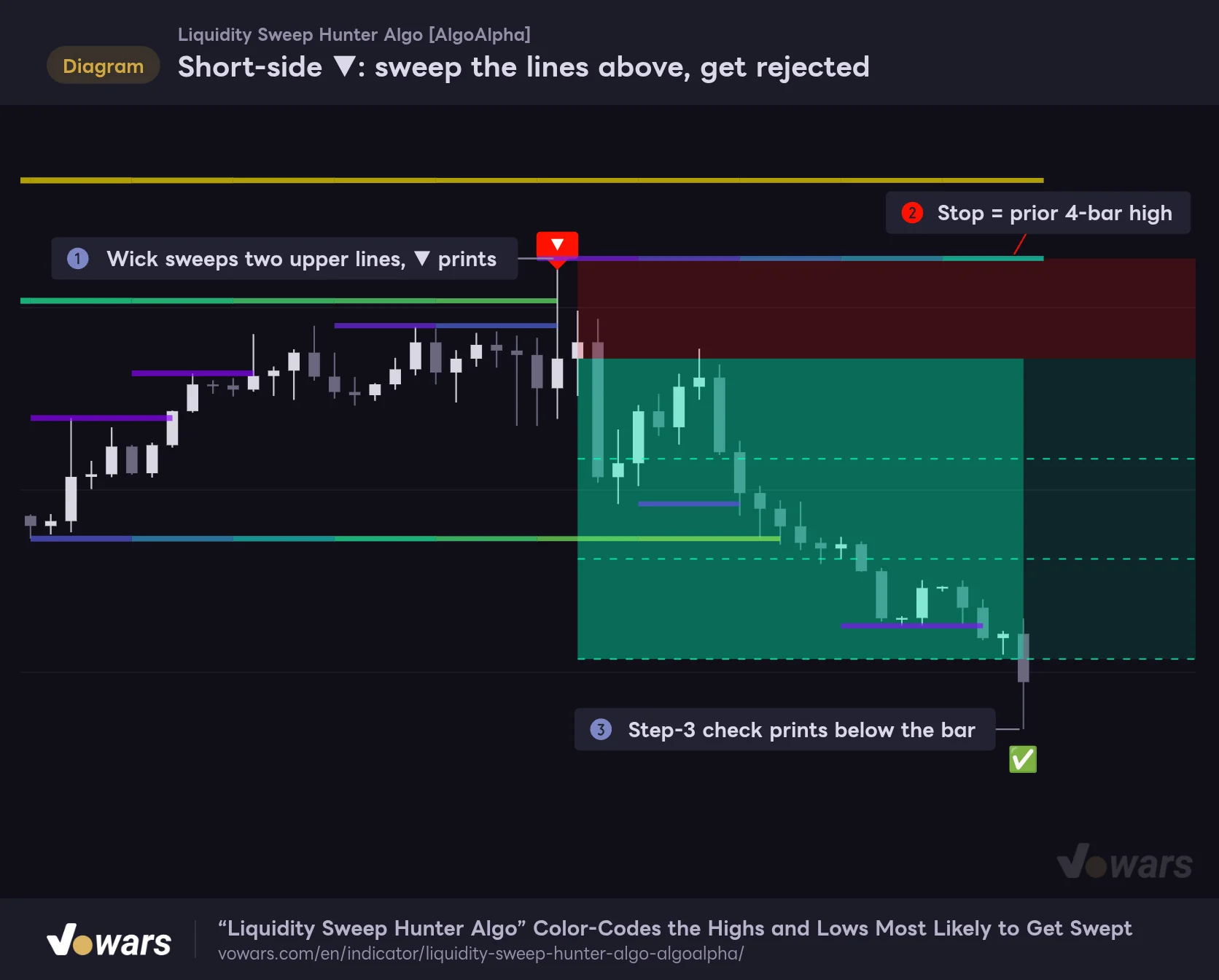
The short side works the same way. Figure ① shows an upper wick sweeping the two lines above, getting rejected, and printing a ▼. On shorts, the stop-loss box extends above and the take-profit box below, and the check mark (✅) for the third target appears below the bar.
Short-side ▼: sweep the lines above, get rejected
A ▼ prints when a wick sweeps two or more upper lines and price closes below the swept level. The stop-loss box extends above, the take-profit box below.
Vowars DE ver.3.12.33
The “separate band or not” test in STEP 1 is decided by band thickness. Thickness is the price range over Price Range Lookback (777 bars) divided by Price Resolution (200). Lower Price Resolution and the lines get thicker, nearby lines merge into one band more easily, and you get fewer signals. Keep in mind that changing thickness for readability also changes how signals fire, and you’ll avoid a lot of confusion.
Reading the TP/SL boxes, and what’s easy to miss
With Show TP/SL on, stop-loss and take-profit guides are drawn automatically on the bar after a signal. The math behind the numbers is clear-cut, so knowing how it works makes them a lot more useful.
How the three numbers are set
- Entry reference Open of the bar after the signal
- Stop loss Lowest low of the 4 bars before the entry bar (including the signal bar); highest high for shorts
- Take profit The final target sits at the stop distance multiplied by RR (3.0 by default), with dashed lines splitting that distance into thirds
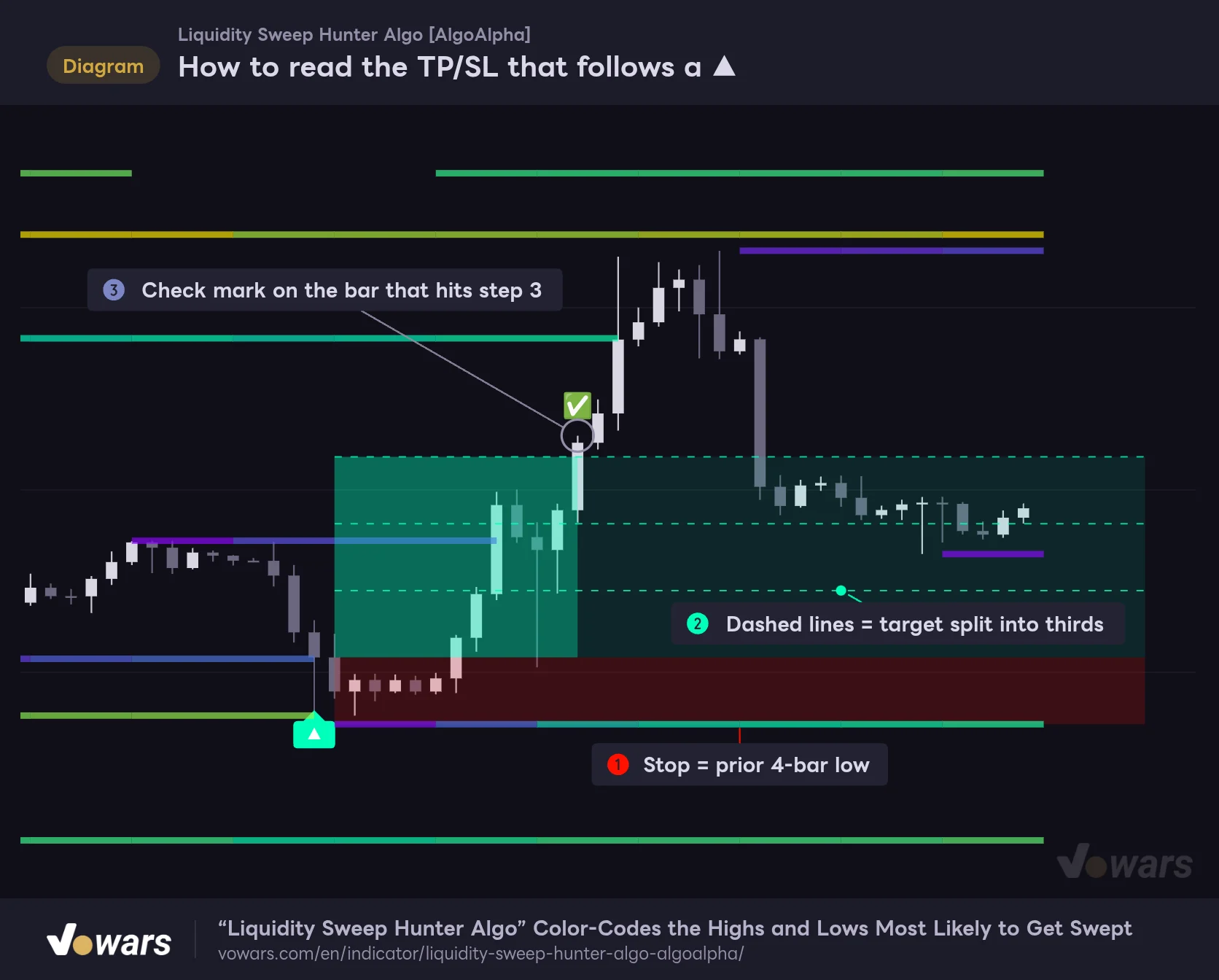
The red box in Figure ① is the stop-loss zone, and the dashed lines in Figure ② are the take-profit steps. With RR at 3.0, the first dashed line is exactly 1R (the same distance as the stop), the second is 2R, and the final target is 3R.
How to read the TP/SL that follows a ▲
Anchored to the open of the bar after the signal, a red stop-loss box and a green box with three take-profit steps extend 40 bars forward.
Vowars DE ver.3.12.33
As price reaches each step, the area from entry up to that step fills in darker green. The first bar to touch the third step gets a ✅, as in Figure ③, and tracking ends there. The boxes and dashed lines extend right for Signal Expiry bars (40 by default), and once past expiry, progress stops updating.
Hit the stop, and the boxes still stay on the chart
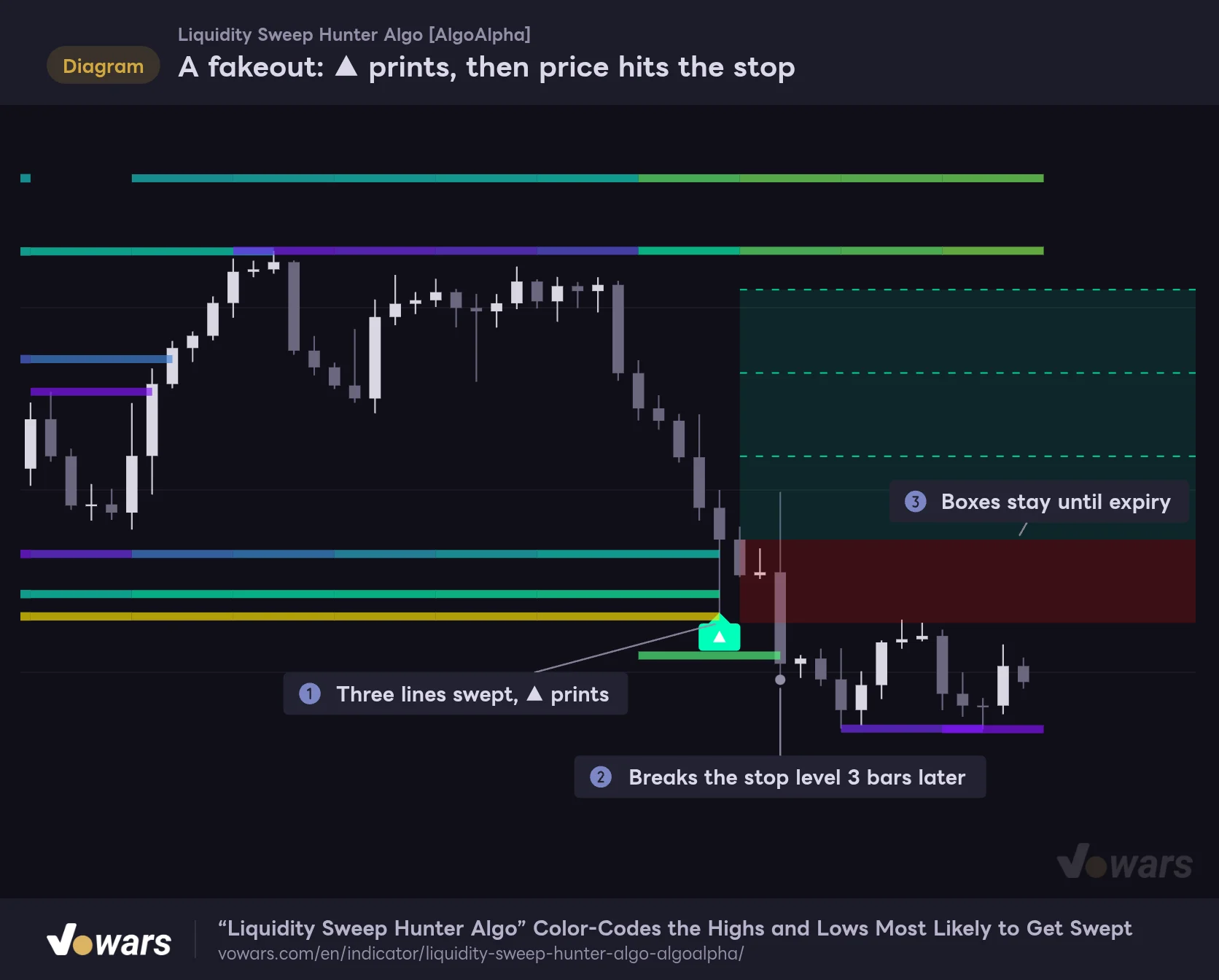
When price reaches the stop level, tracking ends internally. However, nothing on the chart marks the stop-out, and both the red and green boxes stay up until expiry.
Figure ① shows a ▲ after three lines were swept, only for price to break below the stop level 3 bars later in Figure ②. Even so, as Figure ③ shows, the boxes keep extending to the right, so at a glance it looks like the trade is “still live”.
A fakeout: ▲ prints, then price hits the stop
Even after three lines get swept and a ▲ prints, continued selling pressure can break below the stop level within a few bars.
Vowars DE ver.3.12.33
The fill on the take-profit steps only shows how far price got; it doesn’t tell you whether that happened before or after the stop. If price hits the first step and then reverses into the stop, the fill up to step 1 stays. Always check with your own eyes whether the candles inside the box broke the stop level.
One more small detail: the boxes are drawn in front of the candles. When signals fire back to back, the boxes stack up and the candle colors get hard to see. In those spots, I found it easier to read calmly by temporarily turning Show TP/SL off and watching only the signals and lines.
What I learned running it on 6 BTC timeframes
From here on, this is what I saw running it with default settings on BTCUSDT on the 5-minute, 15-minute, 30-minute, 1-hour, 4-hour, and daily charts (charts as of October 12, 2026).
| Timeframe | Period | ▲ count | ▼ count |
|---|---|---|---|
| 5m | About 1 day | 0 | 0 |
| 15m | About 6 days | 2 | 0 |
| 30m | About 12 days | 1 | 0 |
| 1H | About 7 weeks | 3 | 2 |
| 4H | About 2.5 months | 1 | 0 |
| 1D | About 1.5 years | 2 | 0 |
Counting them really drives home how rare signals are. On the 5-minute, not a single one showed up across a full day on screen. That isn’t a bug; it’s because the “sweep 2+ visible lines at once” condition is strict. The lines themselves still draw cleanly on the 5-minute, so on lower timeframes I felt the right approach was to use it as a liquidity map and treat signals as a bonus.
Where it worked on the 1H, and where it fell short
On the 1-hour, a ▼ in late August reached the third target the next day, with a ✅ printed below the bar. A textbook setup: sweep the two lines above, then get rejected. The ▼ in early October, on the other hand, broke higher a few days later and blew through the stop-loss box.
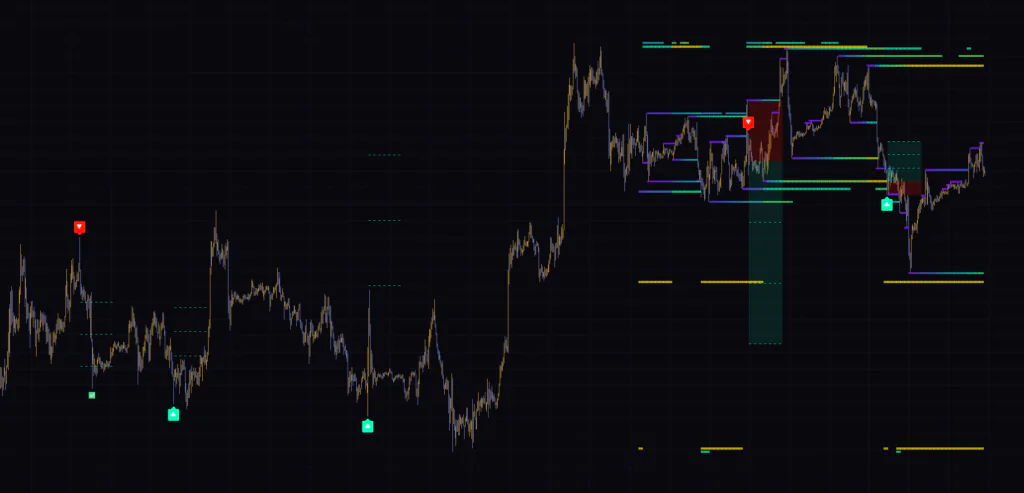
One more thing I noticed: the older signals on the left only have their dashed lines left, while the boxes and lines are gone. “Liquidity Sweep Hunter Algo” is set to draw up to 500 boxes, and past that, the oldest ones get deleted first. The line fills are made of the same boxes, so when you zoom out over a long period, you’ll see no lines or boxes left beyond a certain point to the left. If you want to review past setups in detail, use TradingView’s Bar Replay to go back to that point and step through how it looked bar by bar.
On the daily and higher, you can replay the full available history, but how far back you can go on intraday timeframes depends on your plan and timeframe. For example, the 5-minute on the Essential plan goes back roughly 30 months. When checking older setups, it’s easier to pick your replay starting point on the daily, then switch down to the lower timeframe.
Both daily ▲ signals failed in the middle of a downtrend
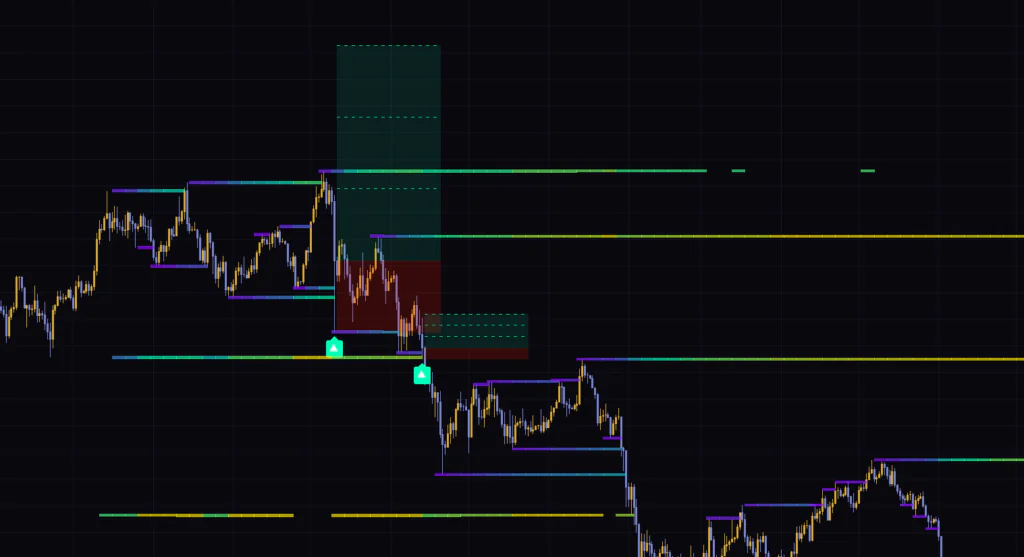
The daily printed two ▲ signals, and both came in the middle of a big selloff. Price swept the lower lines and bounced once, then got sold again on the next leg and broke down through the stop-loss box. It’s a clear example of how, in a strong trend, a sweep can be just a pit stop in the trend rather than a sign of reversal.
On the 15-minute and 30-minute, the ▲ on October 8 played out the same way. Getting a ▲ on several timeframes on the same day doesn’t guarantee it works. If anything, from what I saw, being cautious with ▲ signals on days with heavy downside momentum matched the outcomes better.
Also note that signals differ by timeframe. Both the lines and the signals are built only from the highs, lows, and volume of the timeframe you’re viewing, so a ▲ on the 15-minute won’t necessarily show up on the 1-hour.
Settings and how to tune them for your goal
The settings dialog is split into three groups: “Levels”, “Signals”, and “Appearance”. Below are the defaults and the values where I could clearly see a change when testing. Treat the suggested values as a starting point and adjust them for your symbol and timeframe.
| Setting | Default | Suggested | Effect |
|---|---|---|---|
| Fast | 14 | 7〜14 | Lookback for short-term highs and lows. Lower values add more lines that tend to sit closer to price |
| Mid | 42 | 30〜42 | Lookback for mid-term highs and lows. If it’s too close to Fast, both tend to catch the same levels |
| Slow | 120 | 120〜200 | Lookback for major highs and lows. Longer values only add levels that hold for weeks |
| Max Age | 1000 | Keep default | How many bars after registration a line is discarded (50–5000). On a crypto daily chart, that’s just under 3 years |
| Remove On | Wick | Wick | Remove a line when a wick touches it, or only when a candle closes beyond it. Signals only fire on Wick |
| Price Range Lookback | 777 | Keep default | Lookback for the price range that sets band thickness. Longer values make thickness change more slowly |
| Price Resolution | 200 | 150〜250 | How many slices the price range is divided into. Higher values make lines thinner, so nearby lines more often count as separate bands |
| Cell Width | 5 | 5〜10 | How often colors are repainted (in bars). Higher values mean fewer color updates and fewer boxes used |
| Filter Sweeps by Strength | On | On | Whether to filter signals by the strength of the swept lines |
| Strength | 33 | 33〜50 | Minimum average strength needed for a signal (1–90%). Higher values limit signals to sweeps of stronger bands |
| Show TP/SL | On | On | Whether to draw the stop-loss / take-profit boxes and dashed lines |
| RR | 3.0 | 1.5〜3.0 | How many times the stop distance to place the final target. Dashed lines split it into thirds |
| Signal Expiry | 40 | 20〜40 | How many bars forward the boxes and dashed lines extend. Target tracking also stops after expiry |
| Weak / Mid / Strong | Purple / teal / yellow | Keep default | Three-color gradient showing line strength |
| Bullish Signal / Bearish Signal | #00ffbb / #ff1100 | Keep default | Signal colors. Take-profit boxes and dashed lines use the bullish color; the stop-loss box uses the bearish color |
Set Remove On to Close and signals stop firing
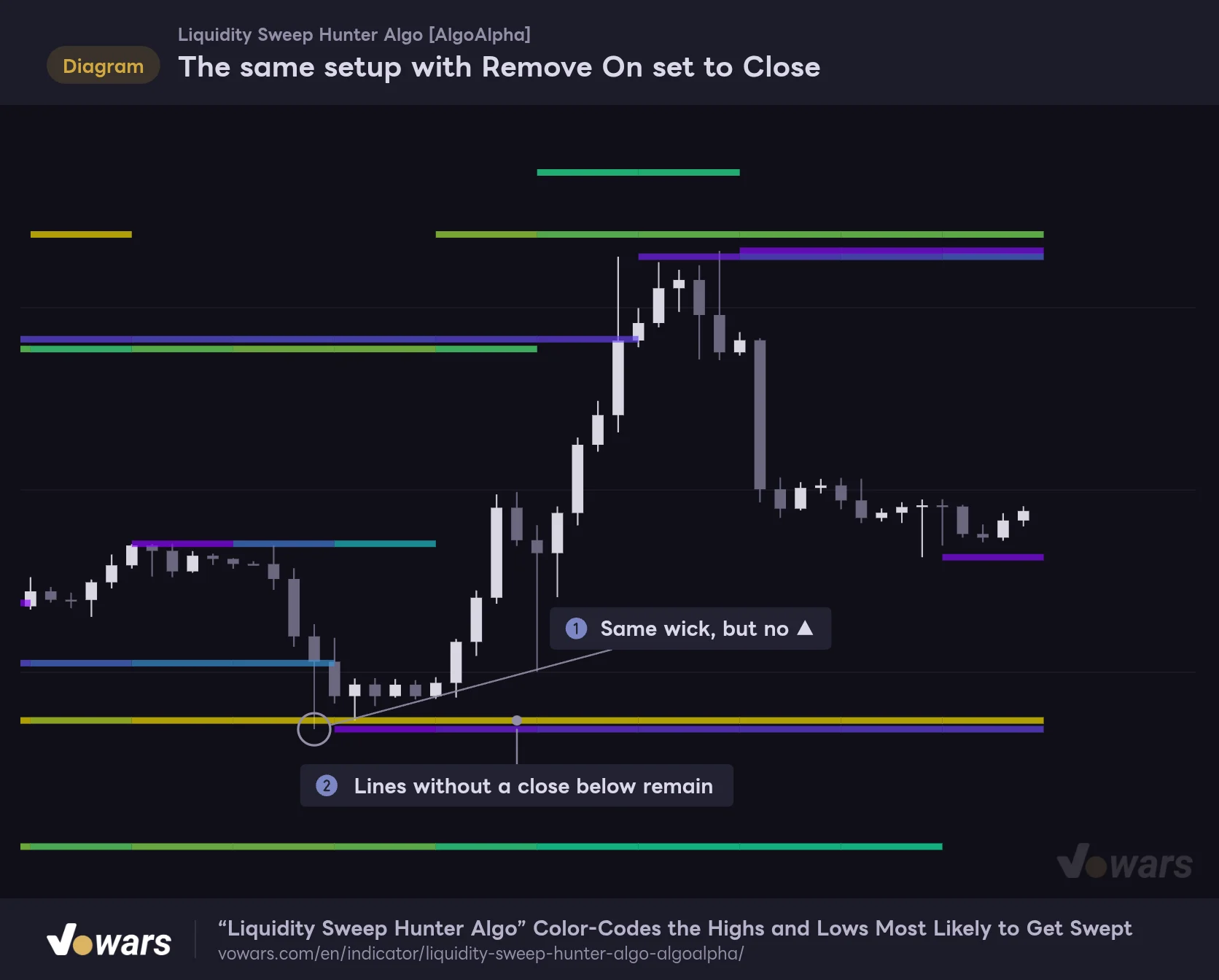
Switching Remove On to Close makes lines disappear only when a candle closes beyond them. Lines that only got poked by a wick stay on the chart, which makes it cleaner as a support/resistance map.
However, reversal signals are only evaluated on Wick. Figure ① uses the same candles as the TP/SL figure, but simply switching to Close makes both the ▲ and the TP/SL disappear, and as in Figure ②, the line that never closed below stays put. If signals suddenly stop showing up, check Remove On first.
The same setup with Remove On set to Close
When lines are kept until a candle closes beyond them, wick-pierced lines stay on the chart, and the ▲ and TP/SL no longer appear.
Vowars DE ver.3.12.33
What happens when you turn off the strength filter
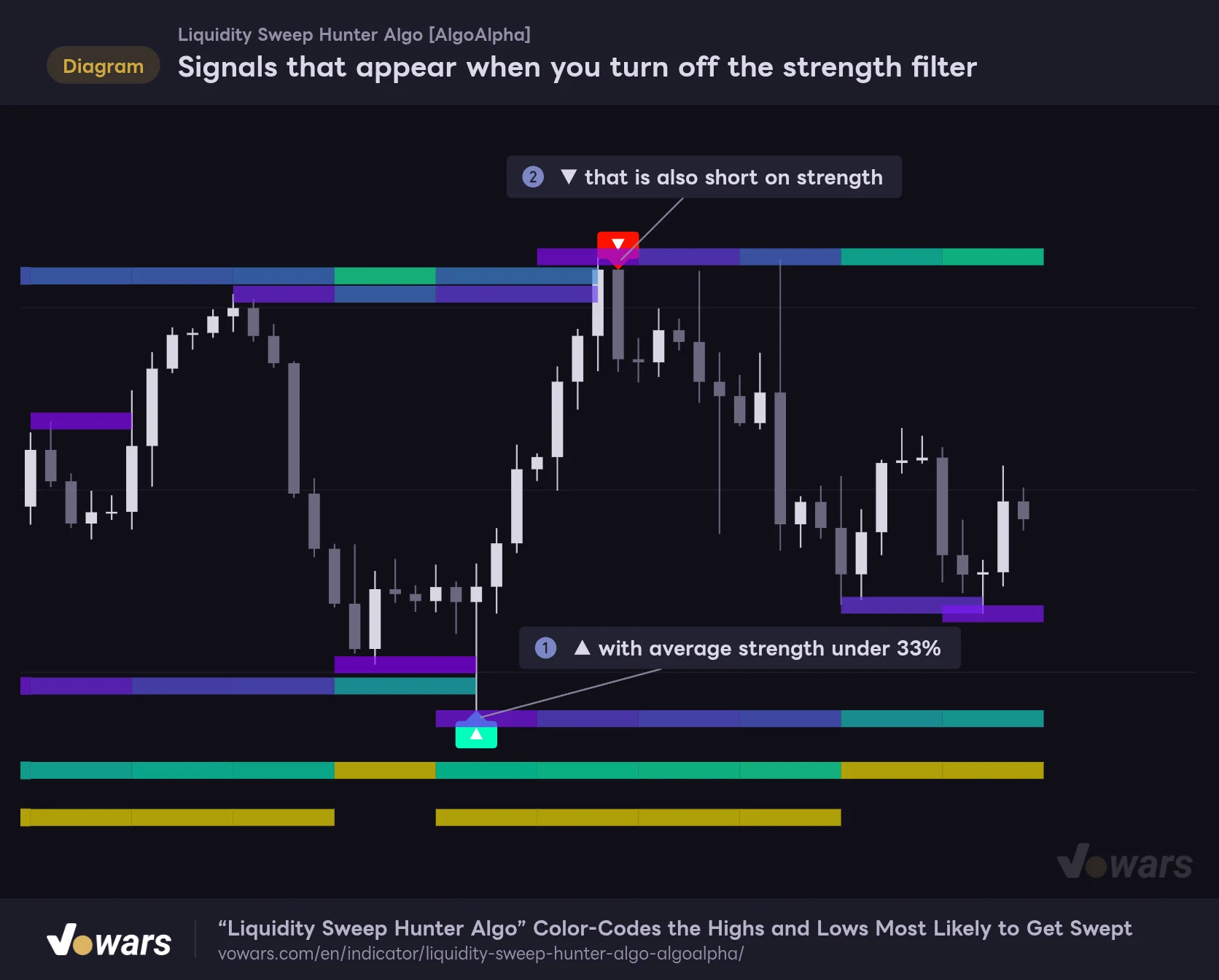
Turn off Filter Sweeps by Strength, and you get signals even when price only sweeps weak, near-purple lines. Figure ① and Figure ② are signals that don’t appear with default settings.
Signals that appear when you turn off the strength filter
With Filter Sweeps by Strength off, signals print even when only weak purple-to-blue lines get swept.
Vowars DE ver.3.12.33
When I counted signals on the same price action used for the figures and only changed settings, turning the filter off and shortening Fast and Mid to 7 and 21 each only increased signals by about 20–30%. Nowhere near doubling. It seems fair to say the low signal count mainly comes from the STEP 1 requirement to “sweep 2+ lines at once”. On the other hand, raising Strength to 50 cut signals by about 40%. If you only want sweeps of strong levels, that’s the more intuitive adjustment.
Tuning by timeframe
- Day trading on 15m to 1H Default settings work fine. If the final TP/SL target feels too far, lowering RR to 1.5–2.0 spaces the dashed lines at 0.5R, which makes them easier to use as partial take-profit levels
- Swing trading on 4H to 1D The default 40-bar Signal Expiry is 40 days on a crypto daily chart, a little over a month. Shrinking it to 20–30 bars to match your holding period keeps stale boxes from cluttering the screen
- 5m and below Signals barely show up, so it mostly serves as a liquidity map. Raising Cell Width a bit calms down the color changes and makes it easier to follow the bigger picture
Line strength is calculated from volume alone. On symbols without volume data, every line stays at zero-strength purple, and with the strength filter on, no signals print either. For symbols like gold or forex, where volume handling varies by data feed, it’s worth adding a volume indicator first to confirm values actually show up.
Where this indicator shines, and where it struggles
After testing it across several symbols and timeframes, its strengths and weaknesses were pretty clear.
Where the liquidity map pays off
- Ranging markets where highs and lows get tested repeatedly. You can see the sweep-prone levels above and below at a glance
- Reading choppy sessions full of fakeouts, where wicks sweep a level and snap back
- When you want take-profit targets planned in advance. Steps are drawn automatically from the stop distance and RR
- Works the same way from lower timeframes all the way up to the daily
Where to be careful
- Strong one-directional trends. Price sweeps but fails to reclaim, and stop-outs come easily
- Making trade decisions on lower timeframes where signals barely show up
- No marker on a stop-out, so watching only the boxes can lead you to misread the outcome
- Colors are relative, so it’s easy to mistake a yellow line for a level where price “will definitely stop”
When ▲▼ prints near the top or bottom of a range, the follow-through tends to be clean in my experience. Conversely, I treat signals that fire while price is running hard in one direction, on news for example, as likely just a pit stop in the trend.
Pairing it with the Chaikin Oscillator
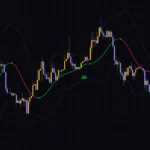
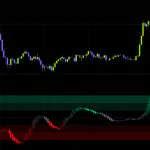
▲▼ prints purely on the price-action fact that price “swept a line and came back”. You naturally want to confirm from another angle whether real money is behind that reclaim. The pairing that worked well for me was TradingView’s built-in Chaikin Oscillator.
The Chaikin Oscillator multiplies where a candle closed within its range by volume, accumulates that, and looks at the difference between a short and a long average. “Liquidity Sweep Hunter Algo” also builds its strength from volume, so you get to look at the same raw material from a different angle.
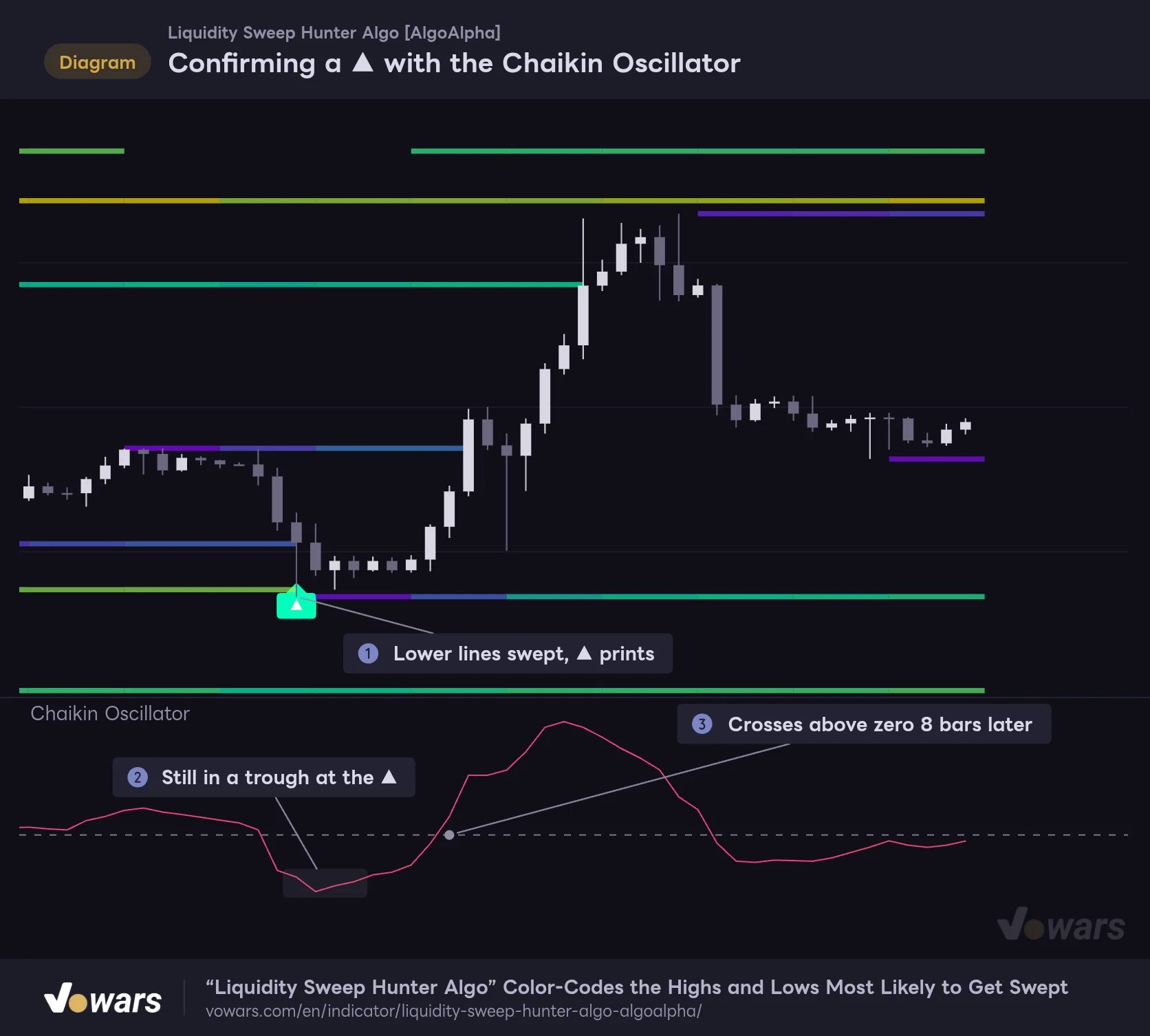
When the ▲ prints in Figure ①, the oscillator is still in a trough, as Figure ② shows. Eight bars later, in Figure ③, it crosses back above the zero line. Use the ▲ to pick the “where”, then confirm the “direction of money flow” with the oscillator’s zero-line cross. Sticking to that order cuts down on how often you jump on premature ▲ signals in the middle of a trend.
Confirming a ▲ with the Chaikin Oscillator
When the ▲ prints, the Chaikin Oscillator is still in a trough; the cross back above the zero line confirms buying money flow.
Vowars DE ver.3.12.33
A few other combinations are worth trying too.
- Volume Profile (VPVR) Checking whether a swept line overlaps a high-volume node makes it easier to gauge how strong the bounce might be
- VWAP For day trading, whether the ▲ printed below or above VWAP changes what the reclaim means
- A multi-timeframe layout Comparing a 15-minute ▲ against where the 1H and 4H liquidity lines sit gives you a sense of how far the bounce might run
Repainting and alerts
Confirmed signals don’t move after the fact
▲▼ evaluation, line registration and removal, and strength accumulation all happen only on bar close. So a signal on a confirmed bar never disappears or jumps to another bar later. Signals also don’t flicker on and off on the forming bar.
That said, there is some “back-painting” in how things are drawn. Line cells are painted in chunks covering the previous few bars every Cell Width bars, so each new cell appears a few bars back in the past. Lines swept by a wick also get their cell stretched right at that moment. The signals themselves don’t change, but someone watching live and someone opening the chart later will perceive when a line appeared differently.
Looking back afterward, lines appear to start right next to the high. In reality, they register at least one bar after the high and get drawn several bars at a time. If you backtest assuming you could only act once the line was visible, the gap between your test and real-world use gets smaller.
8 alert conditions you can set
| Alert name | What it tells you |
|---|---|
| Upper Liquidity Detected | A new upper line was registered |
| Lower Liquidity Detected | A new lower line was registered |
| Any Liquidity Detected | A line was registered on either side |
| Upper Level Removed | An upper line was taken out by price and removed |
| Lower Level Removed | A lower line was taken out by price and removed |
| Any Level Removed | A line was removed on either side |
| Bullish Multi-Level Sweep Reversal | The ▲ conditions were met |
| Bearish Multi-Level Sweep Reversal | The ▼ conditions were met |
The two signal alerts are the most useful. Signal conditions are only met at bar close, so the alerts fire at that point too. The line-registration alerts can fire twice in a row for the same high and trigger on any of Fast, Mid, or Slow, so they get pretty noisy on lower timeframes. Also note there are no alerts for hitting take-profit targets or getting stopped out.
For traders who want a liquidity map and reversal signals on one chart
“Liquidity Sweep Hunter Algo” picks up the highs and lows where stops tend to pile up across three lookbacks, colors them by volume-based strength, and only flags ▲▼ at the moment several of those levels get swept together. Another nice touch: whenever a signal prints, it comes with stop-loss and take-profit guides right there.
What I took away from using it is that how you feel about it comes down to how you see the low signal count. If you want multiple entry triggers a day, it may feel underwhelming. But just keeping it on your daily charts and scanning “which line is likely to get hunted today?” is plenty useful. Then you wait for the occasional ▲▼ at the edges of a range. For me, that’s exactly the right way to use it.