

“Cycles Master”: 16 lines that tell you whether price is stretched or cheap
Ever watched Bitcoin rip and thought, “I’m way too late to buy this”? And on the flip side, when price just keeps bleeding lower, it’s hard to know how far it has to fall before you can call it cheap.
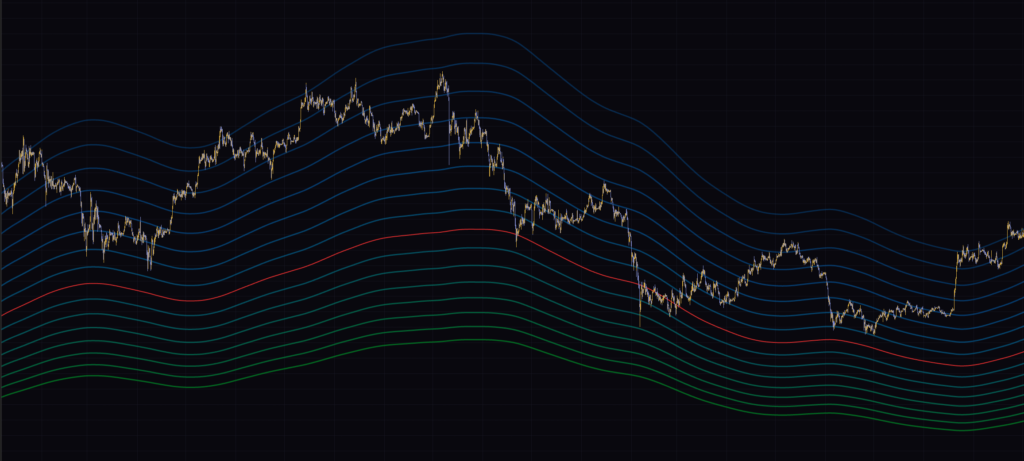
“Cycles Master” tackles that problem with 16 lines built off a long-term moving average. It isn’t a signal indicator. What it shows you is how far price has drifted from its long-term mean, expressed as which band it’s sitting in.
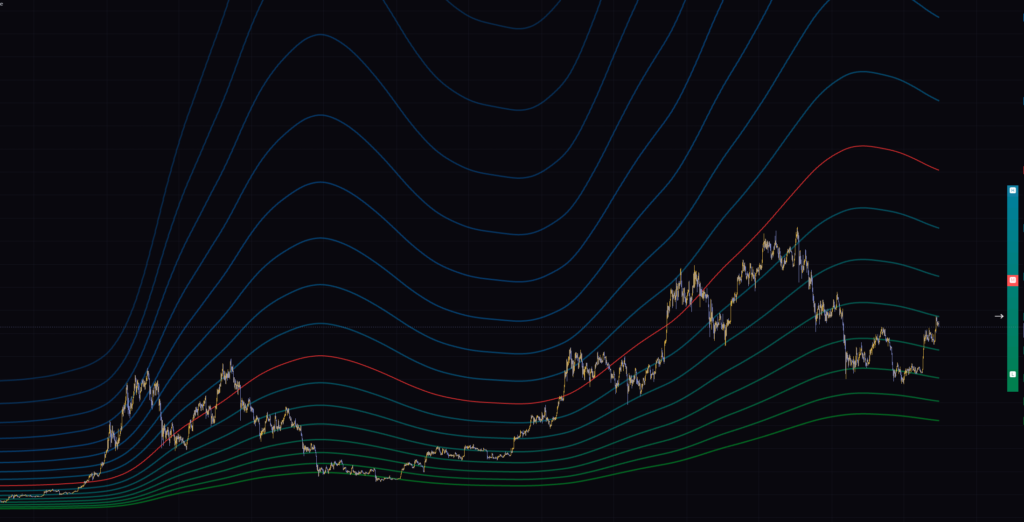
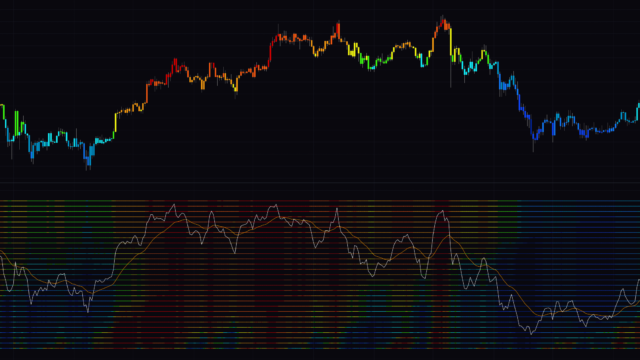
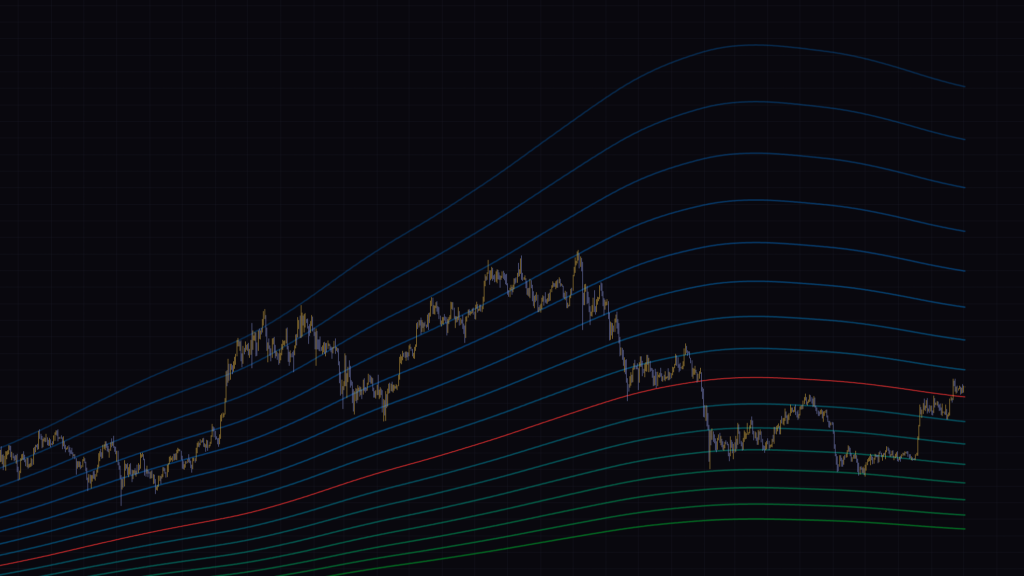
The first thing I noticed after dropping “Cycles Master” on a daily chart was how much it changes the look of the screen. Line after line stacks up, shading from green to blue, and a tall gauge sits on the right edge. It looks flashy, but the logic underneath is surprisingly simple. In this review I’ll walk through how to read it, which settings matter, and where you need to be careful.
All you get on screen: 16 lines and a vertical gauge
“Cycles Master” draws just two things: 16 lines overlaid on the chart, and a tall gauge at the middle right of the screen. There are no arrows, labels, or any other buy/sell signals. Let’s start with how the lines are built.
The bottom line is half the moving average, then +20% per line
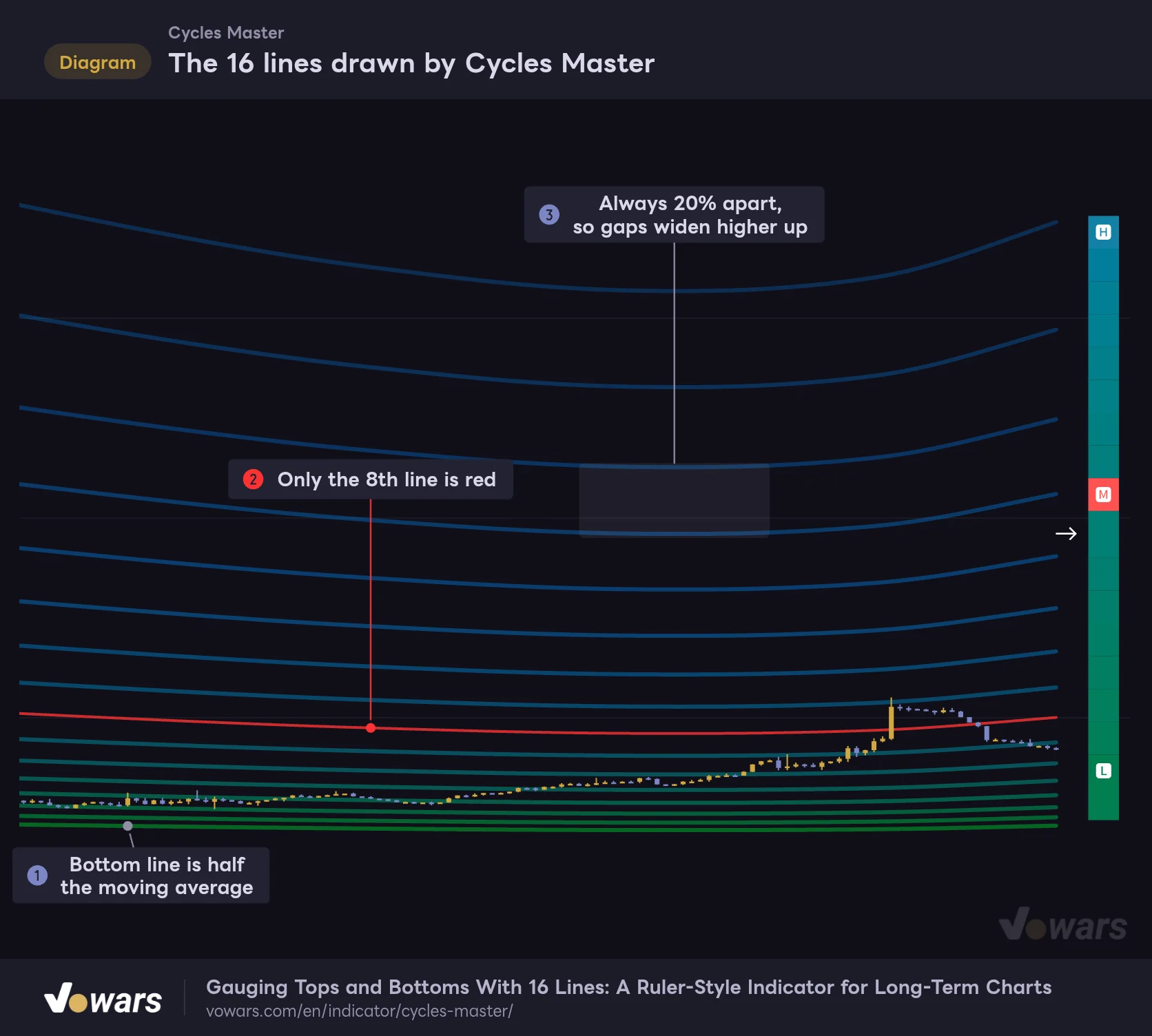
The 16 lines aren’t calculated independently. A single moving average divided by 2 becomes the bottom line, the next one up is 1.2x that, the next is 1.2x again, and so on, each multiplied by the same ratio. Figure ① is the starting line, and as Figure ③ shows, the gaps look wider the higher you go.
The 16 lines drawn by Cycles Master
Starting from half the moving average, 16 lines stack up, each 20% above the last.
Vowars DE ver.3.12.24
The gaps look wider because the lines are stacked by multiplication, not addition. 20% of 100 is 20, but 20% of 500 is 100. Since the ratio is the same everywhere, switching the price scale to log makes the 16 lines sit almost evenly spaced. Just hover over the price scale and click the “L” that appears, so give it a try if the upper lines are scattered all over the place.
Here is where each line sits relative to the moving average on default settings.
| From bottom | Multiple of the moving average | From bottom | Multiple of the moving average |
|---|---|---|---|
| 1st | 0.50x | 9th | ~2.15x |
| 2nd | 0.60x | 10th | ~2.58x |
| 3rd | 0.72x | 11th | ~3.10x |
| 4th | ~0.86x | 12th | ~3.72x |
| 5th | ~1.04x | 13th | ~4.46x |
| 6th | ~1.24x | 14th | ~5.35x |
| 7th | ~1.49x | 15th | ~6.42x |
| 8th (red) | ~1.79x | 16th | ~7.70x |
One thing I got wrong at first: because the red line sits in the middle, I assumed it was the moving average itself. It is actually at about 1.79x the moving average, well above the mean. The line closest to the moving average is the 5th from the bottom, at roughly 1.04x. If you read the red line as “the average,” it will look like price is always below it and you will end up confused.
Green fading to blue, with a single red line
From the bottom up, the line color shifts gradually from green to teal to blue. Transparency increases with each line, so the upper ones are fainter. Only the 8th line from the bottom is red, and it is drawn slightly thinner than the rest. Figure ② is that red line.
The colors themselves don’t mean “buy” or “sell.” But if you remember that green is the bottom and blue is the top, you can tell from color alone whether you are looking at the lower or upper side, even when you are zoomed in and only a few lines are visible.
There is no setting to change the number of lines. You always get 16. If you don’t need the upper ones, you can toggle each line on or off in the Style tab of the indicator settings. Color and thickness are changed in the same place. The gauge’s colors and position aren’t in the settings, so you use it as is.
The gauge on the right shows which band the last bar is in
The tall gauge at the middle right of the screen is basically the 16 lines folded into a vertical cheat sheet. It has an “H” at the top, an “M” in a red cell around the middle, an “L” near the bottom, and a single white arrow on its left side.
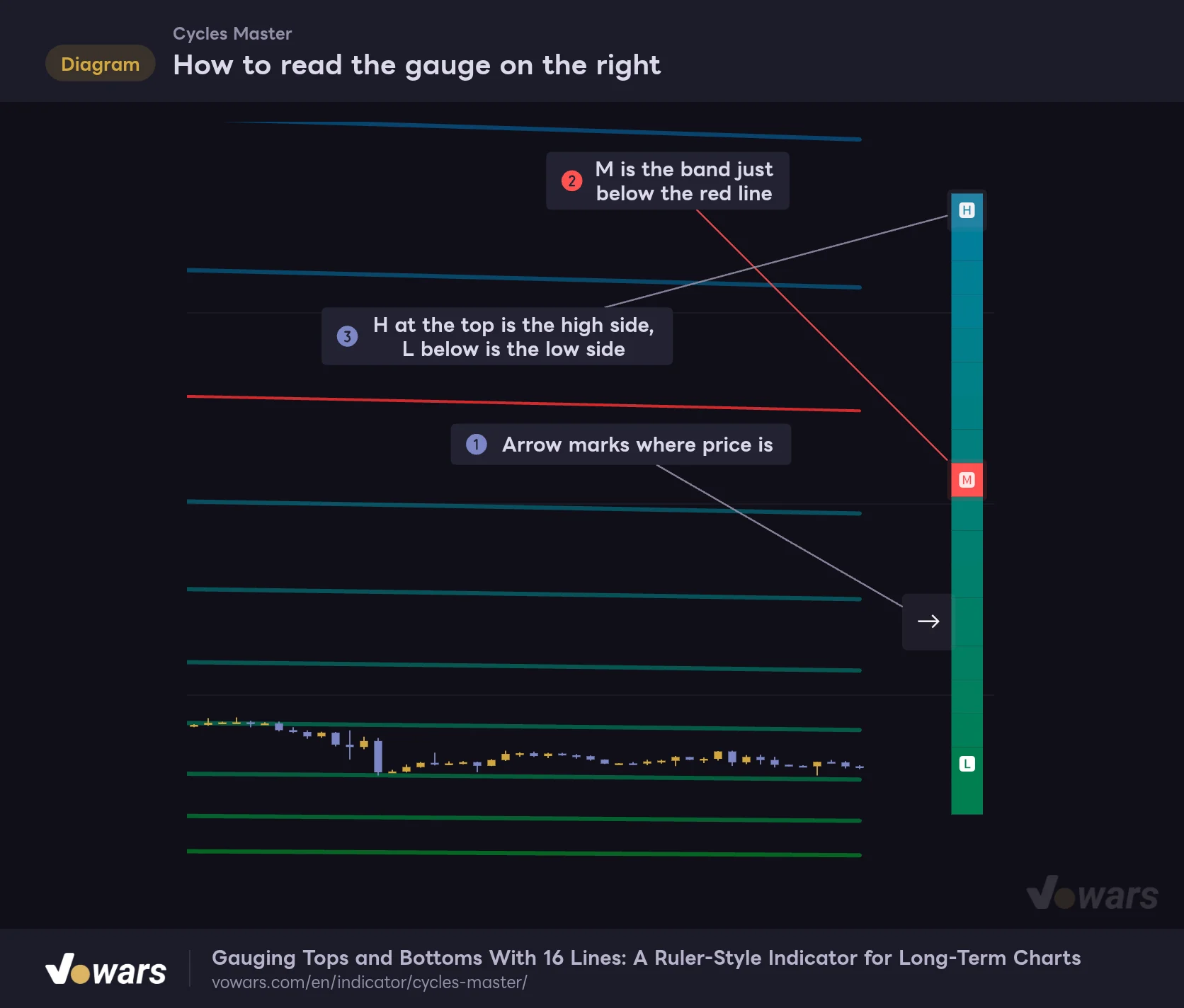
How to read the gauge on the right
The tall gauge uses an arrow to show which band the last bar's close is in.
Vowars DE ver.3.12.24
The arrow in Figure ① points to which two lines the last bar’s close is sitting between. Up is the high side and down is the low side, the same orientation as the lines on the chart. When price moves into a higher band, the arrow moves up with it. The whole point of the gauge is that you can see where you are at a glance without zooming out.
The “M” in Figure ② is not the red line itself. The arrow lines up with “M” when the close is in the band just below the red line, that is, between the 7th and 8th lines from the bottom. Once price closes above the red line, the arrow moves one row above “M.”
When I actually counted the rows, I found one the arrow never lands on: the row three above “L.” When the close is between the 2nd and 3rd lines from the bottom, the arrow shows up one row lower than you would expect.
There is a similar quirk at the top: anywhere above the 15th line, even beyond the 16th, the arrow always sits on the “H” row. It won’t throw your read off badly, but near the extremes it is safer not to assume that arrow rows equal line counts.
The trick is to read bands, not lines
With “Cycles Master,” it makes more sense to look at where price sits inside the band between two lines than at whether it tagged a line. The lines are just multiples of a moving average, so there is no reason price has to bounce off them. Think of them as tick marks that count how many steps price is away from the mean, and the use case becomes much clearer.
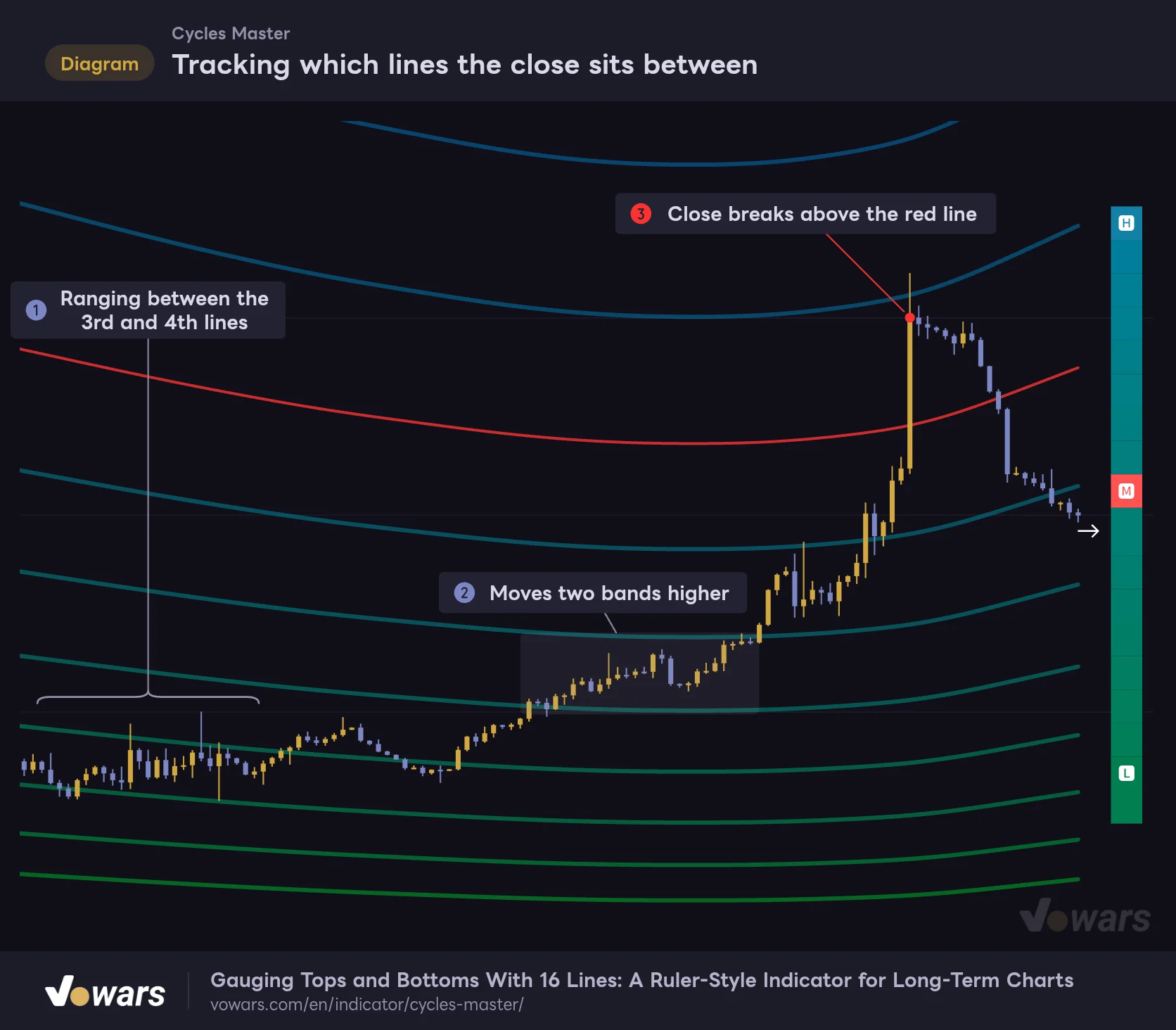
Tracking which lines the close sits between
Watch which band between the lines price is in, not the lines themselves.
Vowars DE ver.3.12.24
In Figure ①, price is chopping sideways between the 3rd and 4th lines from the bottom. In multiples, that is around 0.72x to 0.86x the moving average, roughly 15–30% below the mean. Once the rally kicks off, price climbs one band at a time, as in Figure ②. In Figure ③, it closes above the red line. Since the red line is about 1.79x the mean, getting there tells you the market is seriously extended.
Here is the reading process in three steps.
1 Check the gauge arrow to see which row you’re on
Start with the gauge on the right. Is the arrow above or below “M”? Is it close to “L”? On the daily, the arrow was three rows below “M.” That puts the close between the 4th and 5th lines from the bottom, in the 0.86x to 1.04x band.
2 Zoom out and see how far price has traveled before
Next, zoom out and check which bands past tops and bottoms landed in. On the daily, the 2021 highs pushed into bands above the red line, and the late-2022 lows sank close to the bottom line. The fall 2025 high, on the other hand, never reached the red line. Even on the same asset, each bull run tops out at a different level.
3 Line up band changes with your other confluence
Finally, cross-check the moments when price changes bands against your other tools. “Cycles Master” tells you where price is, but not whether it goes up or down from there. Blindly buying because price is in a low band, or selling because it is in a high one, is asking for trouble. I’ll show a pairing example later on.
Change the timeframe and you get a completely different set of lines
This was the biggest surprise in testing. “Cycles Master” calculates its moving average only from the candles of the timeframe you are on. So when you switch timeframes, the same price lands in a different band.
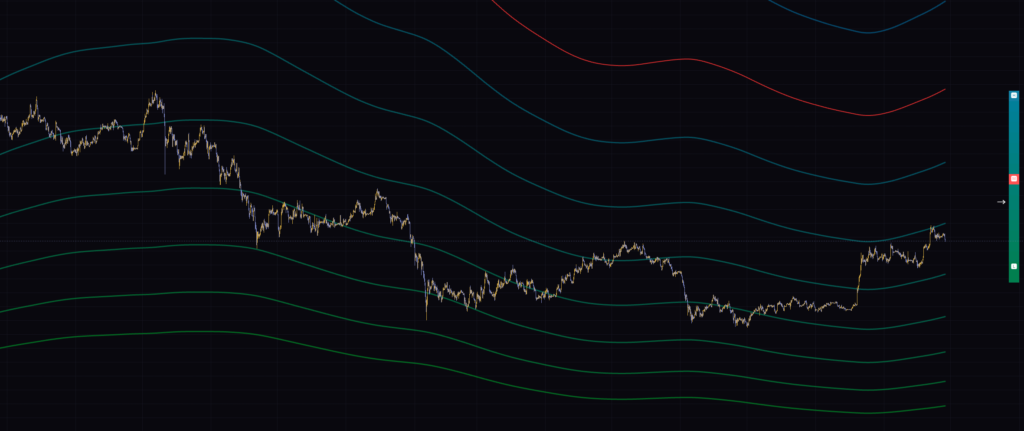
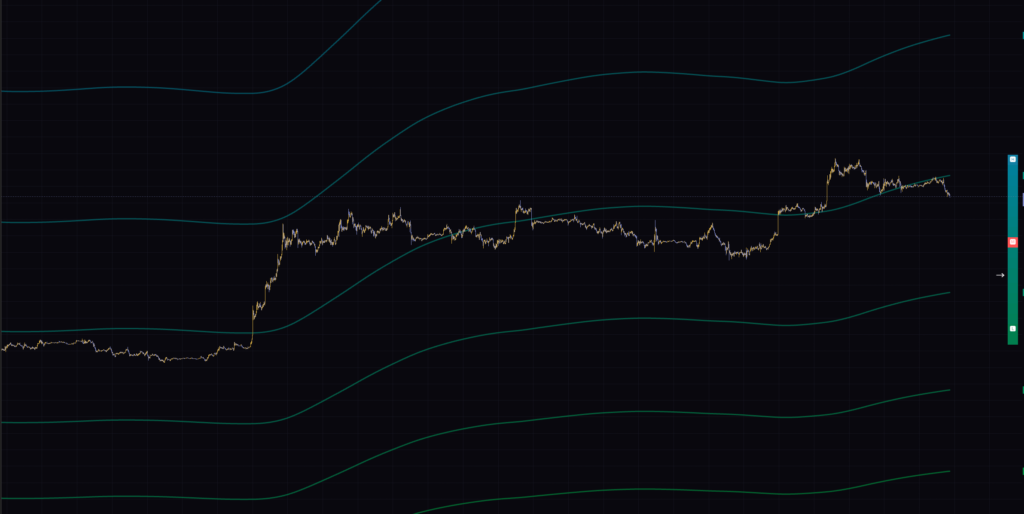
Comparing three screenshots taken on the same day at nearly the same price gave me this (as of Sep 28, 2026).
| Timeframe | Red line level | Band the close was in |
|---|---|---|
| Daily | ~150,700 | Between the 4th and 5th lines from the bottom |
| 4-hour | ~126,600 | Between the 5th and 6th lines from the bottom |
| 30-minute | Off screen (above) | Between the 4th and 5th lines from the bottom |
On the 30-minute chart, the lines are more than $10,000 apart, and it takes days for price to cross a single one. The default 20% step is simply too wide for the ranges you see on lower timeframes. The comments on the script page also say to use it on the daily, and I agree that the daily is the right fit if you are running default settings. If you want to use it on lower timeframes, you will need to lower Step %, which I cover below.
Three settings control line spacing and smoothness
There are only three inputs. With so few, changing any one of them has a big impact.
| Setting | Default | Suggested | Effect |
|---|---|---|---|
| Step % | 20 | 20 for Bitcoin on the daily; 5–10 for low-range markets or lower timeframes | Spacing between lines. Higher values widen the gaps and push the red line further up. Lower values pull the lines in closer to price |
| MA type | DEMA | DEMA (long-term positioning); EMA if you want a faster response | Type of moving average used as the base. Choose from EMA / SMA / WMA / VWMA / RMA / DEMA / TEMA |
| MA length | 350 | Leave at 350 on the daily | Lookback of the moving average. Longer makes the lines smoother; shorter makes them bend with price |
Step % moves the red line as well as the spacing
Step % sets the percentage gap between neighboring lines. The default is 20, so each line is 1.2x the one below. Set it to 10 and each becomes 1.1x, tightening the spacing.
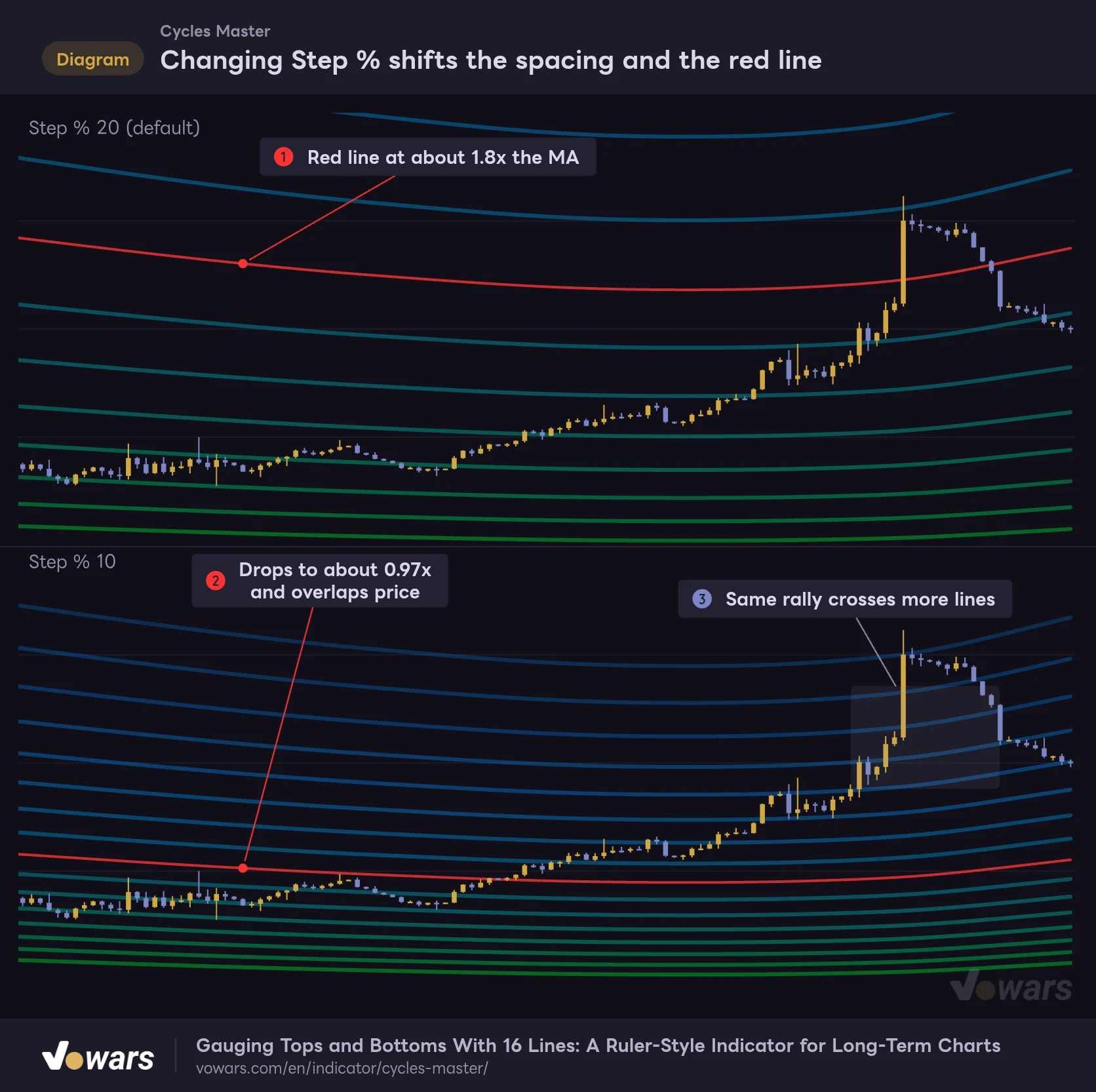
Changing Step % shifts the spacing and the red line
Same price action, two versions with only Step % changed.
Vowars DE ver.3.12.24
What is easy to miss is that the bottom line stays put and only the upper lines come down. The bottom line is always half the moving average, so tightening the spacing pulls the whole stack of 16 lower. The red line in Figure ① sits at about 1.79x the mean, but drop the setting to 10 as in Figure ② and it falls to about 0.97x, nearly on top of the moving average. The same rally also crosses more lines, as in Figure ③, so the gauge arrow moves in finer increments.
Here is a rough guide by value, showing where the red line and the top line land as a multiple of the moving average.
| Step % | Red line (8th) | Top line (16th) |
|---|---|---|
| 5 | ~0.70x | ~1.04x |
| 10 | ~0.97x | ~2.09x |
| 15 | ~1.33x | ~4.07x |
| 20 (default) | ~1.79x | ~7.70x |
| 25 | ~2.38x | ~14.2x |
| 30 | ~3.14x | ~25.6x |
This table shows how to fit the indicator to each market. For something like Bitcoin that multiplies several times over within a few years, the default 20 still lets past tops reach the upper lines. For markets with a small annual range, such as gold or forex, price never leaves the same band at 20. Set it to 5 and all 16 lines fit between half the mean and about 1.04x, and you finally start to see price move between bands. The catch is that at 5 the upper lines only reach just above the mean, so in a market that keeps trending up, price will run off the top of the stack. Realistically, you tune it somewhere between 5 and 10 while checking which line the asset’s past highs reach.
The description on the script page suggests adjusting the lines so they match past highs. It calls this input “Multiplication,” but that name no longer exists in the current settings, and Step % is the only input that adjusts the spacing. If you hunt for a value where past tops cluster near the same line, you get an upside reference tailored to that asset. Of course, there is no guarantee the next top stops at the same line.
The “DEMA” in MA type moves slower than an EMA
MA type lets you pick the base moving average from seven types. The default is DEMA.
Normally, DEMA means a fast moving average designed to cut the lag of an EMA. The DEMA in “Cycles Master” is the opposite: it is an EMA smoothed by a second EMA. Because it is smoothed twice, it lags more than an EMA but moves more smoothly in return. TEMA follows the same idea, smoothed three times.
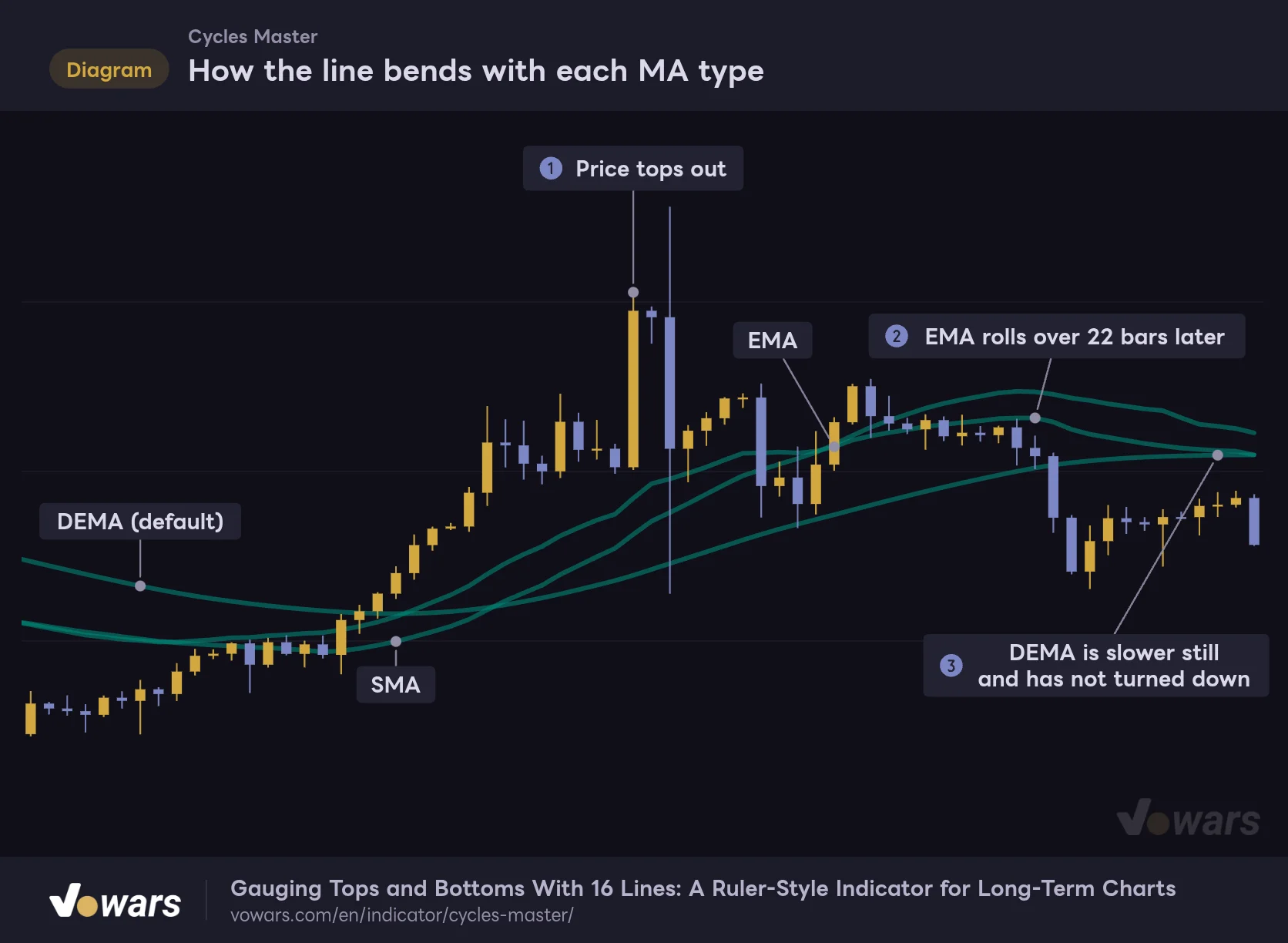
How the line bends with each MA type
Only the 5th line from the bottom, overlaid with three different MA type settings.
Vowars DE ver.3.12.24
To make the difference easy to see, I isolated the 5th line from the bottom and overlaid the three versions. After price tops out in Figure ①, the EMA rolls over 22 bars later, as in Figure ②. The DEMA is slower still and has not turned down even by Figure ③.
My first reaction was, “Isn’t slow a weakness?” But the job of “Cycles Master” is to measure how many steps price has moved away from its long-term mean. If the baseline chases price right away, you can’t measure the distance. A ruler that doesn’t move is easier to measure with, and I think that is the logic behind the default.
A few notes on when to pick the others. EMA and WMA weight recent price more heavily, so the lines catch up to price sooner. SMA averages the whole period equally, which makes it the choice when you want a neutral baseline. VWMA gives more weight to high-volume bars and is worth trying on markets with reliable volume data. RMA moves even slower than EMA.
Keep MA length at 350 and start on the daily
MA length is the lookback of the moving average, and the default is 350. On the daily that is about one year. Crypto trades on weekends too, so 350 bars is nearly a full year.
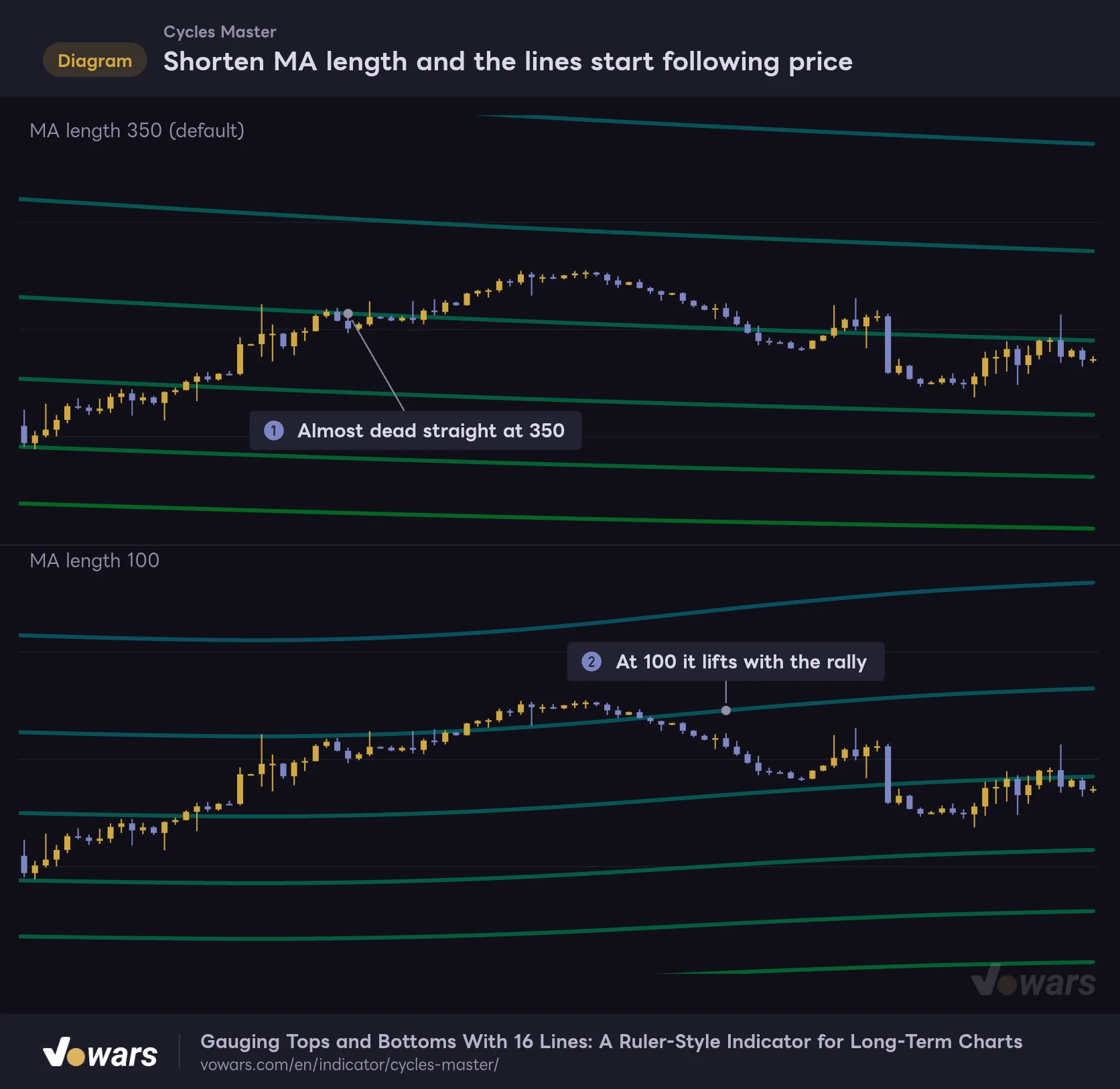
Shorten MA length and the lines start following price
Same price action, two versions with only MA length changed.
Vowars DE ver.3.12.24
As Figure ① shows, at 350 the lines are almost dead straight and act like fixed tick marks on your screen. Drop it to 100, as in Figure ②, and the lines lift to follow the rally. Because the lines track price, the same price action ends up in differently numbered bands.
A shorter length is more responsive, but it takes you away from the original idea of measuring how far price is from its long-term mean. On the daily, I’d suggest leaving it at 350 and scrolling back through the history first. You only need to change the length once you feel the lines are too sluggish for the price action.
With SMA, WMA, or VWMA, no lines appear until there are enough bars to fill the lookback. At 350, that means from the 350th bar. On the daily chart of a newly listed asset, the lines may only start partway through. The EMA-based types plot early on, but the values haven’t settled yet at the start, so treat the far left of the chart as a rough reference only.
Let RSI handle the timing
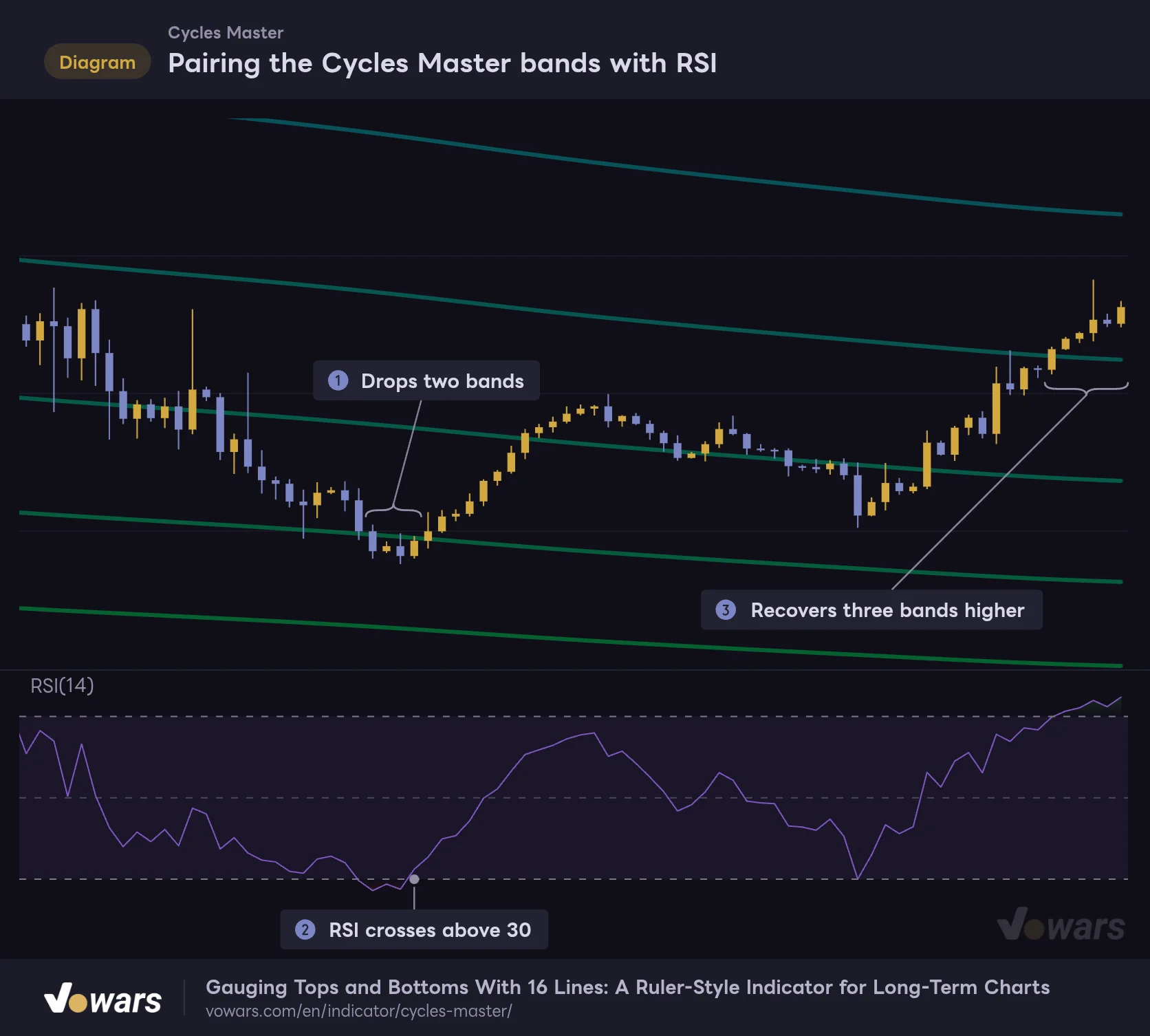
“Cycles Master” tells you which band price is in, but not when it is going to move. That makes RSI a natural partner for timing. “Cycles Master” covers location, RSI covers the shift in momentum, and the two roles split cleanly.
Pairing the Cycles Master bands with RSI
Use Cycles Master to check which band price is in, and leave the timing to RSI.
Vowars DE ver.3.12.24
In Figure ①, price drops two bands, stretching further from the mean. Right then, the RSI in the lower pane crosses back above 30, as in Figure ②. That is the cue that the bounce from oversold has started. From there, the close climbs three bands to Figure ③.
The sequence is: first confirm with “Cycles Master” that price is in the lower bands, then wait for RSI to cross above 30. The same logic works on the upside. If price has climbed into the bands near the red line and RSI then drops below 70, that is a reason to think about taking profit.
That said, this is a cherry-picked example where everything lined up. In a strong downtrend, it is not unusual for price to make another leg down after RSI crosses back above 30. I want to stress that this adds confluence to an entry. It is not something to trade on by itself.
Closed bars don’t move. Only the last one does
Whether the lines get redrawn after the fact is something every trader wants to know. “Cycles Master” is calculated only from the close and the moving average of the timeframe you are on. It uses no higher-timeframe data and no future bars. So the lines on closed bars never change afterward.
What does move is the last bar, which has not closed yet. As the close ticks around, the moving average shifts slightly and the right end of all 16 lines moves with it. The gauge arrow also jumps up and down each time price crosses a line until the bar closes. Keep in mind that the arrow can move up a row mid-bar and be back where it started by the close.
To review past behavior, you can use Bar Replay. The bar at the replay point is treated as the last bar, so the gauge arrow shows the position at that moment. Being able to step through bar by bar and see which row price was on back then came in handy.
“Cycles Master” has no built-in alert conditions. But if you select “Cycles Master” as the condition in TradingView’s alert dialog, you can alert on price crossing a line. The lines don’t have individual names, so you have to count up from the bottom to pick the right one. The red line is the 8th.
Where it shines and where to be careful
What it does well
- Shows how many steps price is from its long-term mean, by band
- Only three settings, so you never lose track of what you changed
- The gauge shows your current row without zooming out
- Lines on closed bars never change afterward
- On a log scale the 16 lines are almost evenly spaced, a good fit for long-term charts
What to watch out for
- No buy/sell signals. Direction and timing need other tools
- Line levels change with the timeframe, and the defaults don’t suit lower timeframes
- On a regular scale the upper lines stretch the axis and squash the candles
- The red line is not the moving average itself, and its level shifts with Step %
- Gauge rows and bands don’t match one-to-one near the extremes
It suits swing and position traders who work the daily chart and above. It is also a good fit for anyone stacking spot over time who wants to know whether price is in a cheap band or an expensive one relative to the mean. For scalping, where trades are over in minutes, the default lines barely move and won’t give you much to work with.
Its weak spots are just as clear. On a newly listed asset, the long-term mean itself is not established yet. And when a market’s character changes and its range shrinks, price stops reaching the upper lines it used to hit. On the daily chart too, the 2021 and 2025 tops landed at different levels. Reading it as “it stopped at that line last time, so it will again” is best avoided.
A long ruler to keep on your chart
 Image
Image“Cycles Master” is nothing more than 16 lines stacked at a fixed ratio from half the moving average, plus a gauge that shows where you are. Because the logic is that simple, what you are looking at never gets muddy.
To get started, I’d put it on the daily with default settings and switch to log scale. Scroll back to see which bands past tops and bottoms landed in, keep in mind that the red line is about 1.79x the mean, and the gauge arrow will click right away. On low-range markets, lower Step % to 5–10 and look for a spacing where you can see price move between bands.
When the market is overheated, or when it keeps selling off and you start to get nervous, step back and check where price sits in the bigger picture. Keep this in the corner of your chart as the ruler for that, and you should find yourself making calmer decisions more often.