

The Wyckoff Schematic, Mapped Onto Your Chart for You
If you have ever studied the Wyckoff method, you have seen the accumulation and distribution schematics: that zigzag line tagged SC, AR, ST, Spring and so on. The theory makes sense on paper. Then you open your own chart, ask yourself “okay, where are we right now?” and draw a blank. I was stuck at that exact point for a long time.
The TradingView indicator “Wyckoff” does that mapping for you. It uses price and volume to find where a trading range begins, then shows how far the structure has progressed through Phases A to E, using labels on the chart and a schematic panel on the right. When the conditions line up, it also prints LONG ENTRY / SHORT ENTRY labels.
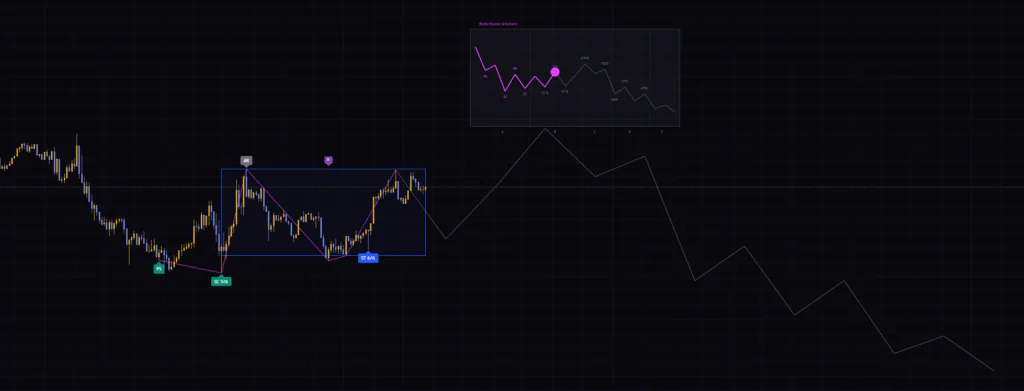
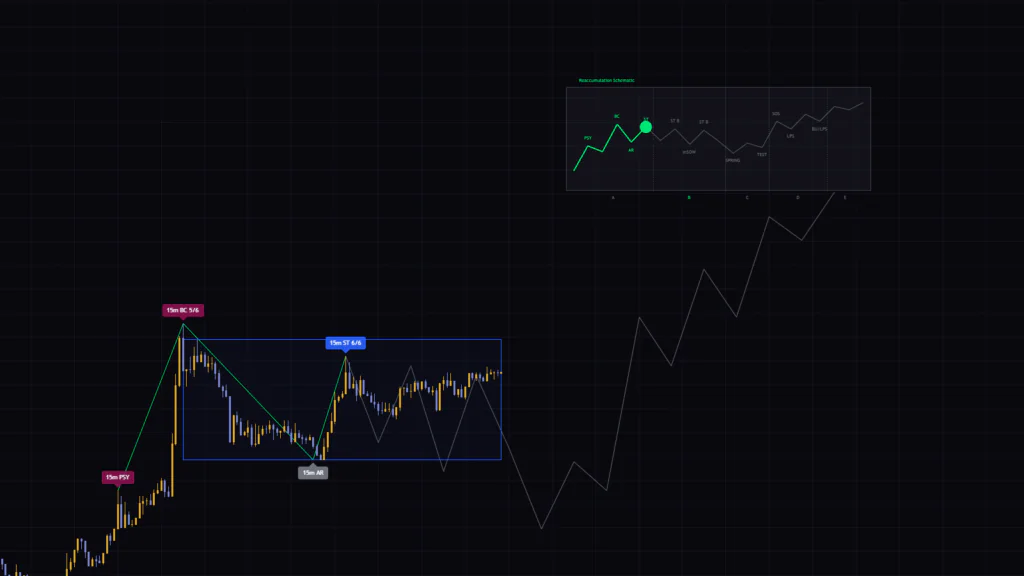
On a Bitcoin 15-minute chart, the selloff was followed by PS, SC 5/6, AR and ST 6/6 labels in sequence, a blue box around the range, and a schematic glowing magenta on the right. The textbook diagram and the live price action sit on the same screen, so there is no flipping to another tab to compare.
This article walks through what “Wyckoff” draws on the chart, when its signals actually fire, and where it gets things wrong, with diagrams along the way.
Four Things You Will See on the Chart
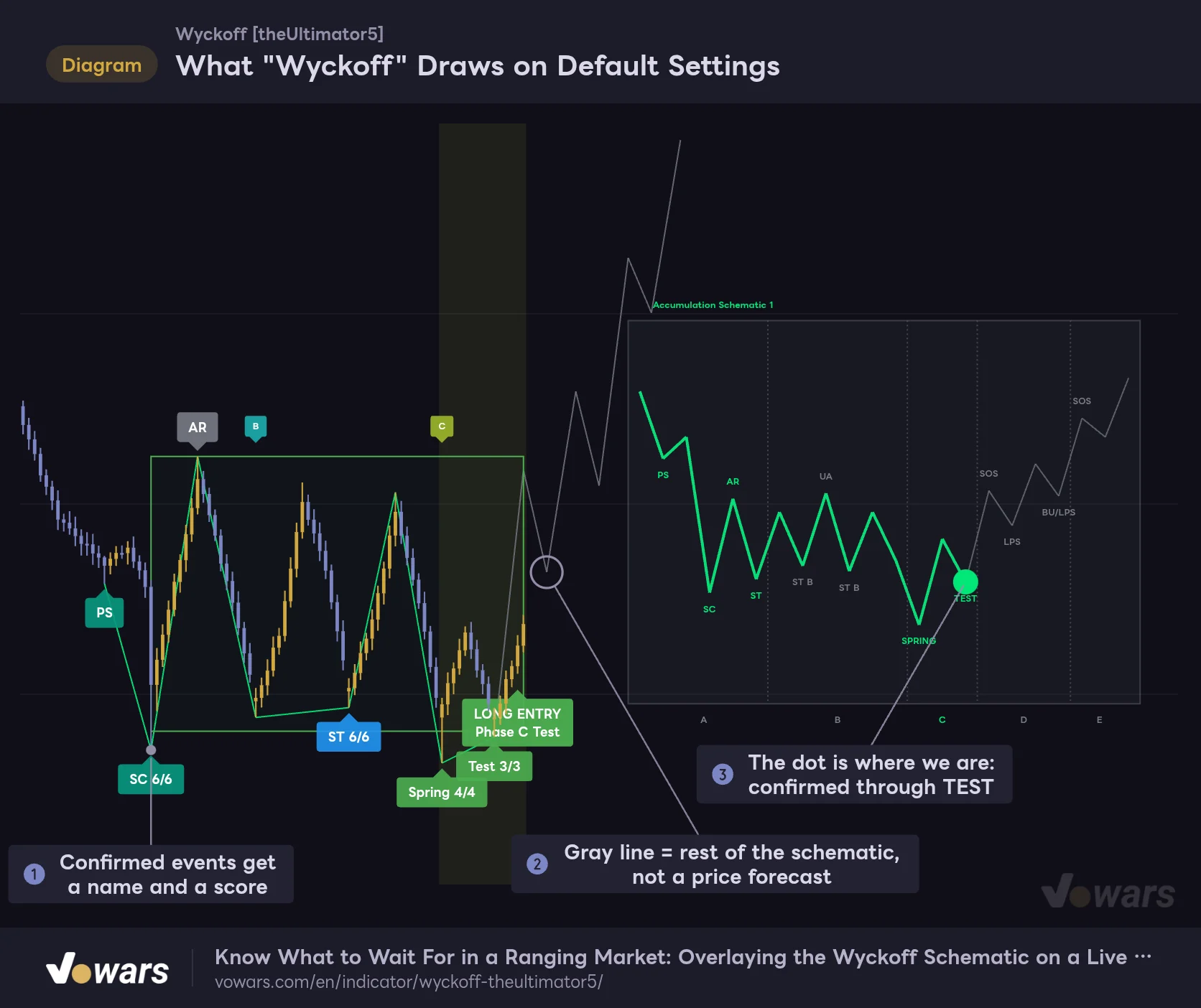
Let’s start with the big picture on default settings. The figure below shows a structure that has reached Phase C, right after a LONG ENTRY printed.
What "Wyckoff" Draws on Default Settings
A structure that has reached Phase C. The chart labels, the path line and the right-hand panel all show the same information in different forms.
Vowars DE ver.3.12.26
There are four things to look at.
- Event labels: Confirmed events get a name and a score, such as SC 6/6 or Spring 4/4. That is Figure ①
- Range box: The trading range bounded by the SC low and the AR high. It stays blue until direction is decided, then turns green for up or red for down
- Path line: A colored line connecting confirmed events, followed by a gray line extending past them. As Figure ② shows, the gray part is simply the schematic projected forward
- Right-hand panel: The schematic itself. It lights up as far as the structure has been confirmed, and the dot in Figure ③ marks where you are now
Hover over a label and a tooltip explains what the event means. You can follow along without memorizing every abbreviation, which I appreciated. Still, there are a lot of them, so here is a cheat sheet.
| Label | Full name | What it means, roughly |
|---|---|---|
| PS / PSY | Preliminary Support / Preliminary Supply | The first notable buying (selling) to show up during a decline (rally) |
| SC / BC | Selling Climax / Buying Climax | Capitulation selling (FOMO buying) on heavy volume. Phase A starts here |
| AR | Automatic Rally (Reaction) | The reflex move right after the climax. It sets the opposite side of the range |
| ST | Secondary Test | A revisit of the climax area. It passes if volume has dried up |
| Spring / UTAD | Spring / Upthrust After Distribution | A brief poke outside the range that snaps right back |
| Test / C-Test | Test | A quiet retest after the Spring (UTAD). C-Test is a test that happens without price ever leaving the range |
| SOS / SOW | Sign of Strength / Sign of Weakness | A strong rally (decline) across the range |
| LPS / LPSY | Last Point of Support / Last Point of Supply | A shallow pullback (bounce) after price breaks out of the range |
The “6/6” or “4/4” on a label tells you how many of the scoring conditions were met. SC and ST are scored out of 6, Spring and SOS out of 4, Test and LPS out of 3. An SC at 5/6 and one at 6/6 are not quite the same quality, and the score lets you see that.
How the Display Changes as the Phases Unfold
What threw me at first with “Wyckoff” was that different things show up depending on the phase. Follow it in order and the logic becomes clear.
In Phase A, Only the Panel Reacts
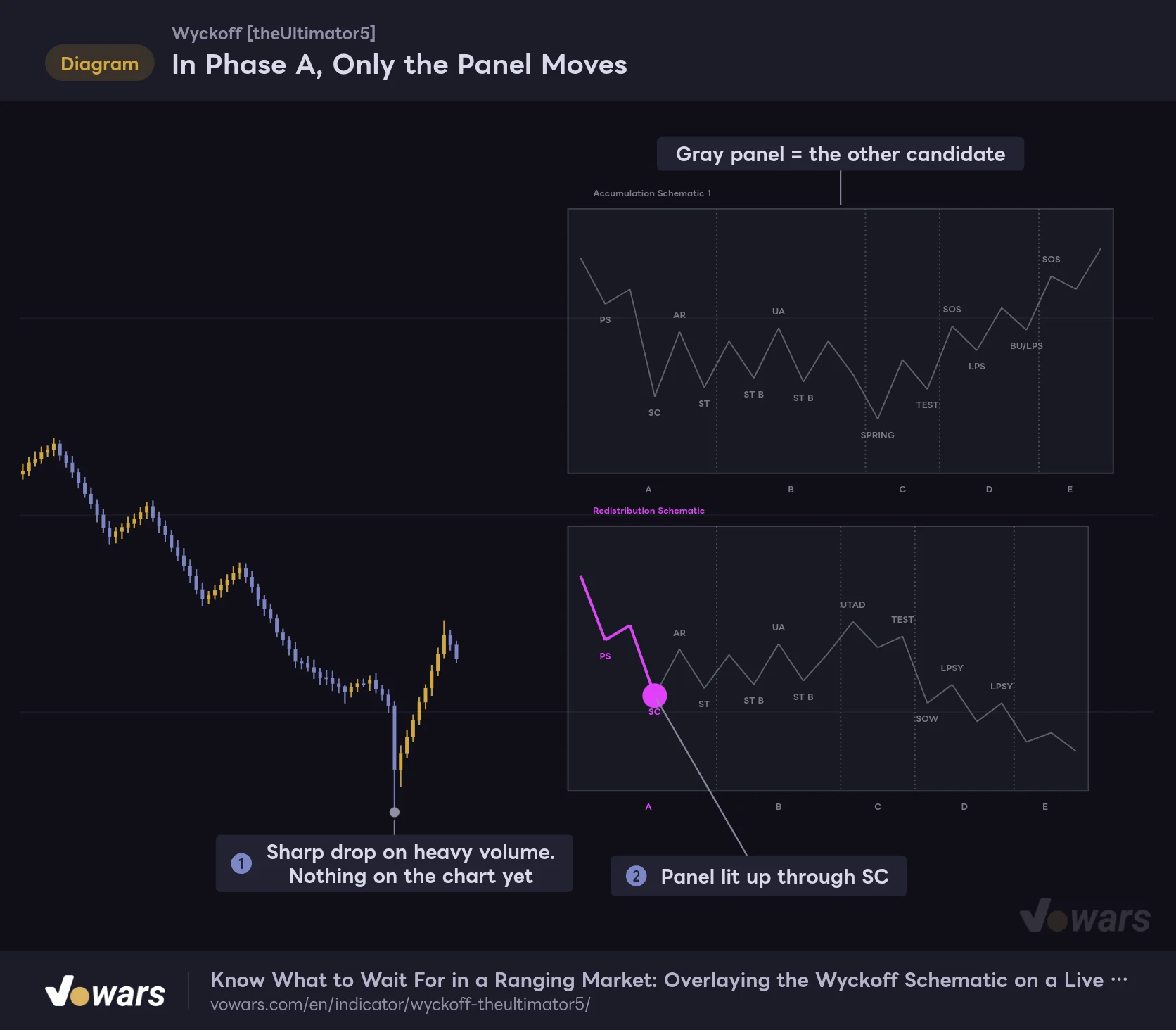
In Phase A, Only the Panel Moves
Right after an SC was detected at the bottom of a sharp drop. There are no labels or box on the chart yet.
Vowars DE ver.3.12.26
This is right after an SC was detected at the bottom of a sharp drop. Even after the bar in Figure ① prints, there are no labels and no box on the chart. The only thing that moves is the panel in Figure ②.
That is because Current Chart Minimum Phase defaults to B. By design, chart drawings only start once Phase B begins. If you want to see things from Phase A, switch this to A and the labels and box will appear earlier.
The conditions for an SC are quite specific. Price must be in a downtrend, the bar must make a new 30-bar low, volume must be at least 1.8x its 50-bar average, and the bar’s range must be at least 1.5x ATR(14). Only during a strong trend are the volume and range thresholds relaxed by 20%. After that, selling has to be absorbed within 3 to 8 bars before the SC is finally confirmed.
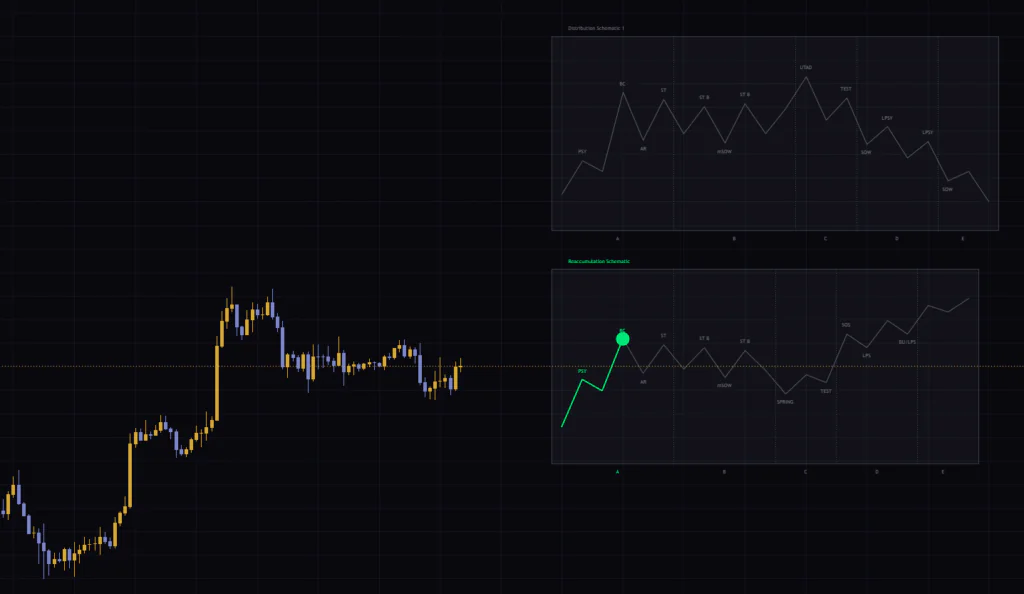
On the Bitcoin 4-hour chart, a BC was detected at the high after a rally, and the green “Reaccumulation Schematic” was lit up through PSY and BC. The panel above it was a gray “Distribution Schematic 1”. A pause within the uptrend, or a top? The indicator puts both candidates side by side.
While the Phase B Box Is Blue, It Can Still Break Either Way
While the Phase B Box Is Blue, Direction Is Undecided
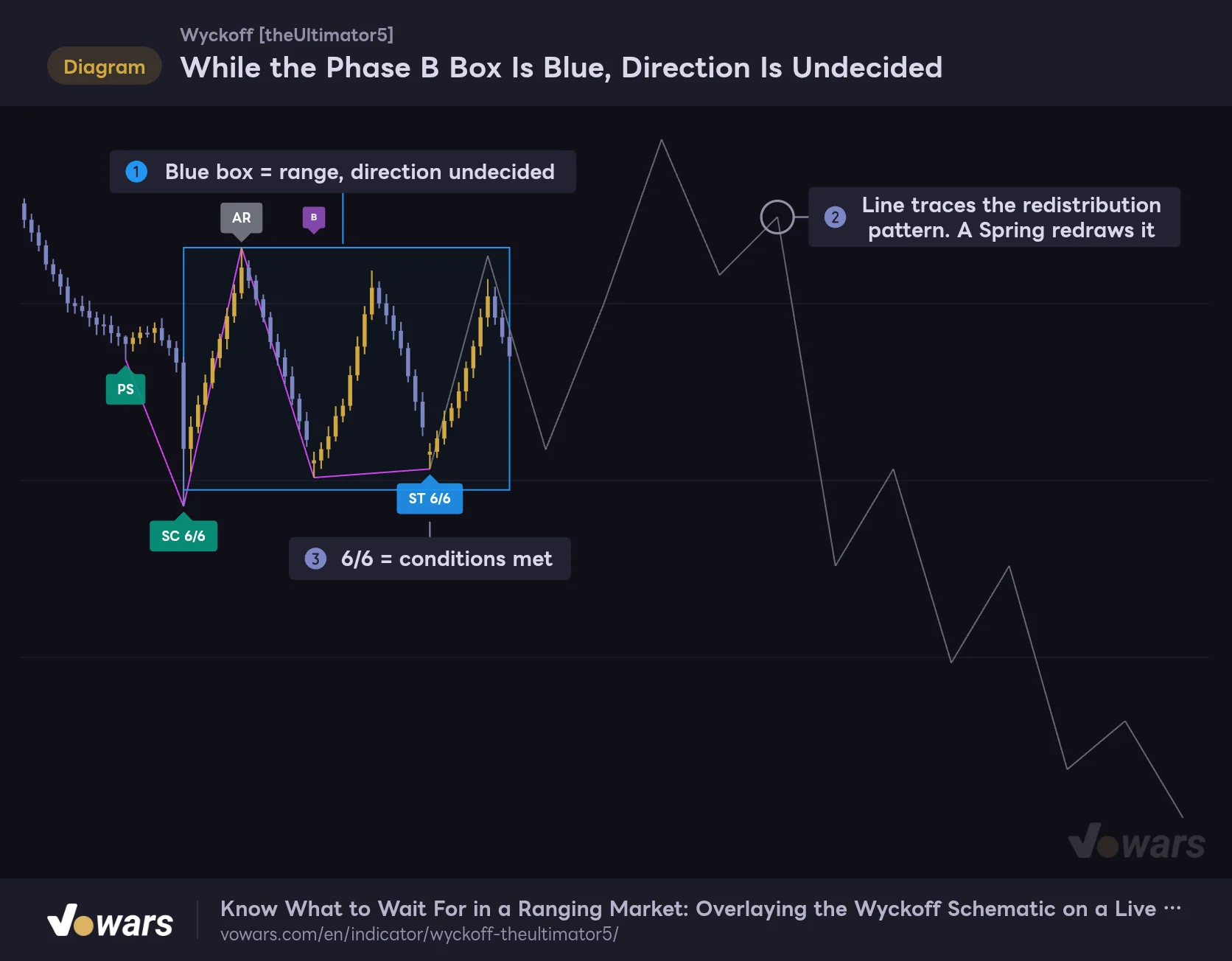
SC, AR and ST are in and the range is set. Price is mid-downtrend, so the working pattern is redistribution.
Vowars DE ver.3.12.26
Once the ST is confirmed after the AR, Phase B begins. This is when labels and the box first appear. The AR is pinned retroactively at the moment the ST confirms, so the AR label will look like it “showed up after the fact”.
Pay attention to the box color in Figure ①. Blue means direction is undecided. And the gray line in Figure ② is nothing more than the current working pattern projected forward. In this figure price is mid-downtrend, so the working pattern is redistribution (a pause within a decline) and the line points down.
The gray line is the schematic’s shape applied mechanically. It is not calculated as a price forecast. In the overview figure above, the pattern flipped to Accumulation the moment the Spring confirmed, and the line was redrawn pointing up. Keep in mind that it can reverse a full 180 degrees.
Leaving Phase B requires at least 30 bars and two or more retests of the climax side. On top of that, at least two of these four must hold: there is a test of the opposite edge, price has crossed the range at least twice, enough time has passed since a failed test, and volume is drying up with each test. This is Wyckoff’s idea of supply changing hands over time inside a range, turned into numbers.
A Completed Pattern Stays Above the Chart as a Schematic
A Completed Pattern Stays on the Chart as History
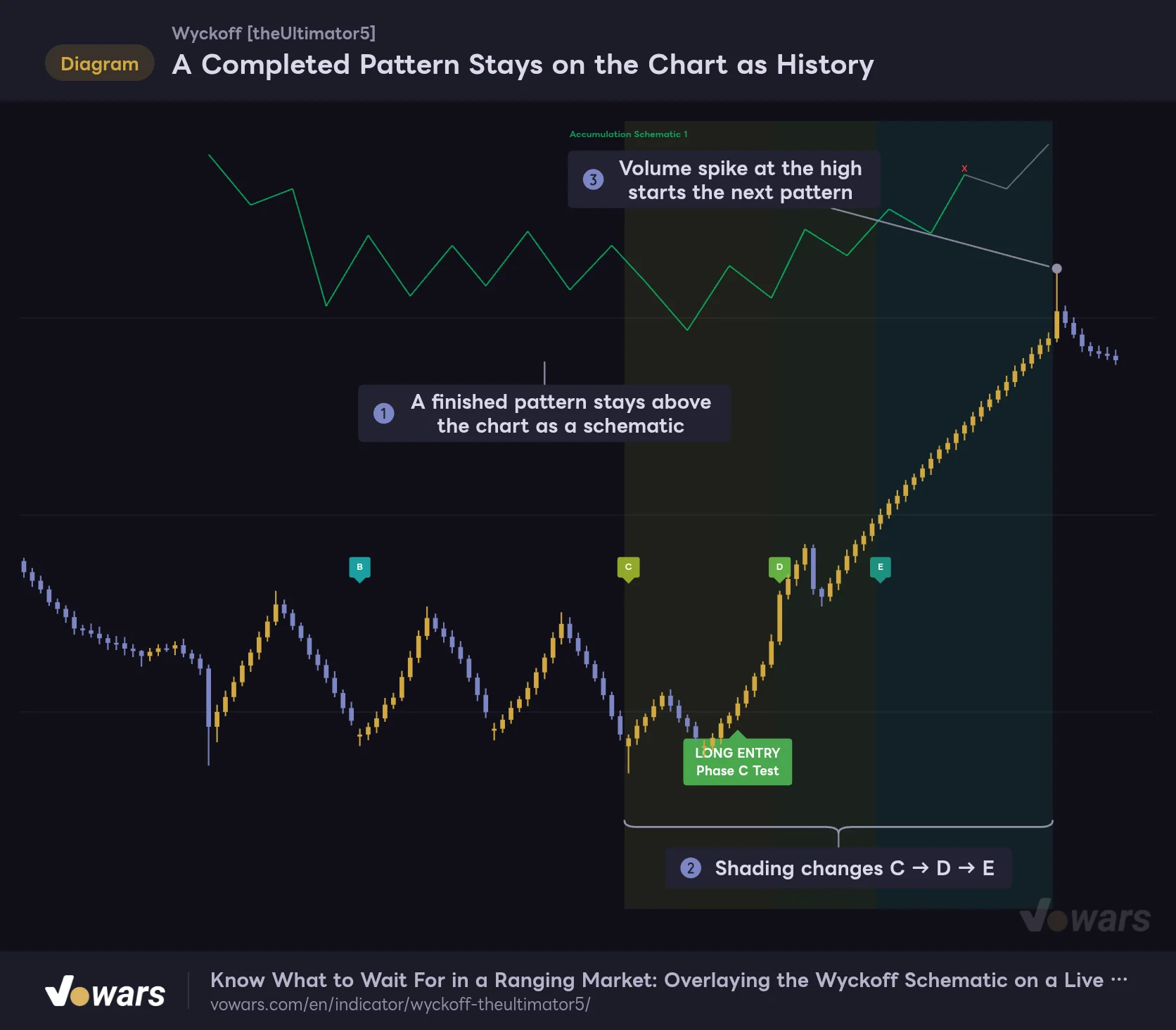
After the pattern reached Phase E, a new climax was detected at the high.
Vowars DE ver.3.12.26
A pattern that reaches Phase E becomes history once its job is done, for example when the next climax appears. As in Figure ①, accumulation-type schematics are placed above price and distribution-type ones below. The eight most recent are kept.
By default, background shading starts at Phase C. Those are the bands in Figure ②, and the small B, C, D and E labels mark where each phase began. Event labels like SC and Spring and the range box, on the other hand, belong only to the live pattern and disappear once it becomes history.
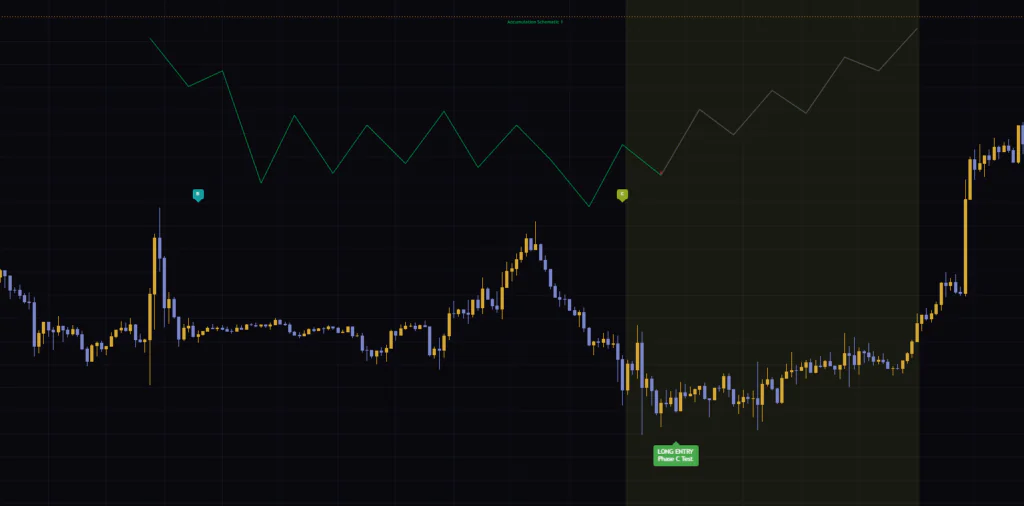
On the Bitcoin 1-hour chart, a range after a selloff produced a Spring and a Test, then broke out to the upside, and that sequence was left as history. The LONG ENTRY label is still sitting down at the lows.
Which Bar Does LONG ENTRY Print On?
If you plan to trade off this, signal placement is what you care about most. Let’s zoom in on the start of Phase C.
The Sequence Leading Up to LONG ENTRY
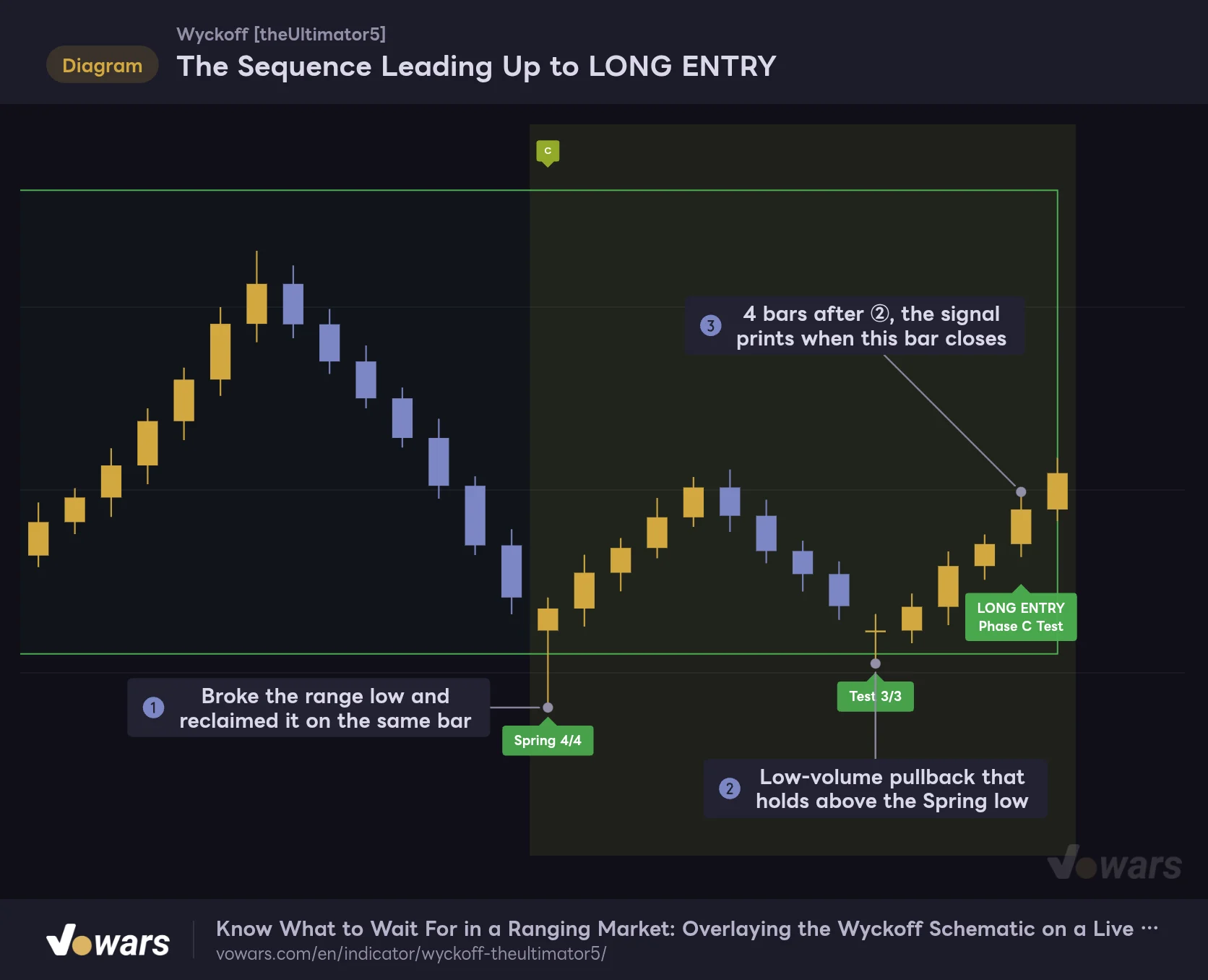
A zoom on the start of Phase C. Entry Strictness is on the default, Standard.
Vowars DE ver.3.12.26
1 Price dips below the range low and snaps back
The bar in Figure ① is the Spring. Price has to pierce the range low by 0.15 to 2.5x ATR and close back inside the range within 3 bars. It is scored on four items, including whether the recovery bar closes bullish and whether volume is not overheated.
2 A pullback on thin volume follows
The pullback low after the Spring is Figure ②. It must hold roughly above the Spring low. Then it counts as a Test if it meets two of these three: volume at or below 80% of the Spring’s, range at or below 80% of the Spring’s, and a close in the upper half of the bar.
3 The signal prints a few bars later, on the bar close
This is the key point. The Test label is placed on the bar that made the low, but you only know it was the low a few bars later. “Wyckoff” identifies swing lows and highs by comparing against the bars on either side, and the number of bars it compares adjusts automatically between 2 and 10 based on volatility. In this example it is 4. LONG ENTRY only appeared once the bar in Figure ③ closed.
The label sits 1.15x ATR below the close of the signal bar (above it for shorts). It is not pointing at a price level. It is just offset so it does not cover the candles.
Use Entry Strictness to Decide How Long to Wait
The bar for a signal is set with Entry Strictness, which has three levels.
| Setting | Event that triggers the signal | Maturity required |
|---|---|---|
| Aggressive | Phase C Test. If the structure moves on without a Test, SOS / SOW | 55 or higher |
| Standard (default) | Phase C Test. If conditions are not met there, it fires on LPS / LPSY | 60 or higher |
| Conservative | LPS / LPSY only | 75 or higher |
Maturity is a 0 to 100 score that adds up the confirmed pieces of the structure, such as SC and ST. At every level, the signal also has to clear Validation, which rates the quality of the range, plus a nine-item readiness check on how fresh the setup is.
On Conservative, the Signal Waits for the LPS
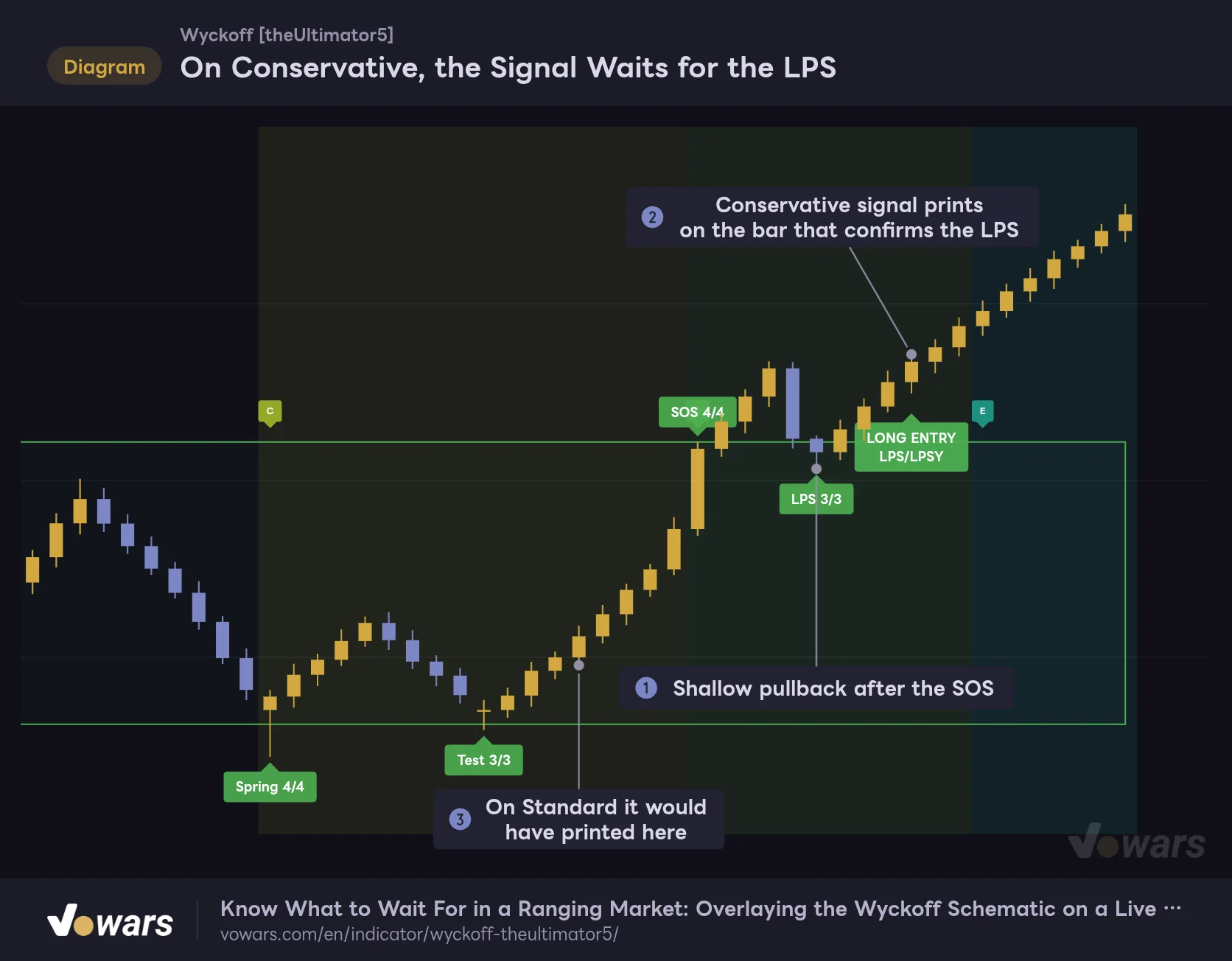
Same price action, with only Entry Strictness changed to Conservative.
Vowars DE ver.3.12.26
This figure is the same price action with the setting changed to Conservative. The signal that fired at Figure ③ is gone, and you are made to wait until the bar in Figure ②, where the pullback in Figure ① is confirmed. Your entry price moves up near the top of the range, but because the SOS has already confirmed the breakout, you sidestep some of the patterns that fall apart. Which one you prefer is a matter of taste.
There is one more setting, Buy/Sell Label Trigger. From the name you would expect it to switch what triggers the signal, but when I tried it, that is not what happened. Pick SOS / SOW, for example, and the regular signal stays put while an extra ENTRY label is added at the event you selected. It adds, it does not replace. If the extra labels get confusing, just leave it on Auto (Entry Strictness).
Sometimes the Pattern Fails After the Signal
Even with conditions this detailed, it will be wrong sometimes.
The price action is identical to the previous example up to a point. After LONG ENTRY printed at Figure ①, price failed to bounce and broke down. As Figure ② shows, two consecutive closes more than half an ATR below the Spring low invalidate the pattern.
The moment it is invalidated, the event labels and box vanish and the schematic moves above the chart as history. The red X in Figure ③ marks how far the pattern got before it ended. Note that the X also appears on patterns that made it all the way to Phase E. It is closer to reality to read it as “this is as far as it went” than as a failure mark.
The pattern is invalidated at 0.5x ATR beyond the Spring low (or the UTAD high). For a long, just below that level is where the structure itself is negated. “Wyckoff” does not draw a stop-loss line, so add a horizontal line yourself.
Fakeouts piled up in markets that never built a clean range. On the Bitcoin 5-minute chart, the history flipped from redistribution to reaccumulation to distribution within about two days, with SHORT ENTRY and LONG ENTRY alternating at nearby prices. In directionless chop, every pattern tends to get cut short.
How Higher-Timeframe Patterns Take Over the Display
Allow HTF to Override Current TF is on by default. Besides the chart timeframe, “Wyckoff” runs the same detection on the next three higher timeframes. On a 1-hour chart that is 2H, 4H and daily. On a 5-minute chart it is 15m, 30m and 1H.
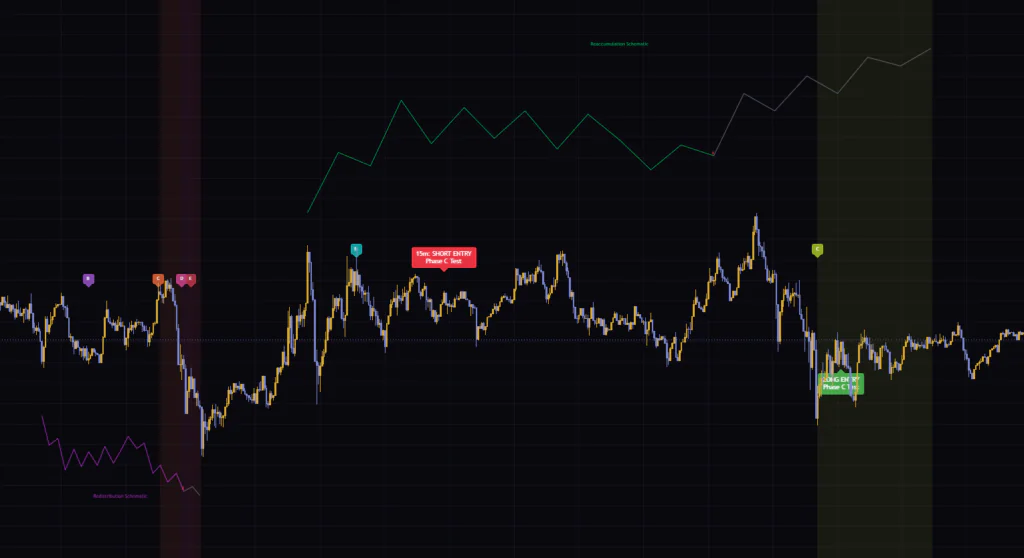
Among those, the pattern that is furthest along in its phases wins and drives the labels, box and panel. When a higher timeframe is selected, the timeframe is prefixed to the label. If you see “15m: SHORT ENTRY” on a 5-minute chart, that signal came from the 15-minute structure. Higher-timeframe values only reference closed bars, so signals do not flicker on and off while the higher-timeframe bar is still forming.
The confusing part is that background shading and the phase letters are always drawn from the chart timeframe. You can end up with the box and labels coming from the higher timeframe while the background comes from the current one. If that gets confusing, turn the option off and check each timeframe by switching the chart instead.
Look Under the Hood With the Two Tables
When you want to know why the phase still has not advanced, bring up the tables. Both are off by default.
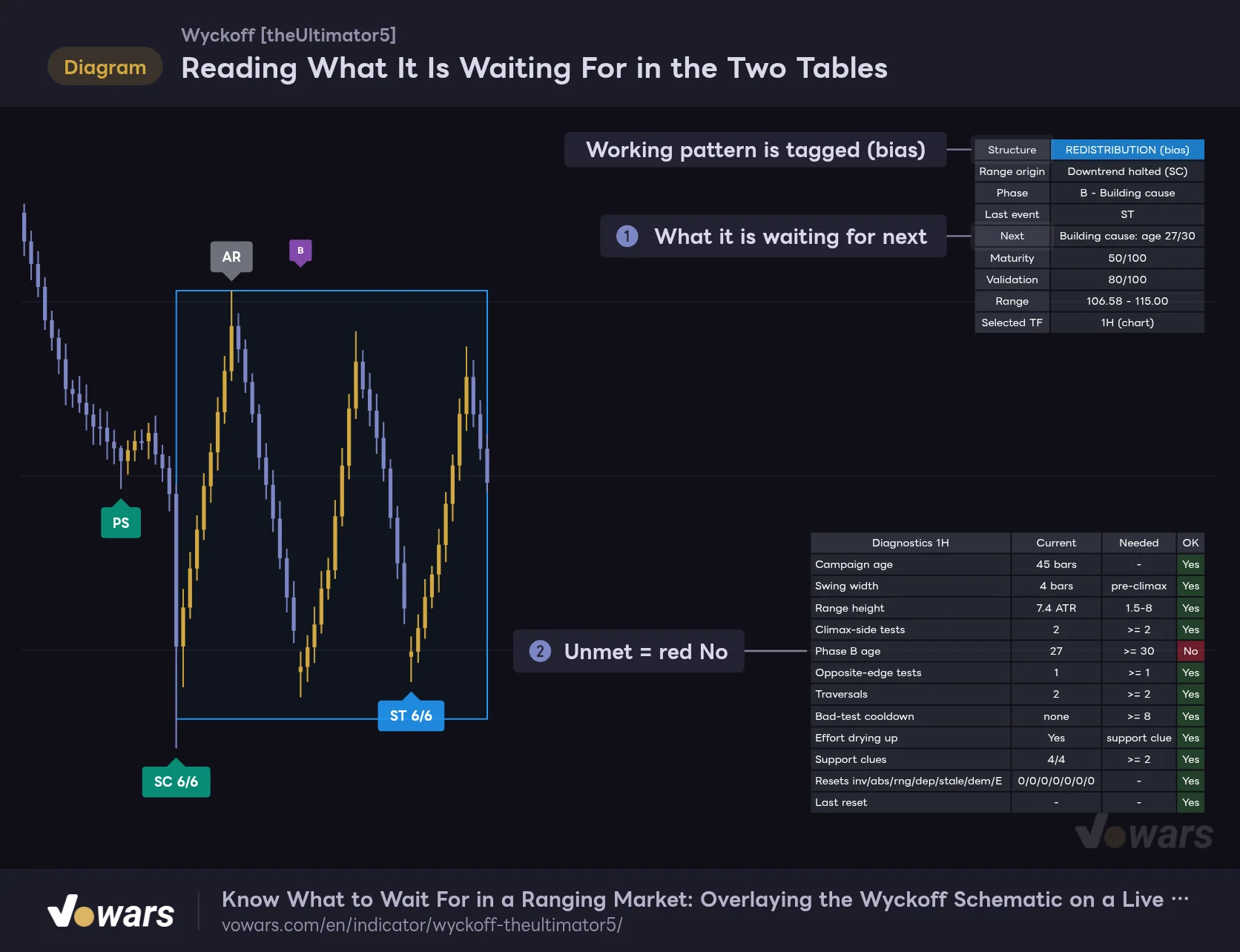
Reading What It Is Waiting For in the Two Tables
The display with Show Status Table and Show Structure Diagnostics turned on. Both are off by default.
Vowars DE ver.3.12.26
The top one is the Show Status Table table. It shows the pattern name, current phase, last event, and in the Next row at Figure ①, what it is waiting for. A working pattern is tagged with (bias), as in REDISTRIBUTION (bias), so this is where you tell confirmed from provisional.
The bottom one is the Show Structure Diagnostics table. It lists the conditions for moving to the next phase one per row, with a green Yes if met and a red No if not, as at Figure ②. In this example Phase B is 27 bars old, 3 short of the 30 required.
That said, they are too big to leave on all the time. Opening them only when a call does not make sense to me turned out to be the right amount.
Every Setting, and Which Ones Are Worth Touching
Settings come in two groups, “Reference Schematics” and “Display”. The detection criteria themselves, such as volume multipliers and bar counts, are not exposed in the settings. What you can change is the display and how strict the signals are.
Display Group
| Setting | Default | Suggested | Effect |
|---|---|---|---|
| Current Chart Minimum Phase | B | B (A if you want earlier notice) | The phase at which the live pattern’s labels, box and path line start to show. Set to A and they appear right after SC/BC, but more candidates will vanish quickly |
| Allow HTF to Override Current TF | On | Off until you are used to it | Gives priority to patterns from the three higher timeframes. When off, only the chart timeframe is used |
| Table Text Size | Tiny | Small | Text size for both tables. Tiny is very small |
| Table Position | Top Right | Top Right | Position of the Status table. The Diagnostics table is fixed at bottom right |
| Show Entry Points | On | On | Shows the LONG ENTRY / SHORT ENTRY labels |
| Entry Strictness | Standard | Standard | Which event triggers a signal and how much maturity is required. Conservative is later and fires less often |
| Buy/Sell Label Trigger | Auto (Entry Strictness) | Auto (Entry Strictness) | Adds an extra ENTRY label at the selected event. The regular signal remains |
| Show Status Table | Off | On only when needed | Summary of pattern, phase, what it is waiting for next, and more |
| Show Structure Diagnostics | Off | On only when needed | Checklist of conditions for advancing to the next phase |
Reference Schematics Group
| Setting | Default | Suggested | Effect |
|---|---|---|---|
| Panel Selection Mode | Auto | Auto | Auto picks the schematics that fit the live pattern. Manual locks them to the two settings below |
| Number of Panels (0 = off) | 2 | 2 (0 to 1 on a small screen) | Number of panels on the right. From Phase B on, only the one matching the pattern is shown |
| Panel 1 Schematic (Manual mode) | Accumulation Schematic 1 | Leave as is | First panel in Manual mode. Choose from six schematics |
| Panel 2 Schematic (Manual mode) | Distribution Schematic 1 | Leave as is | Second panel in Manual mode |
| Panel Horizontal Offset | 20 | 20 | Bars from the latest bar to the left edge of the panel |
| Panel Height (x ATR) | 10 | 10 | Panel height (in multiples of ATR) |
| Panel Vertical Position (x ATR) | 6 | 6 | Vertical offset from current price to the panel center |
| Gap Between Panels (x ATR) | 2 | 2 | Gap between panels when two are shown |
| Schematic Label Size | Tiny | Small | Text size inside the panel and on historical schematics |
| Panel Width | 4 | 3 to 4 | Bars per schematic segment. Lower values make the panel narrower |
| Show Active Schematic Overlay | On | On (Off if the lines get in the way) | The live pattern’s path line and its gray projection |
| Show Historical Schematic Overlays | On | On | Keeps schematics of finished patterns on the chart |
| Enable HTF Historical Schematics | Off | Off | Also adds patterns that finished on higher timeframes to the history. The name gets a suffix such as (4H) |
| Historical Schematic Offset (ATR) | 0.10 | 0.10 | How far the historical schematic sits from the candles |
| Historical Pattern Minimum Phase | C | C (B if you want the range shaded too) | The phase at which background shading and phase letters start. Also the minimum phase for a pattern to be kept as history |
| Historical Schematic Minimum Phase | C | C | Minimum phase for a historical schematic to be drawn |
A few notes on the suggested values. I turn Allow HTF to Override Current TF off at first so you never lose track of which timeframe a label is talking about. Once you are comfortable with how the chart timeframe behaves, turn it back on and the prefixed labels will make immediate sense.
Bumping Schematic Label Size and Table Text Size up to Small is purely about readability. On a laptop screen, Tiny is squint-to-read small. If the panel overlaps price, widening the chart’s right margin is quicker than increasing Panel Horizontal Offset.
Combinations by Use Case
- Learning the full picture first: Leave everything on default. Use the two panels to see which patterns are in play
- Filtering down the signals: Set Entry Strictness to Conservative and wait for LPS/LPSY
- Getting earlier notice: Set Current Chart Minimum Phase to A and Entry Strictness to Aggressive. Expect more candidates that disappear along the way
- Decluttering the chart: Set Number of Panels (0 = off) to 0 and turn Show Active Schematic Overlay off. Only labels, the box and signals remain
Put Volume Underneath and the Labels Start to Make Sense
If you pair “Wyckoff” with anything, volume is the best fit. Most of its logic is built on volume, so having it on screen lets you see for yourself why a label landed where it did.
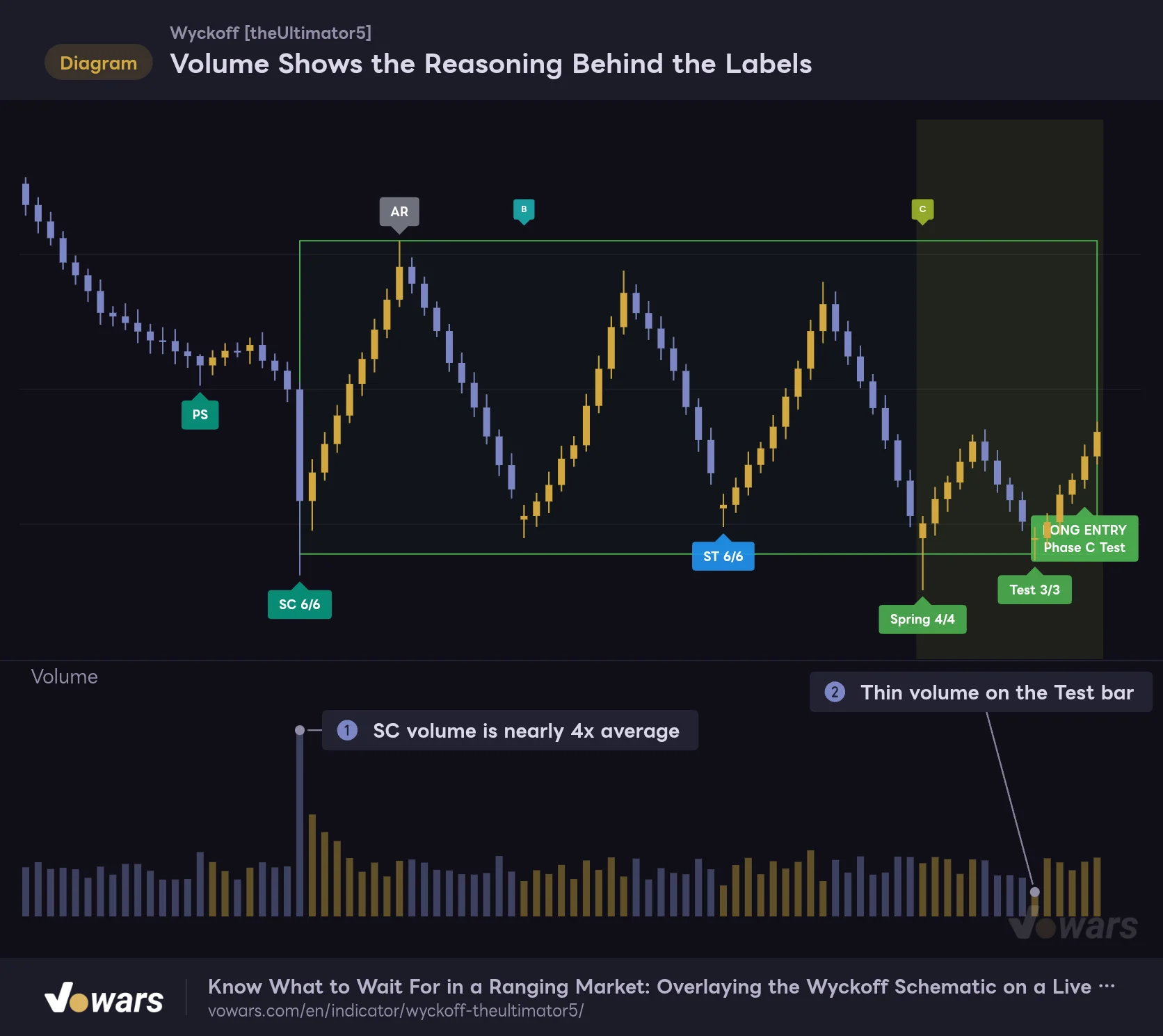
Volume Shows the Reasoning Behind the Labels
Volume in the lower pane, compared against the "Wyckoff" labels.
Vowars DE ver.3.12.26
The SC at Figure ① has volume that clearly towers over everything around it. The Test at Figure ②, by contrast, has a shorter bar than its neighbors. Sellers are exhausted, and even a probe of the lows brings out no more dumping. You can confirm what Wyckoff called supply drying up just from the height of the bars.
If a label printed but the volume behind it looks weak, the score should be on the low side too. Conversely, if the score is perfect but the volume bar is unremarkable, be a little skeptical. It works as a second check.
On symbols with no volume data at all, “Wyckoff” uses each bar’s range as a stand-in for volume. It will still draw, but with range as its only input you should not expect the same accuracy as on symbols with real volume. Forex and gold CFDs carry tick volume with some data providers, so add a volume indicator and check.
Where It Shines and Where to Be Careful
Where it shines
- Tracks Wyckoff phases on both the schematic and the live chart at once
- Logic only advances on bar close, and a printed ENTRY label never disappears
- Open the tables and you see, row by row, what is still missing for the next phase
- Hovering a label explains the event, so it doubles as a learning tool
- Picks up higher-timeframe patterns automatically and marks them with a timeframe prefix
Where to be careful
- Detection criteria (multipliers, bar counts) cannot be tuned from the settings
- Event labels and the box exist only for the live pattern and vanish when it ends
- The gray projection is not a forecast and is redrawn when the pattern changes
- A pattern takes dozens of bars to complete, so signals are infrequent
- There is a lot on screen, and the default text size is hard to read
It suits symbols and timeframes that clearly build a range and then break away from it. Bitcoin and gold on the 1-hour to 4-hour charts have volume and enough time in the range for patterns to play out fully. For day trading, a realistic approach is to spot the structure on the 15-minute chart and check it against the phase on the higher timeframe.
It is not a fit for scalping, where trades are over in minutes. Phase B alone takes at least 30 bars, and signals wait for the bar close. In a market that keeps trending in one direction, you can also go a long time with nothing on the chart because no climax is detected.
Not being able to tune the detection criteria to your own symbol may feel limiting to some. The script is published open-source, so cloning it and changing the numbers is an option, but that is out of reach if you want to do everything from the settings panel.
What to Know About Repainting and Testing
Can you trust the signals? I checked this part carefully.
First, the logic in “Wyckoff” only advances when a bar closes. Labels do not flicker on and off while a bar is forming. LONG ENTRY / SHORT ENTRY stay fixed to the bar they printed on and remain even if the pattern is later invalidated. The release notes also state that signal repainting has been fixed.
With that said, here are three things that are easy to misread.
- AR and Test labels are placed back on a past bar after they confirm. Looking at the chart afterward, it seems the indicator called the exact low, but in reality that was only known a few bars later
- Event labels, the box and the path line belong only to the live pattern and are redrawn on every new bar. They disappear when the pattern ends
- The gray projection and the unlit part of the panel change wholesale when the pattern switches
Scrolling back through the chart will not show you which labels were on screen at the time. To check that, use Bar Replay. Step forward one bar at a time and you can reproduce exactly which bar each label appeared on. How far back you can replay intraday data depends on your plan and the timeframe, while for daily and above all the data on the chart is available (per TradingView’s official Help Center as of October 2, 2026).
It does not show win rate or P&L. Because “Wyckoff” is published as an indicator, it cannot be run through the Strategy Tester either. To test it, you replay the chart and log each signal bar and whether the pattern was later invalidated. It takes effort, but it also gives you a feel for how unreliable the gray line is, so it is worth doing at least once.
Twelve Alerts
Select “Wyckoff” in the Create Alert dialog and you get the conditions below. Since the logic only advances on bar close, the notification also arrives when the bar closes.
| Alert name | When it fires |
|---|---|
| Wyckoff: climax confirmed | SC / BC confirmed (Phase A begins) |
| Wyckoff: Phase B started | AR is fixed and ST is confirmed |
| Wyckoff: Spring / Wyckoff: UTAD | Spring or UTAD confirmed, respectively |
| Wyckoff: Phase C test | Test or C-Test confirmed |
| Wyckoff: SOS / Wyckoff: SOW | Sign of Strength or Weakness appears, moving to Phase D |
| Wyckoff: LPS / Wyckoff: LPSY | Last Point of Support or Supply confirmed |
| Wyckoff: Phase E | Price is accepted outside the range |
| Wyckoff: long entry / Wyckoff: short entry | The bar where an ENTRY label prints |
Both the event alerts and the entry alerts only cover the pattern on the chart timeframe. They will not fire for “15m:”-prefixed signals coming from a higher timeframe, so if you want those, create the alert on a chart set to that timeframe.
What “Wyckoff” gives you is a location: “measured against the Wyckoff schematic, we are here”. A signal is no guarantee the pattern will run to completion. Look at higher-timeframe direction, recent swing highs and lows, and the actual volume, then decide your invalidation level before you enter. Use it on that basis.
“Wyckoff” Is a Map for Locating Yourself Inside the Range
![Wyckoff [theUltimator5]](https://vowars.com/wp-content/webp-express/webp-images/uploads/2026/10/Wyckoff6-1024x517.png.webp) Image
ImageAfter using it, what stuck with me is that it is less a buy/sell signal indicator and more a “Wyckoff map”. Is the range still being built, is the test done, or has price already left? It puts that location into words with a schematic and labels. The more you tend to lose track of what you should be waiting for in a ranging market, the more it will help.
Markets do not follow the script, though. Do not lean too hard on the gray line, and know which labels disappear and which ones stay. Keep those two points in mind and I think “Wyckoff” will serve you for a long time, both as a partner for practicing chart reading and as a pre-entry check. Start with the defaults on a 1-hour chart of a symbol you know well and watch how the dot on the panel advances.