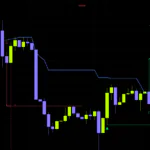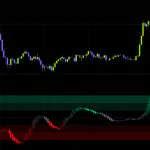

A horizontal level tool that color-codes past swing highs and lows against current price
Redrawing support and resistance by hand every session takes more effort than it should. You switch timeframes, redraw everything, forget to delete the old levels, and before long your chart looks like a barcode. Most of us have been there.
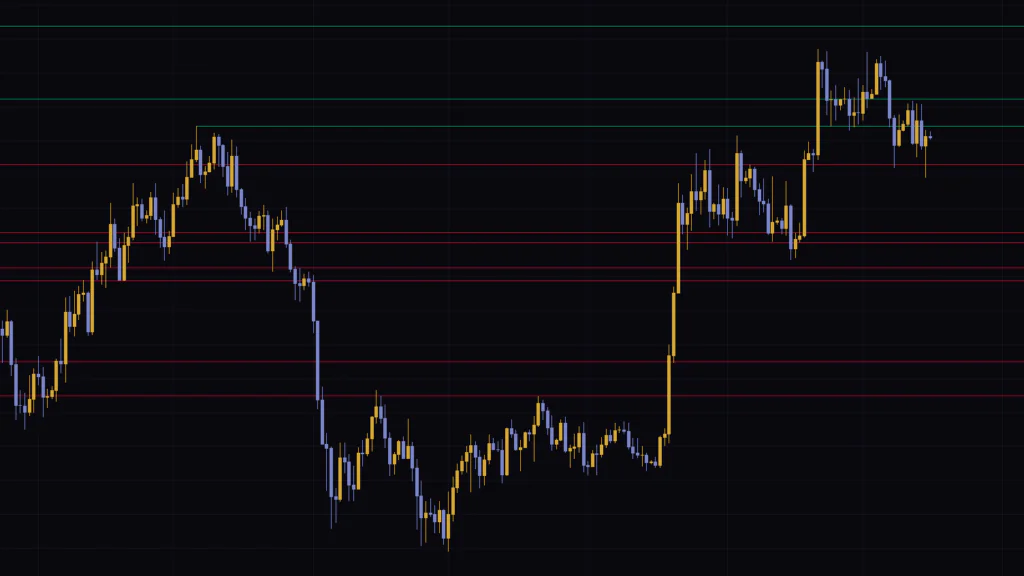
“Auto Support & Resistance Zones” is a TradingView indicator that takes that job off your plate. It automatically picks up confirmed swing highs and swing lows and projects horizontal lines to the right from them. The color logic is simple: green if the line sits above the latest close, red if it sits below. With just those two colors, you can see overhead resistance and the support under price at a glance.
I ran it on six timeframes, from the 5-minute up to the weekly. The lines are thin and ship with 40% transparency by default, so they never get in the way of the candles. Every line comes from a confirmed swing high or low, so if you trace it back to the left, you will always find where it started. That traceability turned out to be one of the things I appreciated most.
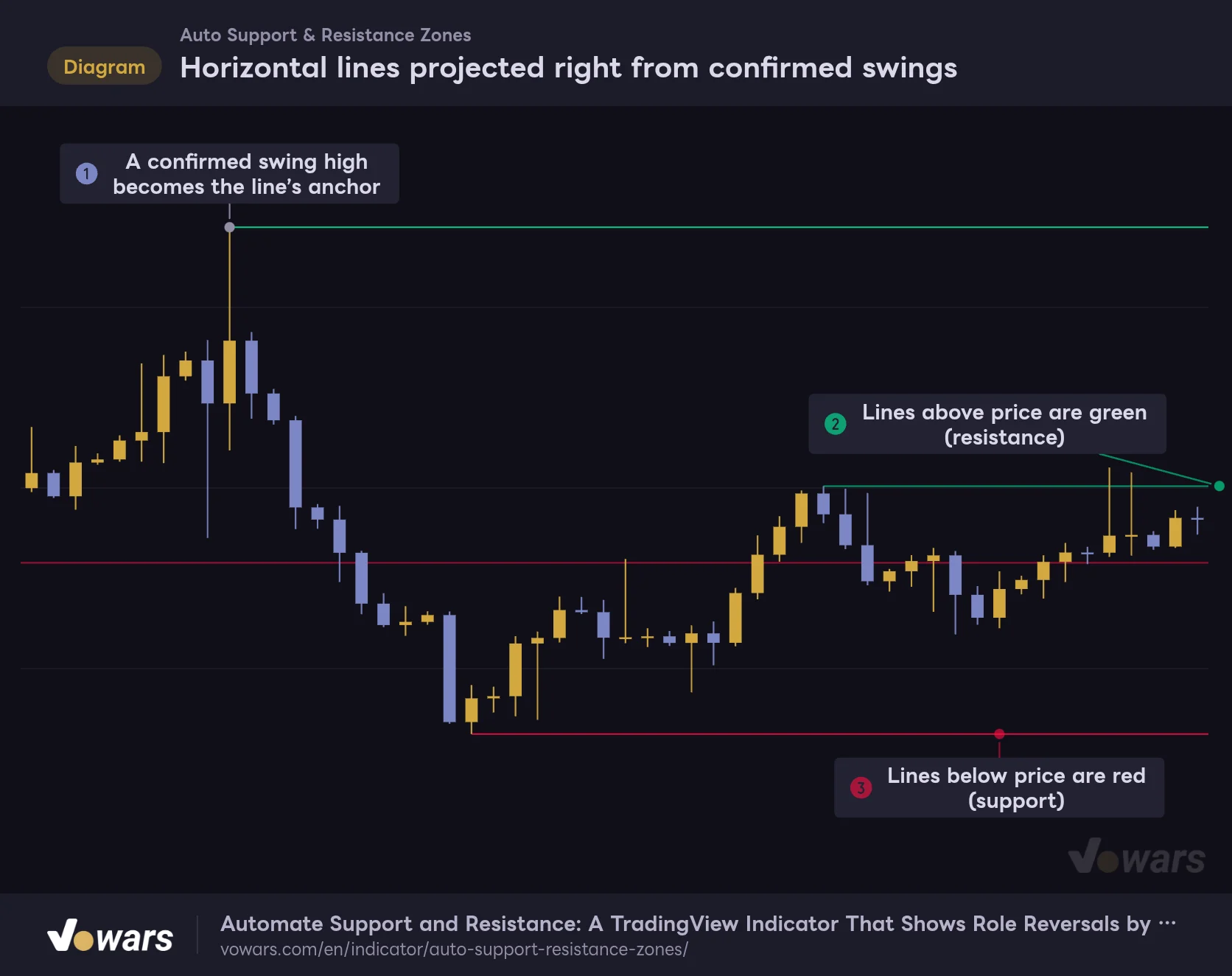
As Figure ① shows, each line is anchored at the exact tip of the swing. From there it runs to the right edge, showing green when it sits above the current price as in Figure ②, and red when it sits below as in Figure ③.
Horizontal lines projected right from confirmed swings
Each line starts at the tip of a swing. Lines above the current price are green; lines below it are red.
Vowars DE ver.3.12.33
The script page is titled “Auto Support & Resistance Zones”, but once you add it to a chart, the label in the top-left corner reads “Auto Major Support & Resistance.”
Also, despite “Zones” in the name, the current version only draws single horizontal lines with no width. There are no shaded price bands and no triangle markers at the highs and lows.
What “Auto Support & Resistance Zones” shows you, and what it doesn’t
Let’s get the big picture out of the way first. “Auto Support & Resistance Zones” shows you where the key levels from past price action are. It does not print buy or sell arrows or labels, and it has no alert conditions.
| What you get | What you don’t get |
|---|---|
| Horizontal lines projected right from confirmed swing highs and lows | Buy/sell signals or labels |
| Green lines above the current price, red lines below | Price labels on the lines |
| Lines at the highest confirmed high and lowest confirmed low (they keep the last slot even when you cut the line count) | Shaded zones covering a price range |
| Up to 20 lines per side (8 by default) | Alert conditions |
In other words, the entry decision is still yours to make. What you gain is consistency: the levels you base that decision on are laid out by the same rules every time, so you avoid the classic discretionary problem of marking a high today that you ignored yesterday.
How lines are created and how their color is set
The lines in “Auto Support & Resistance Zones” come from four rules working together: swing confirmation, color assignment, merging nearby levels, and capping the line count. Once you understand these, you can look at any line on your chart and explain why it is there, and why a particular high has no line.
Swing highs and lows confirmed by 12 bars on each side
A line starts at the bar that prints the highest high or the lowest low within the number of bars set by Major Pivot Lookback (12 by default) on both the left and the right. This is the classic pivot (fractal) method.
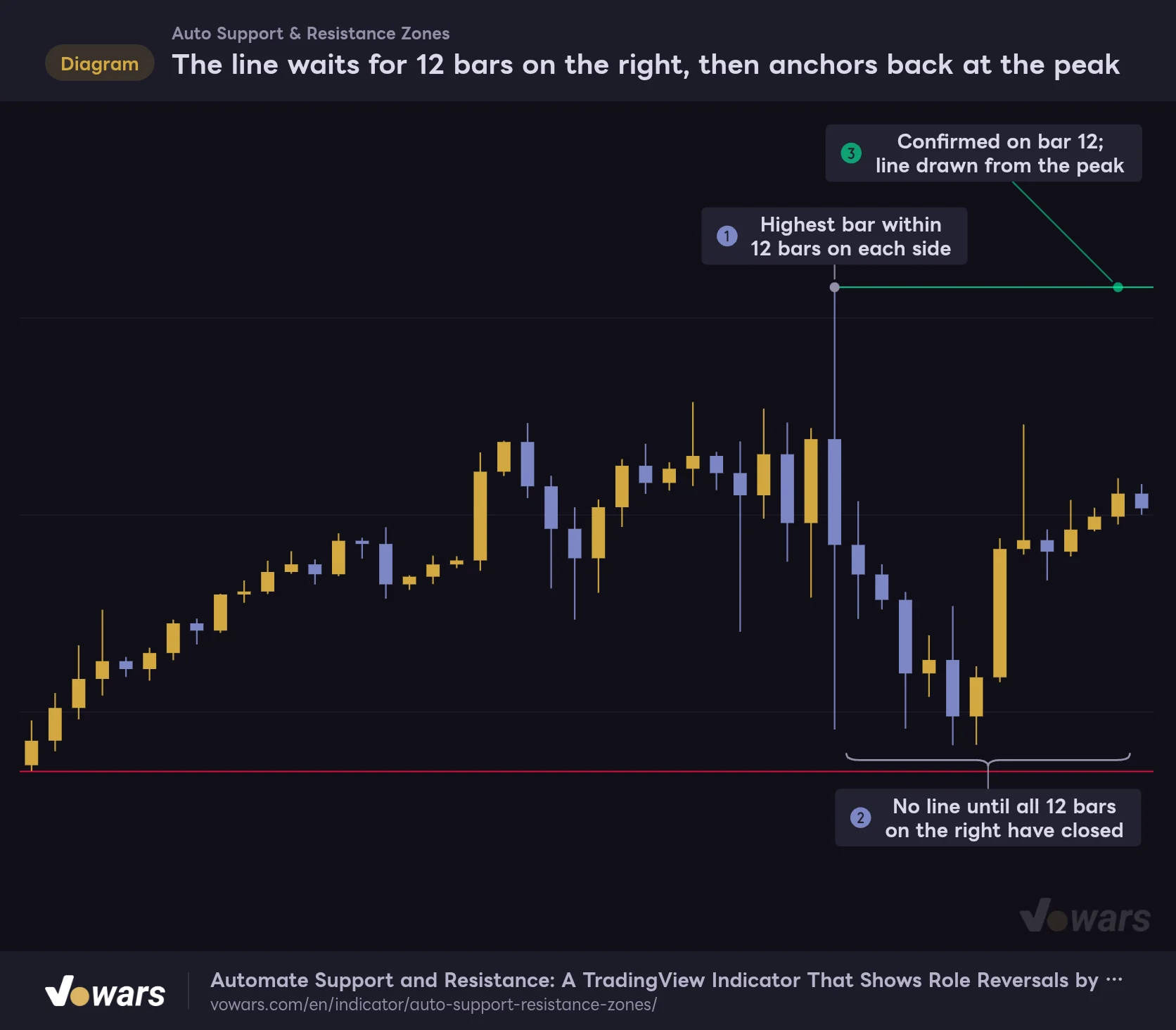
A swing is not confirmed until all 12 bars on the right have closed. Even if the bar in Figure ① prints a high, it will not count as a swing high if a higher high appears within the next 12 bars. Only after waiting out the 12 bars in Figure ② does the line appear from the peak, at the point shown in Figure ③.
The line waits for 12 bars on the right, then anchors back at the peak
The line only appears 12 bars after the peak, but it is anchored to the peak itself, not to the bar that confirmed it.
Vowars DE ver.3.12.33
On the 1-hour chart that means a 12-hour wait; on the daily, 12 days. If the latest top or bottom has no line yet, that is not a bug. The swing is simply waiting to be confirmed.
A line appears 12 bars after the peak, but its left end is placed on the peak bar. On historical charts it looks as if the line existed from the moment the top printed, but in real time, that line only became visible 12 bars later. If you judge how well price respects these levels purely from history, the results will look better than they really were.
Only the latest close decides the color
The color has nothing to do with whether a line came from a high or a low. The rule is simple: compared with the close of the latest bar, a line priced at or above it is green, and a line priced below it is red.
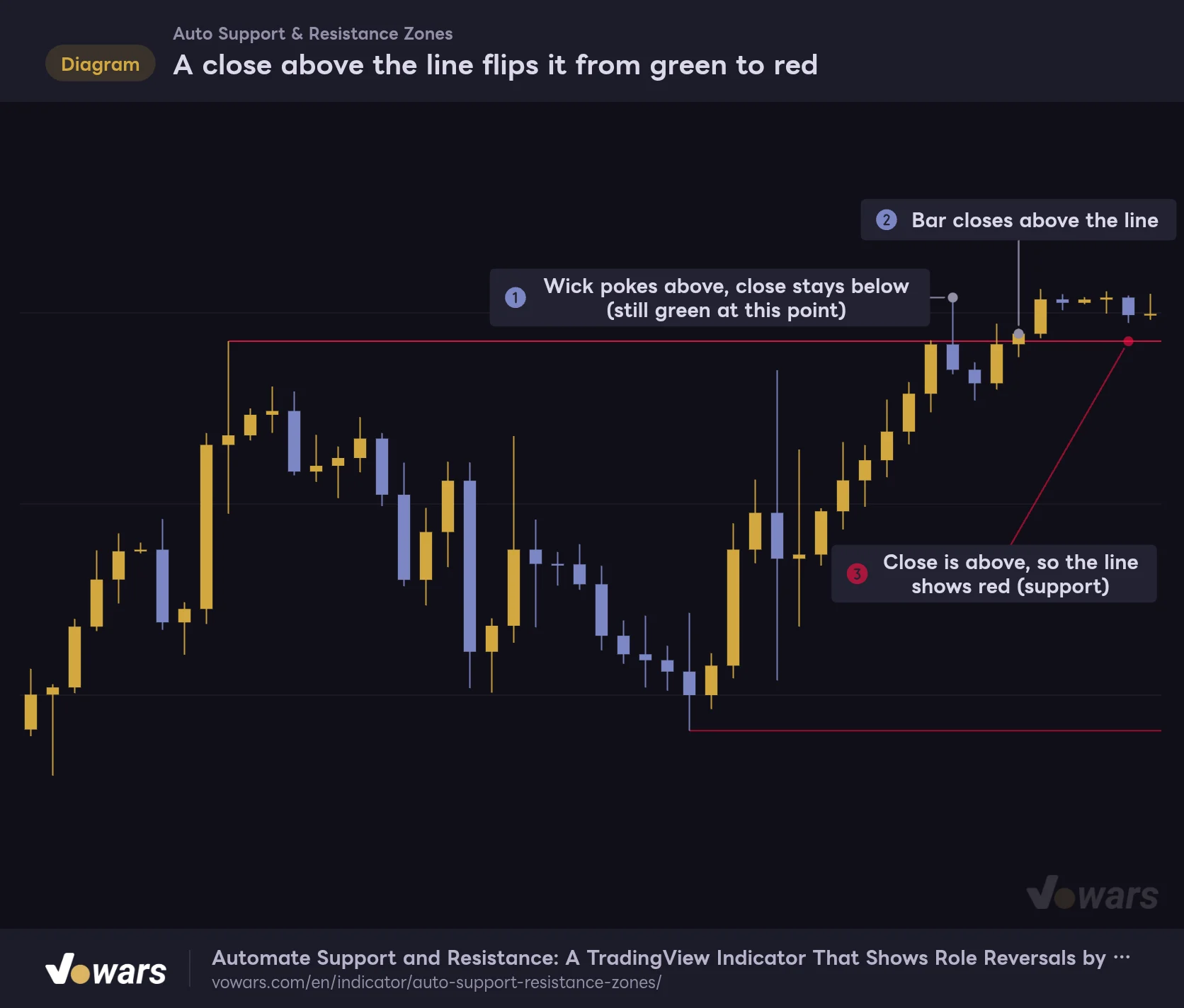
The bar in Figure ① wicked above the line, but it closed below it. While that bar was the latest one, the line stayed green. Once a bar closes above the line in Figure ②, the same line turns red, as in Figure ③. In other words, the color change shows you a resistance-turned-support flip.
A close above the line flips it from green to red
Only the latest close decides the color. Even a line drawn from a high turns red once price closes above it.
Vowars DE ver.3.12.33
Because only the close matters, a quick wick through the line will not change its color. On the flip side, a close just a hair above the line is enough to turn it red. When candles are hugging a line, check how far the close actually is from it instead of relying on the color alone.
On the live, still-forming bar the close keeps moving, so a line can flip back and forth until the bar closes. Once the bar is confirmed, the color stays put unless a later bar closes on the other side of the line.
Highs that are too close are merged into one line
If highs keep forming at similar prices, a new line for each one would quickly clutter the chart. To prevent that, “Auto Support & Resistance Zones” merges any new high that falls within Min Level Separation (%) (2.5% by default) into the existing line.
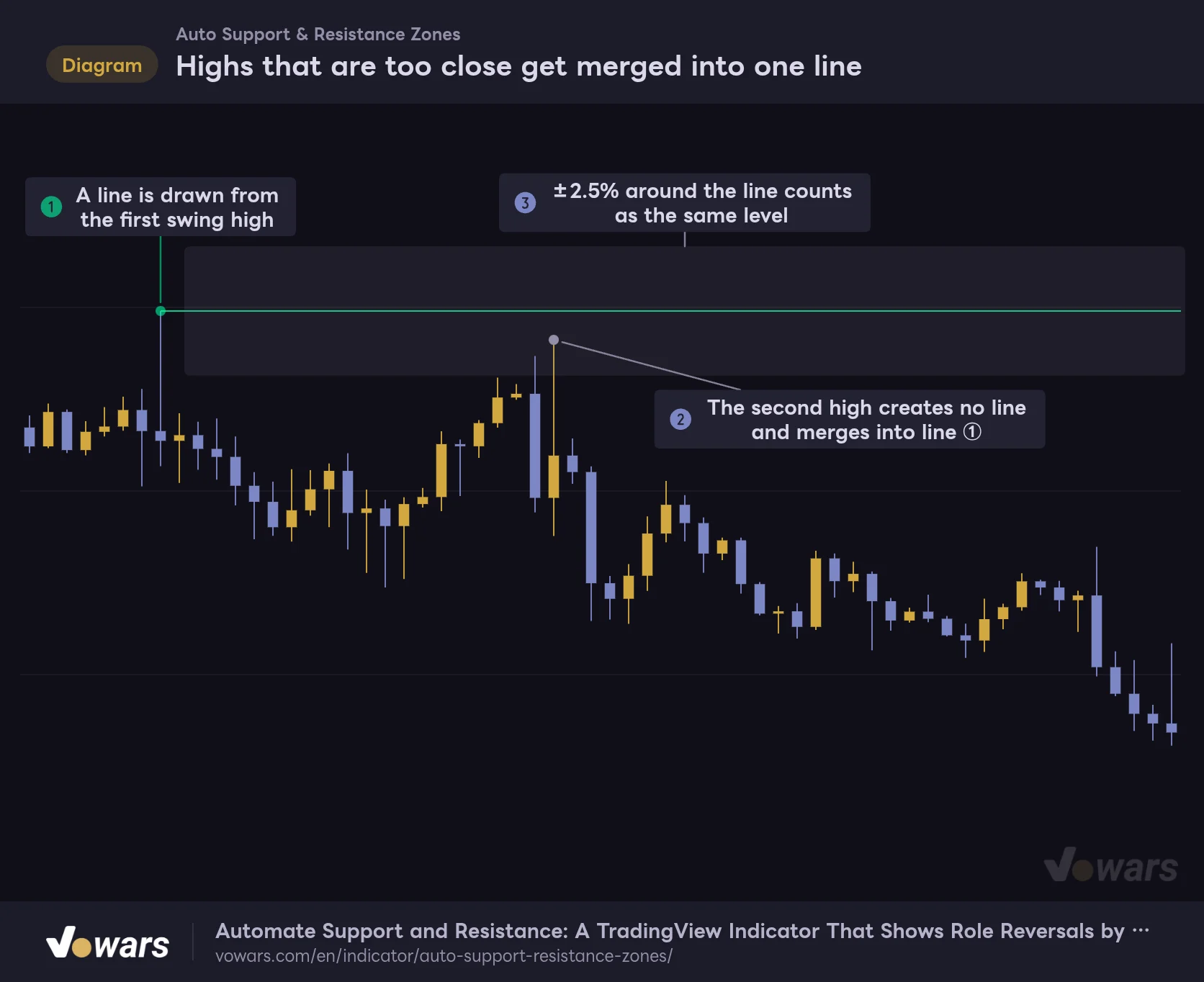
After a line is drawn from the high in Figure ①, the high in Figure ② falls inside the band in Figure ③, so no new line is created. The merged high adds one touch to the existing line instead. The line stays at the price of the earlier high, so this is not the tool for you if you want the level to follow the most recent high.
Highs that are too close get merged into one line
Any high that falls inside the Min Level Separation band (2.5% by default) is treated as the same level as the existing line.
Vowars DE ver.3.12.33
Merging only happens high-to-high and low-to-low. If a past high and a past low happen to sit at nearly the same price, both lines are drawn side by side.
The last slot is reserved for the highest high and lowest low
The number of lines per side is set by Max Lines Each Side (8 by default). Lines are picked in order of proximity to price, but the twist is that the last slot always goes to the highest confirmed swing high (or the lowest confirmed swing low on the bottom side).
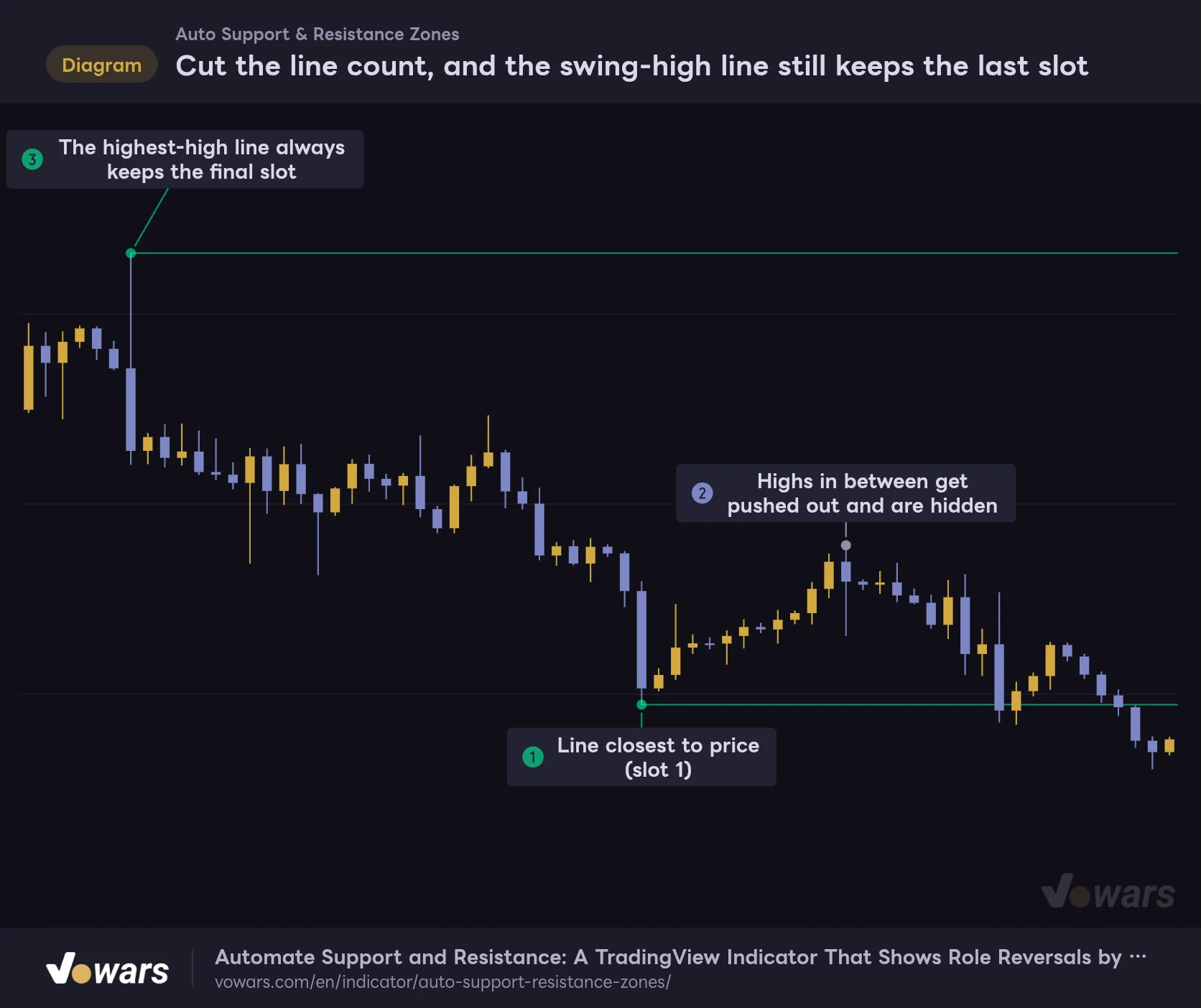
Figure ① is the line closest to price, and it originally came from a past swing low. It sits above the current price, so it is green. The highest high in Figure ③ survives even with the cap set to two lines. What gets pushed out instead are the in-between highs, like the one in Figure ②.
Cut the line count, and the swing-high line still keeps the last slot
Example with Max Lines Each Side set to 2. Lines are ranked by proximity, but the final slot is always reserved for the highest-high line.
Vowars DE ver.3.12.33
The highest-high and lowest-low lines also ignore the Min Touches (1 = Major Swings Draw Instantly) filter. No matter how aggressively you filter, the biggest top and bottom on the chart stay visible, so you never lose sight of the bigger picture.
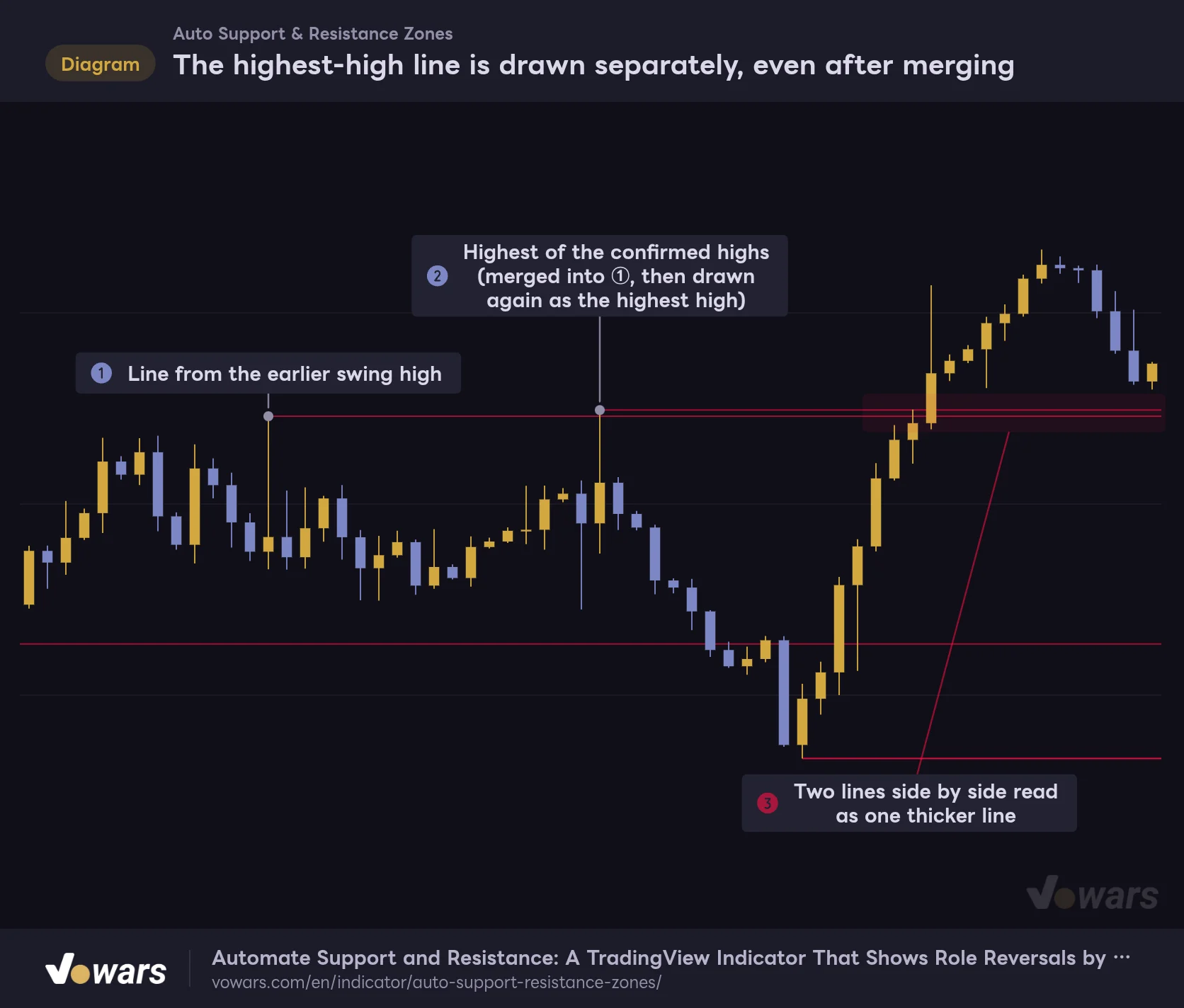
This reserved slot has a side effect worth knowing about. Even after the highest high has been merged into a nearby line, it still gets a dedicated line of its own. As a result, the line in Figure ① and the highest-high line in Figure ② can almost overlap, as shown in Figure ③.
The highest-high line is drawn separately, even after merging
High ② is within 2.5% of ①, so it merges into ①. But because it is the highest of all confirmed swing highs, it also gets a dedicated line of its own.
Vowars DE ver.3.12.33
On the real Bitcoin 4-hour chart, one red line around $78,000 also looked noticeably darker than the rest. If a line looks thicker when you are zoomed out, assume two lines are stacked at nearly the same price. The same thing happens when the highest-high or lowest-low line gets drawn again at the same price, separately from the merge.
The highest high here means the highest of the swing highs that have been confirmed by 12 bars on each side. A new high made within the last 12 bars is not confirmed yet, so it is not a candidate. That is why the tallest bar at the right edge of the chart may have no line: it is still waiting for confirmation.
How the lines behave across timeframes
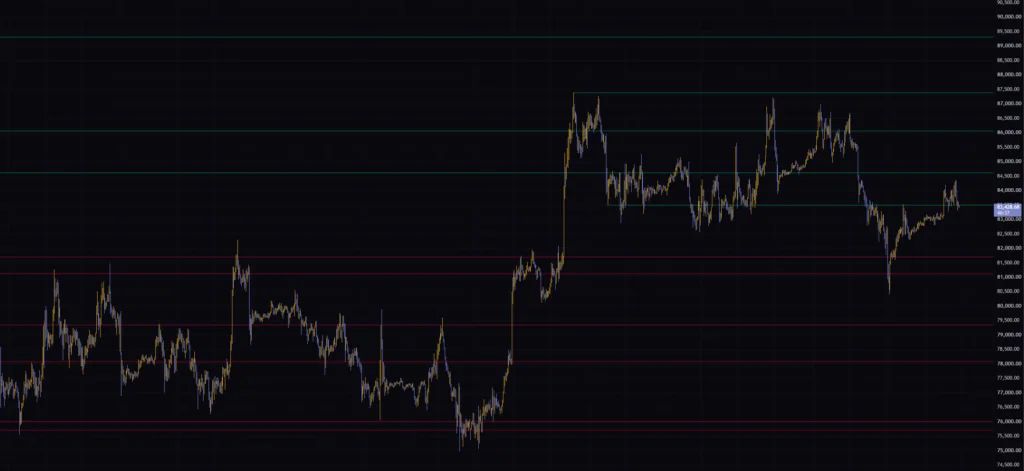
I loaded “Auto Support & Resistance Zones” with default settings on Bitcoin’s 5-minute, 15-minute, 1-hour, 4-hour, daily, and weekly charts and compared them. The rules are identical, but what the lines represent changes quite a bit with the timeframe.
| Timeframe | What you see | Best used for |
|---|---|---|
| 5m / 15m | Lines from the last few days of highs and lows. Three to four on each side near price | Intraday take-profit and stop-loss reference |
| 1H | About six weeks of key levels, six to seven above and below | Mapping the main levels for day trading |
| 4H | About six months of levels. One line looks darker where two sit at nearly the same price | Swing targets and dip-buy zones |
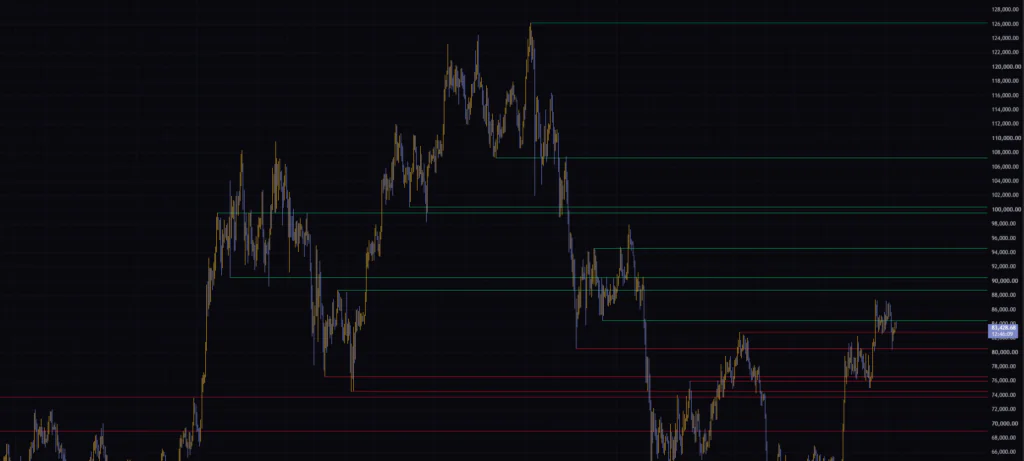
| 1D | Major tops and bottoms from roughly two and a half years. Overhead levels stack up to the all-time high near $126,000 | Mid- to long-term support and resistance |
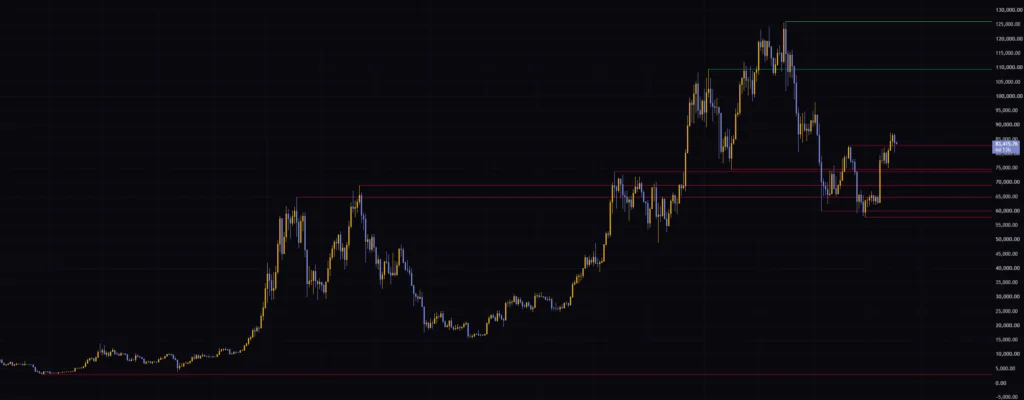
| 1W | Levels from the entire history, down to a low in the low thousands | Big-picture context |
The daily and weekly charts stood out the most. On the daily, a green line runs from the October 2025 top near $126,000, with levels around $100,000 and $90,000 stepping down beneath it. The green line just above price and the red line just below it are the most likely candidates for the next reaction zones.
On the weekly, the lowest-low slot was filled by a low in the low thousands, leaving a single red line far below everything else at the bottom of the chart. That is the “lowest low always stays” rule in action. Meanwhile, the line drawn from the May 2026 high was red because price is trading above it. A line born from a high now acting as support is a textbook role reversal.
On the 5-minute chart, the line count felt thin. Bitcoin often moves 1–2% within a few hours, so highs within 2.5% of each other get merged. If you trade lower timeframes, the setting tweaks covered below are close to mandatory.
The highest high and lowest low are determined within the bars loaded on your chart. On intraday timeframes, the number of bars TradingView loads depends on your plan: 5,000 bars by default, 10,000 on Essential and Plus, 20,000 on Premium, 25,000 on Expert, and 40,000 on Ultimate (as of Oct 16, 2026). Even on the same 5-minute chart, the lowest-low line can sit in a different place depending on the plan, so keep that in mind when comparing your chart with someone else’s.
The nine settings, and how to tune them by market and timeframe
The settings split into five that control which lines get picked and four that control how they look. Many of them are percentage-based, which is what makes “Auto Support & Resistance Zones” easy to carry across markets with very different price scales.
| Setting | Default | Suggested | Effect |
|---|---|---|---|
| Major Pivot Lookback | 12 | Lower TFs 5–8 / Daily and up 12–20 | Bars checked on each side to confirm a swing. Higher values keep only major swings and make lines take longer to appear |
| Min Touches (1 = Major Swings Draw Instantly) | 1 | 1 (2–3 to filter lines) | Touches required before a line is shown. At 2 or more, levels price never came back to are hidden |
| Retest Zone Tolerance (%) | 1.5 | BTC daily 1.5 / BTC lower TFs 0.5–0.8 / FX 0.2–0.3 | Band above and below the line that counts as a touch. Has no effect on the display while Min Touches (1 = Major Swings Draw Instantly) is 1 |
| Min Level Separation (%) | 2.5 | BTC daily 2.5 / BTC lower TFs 1.0 / Gold 1.0 / FX 0.5 | Highs (or lows) within this band merge into the existing line. Lower values add more lines |
| Max Lines Each Side | 8 | 4–8 | Maximum lines on each side (2–20). The last slot goes to the highest high or lowest low |
| Line Transparency (0-100) | 40 | 30–60 | Line transparency. The maximum allowed is 90 |
| Line Style | Solid | Solid or Dotted | Line style (Solid / Dashed / Dotted) |
| Resistance Base Color (Above Price) | #00f59b | Personal preference | Color of lines above the current price |
| Support Base Color (Below Price) | #ff0d42 | Personal preference | Color of lines below the current price |
Major Pivot Lookback controls both line count and how fast lines appear
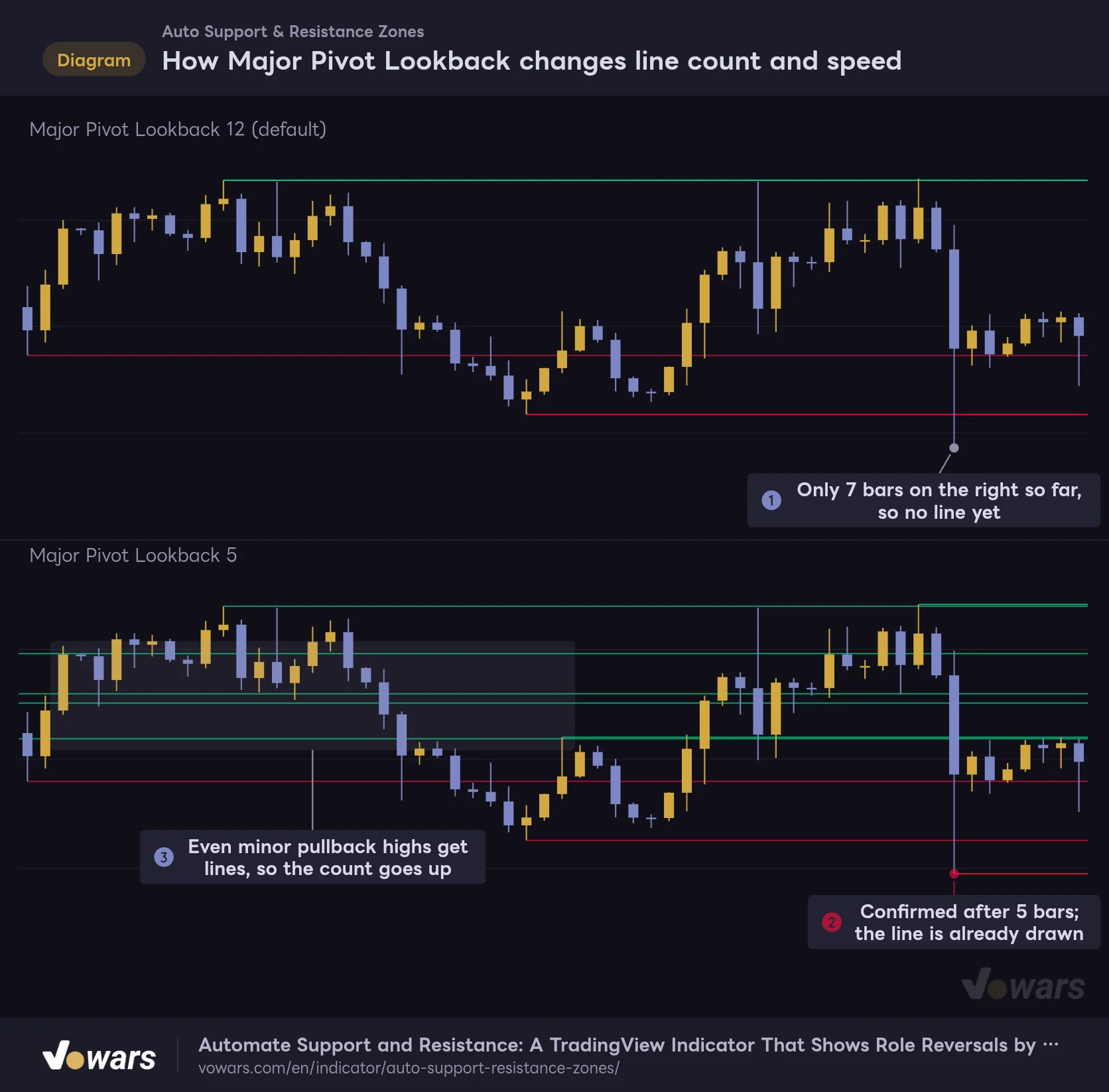
Lowering Major Pivot Lookback picks up smaller swings, so you get more lines and a shorter wait for confirmation. The recent low in Figure ① has no line yet at the default of 12, but at 5 it already has one, as shown in Figure ②. The downside is that even minor pullback highs get lines, as in Figure ③, and the chart gets busy.
How Major Pivot Lookback changes line count and speed
Same candles: the top pane uses the default of 12, the bottom pane uses 5. A smaller value adds more lines and confirms recent swings faster.
Vowars DE ver.3.12.33
My picks: 5–8 on the 5-minute and 15-minute, the default 12 from the 1-hour to the daily, and around 20 on the weekly if you only want the major levels. Leaving it at 12 on lower timeframes means waiting one to three hours for a line, which sometimes left it lagging behind the day’s action. Go too small on higher timeframes, though, and it gets hard to tell which lines actually matter.
Use the touch filter and the touch band together
Min Touches (1 = Major Swings Draw Instantly) defaults to 1, so every confirmed swing becomes a line. Raise it to 2 or 3, and lines get filtered by how many times price has come back into the Retest Zone Tolerance (%) band.
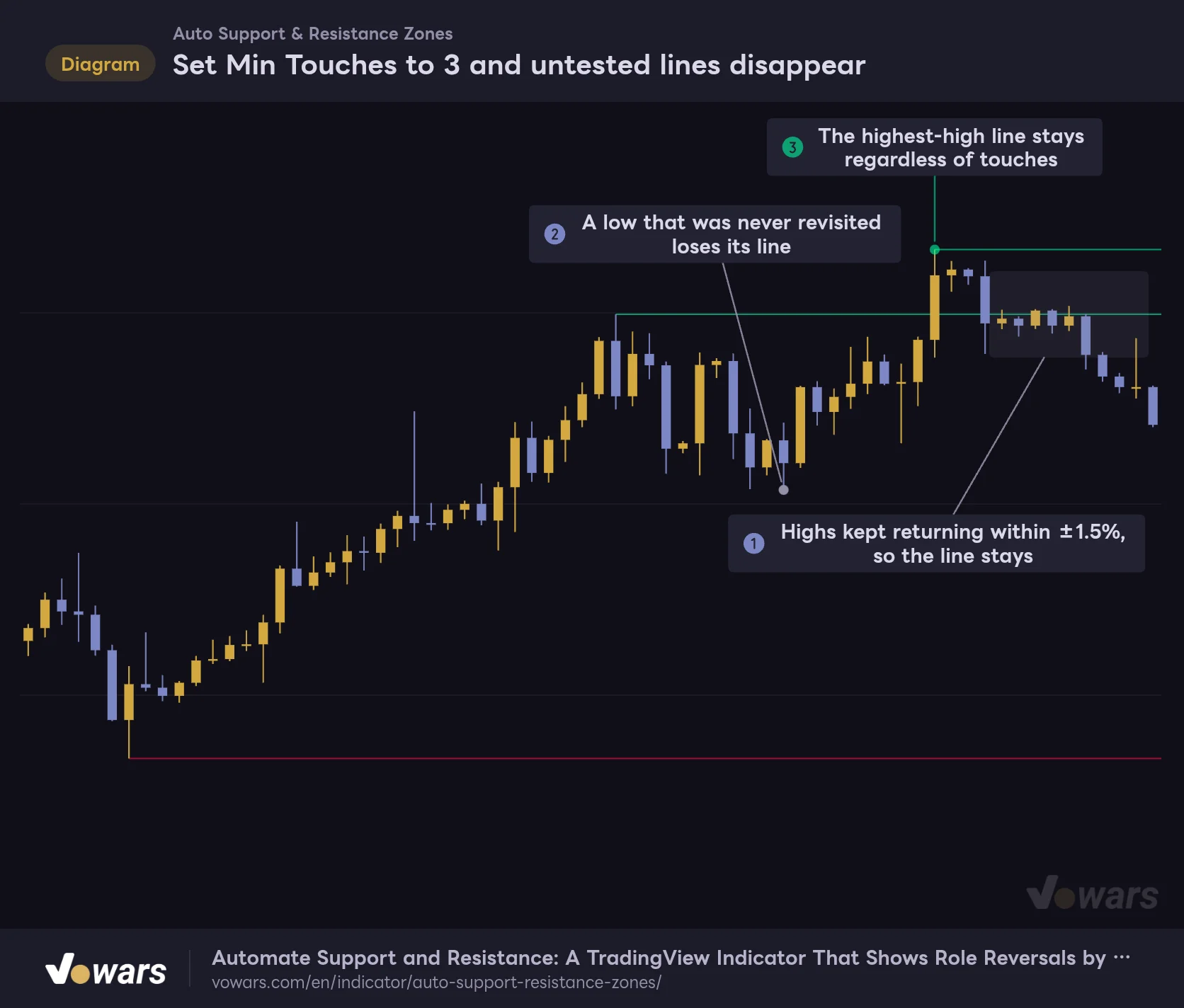
The line in Figure ① stayed because highs kept returning within ±1.5% of it. The low in Figure ②, on the other hand, was never retested, so its line is gone. The highest high in Figure ③ stays regardless of the count.
Set Min Touches to 3 and untested lines disappear
Example with Min Touches set to 3. Every bar that enters the Retest Zone Tolerance band (1.5% by default) adds one touch.
Vowars DE ver.3.12.33
Counting starts from the bar that confirms the swing. For a high line, every bar whose high lands inside the band counts; for a low line, every bar whose low does. That is one touch per bar. If price chops sideways inside the band for five bars, that alone adds five touches. “Three or more bars touched the band” is closer to the truth than “tested three times,” so don’t read a high count as proof of a strong level.
When I wanted fewer lines, rather than capping Max Lines Each Side, I preferred setting Min Touches (1 = Major Swings Draw Instantly) to 2. A hard cap mechanically drops the lines farthest from price, while a touch filter tends to keep the levels price actually reacted to.
Lower the percentages for less volatile markets
The defaults for Min Level Separation (%) and Retest Zone Tolerance (%) fit Bitcoin on the 1-hour to daily well, since moves of a few percent a day are routine there. On less volatile markets, though, those bands are too wide and separate levels end up merged into one.
| Use case | Major Pivot Lookback | Min Level Separation (%) | Retest Zone Tolerance (%) | Why |
|---|---|---|---|---|
| BTC 5m–15m | 5〜8 | 1.0 | 0.5〜0.8 | Moves 1–2% in a few hours, so 2.5% merges too much |
| BTC 1H–1D | 12 | 2.5 | 1.5 | Defaults gave just the right number of levels |
| Gold 1H–1D | 12 | 1.0 | 0.5 | Smaller daily range than BTC, so 2.5% tends to lump levels together |
| Major FX pairs such as USDJPY and EURUSD | 12 | 0.5 | 0.2〜0.3 | Daily range often stays around 1%, so go near the minimum allowed |
| Weekly big-picture view | 20 | 2.5〜5.0 | 1.5 | Strip out minor levels and keep only the major tops and bottoms |
The minimum for Min Level Separation (%) is 0.5, and the minimum for Retest Zone Tolerance (%) is 0.2. On lower FX timeframes the bands can still feel too wide even at those floors, so I found “Auto Support & Resistance Zones” easier to work with on the 1-hour and above.
Reading the lines in live trading
Treat the lines in “Auto Support & Resistance Zones” as a map of where price is likely to stall, not as entry signals. Here is the order I go through them.
1 Check the major levels on a higher timeframe
Start on the daily or 4-hour and find the green line right above price and the red line right below it. Those two are your near-term ceiling and floor. Higher-timeframe levels are worth keeping in mind even after you drop to a lower timeframe, since they tend to get respected there too.
2 Measure the distance to nearby lines on your trading timeframe
Next, switch to the timeframe you actually trade. The distance from price to the next green line gives you a rough upside target for a long. The distance to the red line on the other side is where your stop could go. Comparing the two tells you whether the risk-reward is worth it before you enter.
3 Wait for the color change after a close beyond the line
As price approaches a green line, what matters is whether a bar closes above it. If it does, the line turns red, and the color tells you that former resistance has become potential support. Rather than chasing the breakout, waiting for a pullback to the now-red line and a bounce off it gives you a much cleaner stop placement.
4 Confirm the bounce with another indicator
“Auto Support & Resistance Zones” only tells you where the levels are. Whether a breakout has real momentum, or whether a bounce has buyers behind it, needs confirmation from something else.
Pairing idea: confirm breakouts with Chaikin Money Flow
The best match I found was TradingView’s built-in Chaikin Money Flow (CMF). CMF weights each bar by volume according to whether it closed near its high or its low, then averages that over a set period. Readings above zero suggest buying pressure is in control.
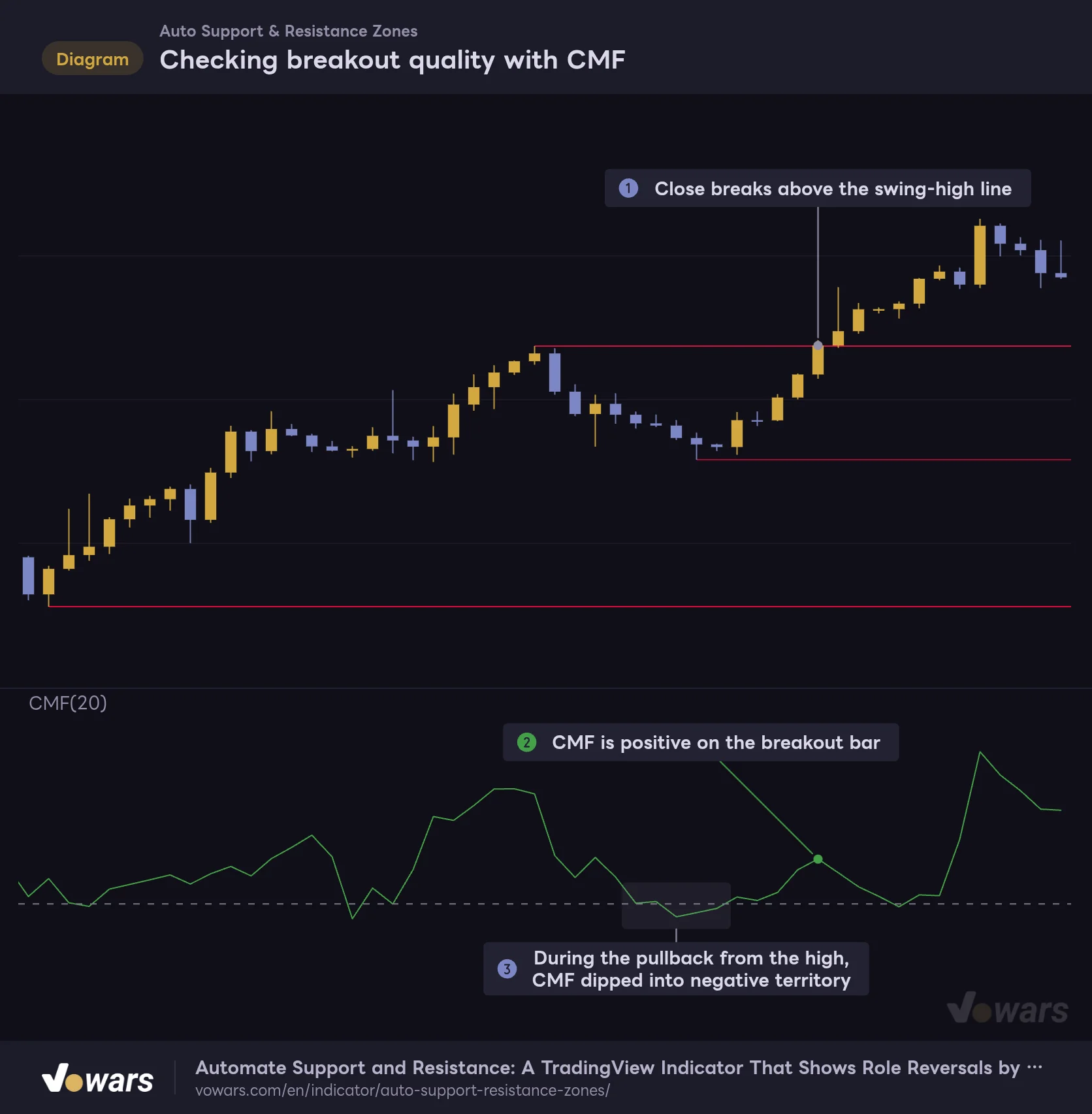
On the bar that closed above the line in Figure ①, CMF was also positive, as shown in Figure ②. Just before that, in Figure ③, CMF dipped into negative territory while price was pulling back from the high. Checking whether money actually flowed in on the breakout bar, not just whether price crossed the line, gives you one more way to filter out fakeouts.
Checking breakout quality with CMF
Price tells you whether the line broke. CMF tells you whether buying money came in with the break.
Vowars DE ver.3.12.33
A few other indicators that pair well with it:
- Fixed Range Volume Profile: When a line lines up with a high-volume node, you can treat that level as more likely to be respected
- ATR: When placing a stop just below a red line, giving it a buffer of about 0.5–1x ATR makes it less likely to get wicked out by a brief poke under the level
- Anchored VWAP: Anchor it to the highest-high or lowest-low bar and combine it with the matching line from “Auto Support & Resistance Zones” to see the average cost from a major turning point
“Auto Support & Resistance Zones” has no alert conditions of its own. If you want to know when price reaches a particular line, draw a horizontal line at the same price with TradingView’s drawing tools and set an alert on it. You can create the alert from the clock icon on the drawing toolbar or from the line’s right-click menu. Since a line’s price never changes once it is confirmed, this workaround did the job for me.
Quirks to know before you use it
What you can count on
- Lines come only from confirmed swings, so a line’s price never moves once it is drawn
- Two colors keyed to current price make resistance and support obvious at a glance
- The highest-high and lowest-low lines keep the last slot even when you cut the line count, so the big picture never disappears
- Percentage-based bands make it easy to set up on markets with very different price scales
- Thin, semi-transparent lines stay out of the way of the candles, even when left on all the time
What to watch out for
- Lines appear only after the set number of bars following a swing, so the latest top or bottom stays unmarked for a while
- Two lines at nearly the same price can stack up and look like one darker line
- Touches are counted per bar, so sideways chop inflates the count
- Scrolling back through history won’t show you which lines were visible at each point in time
- On low-volatility markets, the default percentages merge too many levels
All lines are redrawn from scratch on the latest bar
“Auto Support & Resistance Zones” deletes every line and redraws them all on the latest bar of the chart. So even when you scroll left, what you see is always based on the current close. You cannot tell from this view which lines were green or red three months ago.
If you want to see how things looked at a past point in time, Bar Replay is the way to go. During replay, the indicator calculates only on the bars replayed so far, so you can follow how the lines were laid out at that moment. How far back you can go depends on the symbol, the timeframe, and your plan.
Does it repaint?
Lines in “Auto Support & Resistance Zones” are drawn only from confirmed swings, and once a swing is confirmed, its price never changes or disappears. However, at the moment of confirmation the line is drawn back to the peak, the set number of bars earlier. That means there is a gap between where a line starts on a historical chart and when it actually became visible.
The same goes for color. Because it is set by the latest close, there is no record of a line having been red at some past bar. When you eyeball historical charts to judge how well price reacted, as you would in a backtest, factor in both of these points.
A line’s price is the swing high or low itself, which means the tip of the wick. Since wicks set the level rather than candle bodies, a bar with a long wick can put the line a bit away from where most of the bodies cluster. In some cases, placing your limit order slightly in front of the line rather than right on it gives you a better chance of getting filled.
Differences between the script description and the current version
The original description on the script page mentions settings such as “Zone Thickness,” which controls band width, and “Pivot Lookback (Left / Right),” which sets the left and right sides separately. The current version’s settings have neither, and no bands are drawn. I also could not find the triangle marker toggle mentioned in the release notes. Everything in this review is based on the lines and settings that actually appear in the current version.
Spend less time drawing levels and more time reading them
 Image
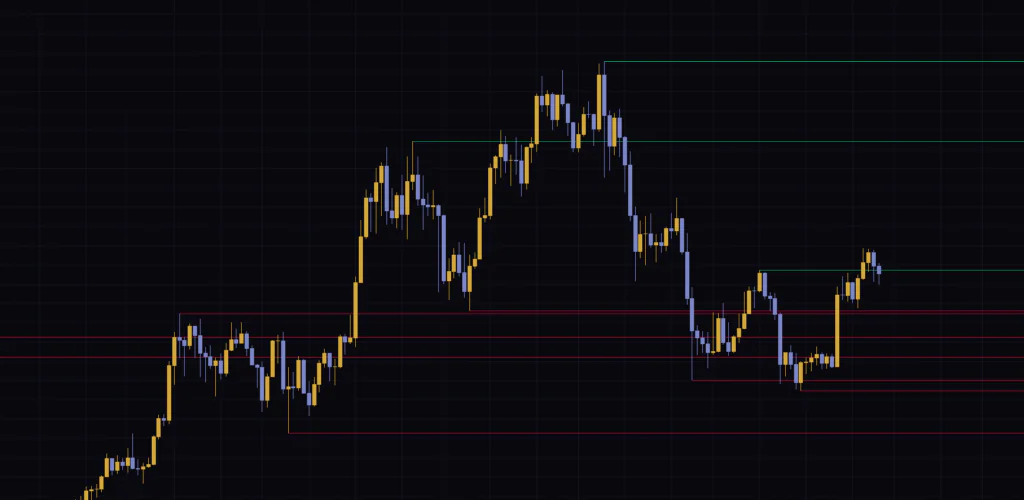
Image“Auto Support & Resistance Zones” does one thing and does it clearly: it draws horizontal lines from past swing highs and lows and colors them green or red based on where price is now. There are no signals and no alerts, but that keeps the chart clean, and you can always trace each line back to the swing it came from.
What I found most useful was seeing support/resistance flips through the color change, and having the highest-high and lowest-low lines stick around no matter how much I filtered. Back when I drew levels by hand, I had to mentally flip their meaning after every breakout. That whole step is gone now.
That said, you do need to understand the confirmation lag and the tendency for lines to stack at nearby prices. Tune Min Level Separation (%) to the market you trade, filter with Min Touches (1 = Major Swings Draw Instantly), and pair it with a momentum read like CMF. Do that, and it can take over your daily level-drawing routine.