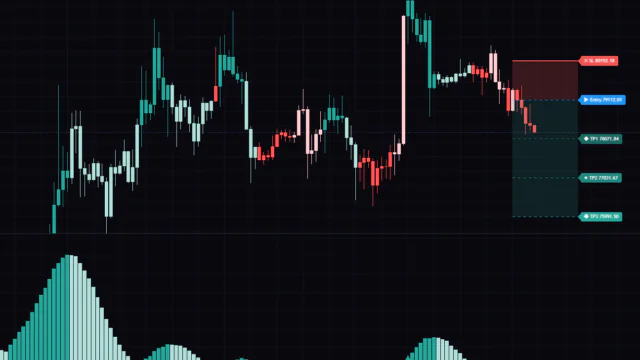


An indicator that projects the “next leg” from three swing points: A, B and C
When you buy the dip, the two questions that eat at you are usually “how far can this run?” and “where do I call it quits?” “Trident Swing Projector” is a TradingView indicator that answers both mechanically, using the size of the most recent swing, and plots the result on your chart as horizontal levels.
It is built on Charles Lindsay’s Trident quarter-swing method. Once you have three points in place (the swing low A where the move started, the high B, and the pullback low C), you take the A→B distance, project the same distance forward from C, and treat the 25%, 50%, 75% and 100% marks of that projection as key levels. Trident Swing Projector automates that drawing and wraps it in one package with a pullback-depth filter, a trend-direction filter, trade-state tracking for entry, targets and stop, a dashboard, and alerts.
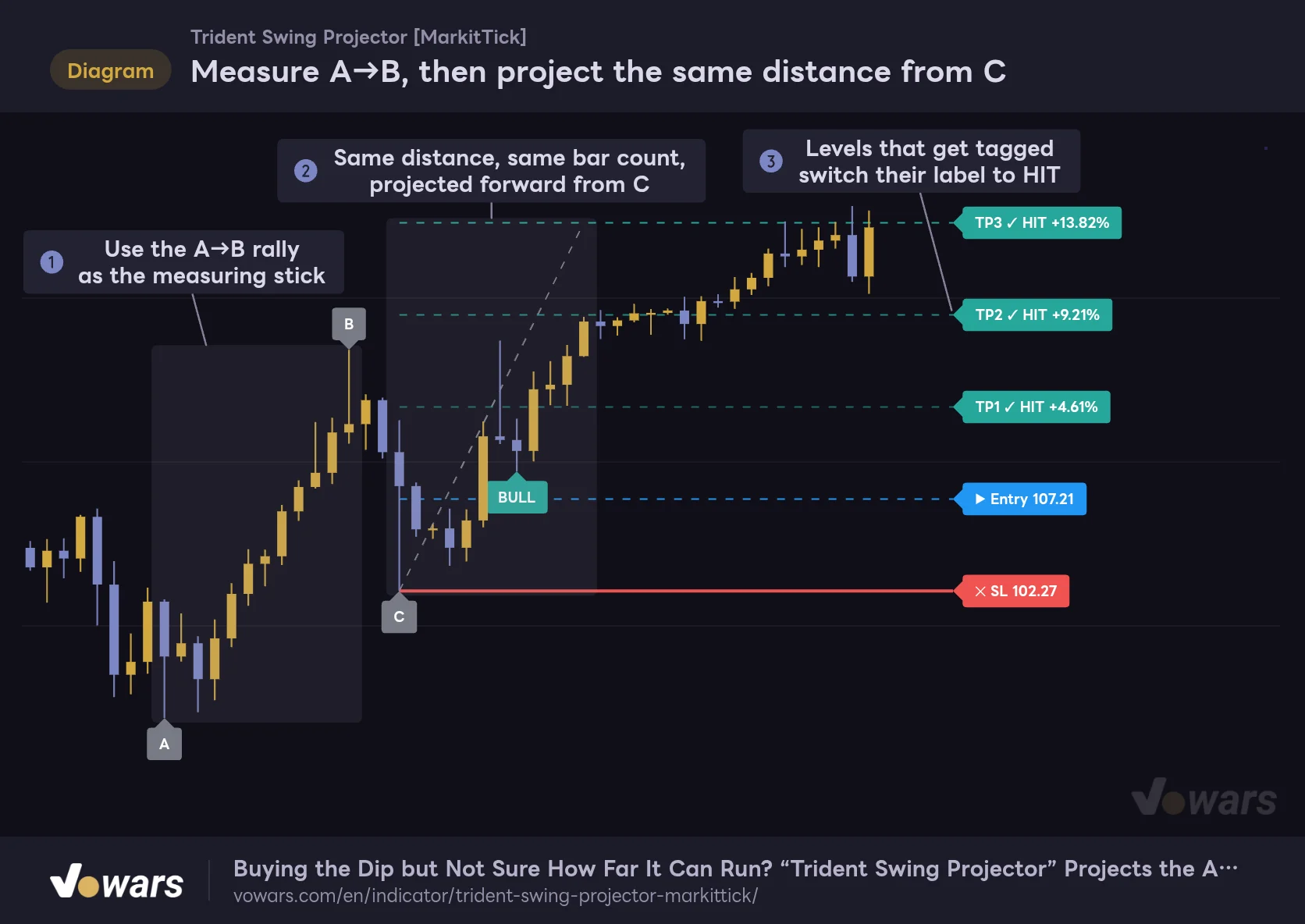
Measure A→B, then project the same distance from C
Once pullback C is confirmed, the A→B distance is projected forward from C and four levels are drawn in 25% steps.
Vowars DE ver.3.12.32
Once you load it on a chart, what you actually see is pretty minimal: small A, B and C labels, a dotted line coming off C, and five horizontal lines with their labels. As shown in Figure ①, the A→B rally becomes the measuring stick, and Figure ② shows that same distance being extended forward from C. As price tags each level, the label flips to “✓ HIT,” as you can see in Figure ③.
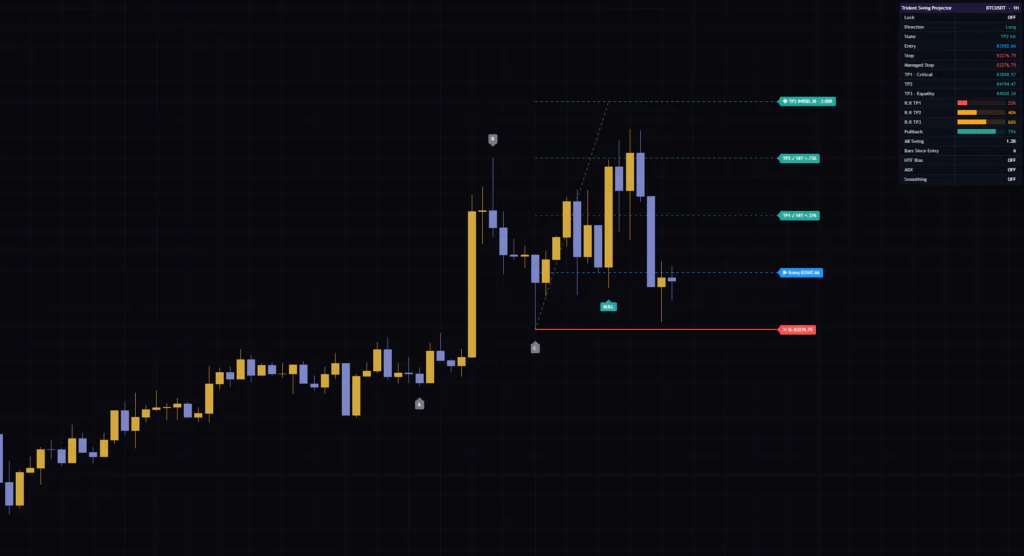
One thing to get out of the way first: Trident Swing Projector is not a strategy that places trades for you. It is an indicator that draws levels and then tracks whether price reaches them. You won’t get a win rate or P&L summary. What it is great at is quickly answering “if this is the pullback, where are the key levels?”
Breaking down everything it draws on the chart
The A, B and C labels and the dotted line from C
The gray “A,” “B” and “C” labels sit on the three swings that form the pattern. In a bullish pattern, A is a swing low, B is a swing high, and C is the pullback low. In a bearish pattern it flips: A is a swing high, B is a swing low, and C is the high of the pullback rally.
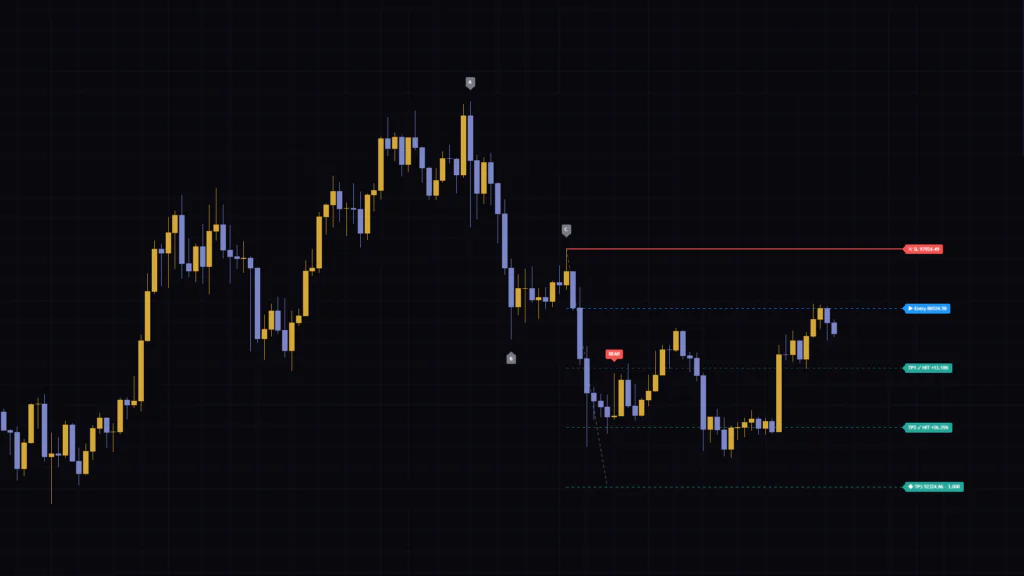
The gray dotted line running up and to the right from C (down and to the right in a bearish setup) is the “Projected Leg.” It starts at C and ends at the TP3 price. Its horizontal length matches the number of bars A→B took, so it also gives you a rough idea of “if price moves at the same pace as A→B, TP3 gets hit around here.” That said, whether it works as a timing guide depends on the market, and price rarely follows the dotted line’s pace very closely.
The five horizontal levels and what each one does
| Line | Location | Look (default) | Meaning |
|---|---|---|---|
| SL | C (or beyond it if Stop Buffer is set) | Solid red, width 2 | Invalidation level for the setup |
| Entry | 25% of the projection from C | Dashed blue | A close through here counts as an entry |
| TP1 | 50% of the projection from C | Dashed green (slightly faded) | The level Lindsay calls “Critical” |
| TP2 | 75% of the projection from C | Dashed green | Mid-way profit target |
| TP3 | 100% of the projection from C | Dashed green (solid color) | The “Equality” level, where the move matches A→B |
Each line’s label shows the price, and TP1–TP3 also show the reward-to-risk multiple, such as “1.00R” (how many times your risk the target is). The lines extend 10 bars to the right and keep extending as new bars print. Once the setup resolves at TP3 or the stop, the lines stop extending 10 bars past that bar.
The BULL/BEAR labels mark a confirmed entry
The green “BULL” and red “BEAR” labels tell you that an armed setup has turned into an entry. The trigger is a confirmed bar closing through the Entry line, and the label is placed on the following bar. Because the check uses the bar close, everything shifts by one bar. That one-bar lag has a big effect on how historical charts look, so we will come back to it later.
A setup moves through seven states
Trident Swing Projector keeps track internally of which stage the current setup is in. Here is what you will see in the dashboard’s “State” row and what each one means.
| State | Status | What changes on the chart |
|---|---|---|
| Armed | A, B and C are in place; waiting for entry | A, B and C labels plus the five lines appear |
| Active | A bar closed through Entry | A BULL/BEAR label is added |
| TP1 hit / TP2 hit | The high (the low for shorts) touched TP1 or TP2 | The matching label changes to something like “TP1 ✓ HIT +x%” |
| TP3 hit | TP3 hit; setup closed | The TP3 label changes to HIT and the lines stop extending |
| Stopped | Stop hit; setup closed | The SL label changes to “SL ✓ HIT” or “SL ✓ TREND FAILURE” |
| Cancelled | Canceled before entry | The five lines and their labels are deleted |
Hitting TP1 or TP2 does not close the setup on its own. It stays open until price touches either TP3 or the stop. This trips a lot of people up, so keep it in mind.
Why the 25% levels line up as exactly 1R, 2R and 3R
The first thing worth understanding about Trident Swing Projector is how the reward-to-risk is built. By default, the stop sits right at C and Entry sits at 25% of the projection. In other words, the distance from entry to stop (your risk) is one quarter of the projection.
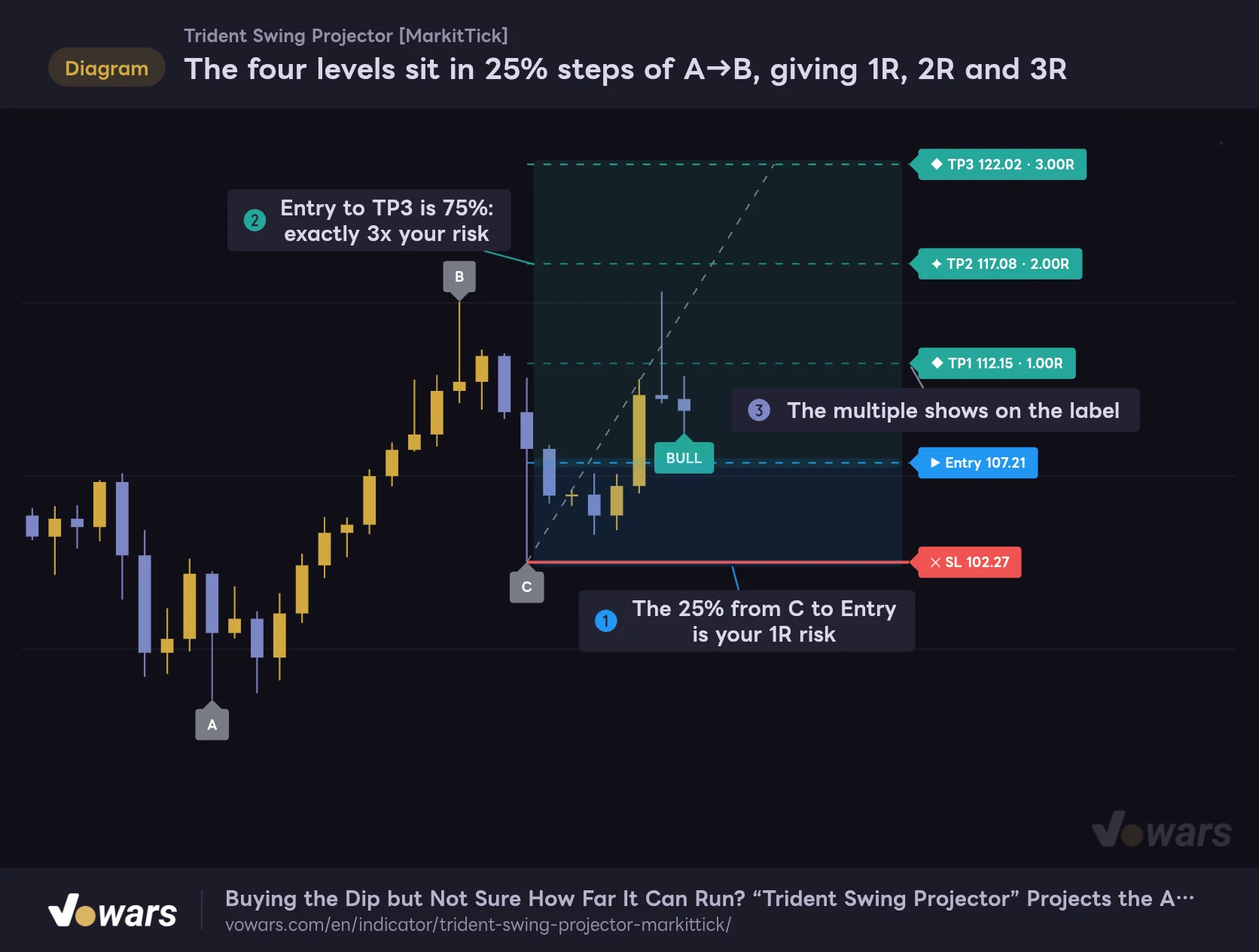
The four levels sit in 25% steps of A→B, giving 1R, 2R and 3R
With the stop left at C, the distance to Entry is one quarter of A→B, and TP1–TP3 land at two, three and four times that distance.
Vowars DE ver.3.12.32
Figure ① is that 1R risk zone. TP1 sits 50% from C, which is 25% beyond Entry: exactly 1R. TP2 is 2R, and TP3, as Figure ② shows, is 75% beyond Entry, or 3R. The “1.00R,” “2.00R” and “3.00R” on the labels in Figure ③ simply display that relationship.
If you set Stop Buffer to “Ticks” or “ATR Fraction,” the stop moves further out beyond C. Entry stays at 25% from C, so your risk gets bigger and the R multiples for TP1–TP3 drop below 1, 2 and 3. The more buffer you add to dodge fakeouts, the worse your reward-to-risk gets for the same TP3.
For reference, with a 3R target you roughly break even at a 25% win rate. So even if you get stopped out a lot, the math still works as long as enough trades run all the way to TP3. Keep in mind this is a simple calculation that ignores fees and slippage, and it is no guarantee of real-world results.
When C qualifies, and the patterns that get skipped
A, B and C are found with pivots, meaning swing highs and lows confirmed by a set number of bars on each side. The default is five bars on each side: a bar becomes a confirmed swing high when its high is higher than every one of the five bars to its left and the five bars to its right. Swing lows work the same way. Equal highs or lows don’t count as “higher” or “lower,” so a run of bars with matching highs or lows won’t produce a swing.
But three swings in a row don’t automatically make a setup. For a low to qualify as C, it has to pass the following filters.
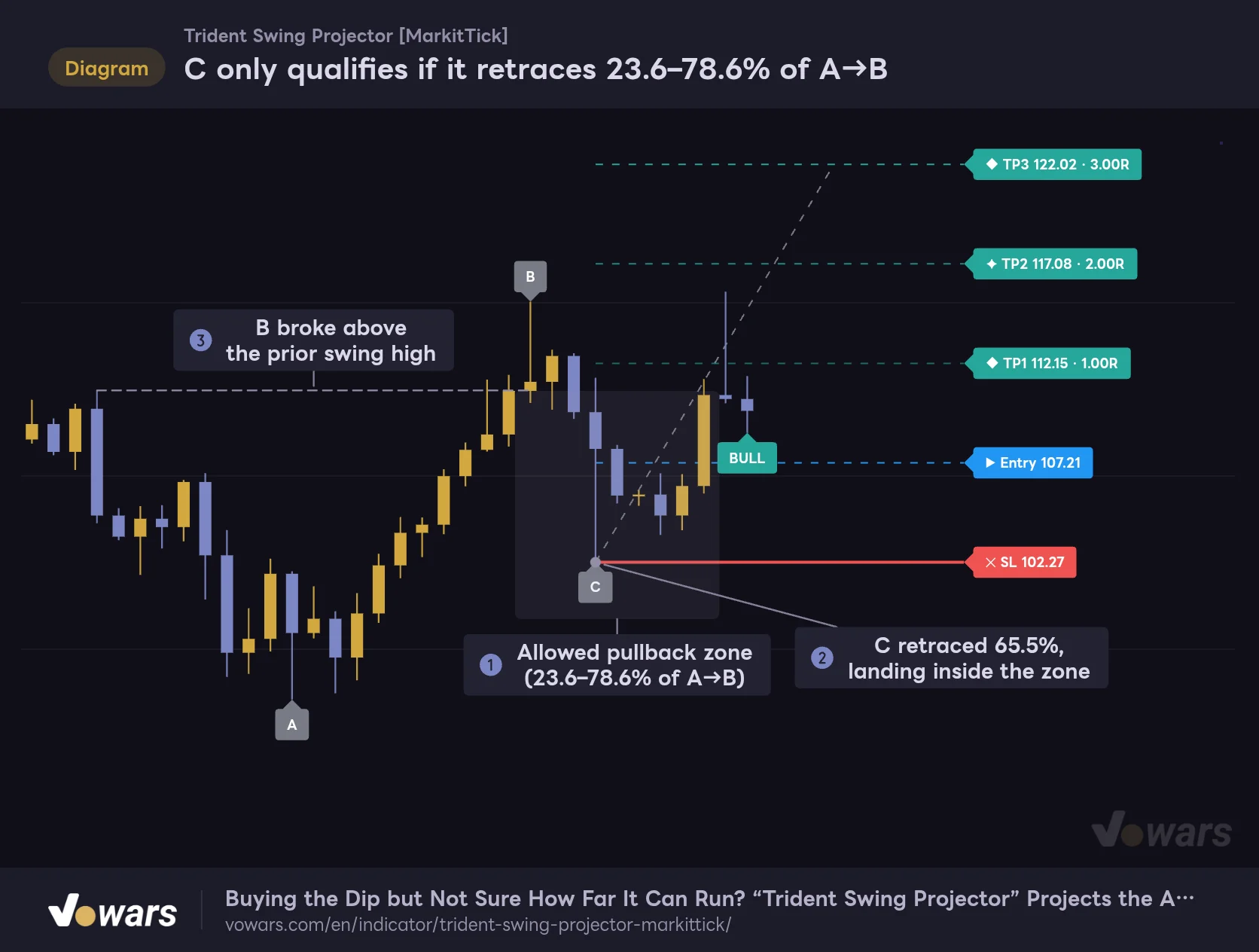
C only qualifies if it retraces 23.6–78.6% of A→B
Pullbacks that are too shallow or too deep get skipped, and B also has to clear the prior swing high (Trend Filter).
Vowars DE ver.3.12.32
Pullback depth has to land between 23.6% and 78.6%
The indicator measures the B→C pullback as a percentage of the A→B move. By default, Min Pullback % is 23.6 and Max Pullback % is 78.6, and a setup only forms when C lands inside the zone shown in Figure ①. In this example, Figure ② shows a 65.5% retracement, well inside the zone.
The idea is simple: a pullback that is too shallow hasn’t really pulled back yet, and one that is too deep suggests the rally itself is falling apart, so both get skipped. The numbers are the familiar Fibonacci retracement ratios, but the projected levels themselves are not Fibonacci. They are plain 25% steps. Treat those as two separate things.
Trend Filter asks one question: did B break the prior high?
When Trend Filter is on (the default), a bullish pattern also requires B to have broken above the previous swing high. Figure ③ shows that comparison. For a bearish pattern, B has to break below the previous swing low. The filter is there to catch only pullbacks and rallies inside a trend that is making higher highs (or lower lows), and it cuts down on waves that just chop around inside a range.
Only one setup can be tracked at a time
There is one more behavior that is easy to miss. While a setup is armed or open (Active through TP2 hit), Trident Swing Projector ignores any new A-B-C that shows up. Nothing new gets picked up until the current setup either resolves or gets canceled. Even a pattern that completes on the very bar the previous setup closes is skipped. If you are staring at the chart thinking “that looks like an A-B-C too, so why isn’t it showing?”, this is almost always the reason.
Ignore the signal lag and historical charts will fool you
This is the single most important thing to understand about Trident Swing Projector. Bottom line: the A-B-C and the levels you see on the chart actually appeared several bars later.
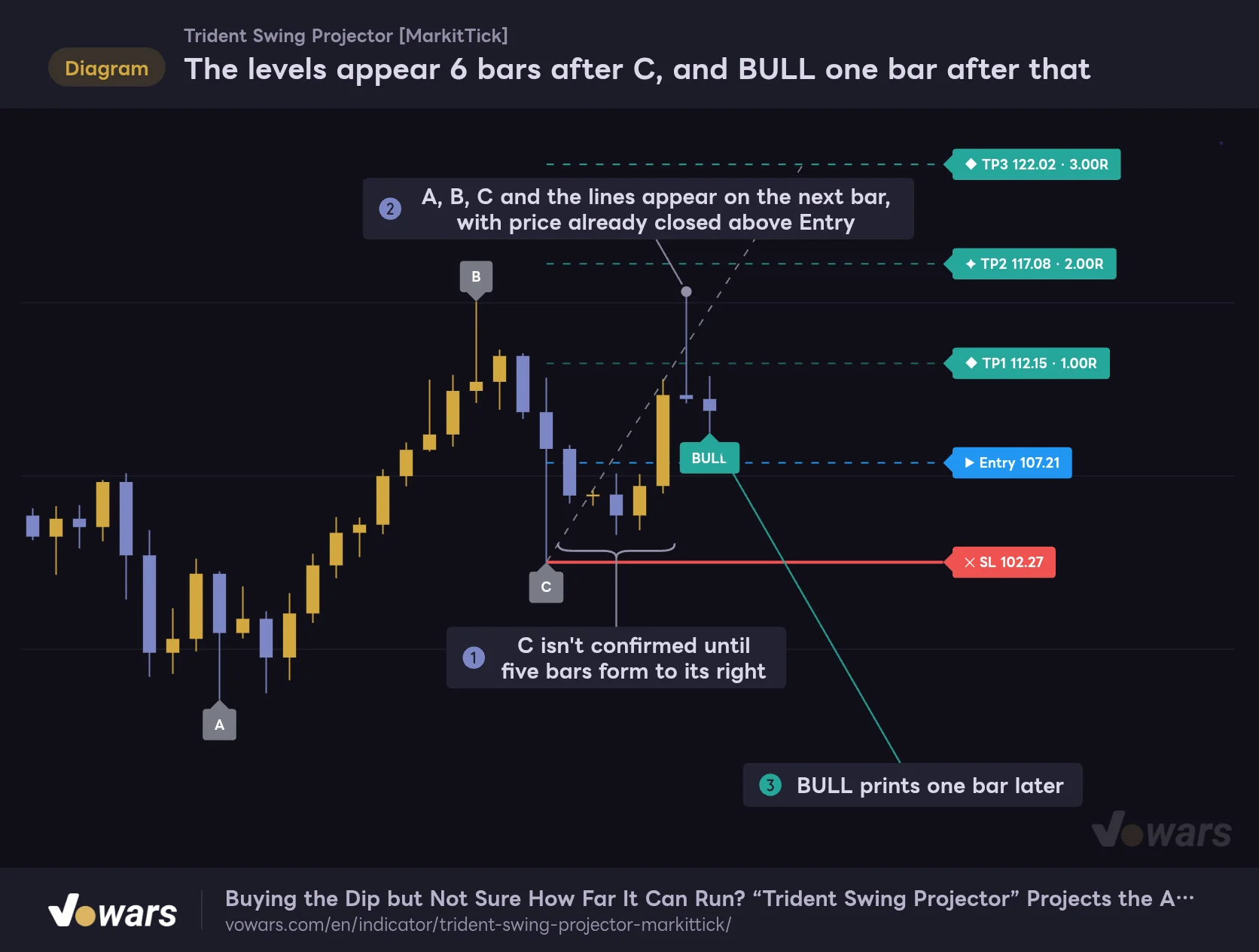
The levels appear 6 bars after C, and BULL one bar after that
C's low is only confirmed after the five Pivot Right bars plus one more bar, and that is the bar where A, B, C and the levels are all drawn at once.
Vowars DE ver.3.12.32
C’s low is only confirmed as “a swing low” once five bars (the default for Pivot Right) have formed to its right. Until the five bars in Figure ① have passed, nothing shows up on the chart. Confirmation happens on the next bar, the sixth bar after C, and that is when A, B, C and all five lines are drawn at once, as in Figure ②. Because the lines start at C, looking back later makes it seem like they were there at C.
On top of that, entries are judged on “a confirmed bar closing through Entry,” so the BULL label lands on the bar after the one that closed through, as shown in Figure ③. In this example, price was already above Entry when C was confirmed, so BULL printed right away. Even if it looks like you caught the bottom of the dip, the earliest you could actually have acted was well after price had already moved up.
A, B and C are determined using confirmed bars only, so once a label or line is drawn it never moves or disappears afterward (deletion on Cancelled is by design). What it does do is get drawn back at past bar positions at the moment the signal is confirmed. Looking at where A, B and C sit on a historical chart and thinking “I could have bought there” is a trap.
TP and SL hits are checked intrabar
While entries and cancellations wait for the bar to close, hits on TP1–TP3 and the stop are checked against the high and low of the bar that is still forming. In real time, the label flips to “✓ HIT” the moment price touches the level mid-bar, and TP alerts fire right then too. A bar’s high and low can only extend, never retract, so once a HIT is printed it never gets undone.
If the stop and a TP are both touched within the same bar, the stop wins. There is no way to know which happened first inside a single bar, so the indicator records the worse outcome. Keep this in mind if you tally results backtest-style.
How to see the lag for yourself
The quickest way to get a feel for the lag is TradingView’s Bar Replay. Pick a starting point in the past and step forward one bar at a time; the indicator is calculated only on data up to that point, so you can see “the bar where A, B, C and the lines actually appeared” and “the bar where BULL printed” in something close to real time. How far back you can go depends on the symbol, timeframe and your plan.
When setups get canceled or fail
A wick through C cancels the setup
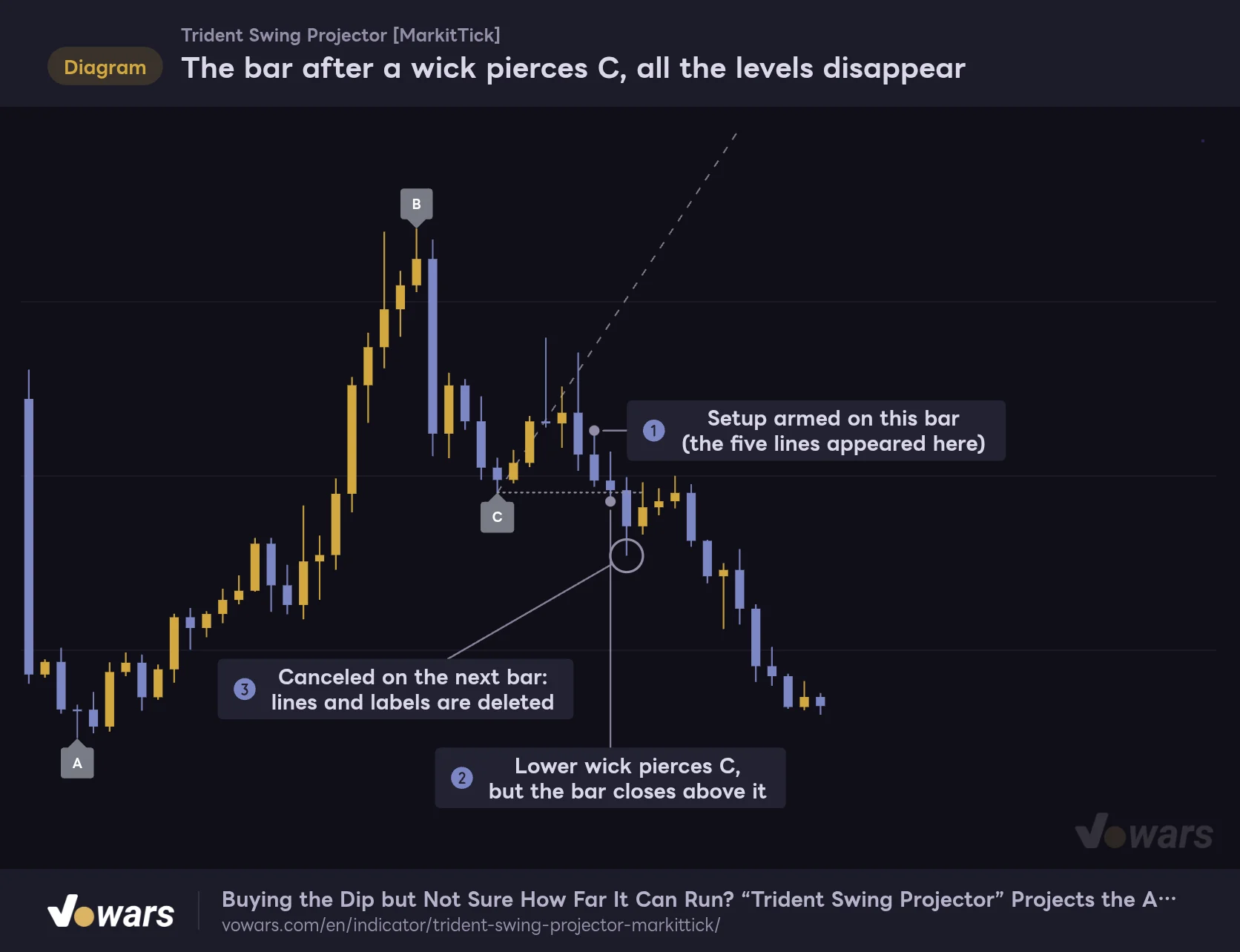
The bar after a wick pierces C, all the levels disappear
An armed setup is canceled as soon as the previous bar's low drops below C. It does not need to close below.
Vowars DE ver.3.12.32
If price breaks below C while the setup is waiting for entry (Armed), the setup is canceled (Cancelled) and the five lines and their labels are deleted. The check uses the previous bar’s low (the high for shorts). As Figure ② shows, even a quick wick below C is enough, even if the bar closes back above it, and the setup is canceled on the next bar, as in Figure ③.
The description on the script page reads as if a close back through C is what cancels the setup, but what Trident Swing Projector actually does is cancel the moment the previous bar’s low drops below C (or its high rises above C for shorts). On symbols or timeframes with long wicks, you will likely see more cancellations than you expect. Also note that even if you push the stop out with Stop Buffer, the cancellation level is still C itself.
Even after a cancellation, the A, B and C labels and the projected dotted line stay on the chart. So if you see “an A-B-C with no horizontal levels,” you are looking at the remains of a canceled setup. The dashboard’s State row will read “Cancelled · C broken.”
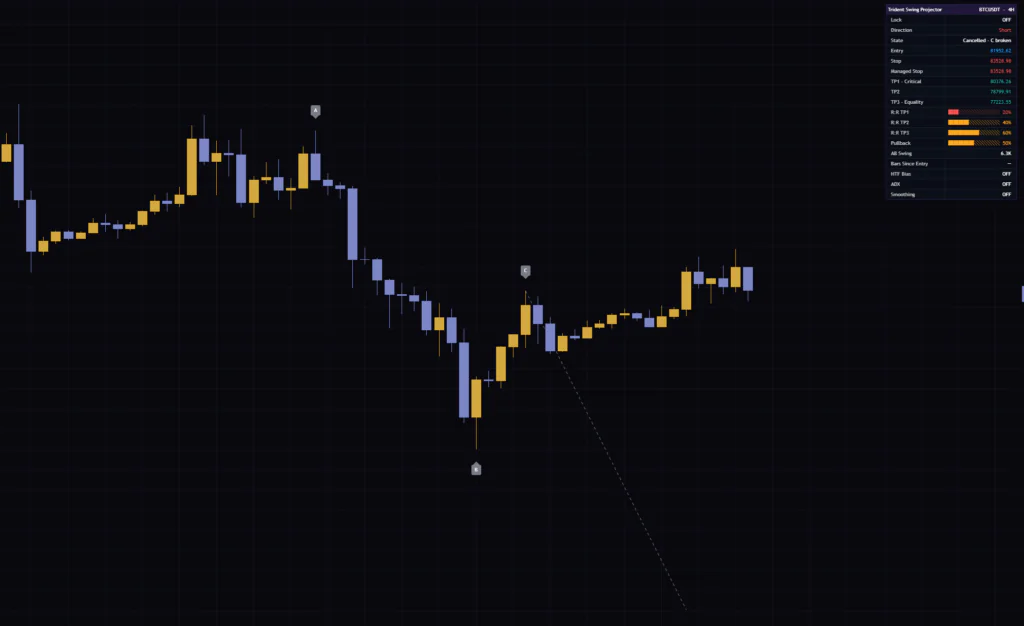
The other cancellation condition is a timeout. If price fails to close through Entry within Armed Expiry Bars (20 bars by default) after the setup arms, it is canceled as “Cancelled · Expired.”
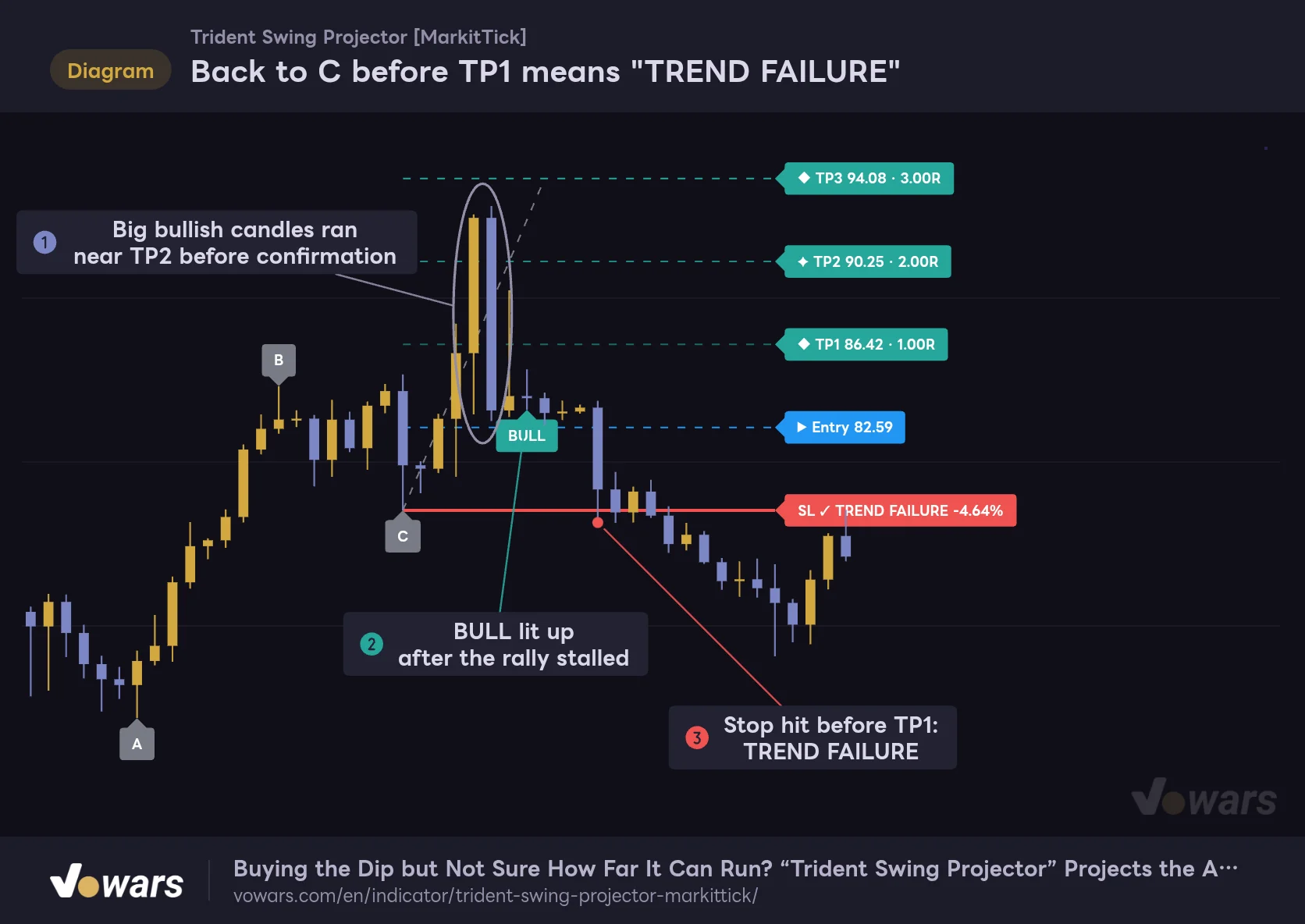
Back to C before TP1 means “TREND FAILURE”
Back to C before TP1 means "TREND FAILURE"
If price hits the stop after BULL prints but before reaching TP1, the SL label changes to TREND FAILURE.
Vowars DE ver.3.12.32
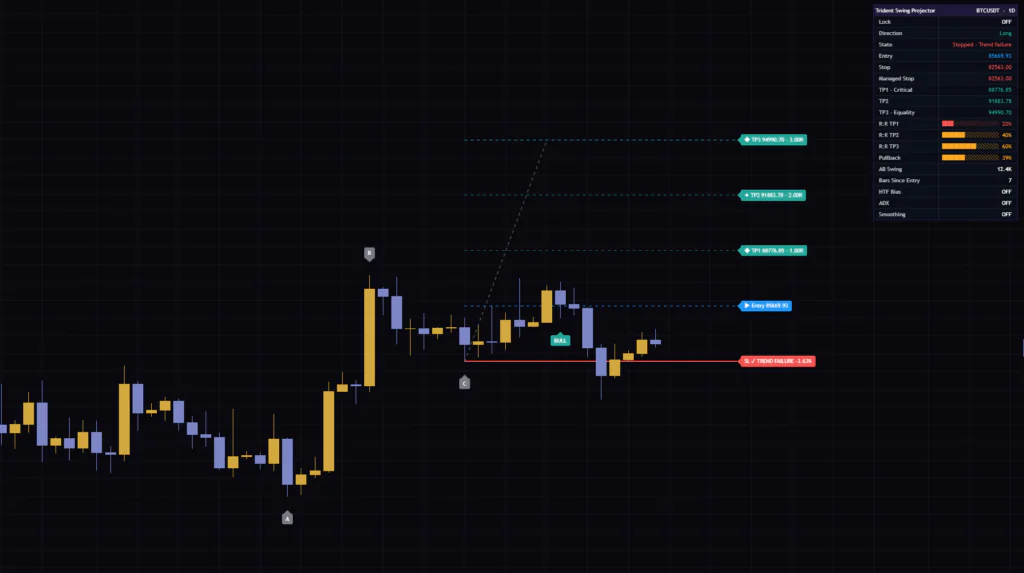
If price touches the stop after entry (Active) but before reaching TP1, the SL label changes to “SL ✓ TREND FAILURE −x%.” The setup expected a bounce out of the pullback, but price broke C without even reaching the first target. In other words, the trend didn’t continue. If the stop is hit after TP1, the label reads “SL ✓ HIT” instead, so the two cases are labeled differently.
The example in Figure ① shows exactly why the lag matters. Most of the move had already happened on big bullish candles before the setup was confirmed. The BULL in Figure ② printed after the rally had stalled, and price then ran straight into the stop at Figure ③. If price has already pushed close to TP1 or TP2 by the time C is confirmed, the remaining upside is small relative to the risk, and passing on the trade is the realistic call. Trident Swing Projector won’t cancel the setup for you in that case, so whether to skip it is your decision.
Short setups, and what happens after TP2
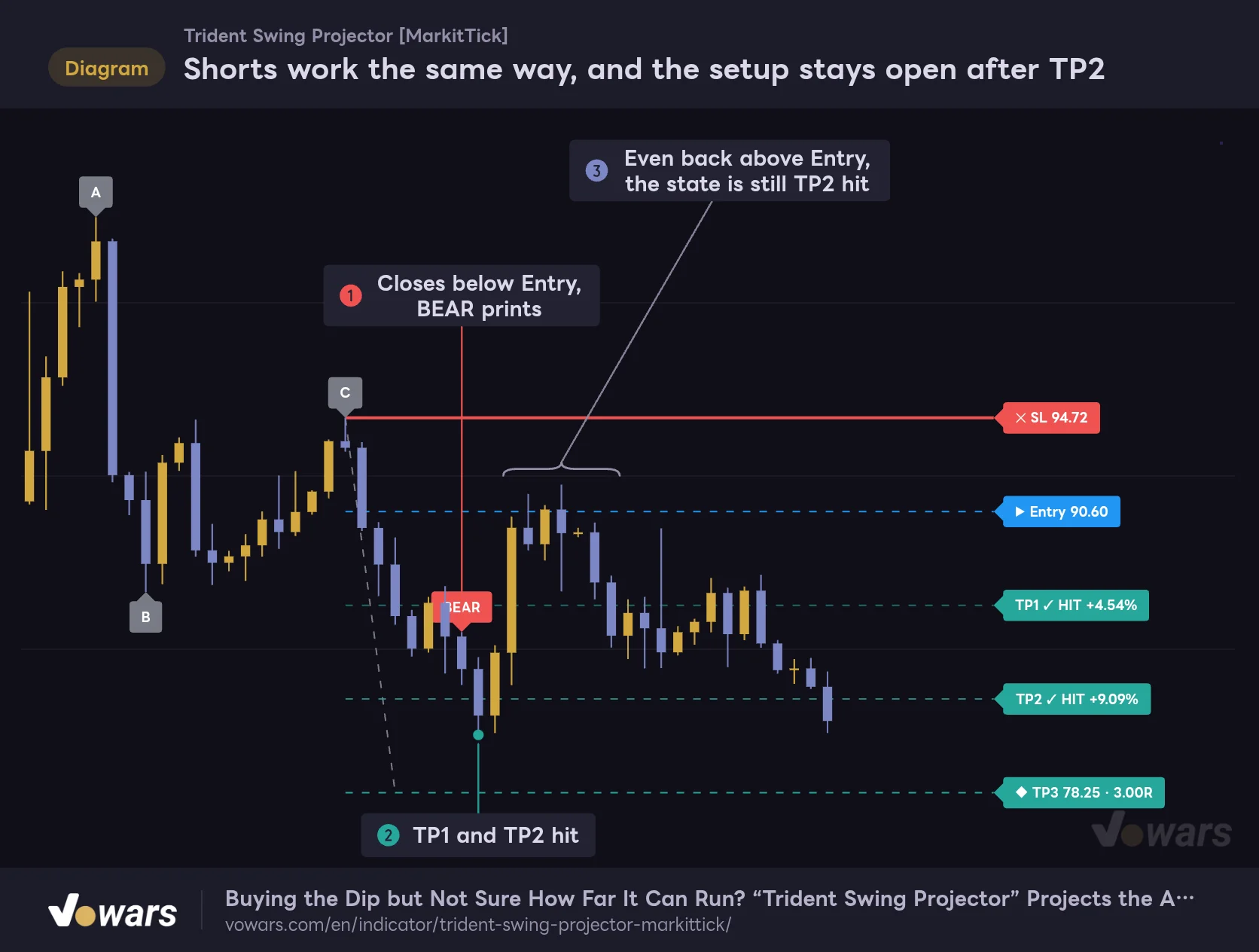
Shorts work the same way, and the setup stays open after TP2
In a bearish A→B→C, the same distance is projected down from C. Even after TP1 and TP2 are hit, the setup stays "open" until TP3 or the stop is touched.
Vowars DE ver.3.12.32
Selling the rally in a downtrend works exactly the same way. A is a swing high, B a swing low and C the rally high, and the same distance is projected down from C. As in Figure ①, BEAR prints on the bar after a close below Entry, and Figure ② shows TP1 and TP2 being hit.
The part to focus on is Figure ③. After TP2, price climbs back above Entry, but the state is still “TP2 hit.” With the default settings the stop remains at C, so if price makes it back to C, the setup closes as “Stopped.” In other words, a trade that had open profit all the way to TP2 can still end up on the books as a stop-out.
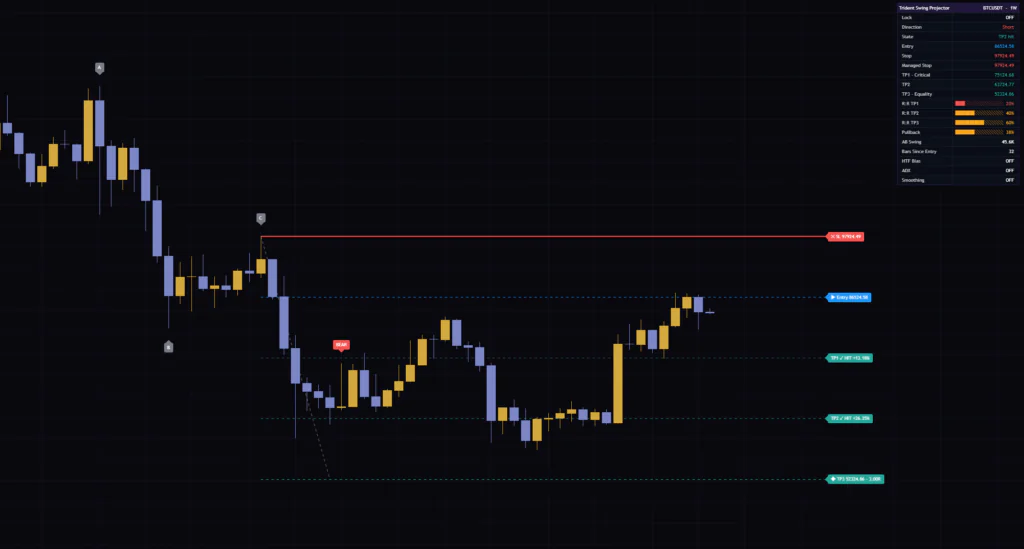
Turning on Stop to Breakeven after TP1 moves the managed stop to the entry price once TP1 is hit. However, the SL line and label drawn on the chart stay at their original level; the moved stop only shows up in the dashboard’s “Managed Stop” row (marked “· BE”) and in the alert payloads.
Even when the setup closes at breakeven, the SL label on the chart doesn’t change. The dashboard’s State row shows “Stopped · Breakeven,” so check the result there.
The dashboard tracks the current setup in numbers
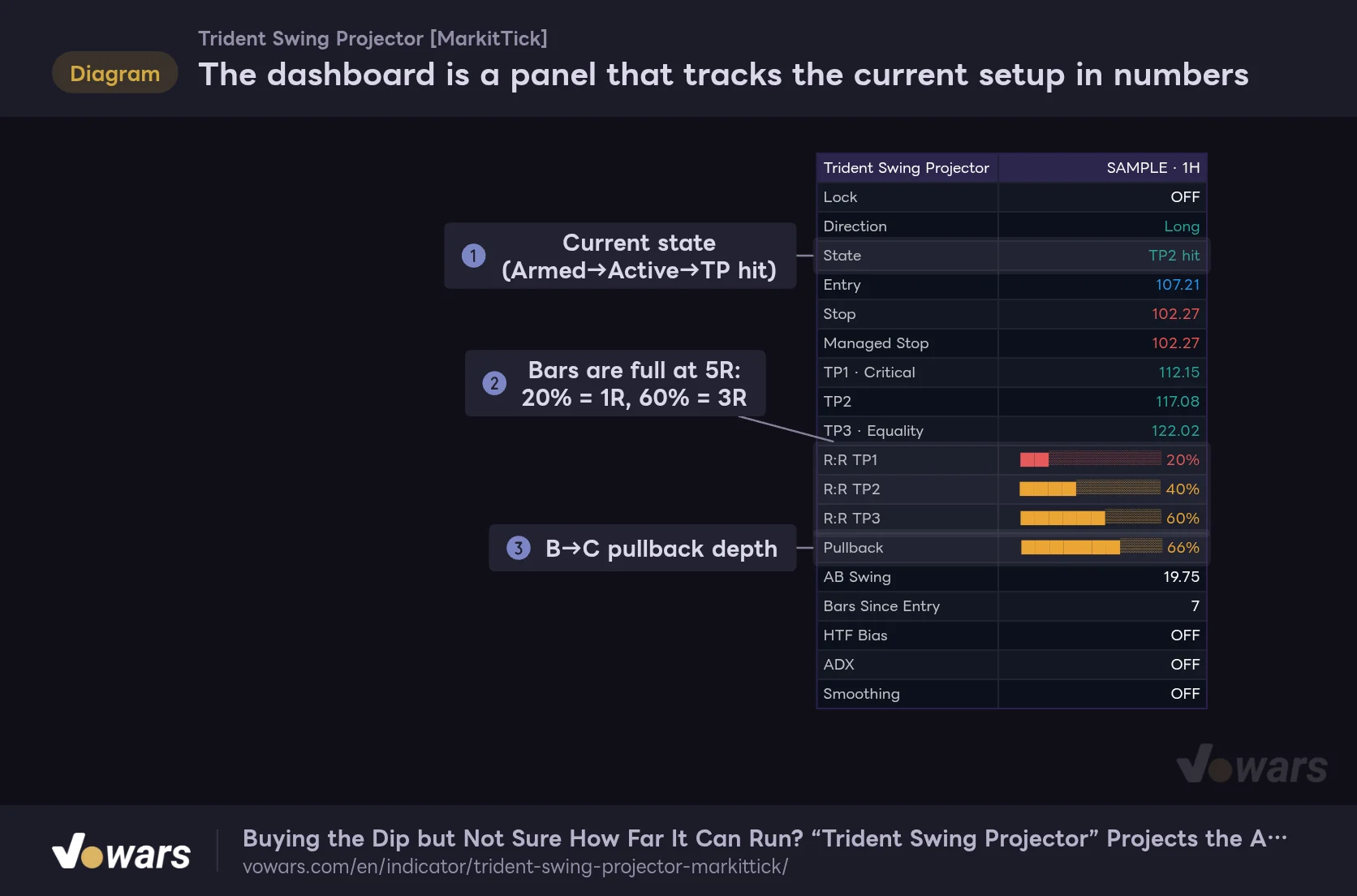
The dashboard is a panel that tracks the current setup in numbers
State, prices, reward-to-risk and pullback depth for the current setup, all in one panel.
Vowars DE ver.3.12.32
The dashboard (top right by default) sums up the current setup. Note that it is not a table of past performance. From top to bottom you get the lock status, direction (Long/Short), the state shown in Figure ①, and the Entry, Stop, Managed Stop and TP1–TP3 prices.
The rows that are easy to misread are the three “R:R” rows in Figure ②. The number next to each bar is a percentage where 5R equals 100%, so “20%” means 1R and “60%” means 3R. With default settings they always read 20%, 40% and 60%, so if you see different numbers, it is a sign your reward-to-risk has changed, for example via Stop Buffer. The bar is green at 66% or more, yellow at 33% or more, and red below that.
“Pullback” in Figure ③ shows how deep the B→C pullback was as a percentage of A→B. Below it, “AB Swing” is the A→B distance (shown as a percentage if Swing Unit is Percent), and “Bars Since Entry” is the number of bars since entry. The HTF Bias, ADX and Smoothing rows read “OFF” when the corresponding filter isn’t in use.
What each setting does, and what changes when you adjust it
The settings are split into seven groups: Core, Filters, Trade Tools, Visuals, Dashboard, Alerts and Colors. The first three are the ones that affect trade decisions. The suggested values in the table below are guidelines based on how each setting works and on checking the display on BTC from the 5-minute to the weekly chart. What works best will vary by symbol and timeframe.
| Setting | Default | Suggested | Effect |
|---|---|---|---|
| Pivot Left | 5 | 5〜8 | Bars required to the left of a swing. Higher values mean only more prominent highs and lows get picked as A, B and C |
| Pivot Right | 5 | 3〜5 | Bars required to the right. Directly sets the display lag (Pivot Right + 1 bar). Lower values show signals sooner but also catch smaller waves |
| Swing Unit | Points | Points (consider Percent on higher timeframes like the weekly) | Points projects the raw distance; Percent applies the A→B percentage move to C |
| Trend Filter | On | On | Only accepts setups where B breaks the prior swing high (low for shorts) |
| Min Pullback % | 23.6 | 23.6〜38.2 | Pullbacks shallower than this are skipped |
| Max Pullback % | 78.6 | 61.8〜78.6 | Pullbacks deeper than this are skipped |
| HTF Confirmation | Off | On, depending on conditions | Only accepts setups that agree with the higher-timeframe direction |
| HTF Timeframe | 240 | 4–6x your chart timeframe | Higher timeframe used for the direction check |
| ADX Filter | Off | On, depending on conditions | Blocks setups while ADX is below the threshold |
| ADX Length | 14 | 14 | Lookback period for ADX/DMI |
| ADX Threshold | 20 | 20〜25 | Minimum ADX value needed for a setup to arm |
| Signal Smoothing | None | None | How the projection is adjusted using the average of recent swing sizes (SMA / RMA / WMA / HMA / VWMA) |
| Smoothing Length | 5 | 5 | Number of bars used for the adjustment |
| 🔒 Lock Signal | Off | Off | Blocks new setups from arming on the latest bar |
| Stop Buffer | None | None〜ATR Fraction | How the stop is placed beyond C |
| Buffer Ticks | 0 | Match it to the symbol’s volatility | Ticks added when Ticks is selected |
| Buffer ATR Fraction | 0 | 0.1〜0.3 | ATR multiplier used when ATR Fraction is selected |
| ATR Length | 14 | 14 | ATR period used for the buffer |
| Armed Expiry Bars | 20 | 10〜20 | How long a setup waits for entry (in bars) |
| Stop to Breakeven after TP1 | Off | Personal preference | Moves the managed stop to Entry once TP1 is hit |
| Keep Last N Setups | 1 | 1–2 (5+ when reviewing) | Number of setups kept on the chart |
Pivot Left vs. Pivot Right: a tug-of-war between sensitivity and lag
These two have the biggest impact on how A, B and C get picked. Increasing Pivot Left requires a longer stretch of confirmation on the left, so only more prominent highs and lows get selected. It has no effect on lag, which makes it the best first knob to turn when you want to cut noise.
Pivot Right, on the other hand, is the lag itself. At the default of 5, the lines finally show up six bars after C. Dropping it to 3 gets them out four bars after C, but minor pullbacks start getting picked up as C, so you get more setups and more cancellations. Given how it works, if you lower Right, keeping Left at 5 or higher makes it easier to filter out overly small A-B-Cs.
Tightening the pullback range cuts the number of setups a lot
Raising Min Pullback % to 38.2 filters out bounces from shallow pullbacks. In strong trends that take off after just a small dip, you will miss more moves, but you narrow things down to setups that “actually pulled back first.” Lowering Max Pullback % to 61.8 removes patterns where a deep retracement has the structure on the verge of breaking. Tightening both cuts the number of setups considerably, so try one at a time first.
The HTF and ADX filters also tell you why a setup didn’t show
With HTF Confirmation turned on, the indicator compares the closes of the last two confirmed bars on the higher timeframe set in HTF Timeframe, calling it “Bull” if the close went up and “Bear” if it went down. A setup only arms when that direction matches the pattern’s direction. If the two closes are equal, it reads “Flat” and neither direction can arm. Because only confirmed higher-timeframe bars are compared, results won’t change after the fact due to a higher-timeframe bar that is still forming.
ADX Filter blocks setups in low-conviction conditions where ADX hasn’t reached ADX Threshold. For both filters, if the HTF Bias or ADX row on the dashboard turns red, you can read it as “the pattern is there, but a filter is holding it back.”
Leave Signal Smoothing on None until you know the tool
When you pick a Signal Smoothing method, the projection is adjusted by multiplying the A→B distance by the ratio “average swing size over the recent bars ÷ the current A→B.” If the current A→B is bigger than recent swings, the projection gets shorter; if it is smaller, it gets longer. Smoothing Length is a number of bars, not a number of swings, so on timeframes where swings update infrequently, the adjustment may barely do anything. Once adjusted, the projection no longer means “the same distance as A→B,” which is the whole point of the Trident method, so my take is that it is best to start with None and only experiment once you are comfortable with how it works.
When to switch Swing Unit to Percent
Setting Swing Unit to Percent projects the A→B percentage change from C’s price. In a bullish pattern, think of it as “however many percent price rallied from A, extend that same percentage up from C.” On higher timeframes where the price level changes a lot, thinking in percentage terms can make more sense than raw distance, so it is worth considering on weekly or monthly charts. On something like the 1H chart, the difference from Points is negligible.
While 🔒 Lock Signal is on, it only blocks new setups from arming on the latest bar. TP and stop tracking for the current setup carries on as normal.
Also, because it decides based on “is this the latest bar?”, reloading the chart can redraw setups that were blocked while locked as if they had armed on past bars. If you use the lock, it is safest to treat whatever you see during that time as real-time only.
Example settings by use case
Finally, here are some setting combinations by goal. None of them mean “use these numbers and you will win”; they are starting points for changing the indicator’s character.
| Goal | Main changes | Purpose |
|---|---|---|
| More setups for day trading | Pivot Left 5 / Pivot Right 3 | Cuts the display lag to 4 bars. Left keeps small waves in check |
| Quality over quantity for swing trading | Pivot Left 8 / Pivot Right 5 / Min Pullback % 38.2 | Keeps only prominent swings and real pullbacks |
| Ride the trend | HTF Confirmation on (240 on a 1H chart) / ADX Filter on | Only arms when both the higher timeframe and trend strength line up |
| Fewer cancellations and stop-outs from wicks | Stop Buffer ATR Fraction / Buffer ATR Fraction 0.2 | Gives the stop room. R multiples go down |
| Review past results at a glance | Keep Last N Setups 5〜10 | Compare recent winners and losers side by side |
Lining up past setups to review them
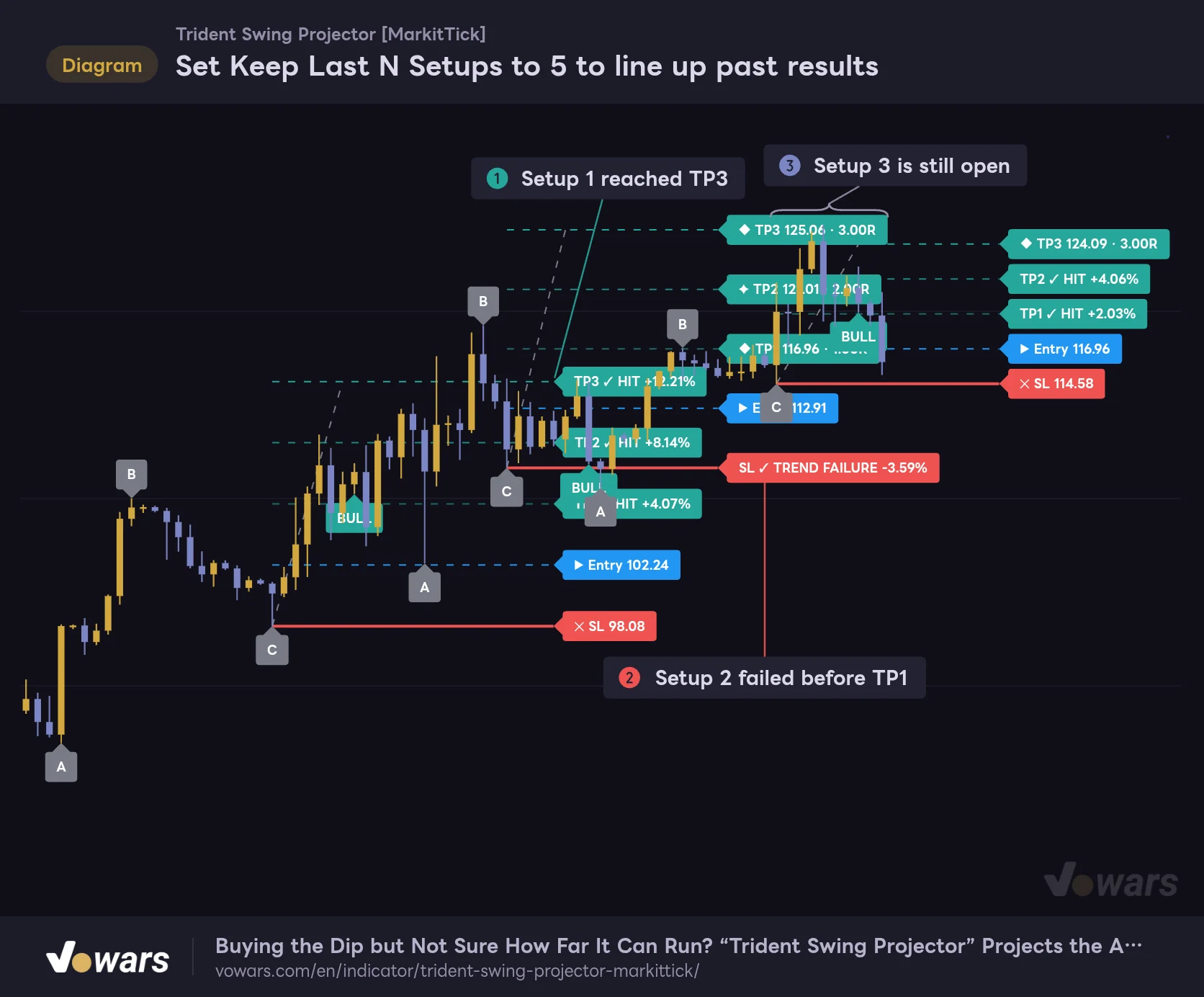
Set Keep Last N Setups to 5 to line up past results
At the default of 1, only the latest setup stays on the chart. Raise it to review winning and losing setups together on the chart.
Vowars DE ver.3.12.32
By default Keep Last N Setups is 1, so only the latest setup stays on the chart. Raise it and you will see winners that reached TP3 like Figure ①, setups that failed before TP1 like Figure ②, and open ones like Figure ③ all at once, which gives you a quick read on how well it fits that symbol and timeframe.
As you can see, though, the lines and labels overlap easily, so it is not great for leaving on all the time. I find it easier to read if you switch back to 1–2 once you are done reviewing. Also remember that everything shown here was “drawn retroactively.” Keep the lag from the previous section in mind and judge the results from the bar where BULL/BEAR printed.
Let alerts and webhooks do the monitoring
Trident Swing Projector gives you seven conditions to choose from in the alert dialog.
| Alert condition | When it fires |
|---|---|
| Trident Setup Armed | Setup armed (on bar close) |
| Trident Entry Triggered | Entry triggered (on bar close) |
| Trident TP1 Hit | TP1 hit (can fire intrabar) |
| Trident TP2 Hit | TP2 hit (can fire intrabar) |
| Trident TP3 Hit | TP3 hit (can fire intrabar) |
| Trident Stop Hit | Stop hit (on bar close) |
| Trident Setup Cancelled | Canceled (on bar close) |
Separately, if you pick “Any alert() function call” as the alert condition, a JSON message is sent for every event: setup armed, entry, cancellation, stop and TP hits. The payload includes the direction, event name, state, the Entry, SL, managed SL and TP1–TP3 prices, the A→B distance, and the reward-to-risk to TP3. The text in the “action” field can be changed to any string you like with settings such as ↑ Long Action in the Alerts group.
If you want to hook it up to an auto-trading tool, you receive these messages via webhook. Using webhook alerts on TradingView requires two-factor authentication to be enabled (per TradingView’s Help Center as of 2026/10/14). Plan requirements can change, so check TradingView’s pricing page as well.
Stop alerts wait for the bar to close, but the SL label on the chart switches to “✓ HIT” mid-bar. TP alerts, on the other hand, fire intrabar. Build whatever is receiving the alerts on the assumption that different events are sent at different times.
Pairing it with Chaikin Money Flow to judge pullback quality
Trident Swing Projector only looks at price distance and doesn’t use volume at all. That is why Chaikin Money Flow (CMF), which measures the flow of volume, looks like a natural fit. CMF weights volume by where each bar closed within its high-low range and plots buying versus selling pressure over a set period around zero.
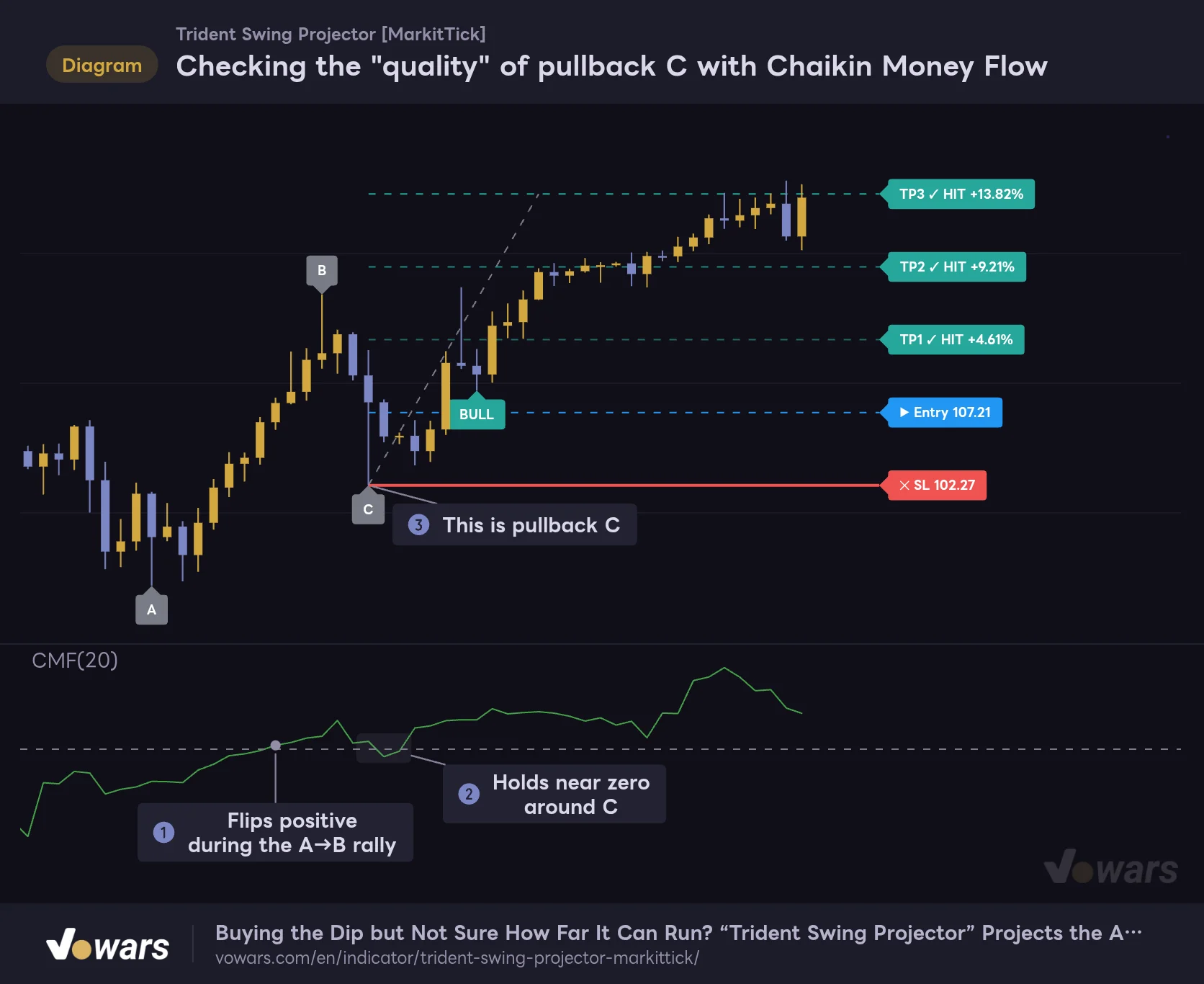
Checking the "quality" of pullback C with Chaikin Money Flow
Trident Swing Projector only looks at price distance. Adding CMF in a lower pane lets you see how much money flowed out during the pullback into C.
Vowars DE ver.3.12.32
What you want to know is how much money flowed out during the pullback into C. If CMF turns positive during the A→B rally as in Figure ① and holds near zero through the pullback as in Figure ②, you can read the pullback at Figure ③ as a breather from profit-taking. On the other hand, if CMF sinks deep into negative territory during the pullback, it is a pullback with heavy selling pressure, even if it is the same 65% retracement. That is the kind of spot where you would want to stay cautious even after price clears Entry.
Here are a few other indicators that should pair well with it.
- Anchored VWAP: anchor a VWAP at A and check whether C holds above it. Useful for confirming the pullback hasn’t broken below the trend’s average cost
- Fixed Range Volume Profile: apply it to the A→B range and look at where the high-volume nodes sit relative to C and TP1. A thick volume node just below TP1–TP2 is a likely place for price to stall
- ATR: checking how many ATRs the projection spans gives you a sense of whether the distance to TP3 is realistic
Where it shines, and where it struggles
Trident Swing Projector works best on pullbacks in a trend that keeps making higher highs and higher lows (rallies in a downtrend). That is exactly what Trend Filter is for, so the cleaner the trend, the clearer the A-B-Cs. It should pair well with markets that tend to trend for longer stretches, such as gold or the major stock indices.
Where it struggles is directionless ranges and choppy, whipsaw markets. Trend Filter screens out some of that, but a run of long-wicked candles tends to bring repeated C-break cancellations and TREND FAILUREs before TP1.
There is no designated timeframe. Pivots and the expiry are all counted in bars, so it works the same way on any timeframe. However, since the display lag is fixed at “Pivot Right + 1 bar,” on the 1-minute or 5-minute chart you tend to get a flood of A-B-Cs from small noise. Checking the display on BTC across the 5m, 30m, 1H, 4H, daily and weekly charts, A, B and C landed in sensible spots on every timeframe. On the 5-minute chart, the setup ended in a C-break cancellation, while on the 30-minute chart there was a setup that went all the way to TP3. Balancing it against the lag, 30m to 4H feels like the easiest range to work with, and the daily and weekly charts are better suited to measuring key levels in the bigger trend.
What you can count on
- Targets and stop for a pullback are set mechanically from the most recent swing
- With default settings TP1–TP3 line up at 1R, 2R and 3R, making reward-to-risk easy to think about
- A, B and C are found using confirmed bars only, and drawn positions never move
- State tracking and the dashboard show at a glance how far the current setup has progressed
- Plenty of settings to change its character: filters, buffer, expiry and more
- JSON alerts are built in, with webhook integration in mind
What to watch out for
- Lines and labels are drawn back at past positions 6 bars after C (default)
- Pre-entry cancellations happen when a wick, not a close, breaks C
- Reaching TP2 doesn’t close the setup; with defaults, a return to C counts as a stop-out
- Only one setup can be tracked at a time, and new candidates are skipped meanwhile
- It doesn’t use volume or similar data, so pullback quality has to come from another indicator
- By default only the latest setup stays on the chart, and there is no results summary
Trident Swing Projector shows a warning label on Heikin Ashi, Renko, Kagi, Point & Figure, Line Break and Range charts. These chart types don’t match actual prices, so the projected levels won’t correspond to real price levels either. It is meant to be used on standard candlestick or bar charts.
Keep it next to your chart as a ruler for the next leg
![Trident Swing Projector [MarkitTick]](https://vowars.com/wp-content/webp-express/webp-images/uploads/2026/10/Trident-Swing-Projector6-1024x436.png.webp) Image
ImageTrident Swing Projector automates the Trident method of “measuring the A→B distance from C” and lays out Entry, TP1–TP3 and the stop in a 1R, 2R, 3R structure. If you are drawing targets and stops by hand every time you buy a dip or sell a rally, it can take almost all of that work off your plate.
On the other hand, the lines appear retroactively, cancellations are triggered by wicks, and the stop stays at C even after TP2. Those are traits worth knowing before you use it. Rather than taking BULL/BEAR at face value as buy and sell signals, I think it is at its best when you use it as a ruler for the next leg to decide “how far do I let it run before banking some profit” and “where do I bail” on a trend pullback.
Whatever settings you use, the levels shown are just estimates calculated from past swings. When you trade, combine them with other analysis and sound risk management, and make your own decisions.