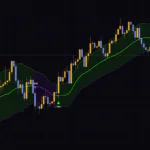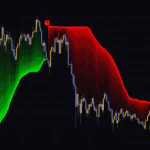


“Support Resistance MTF” turns current-timeframe and higher-timeframe levels into zones
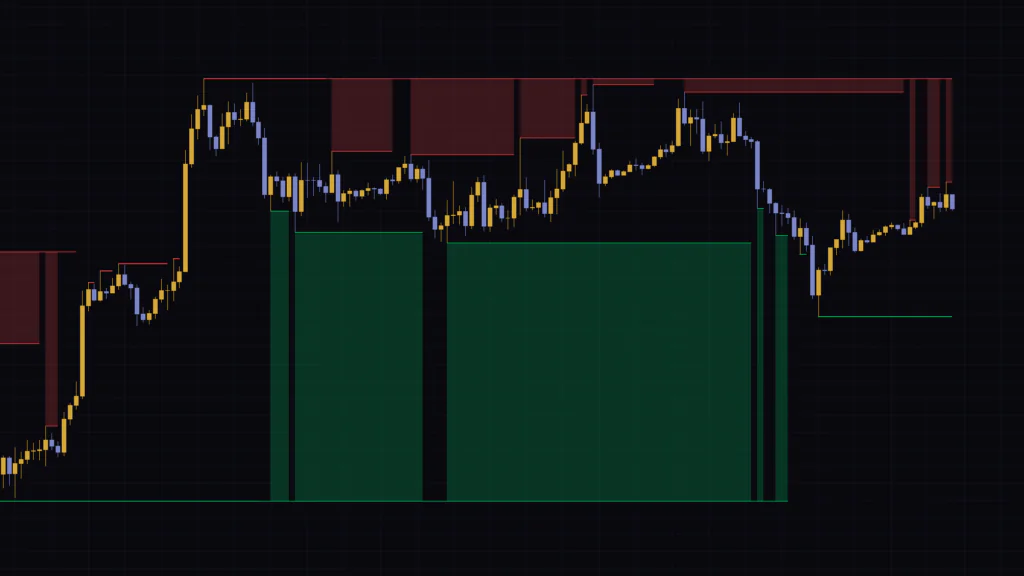
Ever drawn a horizontal line and wondered whether that high only matters on the 1H, or whether the 4H cares about it too? “Support Resistance MTF” plots the highs and lows of both timeframes at once and shades the space between them into zones. The red zone above price is resistance, the green zone below is support. MTF stands for multi-timeframe, meaning the indicator works with more than one timeframe at the same time.
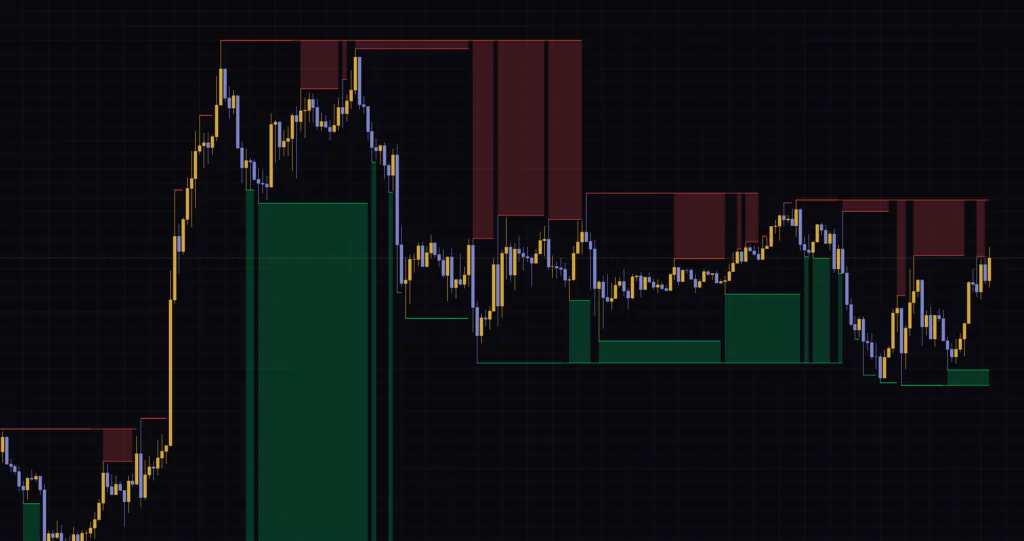
The first time I loaded it on a Bitcoin 1H chart, I didn’t touch a single setting. It picked the 4H as the higher timeframe on its own and stacked zones above and below price. When I draw levels by hand, which high I anchor to tends to drift from day to day. “Support Resistance MTF” follows fixed rules, so anyone who loads it gets the same zones in the same places. For me, that’s the biggest difference from hand-drawn lines.
It doesn’t give buy or sell signals. Its only job is to show you where the key levels are.
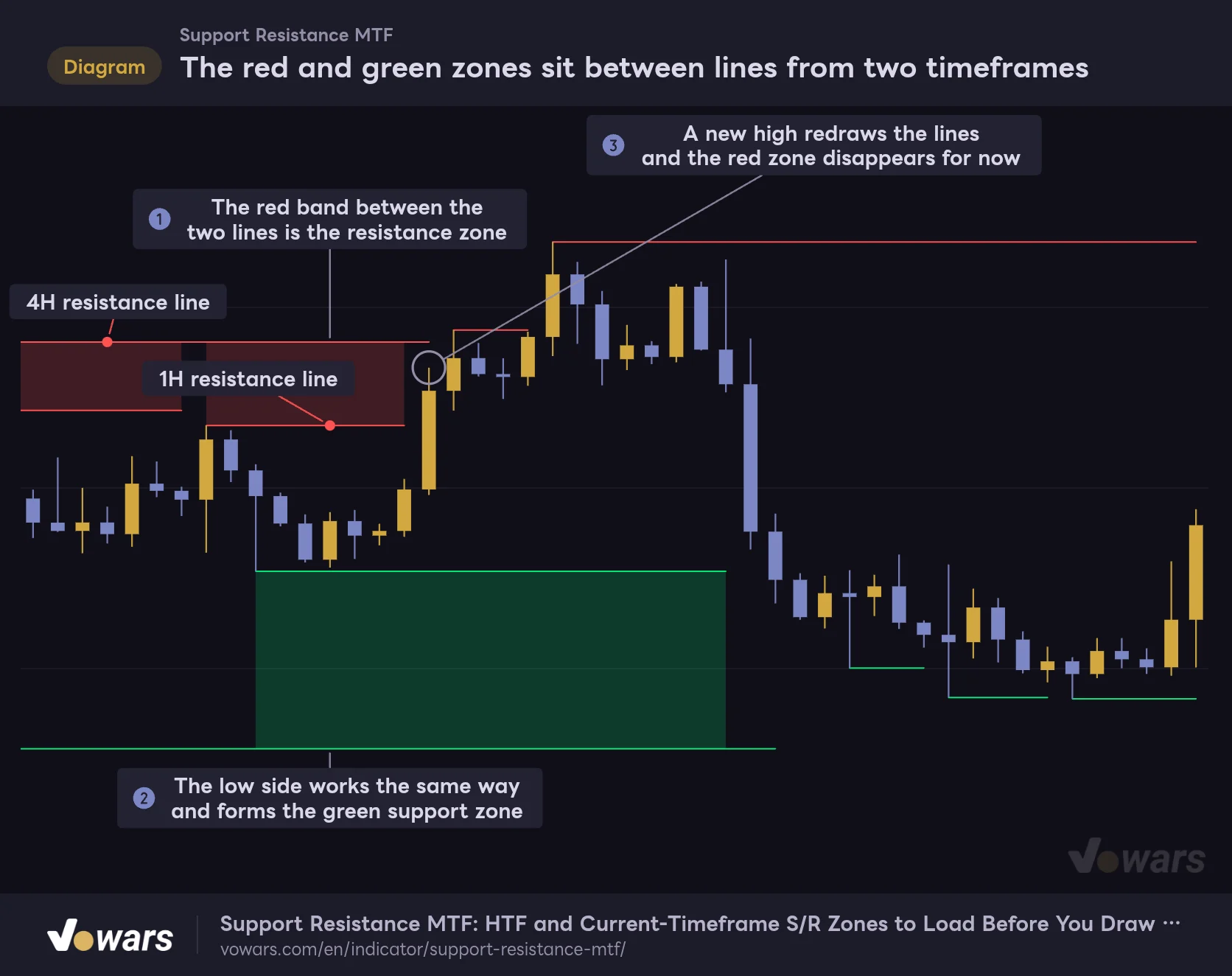
The red and green zones sit between lines from two timeframes
Default settings on a 1H chart. With Auto, the 4H is picked as the higher timeframe.
Vowars DE ver.3.12.30
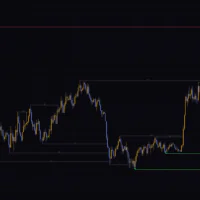
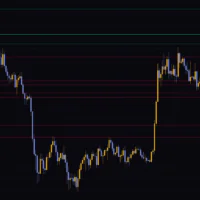
Let’s start with the big picture. The red zone in Figure ① is the price range between the 4H resistance line and the 1H resistance line. The green zone in Figure ② is the same pairing on the low side. When price makes a new high, the lines get redrawn as in Figure ③, and the zone disappears for a while. The zones aren’t a permanent record of the past. Remember that they only show the levels that are active right now, and the way the chart changes won’t throw you off.
How are the four lines drawn? The logic behind the zones
Each zone is built from four lines. “Support Resistance MTF” finds the recent highest high and recent lowest low on both the current timeframe and the higher timeframe, then fills the space between the lines of the same color.
| Line | Where it’s drawn | Color |
|---|---|---|
| Current-timeframe resistance | The high of the bar that printed the highest high of the last 10 bars | Red |
| HTF resistance | The highest high of the last 10 higher-timeframe bars | Red |
| Current-timeframe support | The low of the bar that printed the lowest low of the last 10 bars | Green |
| HTF support | The lowest low of the last 10 higher-timeframe bars | Green |
Ten bars is the default, and you can change it with Period for Highest/Lowest Bars. Keep in mind that this one number applies to both the current timeframe and the higher timeframe.
Current-timeframe lines reset on a new 10-bar extreme
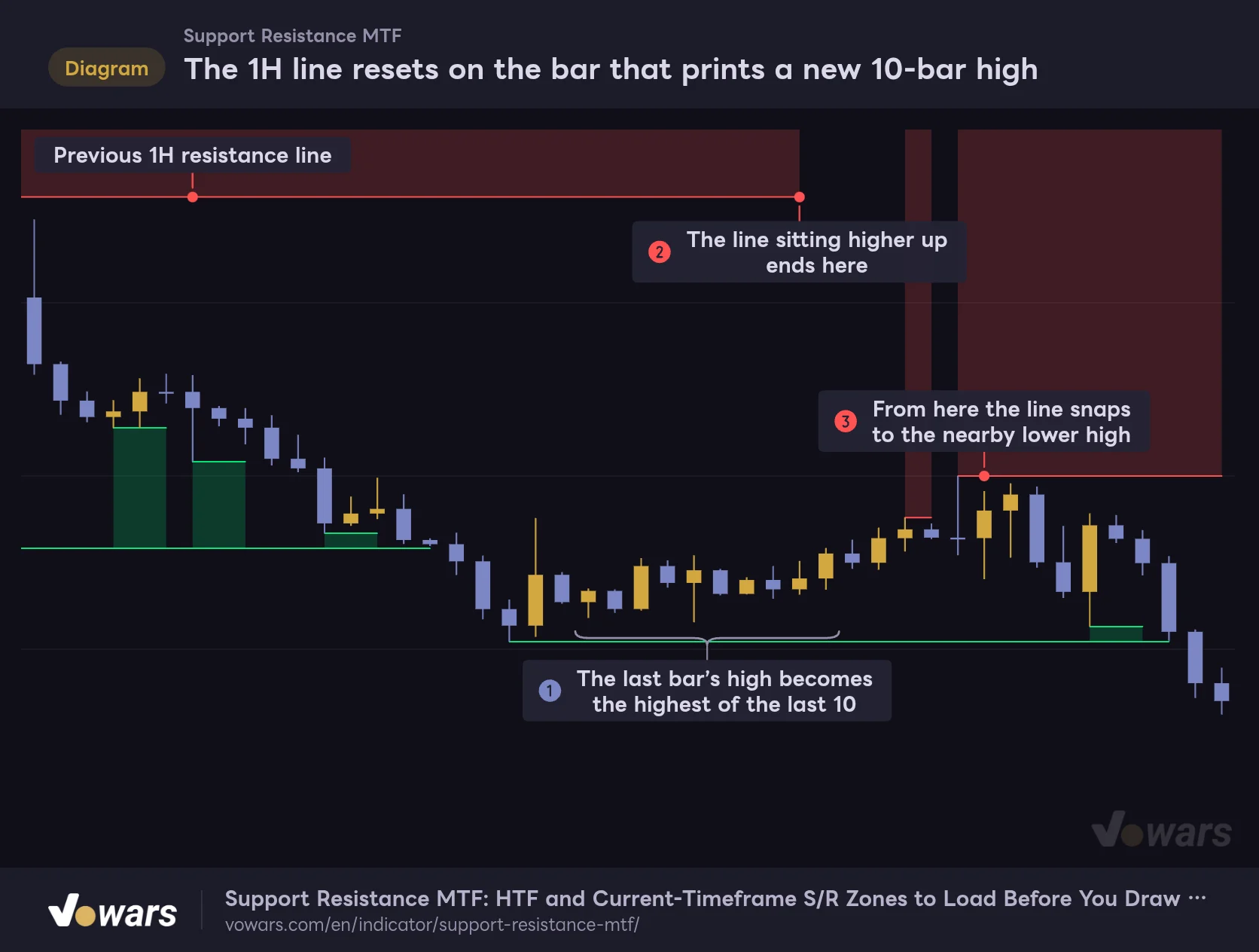
The 1H line resets on the bar that prints a new 10-bar high
This chart focuses only on the 1H line at the default setting (Period for Highest/Lowest Bars = 10).
Vowars DE ver.3.12.30
The 1H line moves when a bar’s high becomes the highest of the last 10 bars. In Figure ①, the last bar inside the bracket has the highest high of those 10. On that bar, the line that was sitting higher up ends where you see Figure ②, and it snaps to the nearby lower high, as in Figure ③.
This is the part most people get wrong at first. Resistance doesn’t only move when price breaks above it. Once the old high rolls out of the 10-bar window and a newer bar becomes the highest in that window, the line gets redrawn lower, too. That’s why, in a downtrend, the red line follows price down like a staircase.
One more thing: the line itself isn’t drawn on the bar where it switches. When price keeps printing new highs bar after bar, the red line looks broken up. That’s not a glitch, so don’t worry about it.
HTF lines are built from the candles on your chart
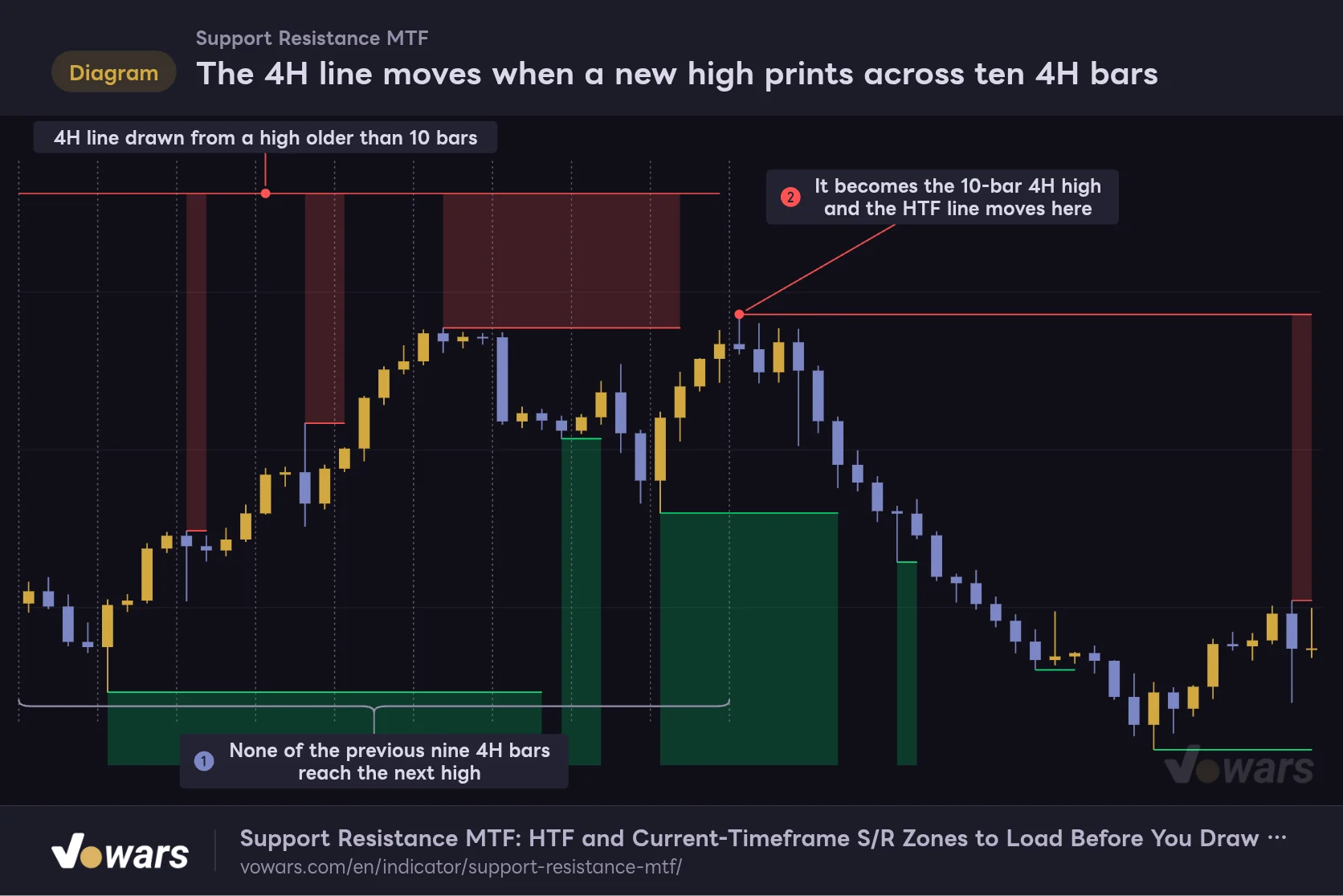
The 4H line moves when a new high prints across ten 4H bars
One 4H bar equals four 1H bars. The dotted lines mark the 4H boundaries.
Vowars DE ver.3.12.30
“Support Resistance MTF” doesn’t pull in separate higher-timeframe data. It groups the candles on your chart by higher-timeframe period, tracks the high and low inside each one, and calculates the HTF values itself.
The HTF line moves by the same logic as the current-timeframe line. With a 4H higher timeframe, once the forming 4H bar’s high clears all of the previous nine 4H bars in Figure ①, the HTF line jumps to that high, as in Figure ②. Any high older than 10 bars is out of the running, no matter how high it is.
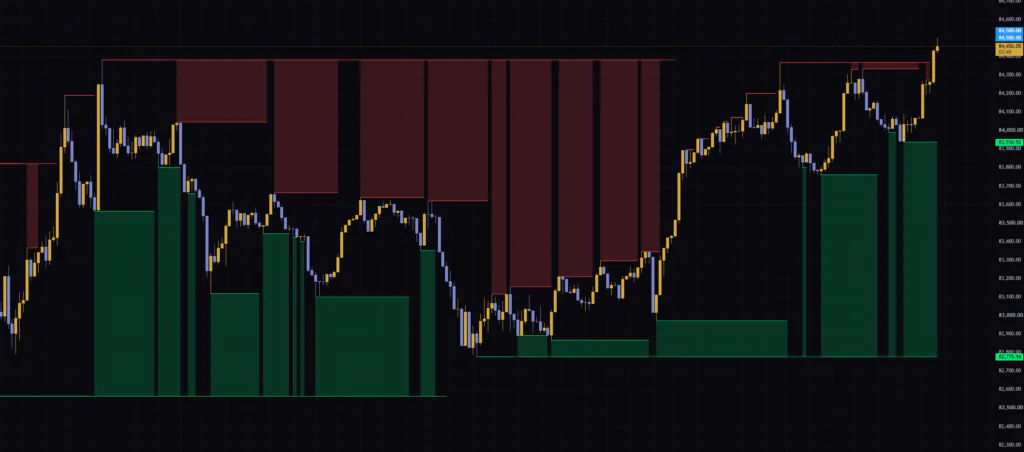
I wanted to know whether building the higher timeframe this way really gives correct values, so I compared a 5m chart (HTF = 1H) and a 1H chart (HTF = 4H) at the same moment. The HTF support on the 5m chart and the support line on the 1H chart both read 82,775.94. In other words, the lowest low of the last 10 1H bars is picked up the same way from both charts.
A zone only shows while both lines stay put
The red zone is only filled when neither resistance line has changed from the previous bar. If even one of them switches, that bar isn’t filled, which leaves thin gaps in the zone.
The other case with no zone is when both lines land on the same value. When price runs all the way through the HTF high, the current-timeframe high and the HTF high become the same number, so the zone has zero width. That’s why the red zone vanished after Figure ③ in the first chart. No red zone during a strong rally is a sign that price keeps making new highs.
Which higher timeframe does “Auto” pick?
With Higher Time Frame left on the default “Auto,” the higher timeframe is chosen from your chart timeframe like this:
| Chart timeframe | HTF picked by Auto |
|---|---|
| 1m, 3m | 15m |
| 5m, 15m | 1H |
| 30m, 45m | 2H |
| 1H | 4H |
| 2H, 3H, 4H | Daily |
| Daily | Weekly |
| Weekly | Monthly |
| Anything else (2m, 10m, 12H, Monthly, etc.) | 12M |
On any timeframe not in the list, the higher timeframe becomes 12M. “Support Resistance MTF” only looks back about 4,000 bars on your chart when it scans for HTF highs and lows. Comparing ten 12M bars on a 12H chart means going back nine years, roughly 6,600 bars, which is out of range. In that case the HTF lines never update, and they can get stuck at a price of 0, making the chart look squashed vertically.
If that happens, switch Higher Time Frame manually to Weekly or Daily and it’s fixed. As a rule of thumb, pick a combination where (chart bars per HTF bar) × (Period − 1) stays under 4,000.
How I read the zones on a live chart
Now that the logic is clear, here’s how to actually read it on a chart. I check these three things, in this order.
1 See which zone price is closer to
In a range, price bounces between the red zone above and the green zone below. The basic read: near the red zone, upside tends to get heavy; near the green zone, start looking for the selling to dry up. Because each zone sits between levels from two timeframes, you can treat it as an area that both 1H and 4H traders are likely watching.
That said, price doesn’t always reverse once it tags a zone. A zone only marks where a reaction is likely, so I wait to see how the candles behave inside it (does a wick get rejected, or does a body push straight through?) before I make a call.
2 In a trend, watch only one edge of the zone
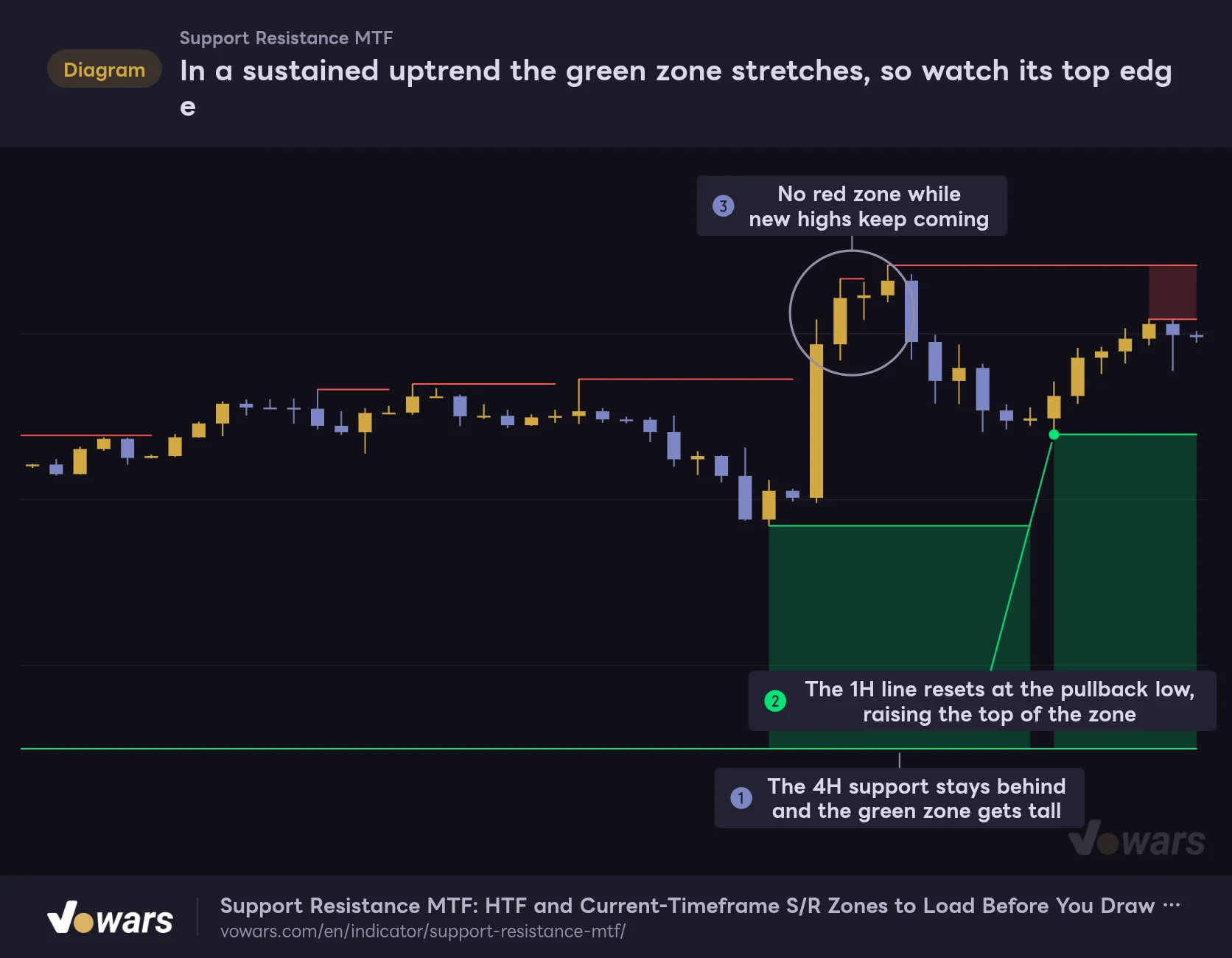
In a sustained uptrend the green zone stretches, so watch its top edge
A 1H example moving from a range into an uptrend (default settings).
Vowars DE ver.3.12.30
Once a trend kicks in, the zones look completely different. In a sustained uptrend the HTF low rarely updates, so the bottom of the green zone gets left far below, as in Figure ①, and the zone stretches very tall. Treating that whole green zone as support is a stretch.
What you want is the top edge of the zone, the 1H support line. As in Figure ②, it ratchets up every time a pullback low forms, so it works as a buy-the-dip reference and a place to park your stop. The red zone on the other side barely shows up while price keeps making new highs, as in Figure ③.
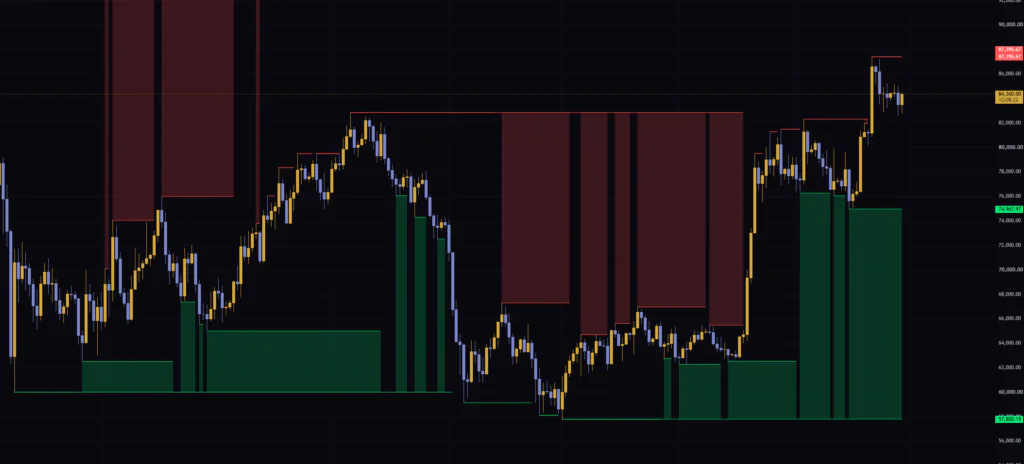
The same thing happens on the daily. On a daily chart (HTF = Weekly), the green zone widened to about 20% of price after a rally. If you use it on the daily or higher, raise Transparency for Zones to lighten the zones so the candles stay readable.
3 When a wick breaks the line, confirm that it moved
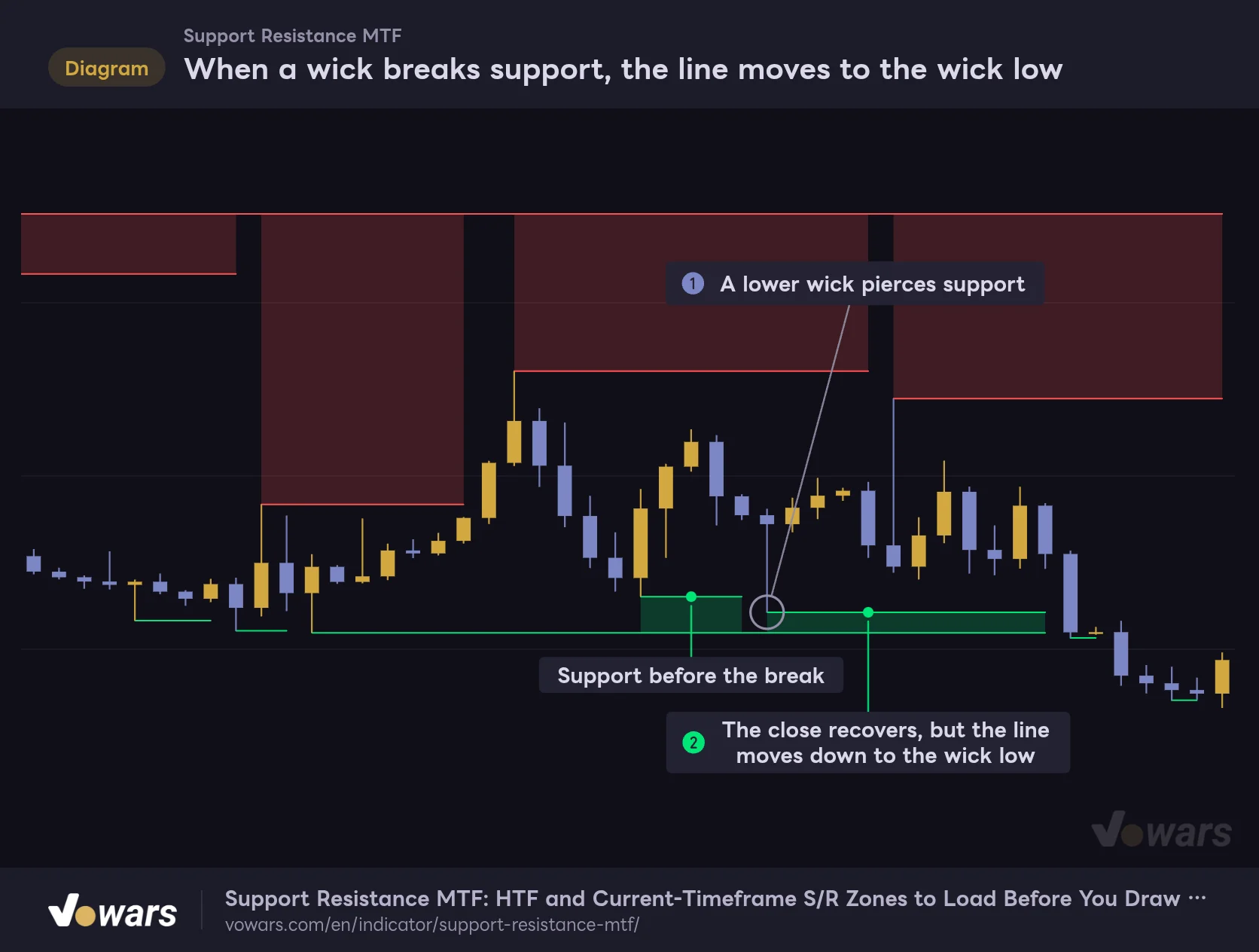
When a wick breaks support, the line moves to the wick low
With the default setting (Source = High/Low), the tip of the wick becomes the line.
Vowars DE ver.3.12.30
This is the one to watch most closely. When a lower wick pokes through support, as in Figure ①, the line moves down to the wick low even if that bar closes back above, as in Figure ②. The broken level disappears from the chart, and there’s no record that it was support a moment ago.
That makes spotting fakeouts (price breaks a level, then snaps right back) a bit annoying. What I do is mark the pre-break level with a horizontal line from TradingView’s drawing tools and check for myself whether price closes back above it.
Best use by timeframe
On the 5m the higher timeframe is the 1H, so the zones are narrow and change often. That suits scalping and intraday traders hunting short pullbacks and bounces. I found the 1H (HTF = 4H) a good fit for day trading and the 4H (HTF = Daily) for swing trading, and the zones are easier to make sense of there.
Settings and how to tune them for your style
There are seven settings. With so few, each one has a clear, visible effect.
| Setting | Default | Suggested | Effect |
|---|---|---|---|
| Source | High/Low | High/Low by default. Close/Open when long wicks are common | What the lines are drawn from. High/Low uses the highs and lows (wick tips); Close/Open uses the top and bottom of the candle bodies |
| Higher Time Frame | Auto | Auto by default. Set it manually on timeframes not in the Auto list | The higher timeframe. Manual options range from 15m to 12M |
| Period for Highest/Lowest Bars | 10 | 5–10 for short-term, 15–20 for swing | How many bars the highest high and lowest low are taken from. Applies to both the current timeframe and the HTF |
| Resistance Color | Red | Any color you can see clearly | Color of the resistance lines and red zone |
| Support Color | Lime | Any color you can see clearly | Color of the support lines and green zone |
| Transparency for Zones | 80 | 80〜90 | Zone transparency. Higher values make the zones lighter |
| Extend Lines | Off | On only when you need it | Extends the latest four lines to the left edge of the chart |
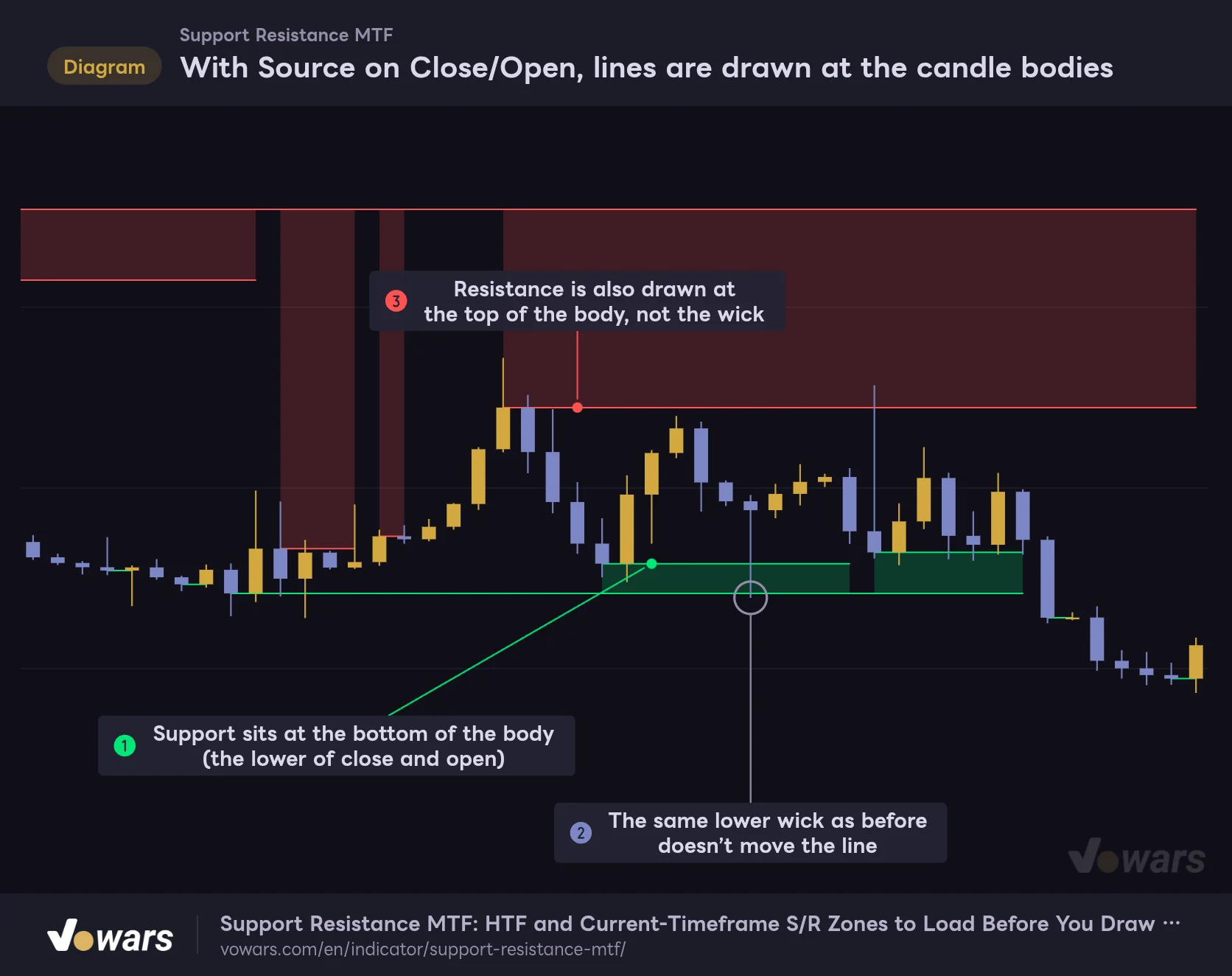
Choose Source based on whether wicks count as levels
With Source on Close/Open, lines are drawn at the candle bodies
Exactly the same candles as the previous chart, with only Source changed to Close/Open.
Vowars DE ver.3.12.30
This chart uses the same price action as the wick-break example, with only Source switched to “Close/Open.” As Figure ① shows, support is drawn at the bottom of the body (the lower of the close and open), and in Figure ② the same lower wick doesn’t move the line. Resistance is likewise set by the top of the body, as in Figure ③.
On symbols that print lots of long wicks, or around news spikes that only last a moment, Close/Open keeps the lines from flipping around so much. If you want the actual highs and lows, wick tips included, stick with the default High/Low. Neither one is “right”; it comes down to whether you treat wicks as levels.
Lower Period for Highest/Lowest Bars catches nearer levels
Using the same candles as the first chart (Period 10), let’s compare Period 5 and Period 20.
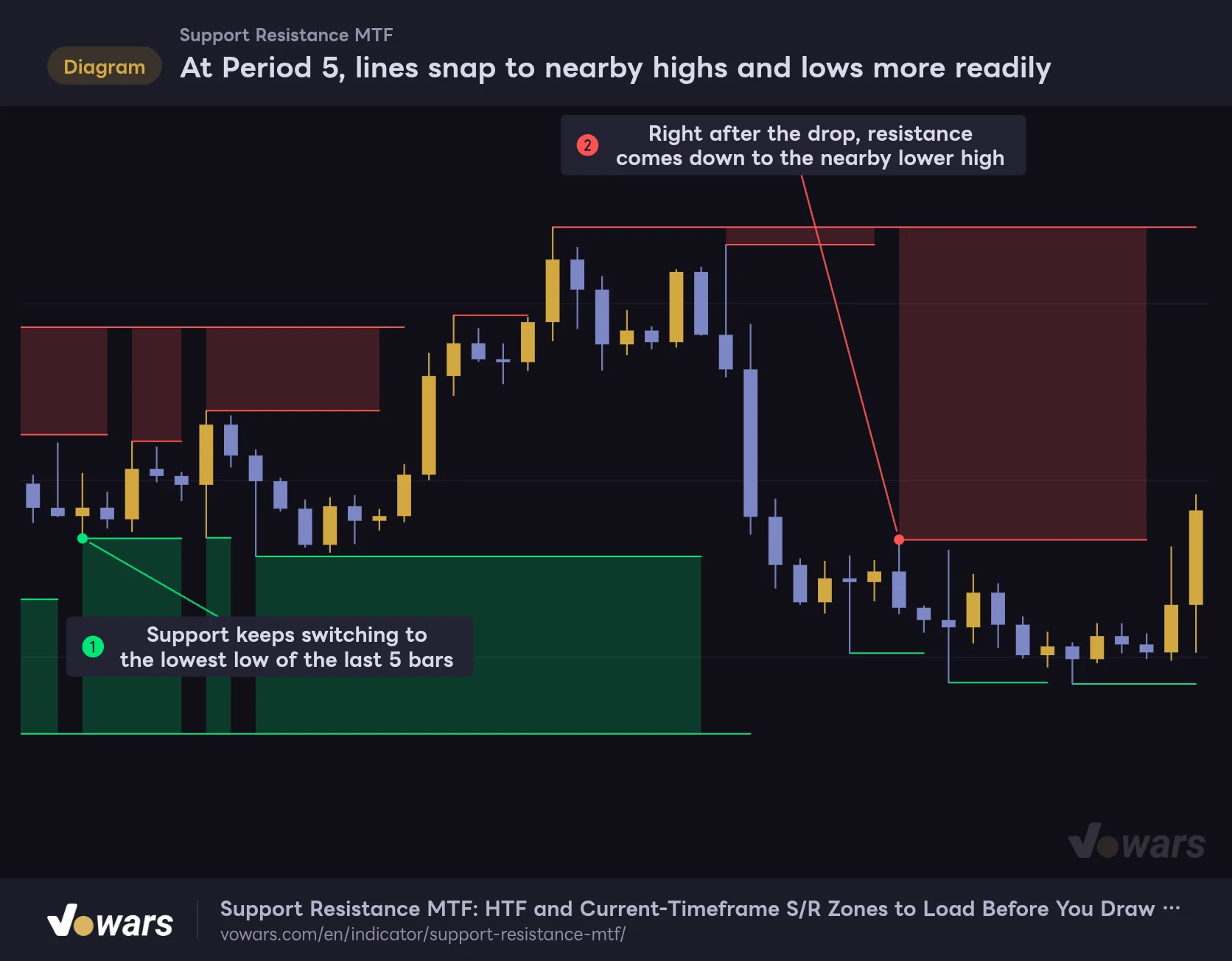
At Period 5, lines snap to nearby highs and lows more readily
The same candles as the first chart, with only Period for Highest/Lowest Bars changed to 5.
Vowars DE ver.3.12.30
At Period 5, support keeps switching to the lowest low of the last five bars, as in Figure ①. After a drop, resistance quickly comes down to the nearby lower high, as in Figure ②, which is handy when you want to catch reactions fast. The trade-off is that the lines break up more often.
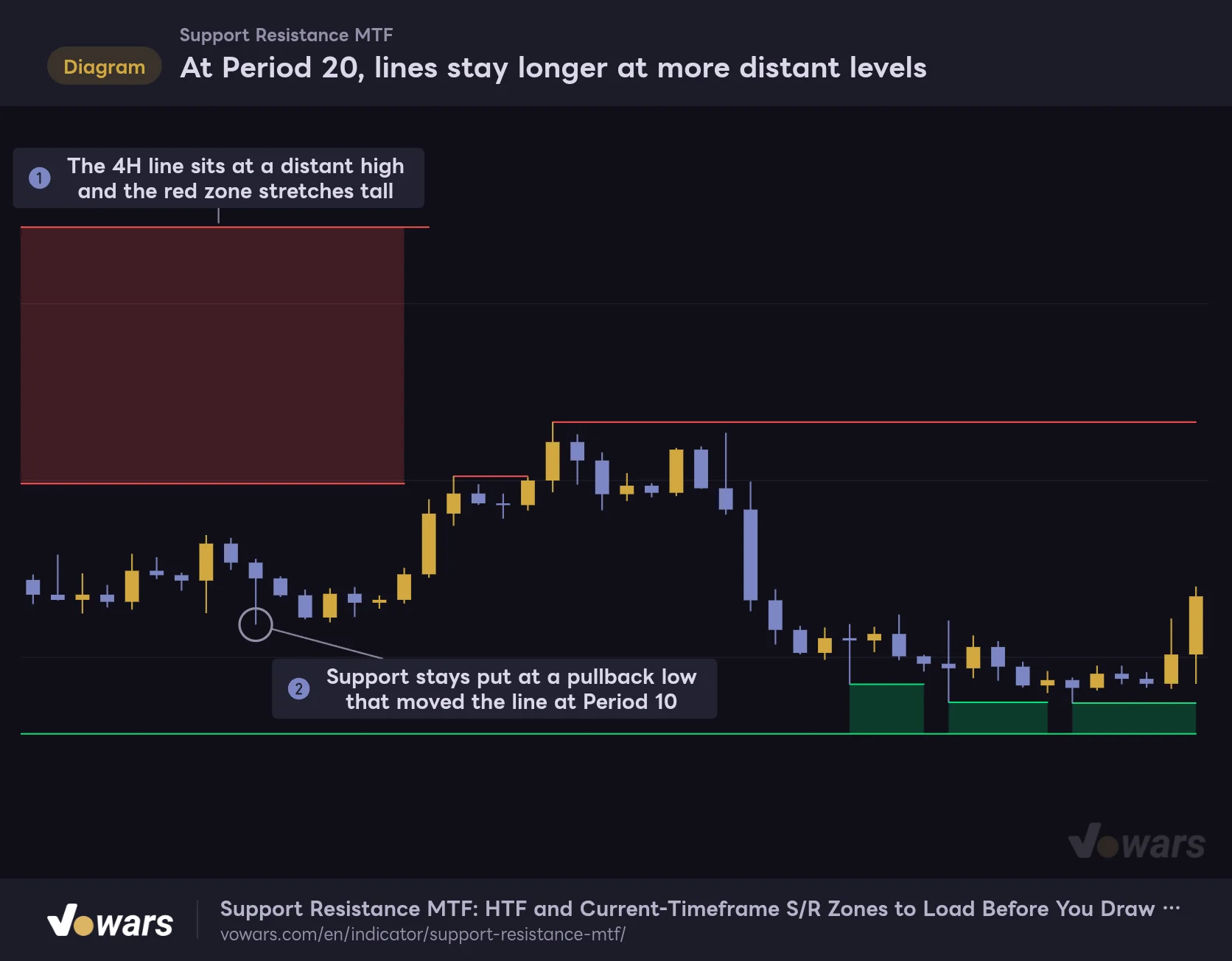
At Period 20, lines stay longer at more distant levels
The same candles as the first chart, with only Period for Highest/Lowest Bars changed to 20.
Vowars DE ver.3.12.30
Period 20 flips the behavior. The HTF line now looks back twenty 4H bars (80 bars on the 1H), so it points at a much higher high and the red zone stretches tall, as in Figure ①. At the pullback low in Figure ②, the line would have moved at Period 10, but at Period 20 it stays put.
From my testing, 5–10 is for spotting the levels right in front of you, and 15–20 is for finding levels the market has respected again and again. For day trading, start from the default 10 and nudge it up if the lines feel too jumpy. For swing trading, when you want levels that stay relevant for a long time, 15–20 is worth a try. If you push it very high, the HTF lines drift far from price and the zones tend to cover the chart, so raise Transparency for Zones along with it.
Picking Higher Time Frame manually
Auto picks a higher timeframe roughly 4 to 15 times longer than your chart timeframe. If you want something further out, set it manually. For example, to see daily levels on a 1H chart, choose “D.” As the warning box above explains, though, depending on how many chart bars fit into one HTF bar and your Period setting, the HTF lines may stop updating. Extreme pairings like a 1m chart with a daily HTF are best avoided.
Use Extend Lines to compare current levels with past price action
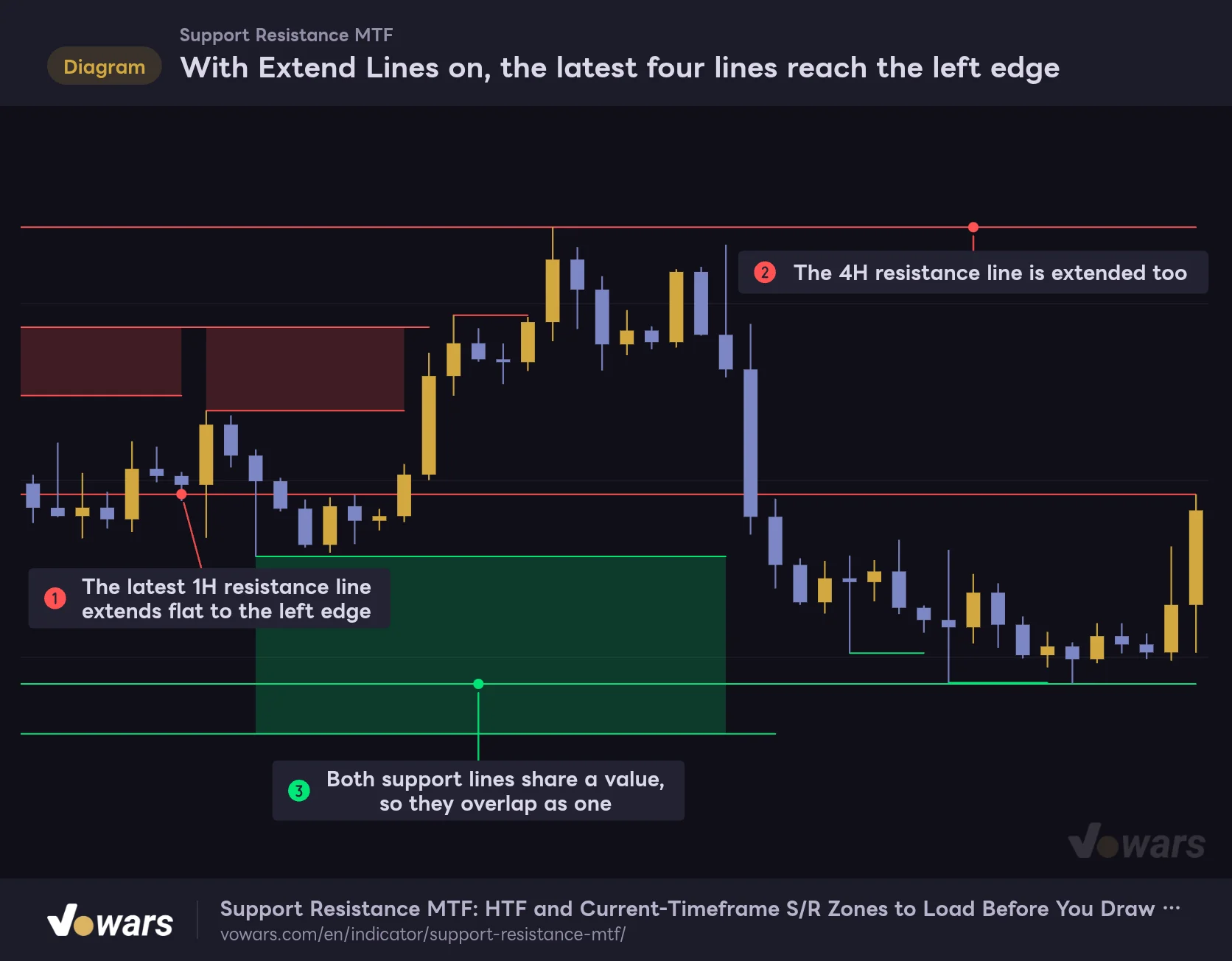
With Extend Lines on, the latest four lines reach the left edge
The same candles as the first chart, with only Extend Lines turned on.
Vowars DE ver.3.12.30
Turn on Extend Lines and the four lines from the most recent bar extend all the way to the left edge of the chart. Figure ① is the 1H resistance line and Figure ② is the 4H resistance line. The two support lines share the same value, so they overlap into one, as in Figure ③.
These extended lines aren’t old lines carried forward. They’re just today’s values projected to the left. They get redrawn on every new bar, so the lines running across past bars move along with them. I think they work best as a quick check on whether the current level also stopped price in the past.
Example setups by trading style
| Style | Chart timeframe | Higher Time Frame | Period for Highest/Lowest Bars | Notes |
|---|---|---|---|---|
| Scalping | 1m–5m | Auto (15m / 1H) | 5–10 | Lines switch fast. Wait for a reaction instead of entering the moment price tags a zone |
| Day trading | 15m–1H | Auto (1H / 4H) | 10 | Works well straight out of the box |
| Swing trading | 4H–Daily | Auto (Daily / Weekly) | 10–20 | Zones tend to get wide, so set transparency to 85–90 |
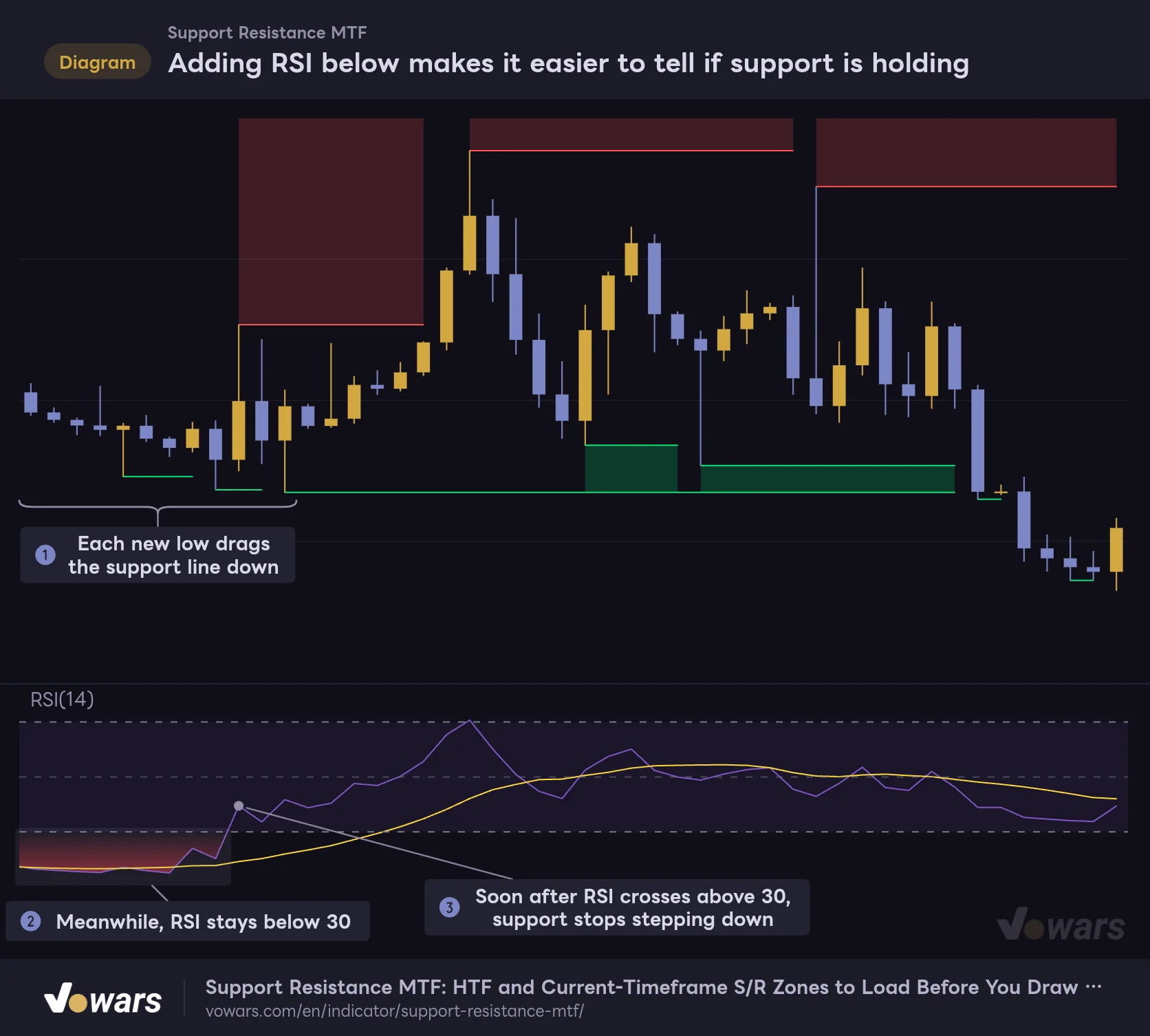
Add RSI to judge whether the selling has stopped
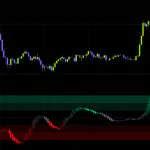
Adding RSI below makes it easier to tell if support is holding
An example pairing Support Resistance MTF (default settings) with TradingView’s built-in RSI (14).
Vowars DE ver.3.12.30
The support line in “Support Resistance MTF” gets redrawn lower every time price makes a new low. As Figure ① shows, the line falls right along with price during a selloff, so the line alone can’t tell you where the drop will stop.
That’s where TradingView’s built-in RSI pairs nicely. As Figure ② shows, RSI stays below 30 the whole time the line keeps dropping. Shortly after RSI crosses back above 30 in Figure ③, the support line stops stepping down. Treat the spot where RSI recovers from oversold and the support line stops moving as a bounce candidate, and you have one more piece of confluence than the zone alone.
A couple of other pairings worth considering:
- Volume: Check whether volume picks up on the bar that breaks a zone. It makes it easier to tell a real breakout from a wick that just tested the level.
- Moving average (200-period, etc.): Use it to decide which zone matters. If price is above the long-term MA, focus on the green zones; if it’s below, focus on the red ones.
What I liked and what to watch out for
What I liked
- See current-timeframe and HTF levels on one chart without switching timeframes
- HTF values are built from your chart’s bars, so lines and zones on confirmed bars never repaint
- The rules are simple enough that you can always explain why a line is where it is
- Source and Period alone let you tune it for nearby or more distant levels
What to watch out for
- Only the latest lines are shown; broken levels aren’t kept
- In a trend, the zone behind price stretches tall and is hard to read as one level
- Lines move with every new high or low, so it won’t tell you whether a breakout held
- With some chart/HTF combinations, the HTF lines can stay stuck at a price of 0
Does it repaint? Live bars and alerts
Lines and zones on confirmed bars don’t repaint. The HTF values are simply built up bar by bar from your chart, with no data from future bars. Where you see a zone on historical bars is exactly where it would have appeared in real time.
The live, still-forming bar is a different story. If it prints a new high or low before the bar closes, the line moves on the spot and the zone can disappear and reappear. Most indicators behave this way, but if you jump in the moment price touches a zone, you may find the line has already moved by bar close.
The one exception is Extend Lines: as mentioned above, the extended lines are redrawn on every bar. Keep in mind that an extended line running across past bars is not where the line actually was at that time.
“Support Resistance MTF” has no built-in alert conditions. TradingView does let you create alerts on indicator plots, though, so in the Create Alert dialog you can set a condition such as price crossing one of the lines. The lines don’t have names, so double-check which one you’ve selected.
If you want to see how the lines actually evolve, step through the chart one bar at a time with Bar Replay. How far back you can go depends on your plan and timeframe (as of 2026/10/12).
The zones mark places where a reaction is likely; they aren’t buy or sell signals. Price may bounce inside a zone or slice right through it. Build your entry case with price action and other indicators, and decide where your stop goes before you get in.
A first draft of your levels, worth keeping on your main chart
“Support Resistance MTF” isn’t a flashy indicator. But because it picks up the highs and lows of two timeframes by the same rules every time and turns the space between them into zones, I found it a really handy first draft before drawing my own horizontal lines.
It’s best suited to day and swing traders looking for range highs and lows on the 1H or 4H. Keep two things in mind, watch only one edge of the zone during a trend and remember the line moves when a wick breaks it, and you’ll rarely misread it. Start with the default settings and follow a few bars to see where the lines get redrawn. Once you’re comfortable, play with Period for Highest/Lowest Bars and Source to find the level distance that fits your trading.