

“MOYA Sessions & Volume Profile” keeps a record of “where the volume traded” for every session you define
A candlestick chart lays out “when, and at what price” in time order. But what you really want to know when you’re trading is often “which price did the most business?” That’s exactly what a volume profile shows with its sideways histogram, and the TradingView indicator “MOYA Sessions & Volume Profile” takes it a step further by slicing the profile into “sessions” (a day, a week, London hours and so on) and leaving one on the chart after another.
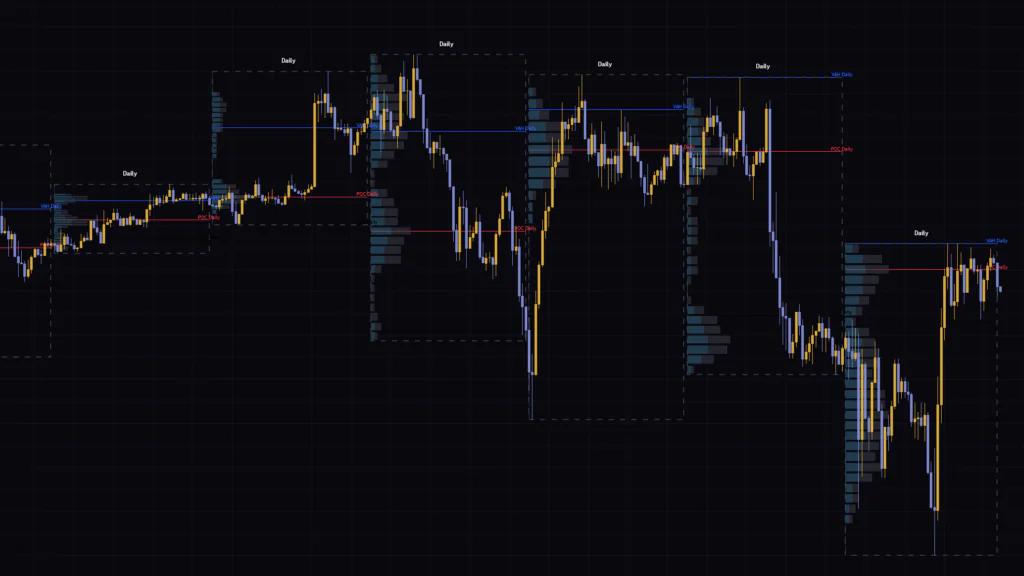
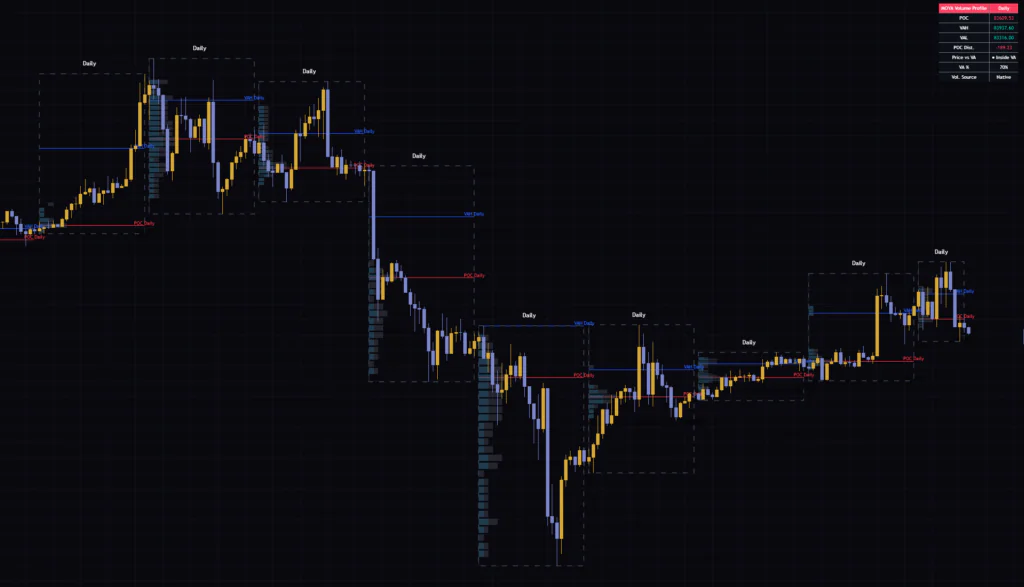
I loaded it on BTC across several timeframes. Every time the date rolls over, a dashed box locks in, a horizontal-bar profile grows from its left edge, and inside the box you get the POC (the price with the most volume) plus the VAH and VAL (the top and bottom of the range holding 70% of the volume). The developing session is drawn too, as the “Live Zone,” and a panel in the top-right corner tells you whether current price is inside or outside that day’s value area.
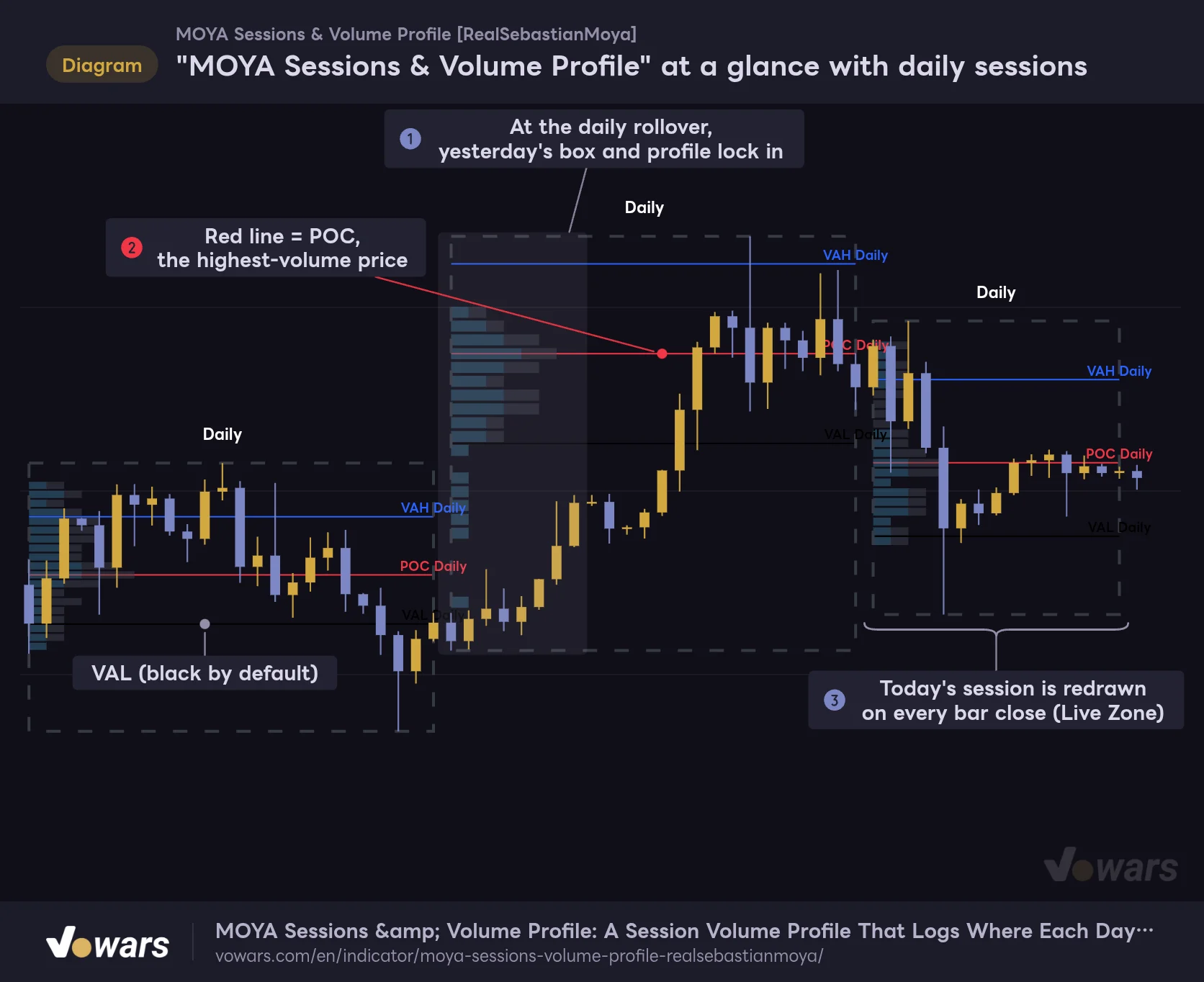
"MOYA Sessions & Volume Profile" at a glance with daily sessions
Default settings (Session Type = Daily) on a 1H chart. Each dashed box is one day's range, and the horizontal bars growing from its left edge are the profile.
Vowars DE ver.3.12.32
Read it in the order shown in Figure ①: start with yesterday’s closed box, check where the red POC, blue VAH and black VAL sit, and finally see where today’s session on the far right is building volume relative to yesterday’s levels. There are no buy or sell signals. It’s easiest to think of it as an analysis tool that automatically logs “the price range the market accepted” every session.
The indicator itself states that its session segmentation and profile construction are based on LeviathanCapital’s open-source script “Market sessions and Volume profile.” “MOYA Sessions & Volume Profile” builds on that with external futures volume, HVN/LVN detection, a live panel and more.
What’s going on inside each box
Let’s zoom in on a single closed session and get the parts straight. Once this clicks, the rest of the chart is just the same box repeated.
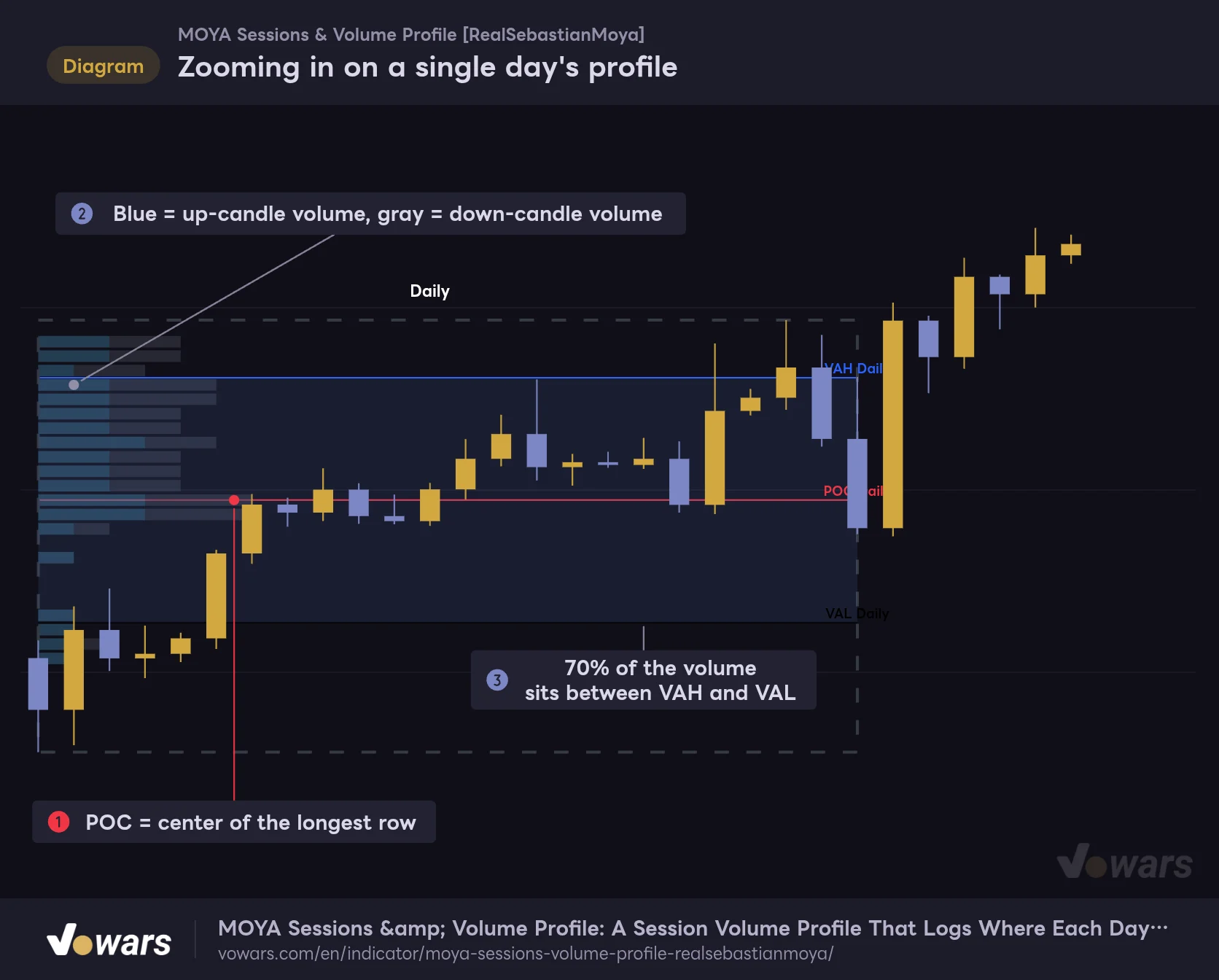
Zooming in on a single day's profile
Show Value Area Box turned on, zoomed in on one closed day. The length of each bar on the left is how much volume traded at that price.
Vowars DE ver.3.12.32
Bar length = volume traded at that price
The session’s high-to-low range is split into the number of rows set by Resolution (default 30), and volume is stacked into each row; those are the horizontal bars on the box’s left edge. The center of the longest row becomes the POC, and the red line runs through it as in Figure ①.
Each bar has two colors. In Figure ②, the bluish part is up-candle volume and the gray part is down-candle volume. With the default Bar Mode “Mode 2,” the two are joined end to end into one bar. Keep in mind this isn’t actual buy vs. sell order flow; it’s an estimate split by whether each candle closed up or down.
The bars only extend across roughly the left 30% of the box width. Bar length moves in whole-bar steps, so the profile outline looks stair-stepped. When a session contains only a few bars, those steps get pretty coarse; I’ll come back to that when we talk about choosing a timeframe.
VAH and VAL bracket “70% of the volume”
VAH (Value Area High) and VAL (Value Area Low) are found by expanding one row at a time above and below the POC row until the total reaches Value Area % (default 70%) of the session’s volume; the top and bottom of that range are the VAH and VAL. The light blue box in Figure ③ is what you get with Show Value Area Box turned on. That range is the “value area,” the price zone the market treated as “fair” for the day.
The common method compares the volume above and below the POC and expands toward whichever side is heavier. “MOYA Sessions & Volume Profile” instead alternates, adding one row above and then one row below. Put it next to another volume profile indicator and the VAH and VAL can be off by a row or two. Neither is “wrong,” so don’t panic if the numbers don’t match the tool you normally use.
Each candle’s volume is weighted toward the wicks
This was the part I personally found most interesting. Instead of dumping a bar’s volume at a single point like the close, the indicator spreads it across the bar’s full high-to-low range. And it doesn’t spread it evenly.
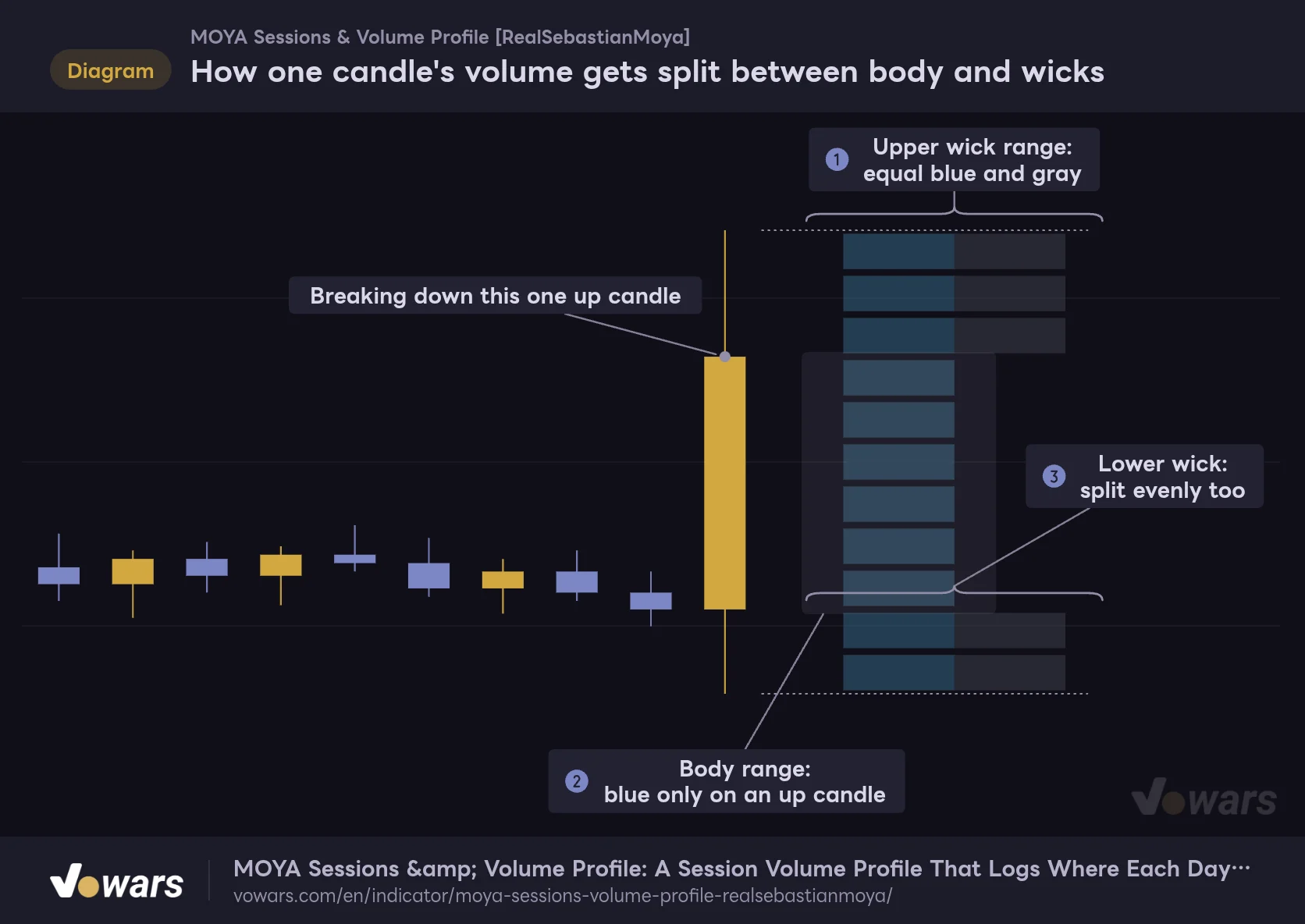
How one candle's volume gets split between body and wicks
A schematic of how the volume of the up candle on the far right is distributed across price levels. The bars on the right are a profile built from that single candle.
Vowars DE ver.3.12.32
Per unit of price, the wicks get twice the weight of the body. On top of that, as shown in Figure ① and Figure ③, wick volume is split half to the up-candle side and half to the down-candle side, while body volume goes only to the side matching the candle’s direction, as in Figure ②. The logic is that a wick marks price traveling back and forth between the high and low, so trading clearly happened there.
The result: a price zone where lots of long wicks overlap gets a fat profile even if few candle bodies sit there. That’s why the POC tends to form in zones where price chopped around, printing wicks on both sides.
The profile is built from the bars of whatever timeframe you’re viewing. It doesn’t look inside lower-timeframe data, so on a 1H chart it estimates where volume traded from the shape of each 1H candle. Even with the same Daily profile, the POC can shift slightly between a 15m chart and a 1H chart.
Session Type and timeframe together decide what you actually see
Session Type offers 56 options in total: 1 to 55 minutes, 1 to 12 hours, Tokyo, London, New York, 1 to 7 days, 1 to 5 weeks, 1 to 7 months, Quarterly and Yearly. The default is Daily. With that many choices, a bad match against your chart timeframe makes the display completely useless, so this is the setting to nail down first.
Daily sessions on a daily chart give you nothing to read
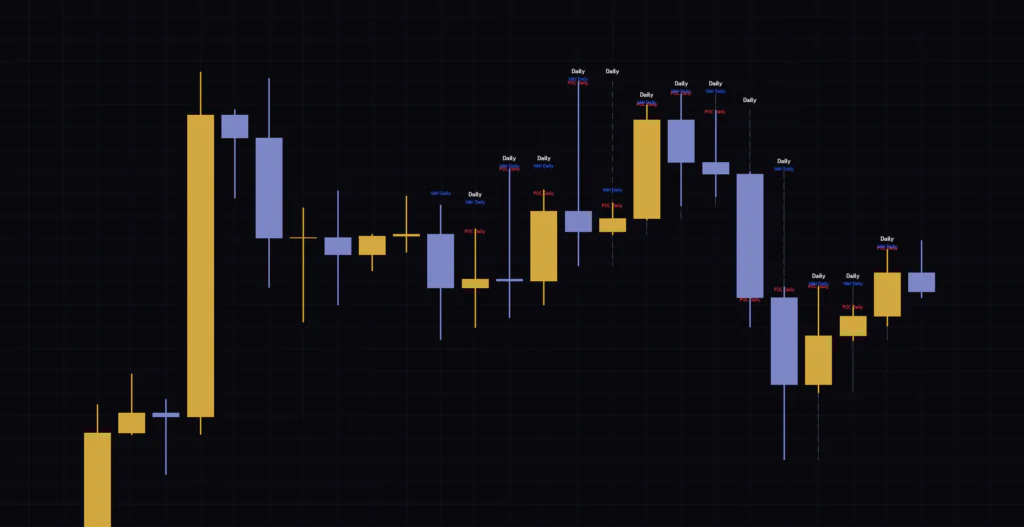
Unsurprisingly, if you drop it on a daily chart with default settings, each session contains exactly one daily candle. The box and profile collapse to almost zero width, and all you get is the “Daily” text and POC/VAH labels stacked above each candle. The top-right panel also shows “NaN” for everything from POC down to POC Dist.
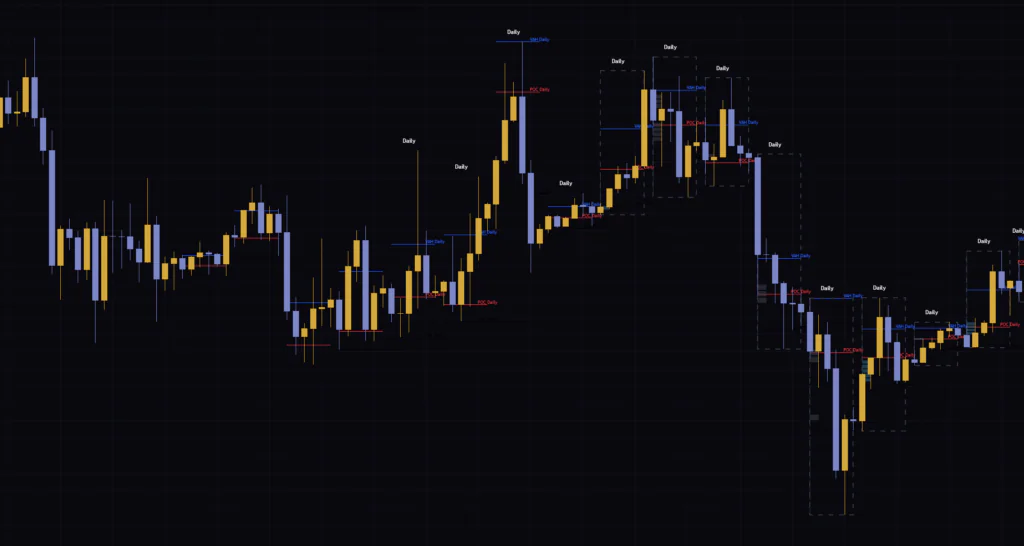
On the 4H chart with Daily, it does draw, but with only 6 bars per day most rows are empty, and it looks more like a handful of horizontal lines than a profile. The fewer bars in a session, the less you can trust the POC, VAH or VAL.
Pick a combination that puts 20+ bars in each session
After a lot of testing, my rule of thumb is “does each session contain at least 20 bars?” With 30 rows, having far fewer bars than that leaves most rows with no volume. For a 24/7 market like BTC, these combinations felt the most workable.
| Chart timeframe | Session Type | Bars per session | Best suited for |
|---|---|---|---|
| 5m | London / New York / 4 Hours | 48–108 | Scalping, tracking price action within that window in detail |
| 15m | Tokyo / London / New York / Daily | 36–96 | Day trading, watching each session’s range and acceptance |
| 1H | Daily | 24 | Day trading to short swings, carrying yesterday’s levels into today |
| 4H | Weekly | 42 | Swing trading off the weekly value area |
| 1D | Monthly / Quarterly | ~30 / ~90 | Position trading off monthly or quarterly price zones |
These bar counts assume 24/7 crypto. Index CFDs, forex and other markets that close on weekends or trade limited hours will have fewer bars with the same settings. If you’re using Weekly or Monthly, count the actual bars once to be sure.
Tokyo, London and New York draw boxes for “that window only”
Picking one of the three named sessions changes the behavior compared with the other options. The profile is built only from bars inside that window, and nothing is drawn outside it.
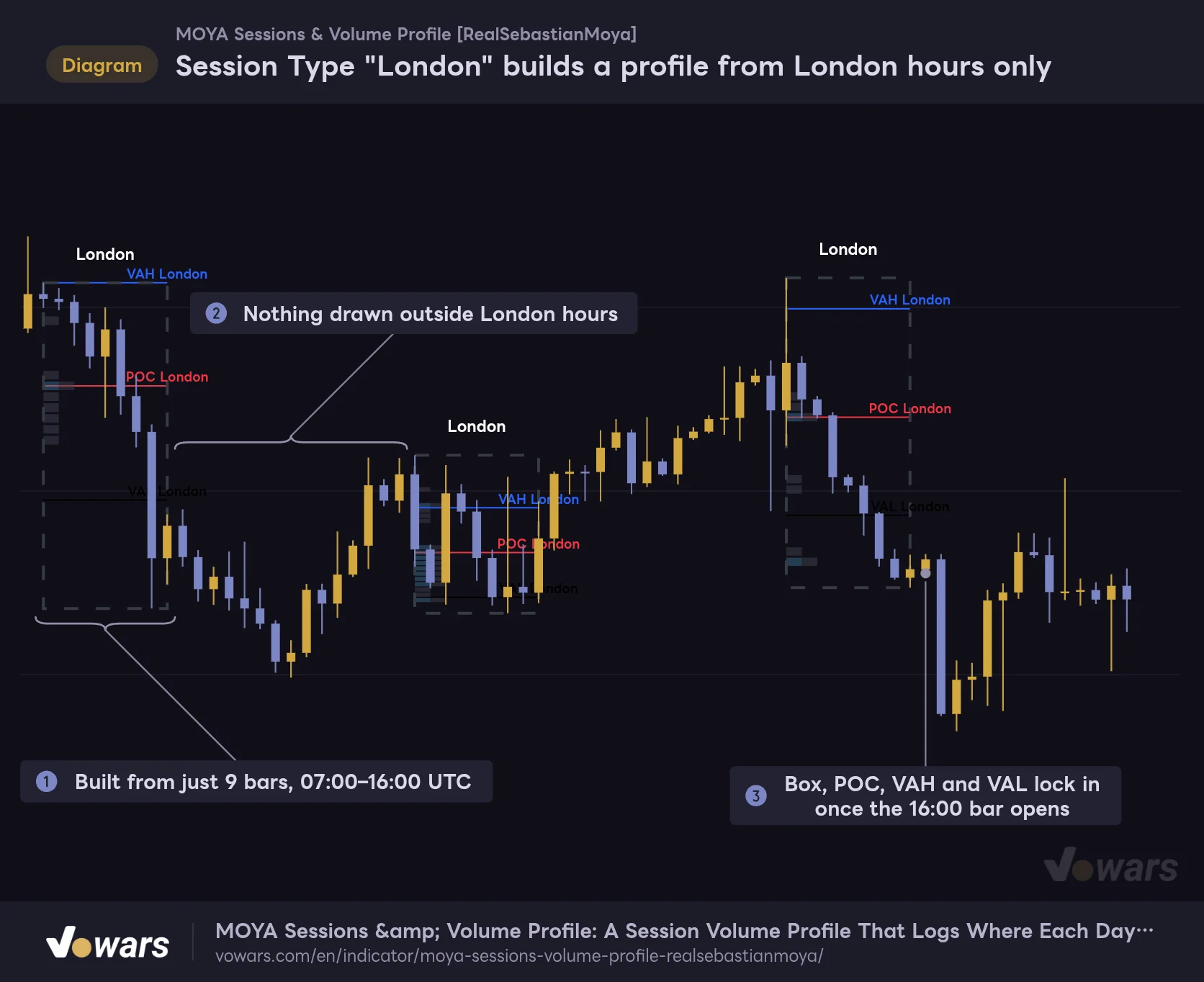
Session Type "London" builds a profile from London hours only
Session Type switched to London on the 1H chart. Dashed boxes only appear for the 07:00–16:00 UTC window.
Vowars DE ver.3.12.32
With London, only bars from 07:00 to 16:00 UTC are counted, as in Figure ①, and nothing appears in the stretch shown in Figure ②. The box and POC lock in at Figure ③, the moment the 16:00 bar opens. Tokyo covers 00:00–09:00 UTC (09:00–18:00 Tokyo time) and New York covers 13:00–22:00 UTC.
All three session windows are fixed in UTC. When London or New York switches to daylight saving time, the windows don’t move. During standard (winter) time, they end up an hour off from the actual local open, so if you want to catch the London open precisely, keep this in mind.
Also, turning on Show Forex Sessions draws boxes around the high and low of each of the Tokyo, London and New York windows, independent of whatever Session Type you’ve chosen. These are range boxes only, with no profile. They’re handy when you’re reading a Daily profile and want to overlay how far each market’s session moved.
Overlaying yesterday’s levels on today’s price action
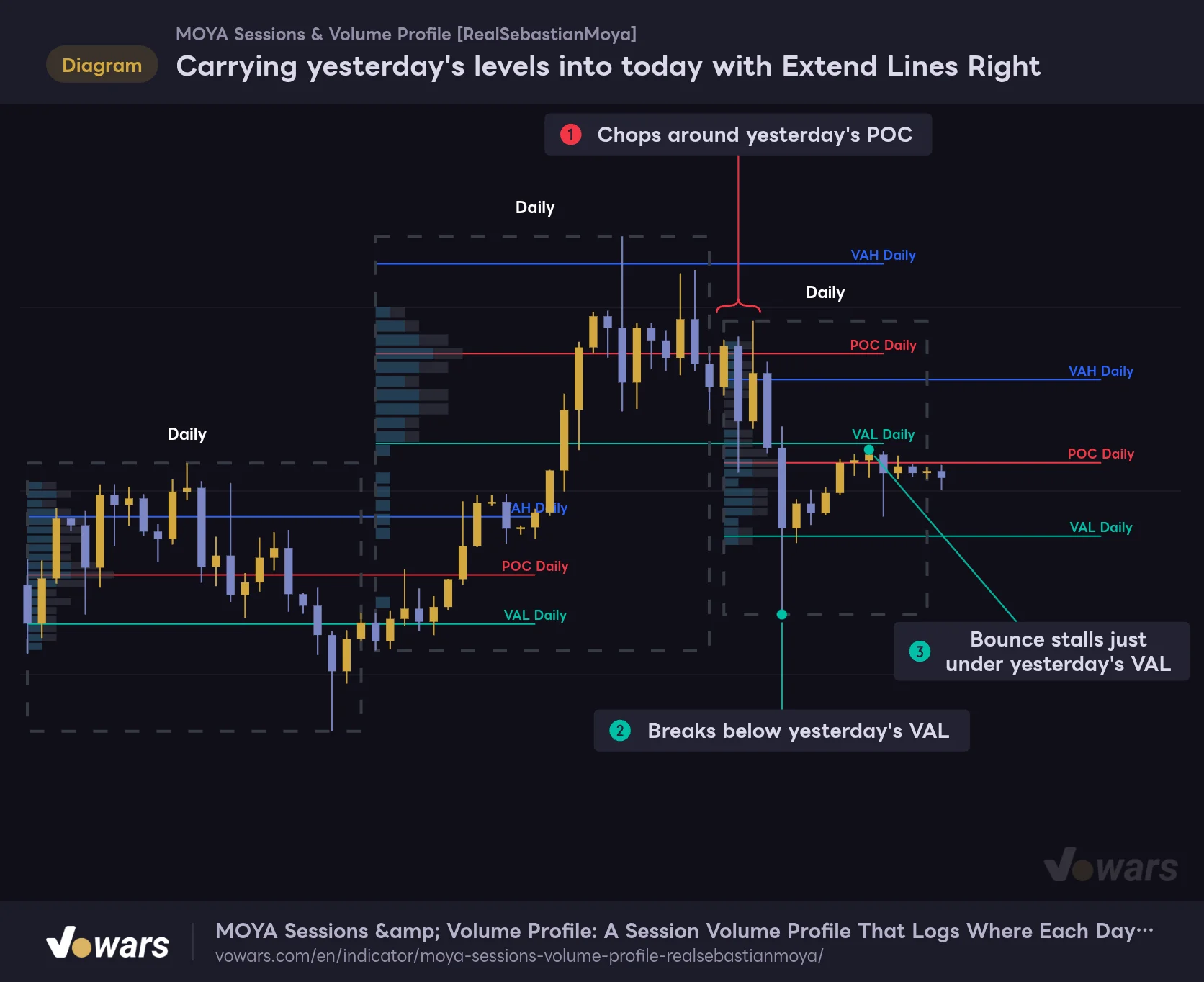
By default, the POC, VAH and VAL lines stop at the session’s right edge. If you want to see how today’s price reacts to yesterday’s levels, I’d recommend turning on Extend Lines Right to carry the lines forward.
Carrying yesterday's levels into today with Extend Lines Right
Extend Lines Right on, with Extension Bars set to 12. Yesterday's POC, VAH and VAL now run across today's candles.
Vowars DE ver.3.12.32
The extension length is set by Extension Bars, default 50. On a 1H chart with Daily, that reaches two days ahead and clutters things up, so trimming it to around 12–24 left just “yesterday overlapping today” and made it much easier to read. In Figure ① price chops around yesterday’s POC, in Figure ② it breaks below yesterday’s VAL, and in Figure ③ the bounce stalls just under that same VAL. Former support flipped into resistance once it broke.
Watching “where today is trading relative to yesterday’s value area” is the core way to use this indicator. Here are the three typical reads, broken out by scenario.
1 Price is rotating inside yesterday’s VA: fade the edges back toward the middle
If yesterday’s profile is bell-shaped (POC near the middle) and today is still trading between yesterday’s VAH and VAL, the market is in “balance.” When price pushes up to the VAH without momentum and prints a candle that leaves a wick and gets rejected, that’s a fade candidate targeting a move back to the POC. A stop just outside the VAH is the natural place.
2 Price leaves the VA and builds volume out there: go with it
Price breaks above yesterday’s VAH, doesn’t come back, stacks bar after bar above it, and today’s Live Zone profile keeps fattening above yesterday’s VAH. That’s the market “accepting” a new price range. In this case, flip from fading to trend-following: wait for a pullback into yesterday’s VAH and buy the dip.
3 Price leaves the VA but volume doesn’t follow: suspect a fakeout
A big green candle clears yesterday’s VAH, but the Live Zone profile barely grows above it and price quickly drops back into the VA. Moves like this often turn out to be nothing more than a brief poke outside the range. Once price is back inside the VA, the setup is to target the POC or the opposite VAL.
The same “approach to the VAH” is a place to sell on a balance day and just a waypoint on a trend day. The profile alone can’t tell you which kind of day today is. Realistically, you’ll want to combine yesterday’s profile shape, how today’s Live Zone is filling in, and a separate indicator that measures trend strength. I’ll show a concrete pairing later on.
Highlighting the profile’s “peaks” and “valleys” with HVN/LVN and Bar Mode
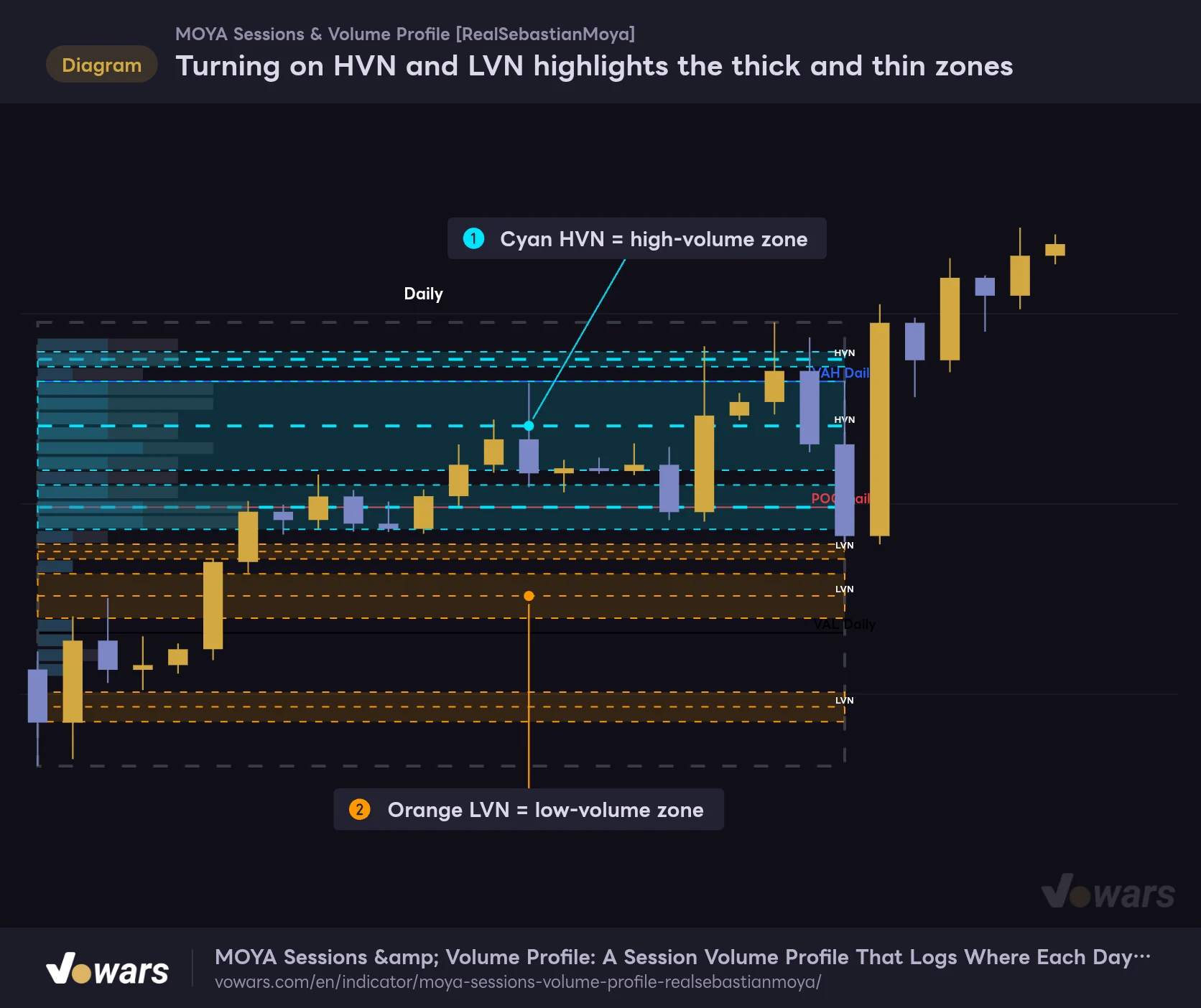
The POC is a single line, but real profiles often have two peaks or a thin neck in the middle. Show HVN (High Volume Nodes) and Show LVN (Low Volume Nodes) pick those up; both are off by default.
Turning on HVN and LVN highlights the thick and thin zones
Show HVN and Show LVN turned on. Volume peaks (cyan) and valleys (orange) are marked on closed sessions only.
Vowars DE ver.3.12.32
The cyan zones in Figure ① are HVNs (thick volume) and the orange zones in Figure ② are LVNs (thin volume). The logic is very straightforward: using the session’s average row volume as the baseline, a run of rows at or above HVN Threshold (x Average Volume) (default 1.5x) is an HVN, and a run at or below LVN Threshold (x Average Volume) (default 0.4x) is an LVN. Up to Max Nodes per Type (per session) (default 3) of each are shown, with HVNs chosen by highest peak and LVNs by deepest valley.
LVNs are the easiest to put to work. A thin-volume zone is where price moved through quickly that day, so when price comes back there’s little to hold it and it tends to slice right through. Think of an LVN not as a level to fade, but as a zone where you target the HVN or POC on the other side; that makes them much easier to use.
With the default thresholds, a clean bell-curve day tended to produce one wide HVN band. If you only want the peak, raising HVN Threshold (x Average Volume) to around 2.0 cleans it up. When it picks up tiny one-row valleys, setting Min Zone Size (bins) to 2–3 leaves only zones with some width. If you’re layering it with other studies, set Node Style to “Line Only.” The fill disappears and only the center line remains, which made it far easier to read.
HVNs and LVNs are drawn on closed sessions only. They don’t appear in the developing Live Zone, so if you want to spot today’s neck, you’ll have to eyeball the profile shape.
Three Bar Modes, and Mode 1 means something different
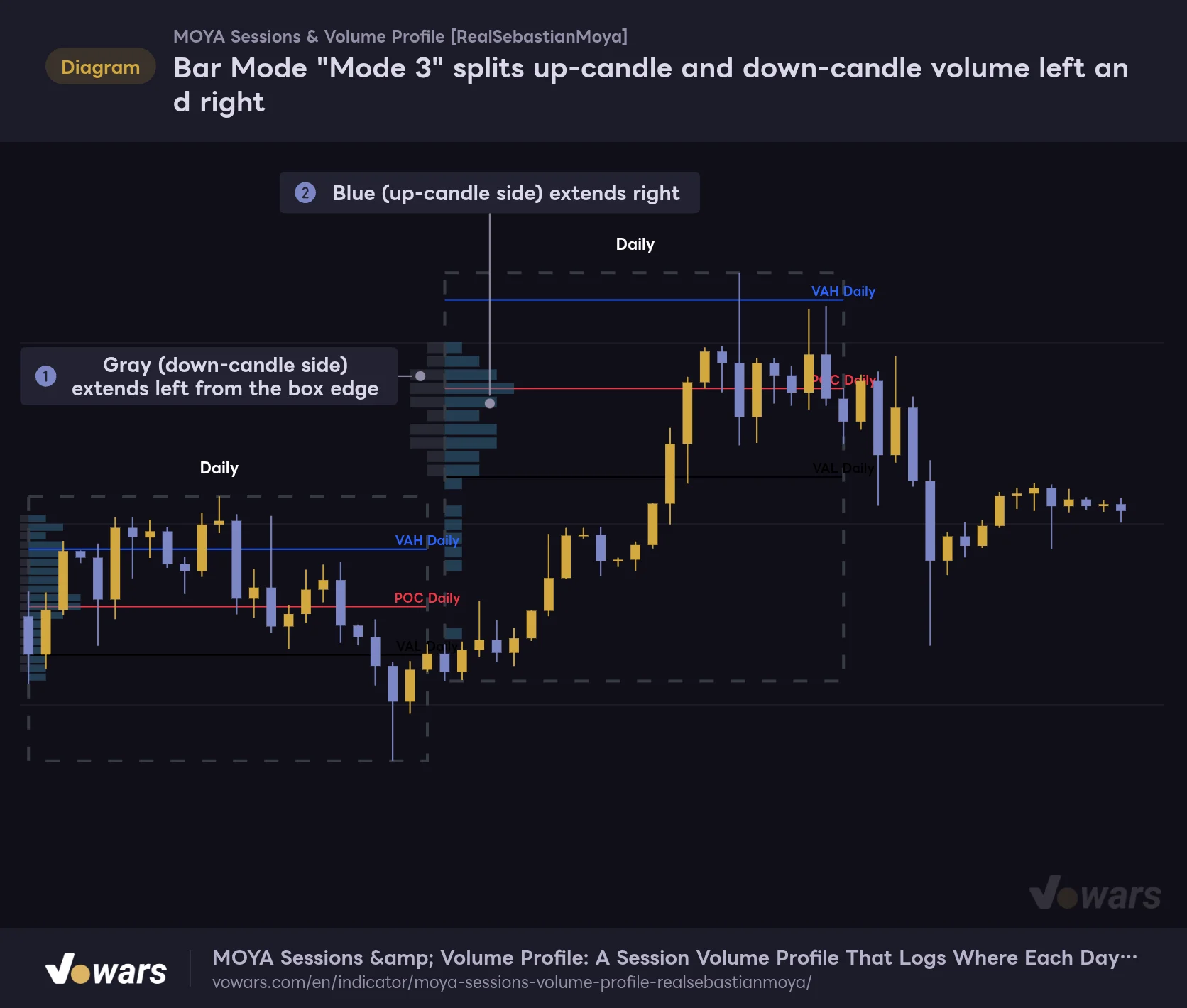
Bar Mode switches how the profile is drawn. The default Mode 2 shows the combined length of up-candle and down-candle volume joined together, while Mode 3 splits them left and right of the box’s left edge.
Bar Mode "Mode 3" splits up-candle and down-candle volume left and right
Same chart, with only Bar Mode switched to Mode 3. Down-candle volume extends left of the box edge, up-candle volume extends right.
Vowars DE ver.3.12.32
In Mode 3, the gray in Figure ① extends left and the blue in Figure ② extends right, so you can compare left vs. right length to see at which prices the up-candle side dominated. The catch is that the left-hand bars overlap the previous session’s area, which gets a bit cramped when sessions are packed closely together.
Watch out for Mode 1. The name suggests a “simple view,” but it actually draws only the up-candle volume and leaves the down-candle side out. Bar length no longer represents total volume, so the POC (the line is still based on the total) may not line up with the longest bar. For everyday use, sticking with Mode 2 is fine.
The Live Zone and panel are calculated “up to the previous bar”
The Live Zone, which draws the developing session, and the corner panel are what you’ll lean on for real-time decisions. They have a few quirks, so let’s sort out how to read them correctly.
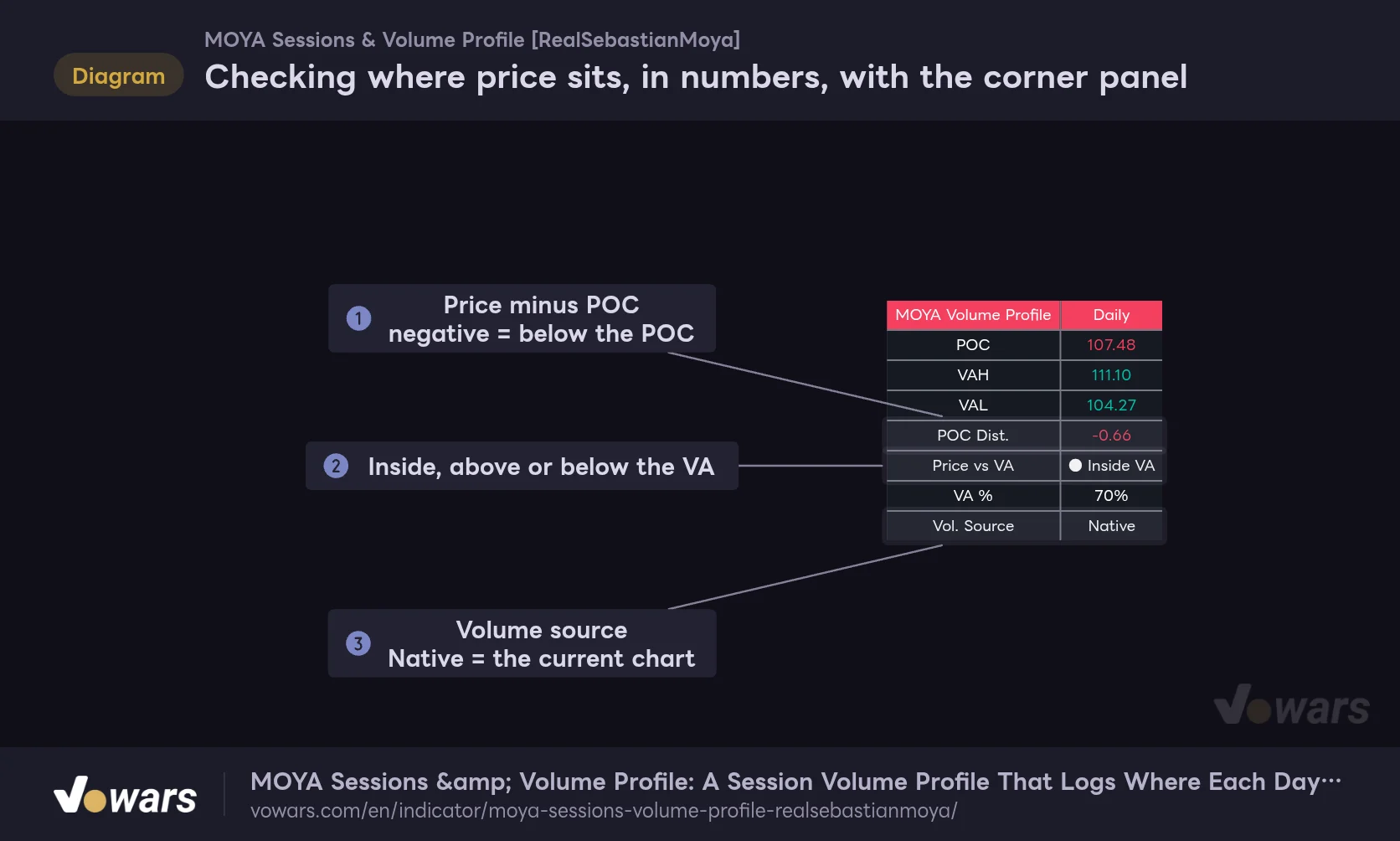
Checking where price sits, in numbers, with the corner panel
The table that appears in the chart corner when Show Panel is on. Every value is calculated from the developing session (Live Zone).
Vowars DE ver.3.12.32
The panel’s POC, VAH and VAL are the values for the session that’s currently forming. Don’t mix them up with yesterday’s closed levels. POC Dist. in Figure ① is current price minus the POC: positive means price is above the POC, negative means below. Price vs VA in Figure ② shows one of three states, “▲ Above VA,” “● Inside VA” or “▼ Below VA,” telling you where price sits relative to today’s value area. Vol. Source in Figure ③ shows where the volume comes from, normally “Native” (the volume of the chart you’re viewing).
The easy thing to miss is the calculation timing. The Live Zone profile and its high/low are calculated up to the last confirmed bar, excluding the bar that’s currently moving. On a 1H chart, the previous hour gets added when a new bar opens. That’s why the Live Zone box doesn’t immediately expand even when the forming bar makes a big move.
The panel’s numbers reuse the calculation that draws the Live Zone. So if you turn off Show Live Zone, the current session isn’t calculated at all, and the panel shows NaN from POC through POC Dist. If you use the panel, leave the Live Zone on. If today’s box is just in the way, it’s safer to adjust Show Labels or fade the profile colors than to switch it off.
To see how the Live Zone develops on historical data, you can use TradingView’s Bar Replay. Replay advances one bar at a time, so you can follow exactly when today’s profile started building above the VAH, in the same order you’d see it live. How far back you can go and which timeframes are available depend on your plan, so test within those limits.
“External futures volume” for CFDs and forex, plus Open Interest mode
A feature unique to “MOYA Sessions & Volume Profile” is Use External Futures Volume. On CFD and forex charts, the volume shown is often the broker’s own tick count (how many times price changed), which is a different thing from actual traded volume. With this feature on, the price stays as your current chart, but each bar’s volume is replaced with volume from a related futures contract to build the profile.
With 🔄 Auto Detect Futures Ticker on, the futures contract is chosen automatically from the chart’s symbol name. For example, XAUUSD (gold) maps to COMEX gold futures, NAS100 to E-mini NASDAQ-100 futures, and EURUSD to Euro FX futures. The lookup table covers major FX pairs, stock indices, gold and silver, crude oil and natural gas, plus BTCUSD and ETHUSD. For symbols not in the table, it falls back to whatever you enter in Manual Futures Symbol (fallback / si Auto está OFF).
The auto-detect table only lists the symbol name “BTCUSD.” Turn on external volume on a USDT-quoted BTCUSDT chart and, since there’s no match, it falls back to the manual field’s default “CME:6E1!” — meaning it ends up using Euro FX futures volume. If the panel’s Vol. Source shows “CME:6E1! (manual),” that’s what’s happening. If you want to try this on BTC, change the manual field to CME Bitcoin futures (CME:BTC1!).
That said, crypto exchange charts already show real traded volume, so there isn’t much reason to switch BTC over to external volume. Where this feature really shines is on charts where the volume isn’t “real”: gold CFDs, index CFDs, forex pairs and the like. Note that on bars where the external symbol’s volume can’t be fetched, the chart’s own volume is used as-is. If you pair instruments with different trading hours, be aware that some periods will mix volume units. CME crypto futures moved to 24/7 trading on May 29, 2026.
Switching Data Type to Open Interest
Changing Data Type to “Open Interest” builds the profile from changes in open interest (the number of outstanding contracts) instead of volume. Bars where OI increased go to the blue side, bars where it decreased go to the gray side, and only the candle body range is used. TradingView’s help center lists futures and crypto derivatives as the instruments with open interest data; spot charts aren’t included. On charts without OI data, no profile is drawn at all, so switch to a derivatives chart such as a perpetual before trying it. Also, external futures volume isn’t used in Open Interest mode.
Settings, and how to tune them for your goal
The settings are split into 8 groups: “Session,” “Display,” “Volume Profile,” “External Futures Volume,” “Volume Nodes (HVN/LVN),” “Label Style,” “Appearance” and “Live Panel.” Below are the main ones that affect what you see, with suggested values. The suggestions are what read best for me on BTC with 1H × Daily; feel free to adjust them for your market and timeframe.
| Setting | Default | Suggested | Effect |
|---|---|---|---|
| Session Type | Daily | Daily on 1H, London / New York on 15m, Weekly on 4H | The unit that slices the profile. Pick one that puts 20+ bars in each session |
| Resolution | 30 | 30 (40–50 for bar-heavy combos) | Number of rows. More rows pin down the POC, but also add empty rows |
| Value Area % | 70 | 70 | Share of volume included between VAH and VAL |
| Bar Mode | Mode 2 | Mode 2 | How bars are drawn. Mode 1 = up-candle side only, Mode 3 = split left/right |
| Data Type | Volume | Volume | Open Interest builds the profile from OI changes (for derivatives charts) |
| Smooth Volume | Off | Off | When on, volume is smoothed with a 5-bar EMA before distribution |
| Show Live Zone | On | On | Draws the developing session. Turning it off makes the panel show NaN |
| Extend Lines Right | Off | On | Extends POC/VAH/VAL to the right over the next session |
| Extension Bars | 50 | 12–24 (1H × Daily) | How many bars to extend the lines |
| Use External Futures Volume | Off | On for CFD/forex charts | Replaces volume with a related futures contract’s volume |
| Show HVN (High Volume Nodes) | Off | On as needed | Marks high-volume zones on closed sessions |
| HVN Threshold (x Average Volume) | 1.5 | 1.5–2.0 | Multiple of average row volume at or above which a row counts as HVN |
| LVN Threshold (x Average Volume) | 0.4 | 0.3–0.4 | Multiple of average row volume at or below which a row counts as LVN |
| Min Zone Size (bins) | 1 | 2 | Minimum consecutive rows to count as an HVN/LVN zone |
| VAL | #000000 (black) | A color with contrast against your background | Color of the VAL line and label. The default is hard to see on dark themes |
Change the VAL color first
In the “Appearance” group, the default VAL color is black (#000000). On a dark-theme chart it blends into the background, and you can barely see the line or the label. Match it to the green used for VAL in the panel, or pick something with contrast like white or gray, and both ends of the value area become obvious at a glance. If you use a light theme, the default is fine.
Raising Resolution doesn’t add horizontal detail
Increasing Resolution makes the rows finer and pins down the POC more precisely. But since bar length moves in whole-bar steps, adding rows doesn’t make the differences in bar length any finer. Add rows to a combination with few bars per session and you’ll just see more empty rows. For 1H × Daily, the default 30 is plenty; with bar-heavy combos like 4H × Weekly or 5m × New York, bumping it to 40–50 felt about right.
Decluttering the display
- Turn off Show Volume Profile and only the POC, VAH, VAL and box remain, which is plenty if you only trade the lines.
- Turn off Show Zone Box to remove the dashed box. Its border color and width are set with Box Border, and the line style with Box Line Style.
- Box Background is fully transparent by default. Give it a color to fill the box. Note that the “Width” next to it had no effect on the box. Border thickness is controlled by the “Width” next to Box Border.
- If labels overlap and get hard to read, set POC / VAH / VAL Label Size to “Tiny,” and shrink the session name text with Session Label Size.
- The panel can be moved to any corner with Position. If it collides with values on the price scale, moving it to the top left is the safe bet.
ADX in the lower pane makes it easier to decide whether to “wait” or “chase” at the VA edge
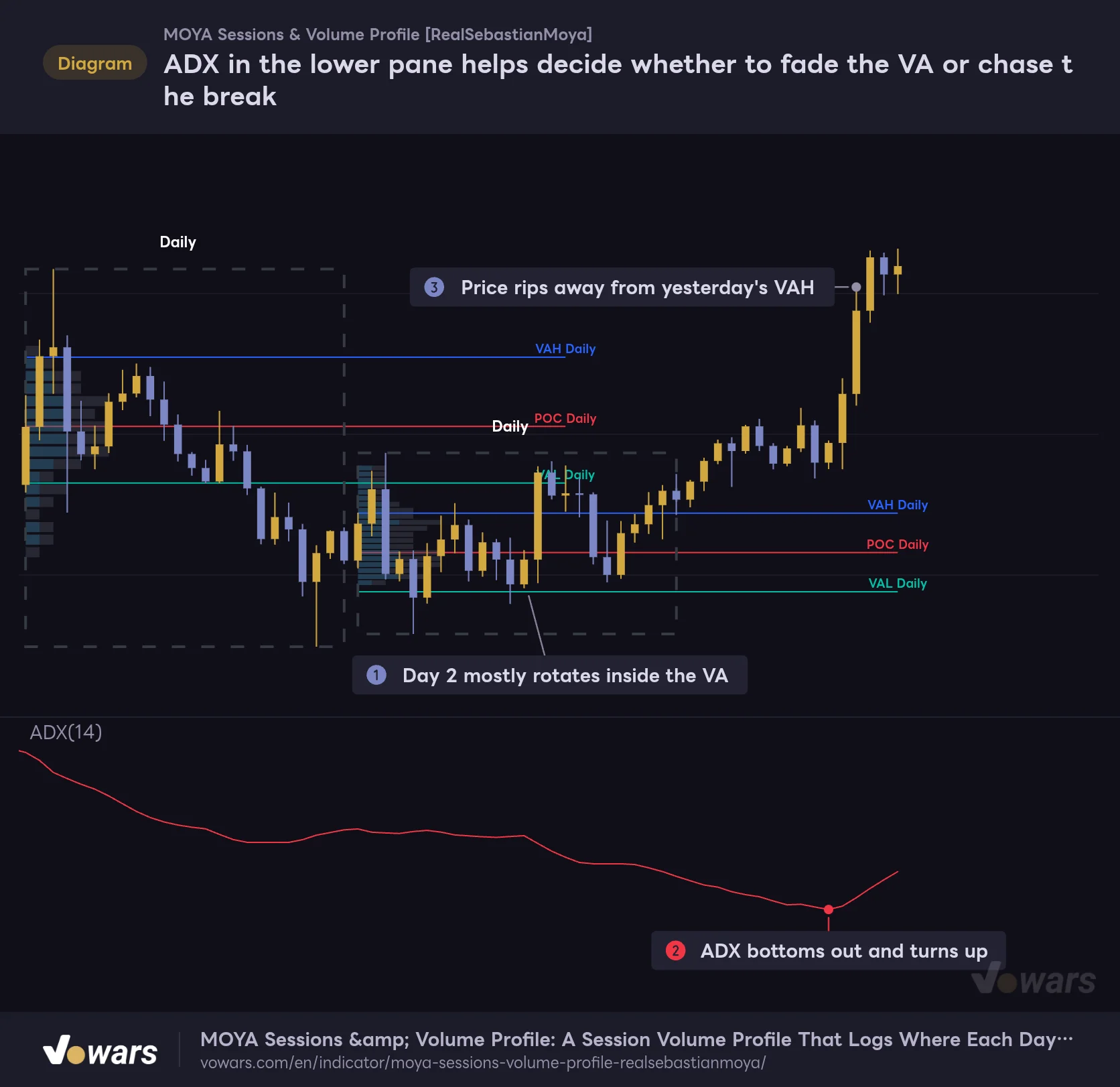
I kept struggling to tell Case 1 from Case 2, so I tried pairing it with TradingView’s built-in ADX (Average Directional Index). ADX shows only trend “strength” on a 0–100 scale: rising means the trend is strengthening, falling means price action is losing direction. It won’t tell you which way, but it pairs nicely as a way to answer the question the profile can’t: “is today a balance day?”
ADX in the lower pane helps decide whether to fade the VA or chase the break
Daily profile (prior-day levels extended 16 bars) paired with TradingView's built-in ADX (14).
Vowars DE ver.3.12.32
As in Figure ①, while ADX keeps falling, price tends to rotate inside the value area, making the VA edges Case 1 fade candidates. Once ADX bottoms and starts turning up in Figure ②, price rips away from yesterday’s VAH as in Figure ③. On days when ADX is rising, treat the VA edge not as a place to fade but as a level to wait for a pullback after the break.
Beyond ADX, these pairings are also worth a try.
- Anchored VWAP (anchored to the session open)…If the volume-weighted average price sits close to the POC, the day is balanced; if they’re far apart, it’s a one-sided day.
- ATR…Compare yesterday’s VA width (VAH − VAL) with ATR to see whether the value area was narrower or wider than usual. Ranges tend to expand after a narrow VA, which makes it a great way to prep for a breakout.
- CVD (Cumulative Volume Delta)…The profile’s blue and gray are estimates based on candle direction. If you want to see the actual buy/sell imbalance, confirming with a CVD-style indicator sharpens the read.
Drawing quirks and limits to know before you use it
Boxes are drawn back in time after the session ends
A closed session’s box, profile, POC, VAH and VAL are drawn on the first bar after the session ends, reaching back to the session’s start. Once locked in, a box never changes, but the boxes you see on historical bars didn’t exist during that day. When you look back and think “price hit the VAH here and reversed,” always check whether that VAH belongs to the prior day or the same day. A same-day VAH only becomes final at the end of that day.
The Live Zone, on the other hand, is cleared and redrawn every time a new bar opens. That’s expected for a developing session, and it doesn’t rewrite anything that’s already confirmed.
Older session profiles disappear automatically
Each row of the profile is made of up to two boxes. With 30 rows in Mode 2, one session uses 60 boxes plus the dashed outline, and the indicator can keep at most 500 boxes in total. As a result, only about the last 8 sessions keep their profiles on the chart; older ones drop off automatically. In my 1H screenshots too, the days at the far left still had their POC and VAH lines but had lost their profile and box. Lines and labels have their own separate limits, so they stick around a little longer.
To keep profiles further back, lower Resolution or switch to Mode 1, which draws only the up-candle side; either reduces boxes per session and lets more sessions stay. HVN/LVN boxes also count toward the 500.
No built-in alerts
“MOYA Sessions & Volume Profile” has no alert conditions built in. If you want a notification when price reaches yesterday’s VAH or POC, the easy route is to draw a horizontal line at the same price with TradingView’s drawing tools and set an alert on that line. You’ll need to redraw it every time the session changes, though.
Other fine print
- If the highest-volume row is the very bottom row of the profile, the POC isn’t displayed. This can happen on days that sell off hard and see heavy volume at the lows.
- Daily, Weekly, Monthly and similar sessions follow the symbol’s own day rollover. On the BTC chart I tested, the boxes rolled over at 00:00 UTC.
- The 1–55 minute and 1–12 hour sessions are counted in UTC time. For example, “5 Hours” splits at 00:00, 05:00, 10:00, 15:00 and 20:00 UTC, so the interval across the day boundary is only 4 hours.
- Volume is purely an estimate of “how much traded in that bar,” distributed by candle shape. It can’t tell you which prices inside the bar actually got filled.
Where it shines
- Plots the prior day’s and prior week’s POC and value area automatically every time, so no more drawing horizontal lines by hand
- 56 session options let you match the session to your timeframe and strategy
- The Live Zone and panel let you track in real time how today’s prices are being accepted
- HVN/LVN carve out the profile’s peaks and valleys using numeric thresholds
- Even on CFD and forex charts, you can build the profile from futures volume
Where it trips you up
- Pick the wrong timeframe and Session Type combo and the profile falls apart
- Built from bars on the current timeframe, so few bars means a coarse profile
- On a dark theme, VAL is invisible in its default color
- Only about the last 8 sessions keep their profiles
- The profile alone can’t tell a balance day from a trend day
For traders who want to set a session and compare yesterday’s levels with today’s acceptance
![MOYA Sessions & Volume Profile [RealSebastianMoya]](https://vowars.com/wp-content/webp-express/webp-images/uploads/2026/10/MOYA-Sessions-Volume-Profile5-1024x506.png.webp) Image
Image“MOYA Sessions & Volume Profile” keeps a running record of “which prices the market accepted,” session by session. It won’t hand you entry timing directly, but having the prior day’s POC, VAH and VAL, levels that plenty of traders are watching, set up automatically every day is a real help.
Getting started takes just three steps. Pick a Session Type that fits your timeframe. Change the VAL color to something you can see. Use Extend Lines Right to carry yesterday’s levels into today. Then use the Live Zone and panel to check: “Is today trading inside or outside yesterday’s value area? If outside, is volume building there?” That alone should let you make decisions from price zones with real backing, instead of horizontal lines drawn on gut feel.
That said, a profile is ultimately a distribution of past trading. The same VAH can reject price or get blown right through, depending on market conditions. I’d recommend combining it with a strength gauge like ADX or a higher-timeframe profile, rather than basing trades on a single line.